Windows 11 update KB5070307 introduces two major improvements aimed at reliability and productivity: Point-in-time Restore for system recovery and Fluid Dictation for smarter voice typing. Both features are part of the latest Windows 11 Insider Preview builds and are designed to reduce downtime while making everyday input smoother and more natural.
What Is Windows 11 KB5070307?
KB5070307 is a Windows 11 Insider Preview update (Build 26220.7271) available in the Dev and Beta channels. It focuses on recovery enhancements, AI-powered input improvements, and usability refinements.
The two most important additions are:
- Point-in-time Restore, a modern rollback option for Windows
- Fluid Dictation, an upgraded voice typing experience
Both features are rolling out gradually with toggle-based availability, so they may not appear immediately on every Insider system.
How to Use Point-in-Time Restore in Windows 11
Point-in-time Restore lets you roll your PC back to a previously saved system snapshot. Unlike traditional System Restore, this method is designed for modern Windows recovery and restores the system as a complete state.
What Gets Restored?
When you use Point-in-time Restore, Windows restores:
- Installed apps
- System files
- System settings
Personal files are preserved, but apps installed after the selected restore point may be removed.
When Should You Use Point-in-Time Restore?
This feature is useful if:
- A Windows update causes boot or stability issues
- A driver update breaks hardware functionality
- A system configuration change causes crashes or errors
- Your PC becomes unstable after a misconfiguration or outage
The goal is to reduce downtime and help you recover faster without reinstalling Windows.
Step-by-Step: Restore Windows to an Earlier Point
Step 1: Open Recovery Settings
- Press Windows + I to open Settings
- Go to System
- Click Recovery
Step 2: Access Point-in-Time Restore
- Under Recovery options, look for Point-in-time Restore
- Select Restore from a previous point
If the option is missing, the feature may still be rolling out and require enabling via a toggle once available.
Step 3: Choose a Restore Snapshot
- Windows displays available restore snapshots
- Select a snapshot created before the issue began
- Review the list of apps and changes that will be affected
Step 4: Confirm and Restore
- Click Confirm
- Your PC restarts automatically
- Windows restores the selected system state
Important: The process may take several minutes, and your PC will restart more than once.
How to Use Fluid Dictation in Windows 11 Voice Typing
Fluid Dictation improves Windows Voice Typing by correcting grammar, punctuation, and filler words automatically as you speak. The processing happens entirely on-device, keeping dictation fast and private.
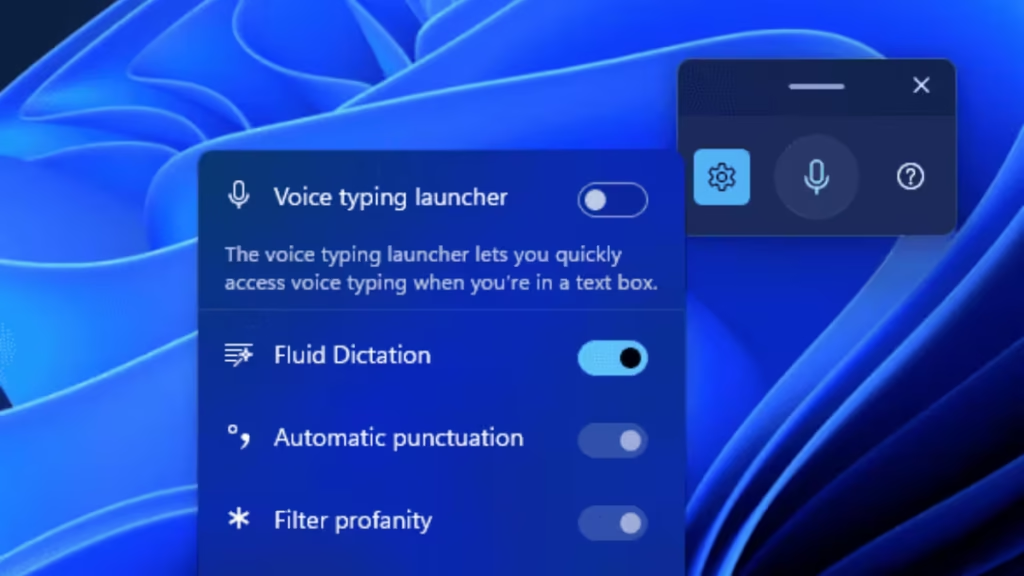
This feature is available on NPU-powered devices and is now integrated directly into standard voice typing.
Requirements for Fluid Dictation
- Windows 11 with KB5070307
- A compatible device with an NPU (Neural Processing Unit)
- Microphone access enabled
Step-by-Step: Start Using Fluid Dictation
Step 1: Place the Cursor in a Text Field
You can use Fluid Dictation in:
- Notepad
- Microsoft Word
- Browsers
- Search boxes
- Any text input field
Step 2: Open Voice Typing
Press Windows + H to open the Voice Typing panel.
Fluid Dictation is enabled by default when available.
Step 3: Speak Naturally
Start speaking normally. You don’t need to say punctuation or formatting commands.
Windows automatically:
- Adds punctuation
- Fixes grammar
- Removes filler words
- Adjusts sentence flow in real time
Example output:
“This update is really helpful. It saves time.”
How to Enable or Disable Fluid Dictation
You can control Fluid Dictation in two ways:
Option 1: From Voice Typing Flyout
- Press Windows + H
- Open the settings icon in the Voice Typing panel
- Toggle Fluid Dictation on or off
Option 2: From Windows Settings
- Open Settings
- Go to Accessibility
- Select Speech
- Toggle Fluid Dictation
If the toggle isn’t visible yet, the feature may still be rolling out to your device.
Should You Install KB5070307?
KB5070307 is a good fit if:
- You want safer recovery options after updates
- You frequently test Windows Insider features
- You rely on voice typing for productivity or accessibility
Since this is an Insider Preview build, it’s not recommended for production or mission-critical systems.
Read More:
- How to Install PowerShell 7 on Windows PC (Windows 10 & 11)
- Fix Please Update Your AMD Radeon Driver Error (Windows 10/11)
- How to Join Private Servers on Roblox PS5: Step-by-Step Console Access Guide
- How to Use pip install requirements.txt
- How to Clear Cache on Xbox Series X
- Codex iOS Executor – How to Install and Use on iPhone
Windows 11 KB5070307 strengthens both system recovery and everyday usability. Point-in-time Restore offers a faster way to recover from system issues, while Fluid Dictation makes voice typing smoother, smarter, and more natural.
If you frequently troubleshoot Windows issues or depend on hands-free input, these features are worth exploring as they continue to roll out.

