If your Windows PC feels slow, shows random pop-ups, or starts acting strangely, running a Microsoft Defender virus scan is the first thing you should do. The problem is that many users simply can’t find where Defender’s scan options are hidden, especially on Windows 11.
This guide explains exactly how to run a Microsoft Defender virus scan, using simple steps anyone can follow. No technical knowledge required.
What Is Microsoft Defender and How It Protects Your PC
Microsoft Defender (also called Windows Defender) is the built-in antivirus that comes free with Windows 10 and Windows 11. It runs quietly in the background and protects your system from viruses, malware, spyware, and ransomware.
Unlike third-party antivirus tools, Defender:
- Comes preinstalled
- Updates automatically
- Works deeply with Windows Security
- Requires no setup or payment
How to Open Microsoft Defender on Windows
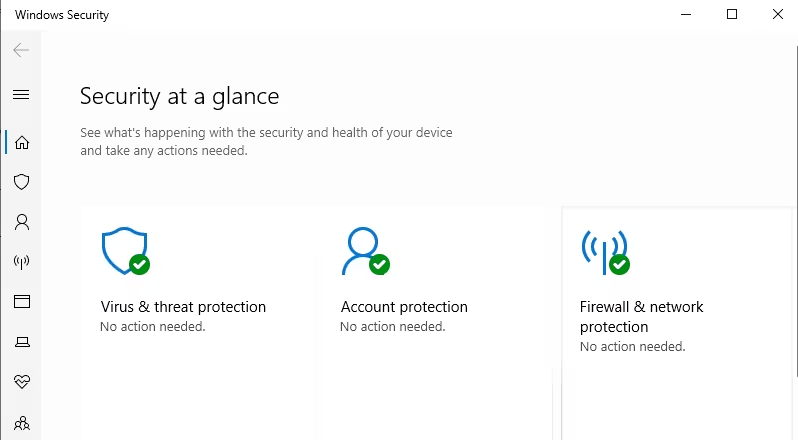
Before running a scan, you need to open Windows Security.
Step-by-step:
- Click the Start button
- Type Windows Security
- Press Enter
- Click Virus & threat protection
You are now inside Microsoft Defender.
How to Run a Quick Microsoft Defender Scan
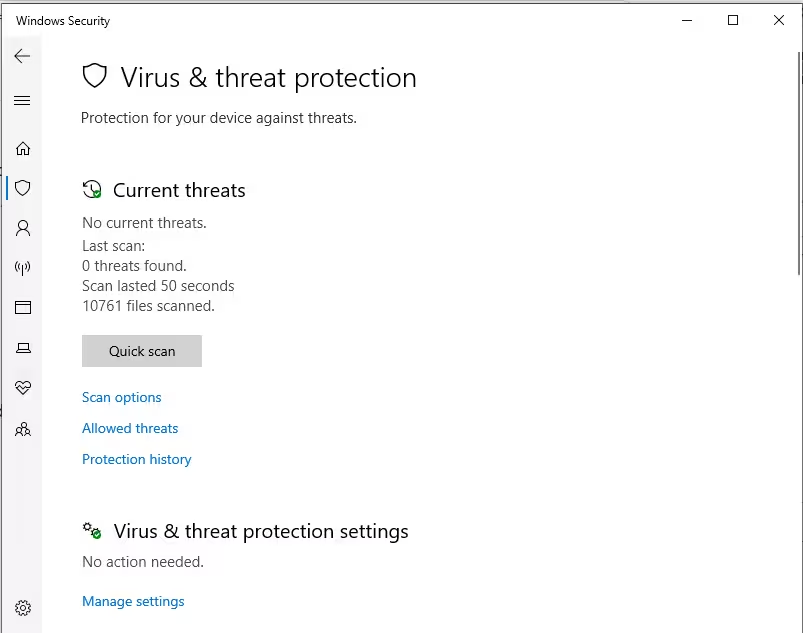
A Quick Scan is the fastest and easiest option. It checks the most common locations where malware hides.
Steps:
- Open Virus & threat protection
- Click Quick scan
The scan starts immediately and usually finishes in a few minutes.
Use this when:
- Your PC seems fine but you want a quick check
- You downloaded something recently
- You just want peace of mind
How to Run a Full Microsoft Defender Scan (Recommended)
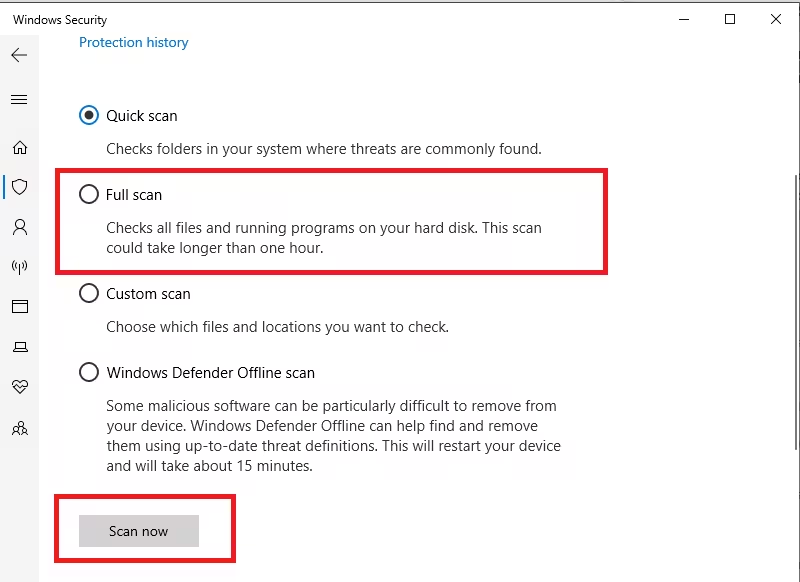
A Full Scan checks every file, app, and drive on your system.
Steps:
- Open Virus & threat protection
- Click Scan options
- Select Full scan
- Click Scan now
This scan can take 30 minutes to over an hour, depending on your storage size.
Use this when:
- PC is slow or overheating
- Apps crash often
- You suspect malware activity
How to Run Microsoft Defender Offline Scan (Serious Threats)
Offline Scan is the strongest scan Defender offers. It restarts your PC and scans before Windows loads, which prevents malware from hiding.
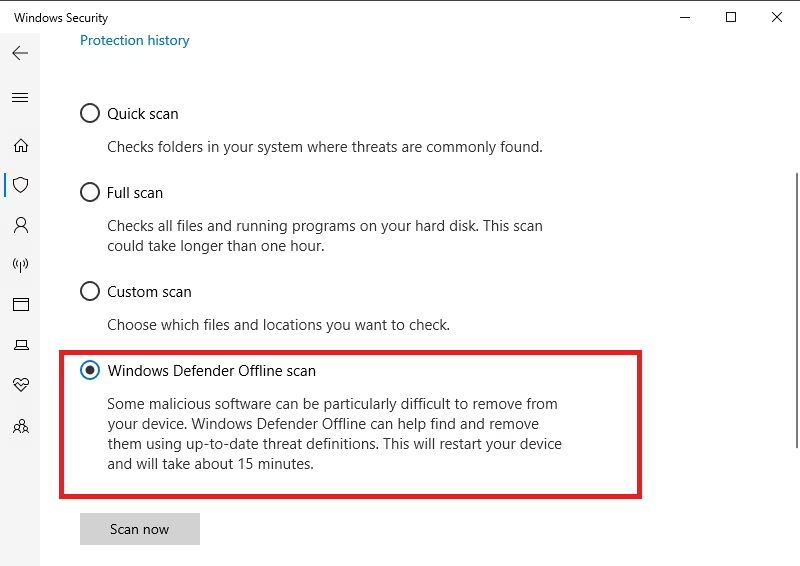
Steps:
- Open Virus & threat protection
- Click Scan options
- Select Microsoft Defender Offline scan
- Click Scan now
- Your PC will restart automatically
Use this when:
- Malware keeps coming back
- Defender can’t remove a threat
- Pop-ups appear before Windows fully loads
How to Scan a Single File or Folder (Hidden but Useful)
If you downloaded one suspicious file, you don’t need a full scan.
Steps:
- Right-click the file or folder
- Click Scan with Microsoft Defender
This is especially useful for:
- ZIP files
- EXE installers
- Files from unknown websites
How to Check Scan Results and Threat History
After any scan, Defender shows the result.
To see details:
- Open Virus & threat protection
- Click Protection history
Here you can see:
- Detected threats
- Quarantined files
- Removed malware
- Allowed items
If Defender finds a threat, click Start actions and let it fix the issue automatically.
What to Do If Microsoft Defender Is Not Working
Sometimes users can’t run a scan because Defender is disabled.
Quick checks:
- Open Virus & threat protection
- Click Manage settings
- Make sure Real-time protection is turned ON
If another antivirus is installed, Defender may be disabled automatically.
Should You Use Microsoft Safety Scanner?
is a separate emergency tool, not part of regular Defender scans.
Use it only if:
- Defender fails repeatedly
- Malware survives offline scans
- You want a second opinion
For most users, Defender alone is enough.
Which Scan Should You Use? (Simple Rule)
| Situation | Best Scan |
|---|---|
| PC feels normal | Quick Scan |
| PC slow or unstable | Full Scan |
| Serious malware signs | Offline Scan |
| Single suspicious file | Right-click scan |
Microsoft Defender is powerful, free, and already built into Windows — but Microsoft doesn’t make its scan options easy to find. Once you know where to look, running a virus scan takes less than a minute.
If your PC behaves oddly, don’t wait. A quick Defender scan can save you hours of troubleshooting later.

