If MSEdgeWebView2.exe is spiking CPU on your Windows PC, an app that embeds web content through Microsoft's WebView2 runtime is almost certainly the trigger. The process itself is legitimate, but bugs, outdated components, corrupted cache, or conflicting extensions can push it into a runaway loop that drains performance.
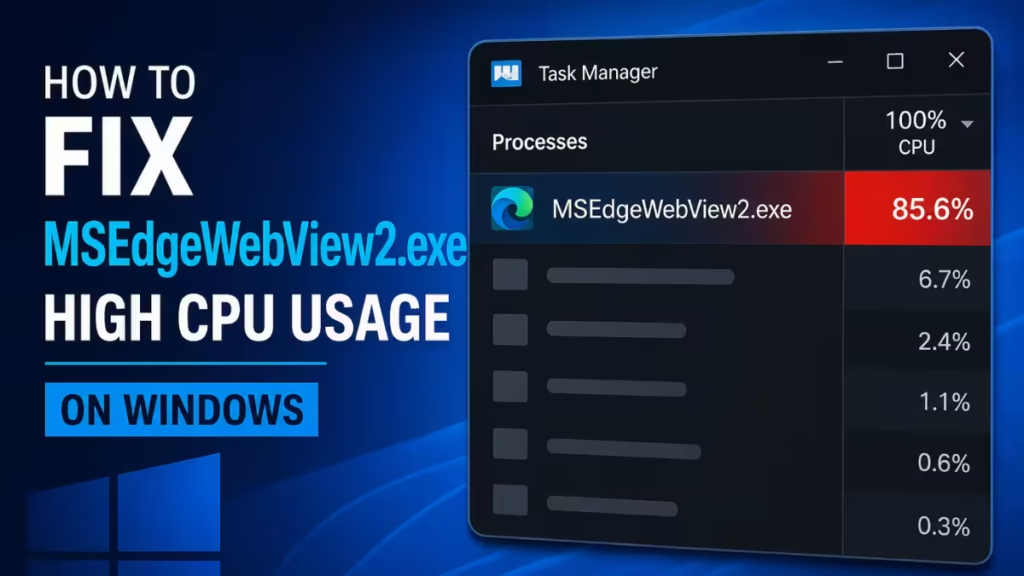
Open Task Manager with Ctrl + Shift + Esc, click the Processes tab, and check whether MSEdgeWebView2.exe consistently holds the top spot in the CPU column. If it does, one of the causes below is responsible, and the fixes here will resolve it step by step.
What Is MSEdgeWebView2.exe?
MSEdgeWebView2.exe is the runtime process for Microsoft Edge WebView2. It lets Windows applications embed live web content directly inside the app window using the Chromium-based Edge rendering engine, so users never need to open a separate browser.
Apps such as Microsoft Teams, Classic Outlook, Visual Studio, Windows 11 Widgets, and a large number of third-party tools built on Electron or .NET MAUI rely on WebView2. Each running instance creates its own set of browser, renderer, and GPU processes, which is why you may see multiple MSEdgeWebView2.exe entries in Task Manager at the same time.
Under normal conditions the process runs silently in the background. High CPU usage signals something specific has gone wrong: a version mismatch, a corrupted cache, an injected extension, or a rendering loop inside the host application.
Common Causes of MSEdgeWebView2.exe High CPU
- Outdated WebView2 Runtime: Older builds contain bugs that newer runtime versions have already fixed. When an app expects newer rendering behavior, the outdated runtime can fall into compatibility loops.
- Corrupted cache or cookies: Accumulated bad cache data forces repeated re-rendering cycles, keeping CPU elevated even when you are not actively using the app.
- Conflicting extensions or injected code: Security tools, password managers, and browser add-ons can inject scripts into the WebView2 context and trigger sustained CPU activity.
- Malware disguised as MSEdgeWebView2.exe: A process running from a Temp or AppData path instead of the official Microsoft installation folder may be malicious.
- Hardware acceleration conflicts: When GPU rendering fails due to driver issues, WebView2 falls back to software rendering, which puts the entire rendering load on the CPU.
- Proxy configuration issues: Misconfigured proxy settings force WebView2 to retry failed network requests repeatedly, creating sustained CPU load.
- Heavy or faulty web content inside the app: Infinite update loops, poorly optimized scripts, or runaway JavaScript inside the embedded page push CPU usage up.
- Multiple redundant WebView2 instances: Running several apps that each spawn their own WebView2 environment simultaneously multiplies the total CPU load.
How to Fix MSEdgeWebView2.exe High CPU Usage
Fix 1: Confirm the Process Is Legitimate
Before spending time on troubleshooting, verify that MSEdgeWebView2.exe is the real Microsoft process.
- Open Task Manager and right-click MSEdgeWebView2.exe.
- Select Open file location.
- The genuine executable lives in:
C:\Program Files (x86)\Microsoft\EdgeWebView\Application\<version>\or a similar path directly under Program Files\Microsoft.
- If the file location points to a Temp, AppData, or Downloads folder, run a full malware scan immediately using Windows Defender or Malwarebytes.
A fake process camouflaging itself as MSEdgeWebView2.exe will consistently consume high CPU and will not respond to any of the runtime fixes below.
Fix 2: Restart the Process in Task Manager
A stuck or glitched instance often clears with a force quit.
- Press Ctrl + Shift + Esc to open Task Manager.
- Go to the Processes tab and find MSEdgeWebView2.exe.
- Right-click and select End Task.
- If multiple instances appear, end each one individually.
- Reopen the application that triggered the spike and watch the CPU column.
If usage drops and stays low, the problem was a one-time glitch. If CPU climbs back to the same level within minutes, continue with the remaining fixes.
Fix 3: Update the WebView2 Runtime
An outdated WebView2 Runtime is one of the most common triggers. Updates patch known rendering bugs and close compatibility gaps between the runtime and the apps that use it.

- Open your browser and go to the official Microsoft Edge WebView2 Runtime download page at
developer.microsoft.com/microsoft-edge/webview2/. - Download the Evergreen Bootstrapper for your system architecture (x64, x86, or ARM64).
- Run the installer. It detects and updates the existing runtime automatically.
- Restart your PC after installation completes.
- Open Task Manager and recheck CPU usage for MSEdgeWebView2.exe.
The Evergreen channel keeps the runtime current automatically going forward, which prevents version-mismatch loops after future app updates.
Fix 4: Update Microsoft Edge
WebView2 shares binaries with Microsoft Edge. When Edge versions match the WebView2 Runtime, required binaries load from memory instead of disk, which improves performance and removes compatibility gaps.
- Open Microsoft Edge.
- Click the three-dot menu at the top right and go to Help and feedback > About Microsoft Edge.
- Edge checks for updates automatically on this screen and installs them.
- Click Restart when prompted.
Fix 5: Run Windows Update
Missing Windows cumulative updates can leave system components in an incompatible state that affects how WebView2 initializes.
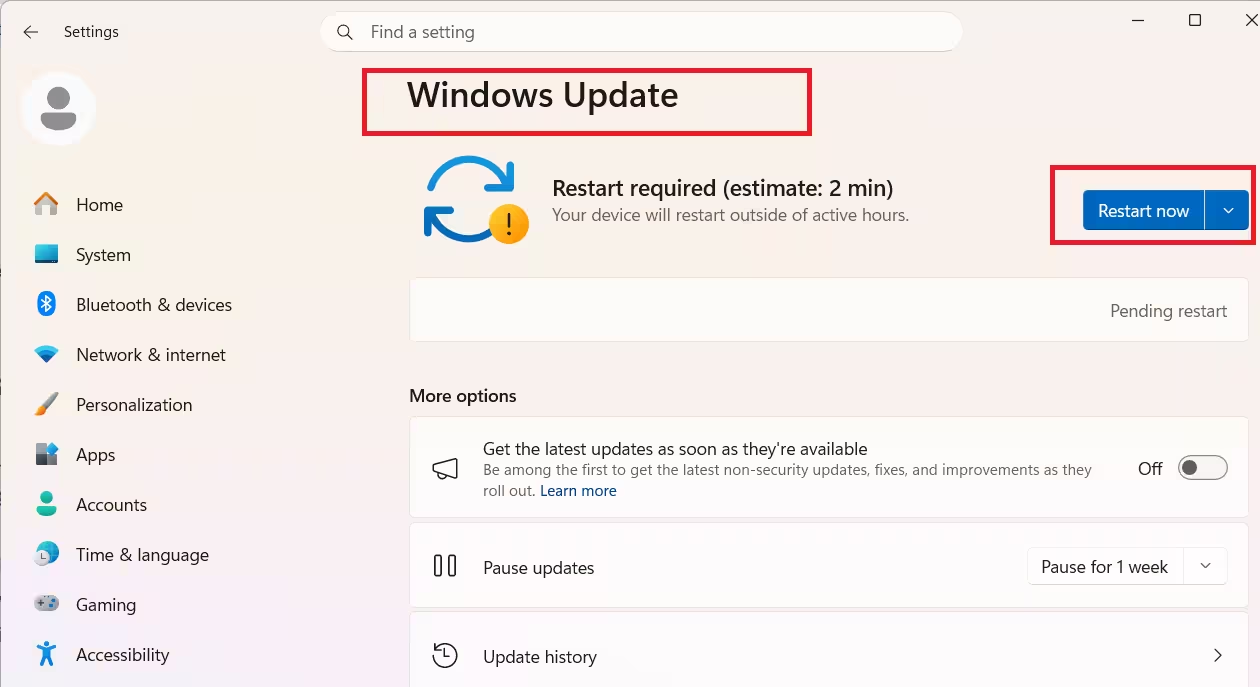
- Open Settings > Windows Update.
- Click Check for updates and install everything listed, including optional updates.
- Restart your PC after installation.
Note that some cumulative updates have themselves introduced regressions in Windows components. If high CPU started right after a Windows Update, check whether rolling back the most recent update resolves it.
Fix 6: Disable Edge Startup Boost
Edge Startup Boost keeps Edge processes alive in the background even after you close the browser window. Those background processes extend into WebView2 instances and consume CPU without any visible app open.
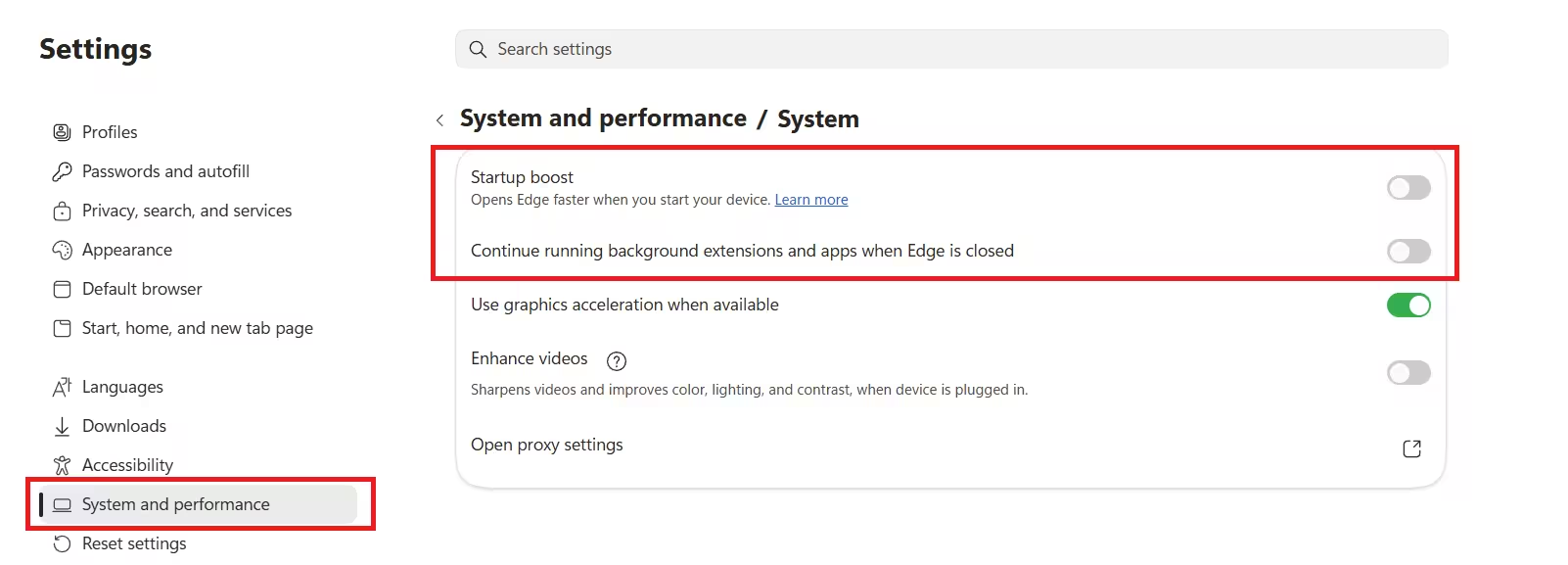
- Open Microsoft Edge.
- Go to Settings > System and performance.
- Toggle off Startup boost.
- Also toggle off Continue running background extensions and apps when Microsoft Edge is closed.
- Restart your PC.
Fix 7: Turn Off Hardware Acceleration in Edge
When GPU-accelerated rendering fails due to a driver conflict or outdated GPU drivers, WebView2 falls back to software rendering. That fallback pushes the entire rendering workload onto the CPU.
- Open Microsoft Edge and go to Settings > System and performance.
- Toggle off Use hardware acceleration when available.
- Click Restart to apply the change.
- Check Task Manager to see whether CPU drops for MSEdgeWebView2.exe.
If it does, update your GPU driver through Device Manager > Display adapters > Update driver, then re-enable hardware acceleration and confirm CPU stays normal.
Fix 8: Clear the WebView2 Cache
A corrupted or oversized cache forces WebView2 to reprocess content that it should load instantly. Clearing it resets the rendering state without harming any system files.
- Close all apps that use WebView2, including Edge, Teams, and Outlook.
- Press Win + R, type
%localappdata%, and press Enter. - Navigate to Microsoft\Edge\User Data\Default.
- Delete the Cache folder and the Code Cache folder.
- Also go to
%localappdata%\Microsoft\EdgeWebViewand delete the cache folders inside it. - Restart the application that was triggering the high CPU and monitor Task Manager.
Deleting cache may log you out of web-based features inside apps that use WebView2. This is expected and resolves after you log back in.
Fix 9: Identify the Parent Application with Process Explorer
MSEdgeWebView2.exe always runs as a child of the app that invoked it. Closing the parent app drops CPU immediately and tells you exactly which app to investigate.
- Download Process Explorer from Microsoft Sysinternals (free, no install needed).
- Open it and locate MSEdgeWebView2.exe in the process tree.
- Expand the entry to see which parent application spawned it.
- Close or restart that specific app.
Common parent applications include Microsoft Teams, Classic Outlook, Visual Studio, Windows 11 Widgets, and third-party tools built on Electron. If Classic Outlook is the parent and performance has been degrading, Classic Outlook running slow in Microsoft 365 covers sync and rendering fixes that address both problems at the same time.
Fix 10: Check for Conflicting Extensions
Extensions injected into Edge or WebView2 contexts can trigger rendering loops. Security tools, password managers, and ad blockers sometimes interact with the Chromium layer in ways that cause sustained CPU activity, especially after Edge or runtime updates.
- Open Microsoft Edge and go to Settings > Extensions.
- Disable all extensions.
- Restart Edge and check MSEdgeWebView2.exe CPU usage in Task Manager.
- Re-enable extensions one at a time and check CPU after each one.
- The extension that restores the spike is the culprit. Update or remove it.
If the CPU spike persists even with all extensions disabled, a security agent installed at the OS level may be injecting into the WebView2 context. Check your endpoint protection software for WebView2 or Chromium interception settings and disable them for testing.
Fix 11: Check Proxy Settings
Misconfigured proxy settings cause WebView2 to attempt repeated failed network connections, which keeps CPU elevated even when you are not browsing. This is a less obvious cause but a consistent one in managed or corporate environments.
- Open Settings > Network & Internet > Proxy.
- Under Manual proxy setup, confirm the proxy address and port are correct.
- If you do not use a proxy, make sure Use a proxy server is toggled off.
- Under Automatic proxy setup, toggle off Automatically detect settings if it causes conflicts.
- Restart the affected application and recheck CPU.
Proxy-related failures in Microsoft apps often cause the same retry-loop behavior seen in other WebView2 scenarios. If you also see a Proxy Authentication Error 2606 in OneDrive on the same machine, the underlying network configuration needs a broader audit.
Fix 12: Run System File Checker and DISM
Corrupted Windows system files can interfere with how WebView2 loads its components. The System File Checker (SFC) and DISM tool repair these files without reinstalling Windows.
- Open Command Prompt as Administrator.
- Run the following command and wait for it to complete:
sfc /scannow - After SFC finishes, run:
DISM /Online /Cleanup-Image /RestoreHealth - Restart your PC and check whether CPU usage drops.
If SFC reports that it found and repaired corrupted files, that was likely a contributing factor to the WebView2 instability.
Fix 13: Repair or Reinstall the WebView2 Runtime
If updates and cache clears have not worked, reinstalling the runtime removes corrupted files at the source.
- Open Settings > Apps > Installed apps.
- Search for Microsoft Edge WebView2 Runtime.
- Click the three-dot menu next to it and select Modify.
- Choose Repair if the option appears.
- If Repair is unavailable, select Uninstall, then download and install the latest Evergreen Runtime from Microsoft's official site.
- Restart your PC after installation.
Fix 14: Reinstall the Application Using WebView2
When the runtime itself is healthy but one specific app keeps spiking CPU, that app's local WebView2 data is likely corrupted.
- Uninstall the problematic app from Settings > Apps > Installed apps.
- Restart your PC.
- Download and install the latest version of the app from its official source or from the Microsoft Store.
- Launch the app and watch Task Manager.
Fix 15: Boot Into Safe Mode to Isolate Third-Party Conflicts
If no individual fix has resolved the problem, Safe Mode confirms whether a third-party service is the root cause.
- Open Settings > System > Recovery.
- Under Advanced startup, click Restart now.
- Select Troubleshoot > Advanced options > Startup Settings > Restart.
- Press 4 to boot into Safe Mode.
- Open Task Manager and watch MSEdgeWebView2.exe CPU usage.
If CPU stays normal in Safe Mode, a third-party service or startup program is interfering with WebView2. Return to normal mode, open Task Manager, go to the Startup tab, and disable all non-Microsoft entries. Re-enable them one at a time until the spike returns to identify the conflict.
How to Prevent MSEdgeWebView2.exe High CPU in the Future
- Keep the WebView2 Runtime on the Evergreen channel. It is a core Windows component that updates alongside Edge. Treating it as optional causes version-mismatch loops after app updates.
- Review Edge policies even if you primarily use another browser. Settings such as startup boost, background apps, and hardware acceleration all influence how WebView2 initializes. Misconfigured Edge policies silently affect every WebView2-based application.
- Audit extensions and injected agents. Unsupported injection methods from security tools or monitoring agents often break after Edge or runtime updates. Test high-impact tools against current WebView2 builds before deploying updates.
- Avoid running redundant WebView2 instances simultaneously. Each app that uses WebView2 spins up its own browser, renderer, and GPU processes. More active instances means more baseline CPU load.
- Monitor CPU trends rather than responding only to acute spikes. Gradual baseline increases in MSEdgeWebView2.exe activity are early warning signs. Catching them early lets you fix the underlying app or policy before users notice slowdowns.
- Document every resolved WebView2 CPU incident. Record the triggering update, the affected application, and the specific fix. When a future Edge or Windows update causes a regression, past records save hours of repeated analysis.
Frequently Asked Questions
Is it safe to end MSEdgeWebView2.exe in Task Manager?
Yes, ending MSEdgeWebView2.exe in Task Manager is safe. It will not harm your system or delete any files. However, the host application that launched it will restart the process automatically, so ending the task is a temporary measure and not a permanent fix.
Why does MSEdgeWebView2.exe use so much CPU when I am not using Edge?
MSEdgeWebView2.exe runs independently of the Edge browser. Apps such as Microsoft Teams, Classic Outlook, and Visual Studio each launch their own WebView2 instance in the background. If any of those apps are open or running background tasks, MSEdgeWebView2.exe stays active and can spike CPU even when you never open Edge.
Can I uninstall Microsoft Edge WebView2 Runtime to stop high CPU?
You can uninstall it, but most modern Windows apps depend on it to function. Removing the runtime will break features or entire applications that rely on WebView2 for embedded web content. Repairing or updating the runtime is always the better fix.
How do I know which app is causing MSEdgeWebView2.exe high CPU?
Download Process Explorer from Microsoft Sysinternals, open it, and find MSEdgeWebView2.exe in the process tree. Expanding the entry shows the exact parent application that spawned it. Closing or restarting that specific app will drop CPU immediately.
Does clearing the WebView2 cache delete any important data?
Clearing the WebView2 cache removes temporary rendering data and stored web content. It will not delete personal files or app settings. You may get logged out of web-based features inside some apps after clearing the cache, but logging back in restores normal access.