If Outlook fails to display the Room Finder pane or shows a blank Suggested Times section while scheduling meetings, the problem usually sits in the Outlook client — not Exchange or permissions. This issue commonly affects Classic Outlook and occurs even when Outlook Web App (OWA) displays rooms correctly.
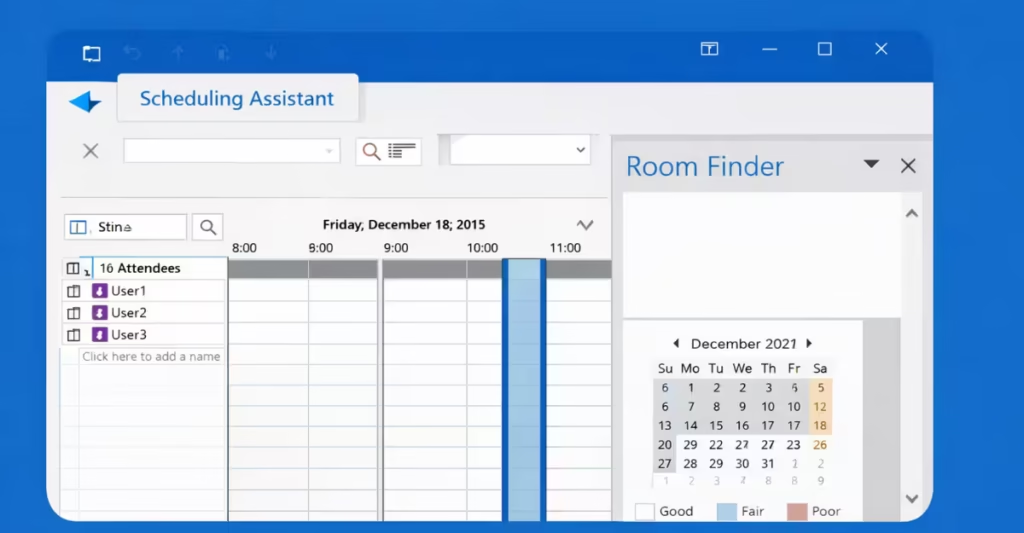
Why Outlook Room Finder Stops Working
Classic Outlook now renders Room Finder using web-based components, even though the app itself is desktop-based. When these components fail, Room Finder loads empty.
The most common causes are:
- A broken WebView2 runtime
- Corrupted Outlook or Teams add-in cache
- Incorrect Room Finder registry flags
- A conflicting Outlook add-in
Because OWA works correctly, Exchange, room mailboxes, and permissions are already fine.
Step 1: Repair Microsoft Edge WebView2 Runtime (Most Important)
Room Finder depends on Microsoft Edge WebView2 Runtime. If WebView2 breaks, Outlook cannot render the Room Finder overlay.
Repair WebView2
- Open Control Panel
- Go to Programs → Programs and Features
- Find Microsoft Edge WebView2 Runtime
- Right-click → Change
- Select Repair
- Restart Windows
After restart, open Microsoft Outlook, create a new meeting, and check Room Finder.
Reinstall WebView2 (If Repair Fails)
- Uninstall Microsoft Edge WebView2 Runtime
- Download the Evergreen WebView2 installer from Microsoft
- Reinstall and reboot
This forces Outlook to re-register its rendering engine.
Step 2: Clear Outlook and Teams Add-In Cache
Room Finder uses cached web data shared with Outlook and Microsoft Teams. Corrupt cache files often cause a blank panel.
Close Outlook Completely
Then delete all contents (not the folders) from:
%LOCALAPPDATA%\Microsoft\Office\16.0\Wef\%LOCALAPPDATA%\Microsoft\MSTeams\%LOCALAPPDATA%\Microsoft\Outlook\Restart Windows after clearing the cache.
Open Outlook and create a brand-new meeting to test.
Step 3: Verify Room Finder Registry Settings
Incorrect registry values can silently disable Room Finder rendering.
Back up the registry before making changes.
Check User Preferences
Open Registry Editor and navigate to:
HKEY_CURRENT_USER\Software\Microsoft\Office\16.0\Outlook\PreferencesEnsure:
RoomFinderShow=DWORD 1RoomFinderForceDisabled=DWORD 0or does not exist
Check Policy Overrides (Common in Managed PCs)
HKEY_CURRENT_USER\Software\Policies\Microsoft\Office\16.0\Outlook\PreferencesIf RoomFinderForceDisabled equals 1, Outlook will never show Room Finder, even if everything else works.
Step 4: Test Outlook in Safe Mode
Safe Mode loads Outlook without third-party add-ins.
- Press Windows + R
- Run:
outlook.exe /safeIf Room Finder works in Safe Mode:
- Disable add-ins one by one
- Focus on calendar, CRM, or meeting tools
Do not permanently disable the Microsoft Exchange Add-in, as it controls Room Finder itself.
Step 5: Rebuild Outlook’s Local Web Profile (Advanced Fix)
If the issue still persists, force Outlook to rebuild its local profile data.
- Close Outlook
- Rename:
%LOCALAPPDATA%\Microsoft\Outlookto
Outlook.old- Reopen Outlook
This resets Outlook’s web rendering state without touching Office or your mailbox.
Why Reinstalling Office Rarely Fixes Room Finder Issues
Office repair or reinstall does not fully reset:
- WebView2 bindings
- Outlook WEF cache
- Per-user web rendering profiles
That is why Room Finder often stays broken after a reinstall.
Best Way to Fix Outlook Room Finder Not Showing
For the fastest fix, follow this order:
- Repair or reinstall WebView2
- Clear Outlook and Teams cache
- Verify registry flags
- Test Safe Mode
These steps resolve most Outlook Room Finder missing and Suggested Times blank issues without reinstalling Office or changing Exchange settings.

