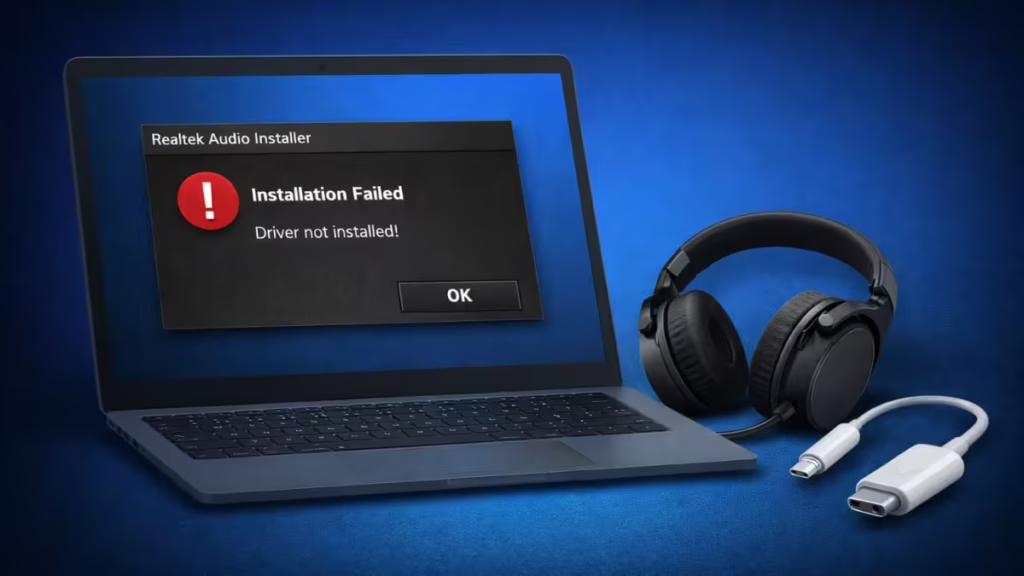
If your Windows 11 PC has no sound from the 3.5mm headphone jack, but USB-C or USB headphones work fine, chances are your Realtek audio driver is missing, blocked, or broken. This issue is especially common on AMD B550 motherboards, including the B550 Gaming X V2, where the Realtek installer may open briefly and then disappear without installing anything.
Why USB Headphones Work but the Audio Jack Doesn’t
USB and USB-C headphones include their own built-in audio controller, so they bypass the motherboard’s Realtek audio chip entirely. The 3.5mm headphone and speaker jacks rely completely on the Realtek driver, so when that driver is missing or blocked:
- Windows does not detect plugged-in headphones
- No sound output appears in settings
- The Realtek Audio Console is missing
This makes it feel like the audio jack is “dead,” even though the hardware is fine.
Step 1: Check Whether Windows Detects Any Audio Hardware
Before installing anything, confirm what Windows sees.
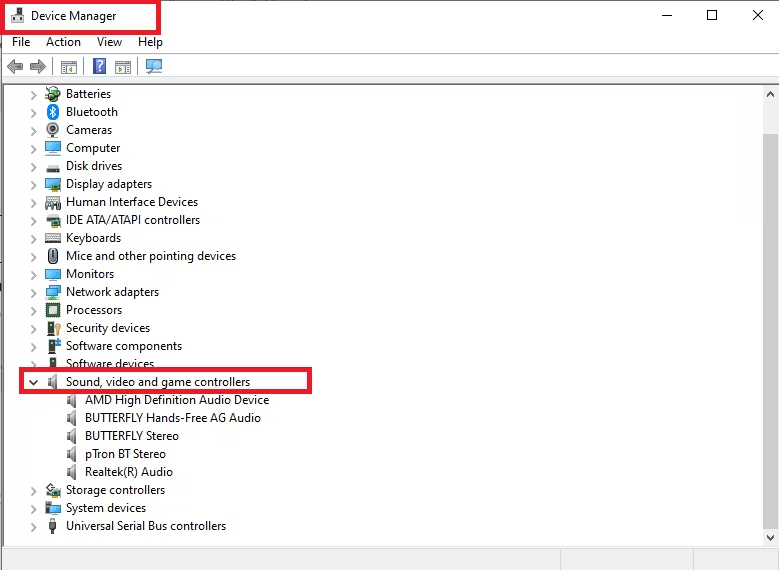
- Press Win + X → Device Manager
- Expand:
- Sound, video and game controllers
- Audio inputs and outputs
Look for:
- Realtek Audio
- High Definition Audio Device
- Unknown device with a yellow warning icon
What this means
- If no audio devices appear in the list, the Realtek audio driver is not installed on your system.
- If an audio device appears with a warning icon, the existing driver is either corrupted or being blocked by Windows.
Step 2: Remove All Existing Audio Drivers (Important)
Leftover or partially installed drivers can prevent Realtek from installing properly.
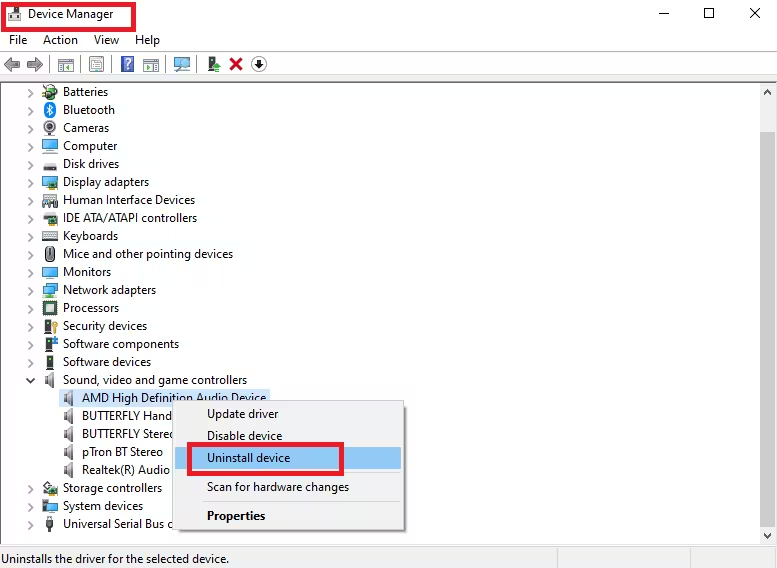
- In Device Manager
- Right-click every audio-related device
- Select Uninstall device
- Check Delete the driver software for this device
- Restart your PC
This clears hidden conflicts that cause the installer to fail silently.
Step 3: Install Realtek Audio via Windows Update (Recommended)
In many cases, Windows 11 already has a compatible Realtek driver, but it does not install automatically. You can force Windows to check for it manually.
How to do it correctly in Windows 11
- Open Settings
- Go to Windows Update
- Click Advanced options
- Scroll down to Optional updates
- Click Driver updates to expand the section
- If you see any of the following, select them:
- Realtek Semiconductor Corp. – Audio
- High Definition Audio Device
- AMD Audio Driver
- Click Download & install
- Restart your PC after installation
After the restart, open Device Manager and check under Sound, video and game controllers to confirm that Realtek Audio now appears.
Note: If no audio drivers appear under Optional updates, Windows Update does not have one for your system. In that case, continue with the manual installation method below.
Step 4: Manually Install the Realtek Driver (If Needed)
If Windows Update does not install the driver:
- Go to your motherboard’s official support page
(Example: B550 Gaming X V2 → Windows 11 drivers) - Download the Realtek Audio Driver
- Right-click the installer → Run as administrator
If the installer window disappears instantly
This usually means Windows Security blocked it.
Temporary fix
- Open Windows Security
- Disable Real-time protection
- Run the installer again
- Restart
- Re-enable protection
This behavior is common with Realtek installers on Windows 11.
Step 5: Verify BIOS Audio Settings
Sometimes audio is disabled at the firmware level.
- Restart your PC
- Enter BIOS/UEFI
- Make sure:
- HD Audio Controller → Enabled
- Front Panel Type → HD Audio (not AC97)
Save changes and reboot.
Step 6: Set the Correct Playback Device
- Right-click the speaker icon → Sound settings
- Under Output, select:
- Speakers (Realtek Audio)
- Click More sound settings
- Right-click Speakers → Set as Default
This ensures Windows sends audio to the correct device.
How to Confirm the Fix Worked
After completing these steps:
- Realtek appears in Device Manager
- Headphones are detected when plugged in
- Sound works from front and rear audio jacks
- Realtek Audio Console opens normally
If USB headphones were your only working option earlier, this confirms the issue was driver-related—not hardware failure.
Why This Issue Is So Common on Windows 11
- Windows 11 aggressively blocks legacy installers
- Realtek drivers are sensitive to partial installs
- USB audio devices hide the problem by working independently
This combination makes the issue confusing, especially on new PCs.
FAQs Realtek Audio Driver Not Installing on Windows 11
Why does the Realtek installer close without errors?
Windows Security often blocks it silently, especially on fresh Windows 11 installs.
Is my motherboard audio jack damaged?
No. If USB audio works, the hardware is almost always fine.
Do I need third-party driver tools?
No. Windows Update or the official motherboard driver is enough.
Can I keep using USB headphones instead?
Yes, but fixing Realtek restores full functionality of all audio ports.
If you frequently troubleshoot PC and gaming issues, our own Fdaytalk Tech guide page regularly shares reliable fixes and updated guides for Windows and game-related problems.

