The Red Screen of Death (RSOD) is one of the rarest but most alarming Windows errors. Unlike the more common Blue Screen of Death (BSOD), the red screen often locks up your entire system and usually points to driver issues, BIOS/UEFI problems, or hardware malfunctions.
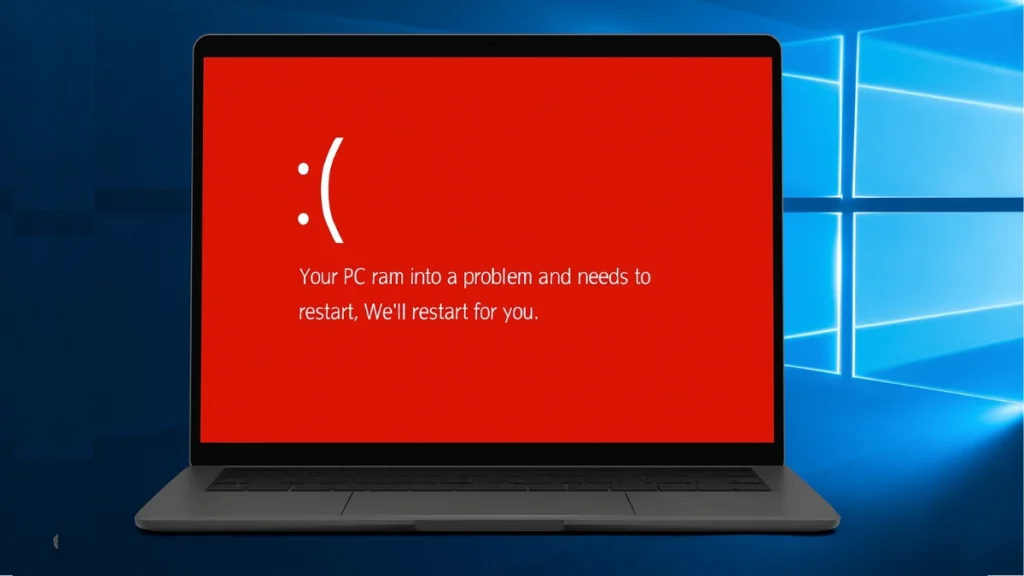
Types of Red Screen of Death You Might See
The red screen does not always look the same. Here are the common variants users report:
- Windows Startup Red Screen: Red screen appears before Windows fully loads, usually caused by incompatible drivers or corrupted files.
- Loading Red Screen: PC freezes on a red screen during the loading phase and will not progress.
- Red Screen with Cursor and Audio: Screen turns red but cursor and audio still work, typically a GPU driver conflict.
- Red Flashes: Screen flickers red repeatedly, most often caused by overclocking instability.
- Red Screen During Games: Red screen appears only under GPU load, pointing to driver issues or thermal throttling.
- Nvidia or AMD Red Screen: Vendor-specific red screens tied to driver conflicts or overclocking on those cards.
What Causes the Red Screen of Death?
Several issues can trigger the Red Screen of Death on Windows:
- Outdated or corrupted graphics drivers
- Overclocking instability (CPU, GPU, RAM)
- Corrupted or incompatible BIOS/UEFI settings
- Hardware failures (GPU, RAM, PSU, overheating)
- Damaged system files or incomplete updates
- Faulty or conflicting display software
1. Disconnect All External Devices
Before anything else, unplug every external device connected to your PC: USB drives, external hard drives, extra monitors, docking stations, and peripherals other than keyboard and mouse.
Some external devices trigger hardware conflicts that cause a red screen. After unplugging, reconnect the power cable and restart. If the red screen does not return, reconnect devices one at a time to find the culprit.
2. Boot into Safe Mode
The red screen may block normal startup, so use Safe Mode for troubleshooting:
- Restart your PC.
- Press F8 (legacy boot on Windows 10) or hold Shift + Restart.
- Go to Troubleshoot > Advanced Options > Startup Settings.
- Select Safe Mode and boot.
Safe Mode loads only essential drivers, which lets you run fixes without the red screen interrupting the process.
3. Update or Reinstall Graphics Drivers
Faulty GPU drivers are the most common cause of the Red Screen of Death.
- Open Device Manager (Win + X).
- Expand Display adapters.
- Right-click your GPU and select Uninstall device.
- Check Delete the driver software for this device and confirm.
- Restart your PC.
- Download and install the latest drivers from the official source for your card:
For AMD: Reinstall Without Catalyst Control Center
If AMD Catalyst Control Center causes issues during installation, install the driver manually:
- Download the latest AMD driver package and run the setup.
- When prompted, extract the files to a folder (note the location) and cancel the automatic install.
- Open Device Manager and expand Display adapters.
- Right-click your AMD GPU and choose Update driver.
- Select Browse my computer for driver software.
- Point to the folder where you extracted the AMD files.
- Check Include subfolders and click Next.
- Restart your PC after installation completes.
4. Remove Overclocking Settings
Overclocking pushes hardware beyond safe limits and is a frequent cause of the red screen error. Reset everything to factory defaults:
- Restart and enter BIOS/UEFI (press Del, F2, or Esc at startup depending on your motherboard).
- Look for Load Optimized Defaults or Load Setup Defaults and select it.
- Go to the AI Tweaker, OC, or Overclocking section.
- Set XMP, DOCP, or EXPO memory profiles to Disabled.
- Press F10 to save and exit.
If you use overclocking software such as MSI Afterburner, Intel XTU, or AMD Ryzen Master, open the app and click Reset to Default, or uninstall the tool entirely.
If disabling overclocking reduces but does not eliminate the red screen under load, consider underclocking your GPU slightly below default speeds using MSI Afterburner. This can stabilize cards that are thermally unstable at stock clocks.
5. Reset or Update BIOS/UEFI
Outdated or corrupted BIOS can trigger the Red Screen of Death directly. Follow these steps carefully:
Step 1: Check your current BIOS version Press Win + R, type msinfo32, and press Enter. Note the BIOS Version/Date in System Summary.
Step 2: Identify your motherboard If the motherboard model is not listed in msinfo32, use CPU-Z to find the brand and model.
Step 3: Download the latest BIOS Visit your motherboard manufacturer’s support page (ASUS, MSI, Gigabyte, ASRock, etc.), select your exact model, and download the latest BIOS file.
Step 4: Prepare a USB drive Format a USB drive to FAT32. Copy the BIOS update file (usually a .CAP or .BIN file) to the root of the drive.
Step 5: Enter BIOS and flash Restart and enter BIOS. Locate the EZ Flash, M-Flash, or Q-Flash utility (the name varies by brand). Select the update file from the USB drive and follow the on-screen prompts.
Step 6: Wait without interruptions The flash process takes a few minutes. Do not turn off the PC or remove power during the update.
Step 7: Reboot and load defaults After the update completes, enter BIOS again and select Load Optimized Defaults before exiting.
Caution: A failed BIOS update can brick your motherboard. Always use the official file from your manufacturer and follow their instructions exactly.
6. Reseat Your RAM
A loose or dirty RAM stick can cause the red screen, especially if the error appears randomly or under memory load.
- Shut down your PC and disconnect the power cable.
- Remove the side panel and locate the RAM sticks.
- Press the retention clips on both ends of each stick and pull it out.
- Gently clean the gold contact strip at the bottom of each stick using a pencil eraser.
- Reseat each stick firmly until the retention clips click into place.
- Reconnect the power cable, replace the panel, and power on.
If you have two RAM sticks, try running with just one installed to isolate a faulty module.
7. Repair System Files
Corrupt Windows files may trigger red screen crashes. Run these commands in Command Prompt (Admin):
sfc /scannowAfter the scan completes, run:
DISM /Online /Cleanup-Image /RestoreHealthReboot after both scans finish.
8. Uninstall softOSD.exe
SoftOSD is a display management application that controls monitor settings outside the operating system. It can conflict with GPU drivers and cause a red screen on certain hardware configurations.
- Open Settings > Apps > Apps & Features.
- Search for softOSD in the list.
- Click the three-dot menu next to it and select Advanced options.
- Click Terminate, then click Uninstall.
Restart your PC and check if the red screen returns.
9. Remove Recently Installed Software
Some apps conflict with GPU drivers and trigger red screen errors after installation:
- Go to Settings > Apps > Installed apps.
- Sort by Date installed.
- Uninstall any programs added around the time the red screen started.
- Use a dedicated uninstaller tool to remove leftover registry entries and files.
10. Test Hardware for Stability
If the red screen appears under heavy load, test individual components to identify failing hardware:
- RAM: Windows Memory Diagnostic (search in Start)
- GPU: FurMark or 3DMark stress test
- CPU: Prime95 stress test
- Temperatures: HWMonitor or MSI Afterburner
If crashes only occur during stress tests, a hardware component may be failing or running too hot.
11. Fix AMD Driver File (atikmdag.sys)
For AMD GPUs, the Red Screen of Death can link to a corrupted atikmdag.sys driver file. Fix it manually:
- Open the AMD driver installation folder and locate the file named
atikmdag.sy_. - Copy it to your Desktop.
- Open Command Prompt as administrator and run:
chdir DesktopThen:
EXPAND.EXE atikmdag.sy_ atikmdag.sys- Navigate to
C:\Windows\System32\Driversand rename the existingatikmdag.systoatikmdag.sys.old. - Move the new
atikmdag.sysfrom your Desktop intoC:\Windows\System32\Drivers. - Restart your PC.
12. System Restore or Reset
If none of the fixes above resolve the red screen issue:
- System Restore: Roll back Windows to a point before the red screen started.
- Reset this PC: Go to Settings > Recovery > Reset this PC and choose Keep my files.
The Red Screen of Death on Windows 10 and 11 is rare but almost always tied to graphics drivers, overclocking, BIOS misconfigurations, or hardware faults. Working through the steps above should resolve most cases.
If the red screen continues after all fixes, the problem likely points to failing hardware such as a GPU, RAM stick, or PSU. Test with spare parts or consult a technician.
Frequently Asked Questions
What is the Red Screen of Death?
The Red Screen of Death is a critical Windows error where the display turns fully red and the system freezes or crashes. It typically signals a serious hardware conflict, driver failure, or firmware-level issue. Unlike the Blue Screen of Death, the red screen rarely displays an error code, which makes it harder to diagnose without working through each possible cause.
Is the Red Screen of Death worse than BSOD?
The Red Screen of Death is generally considered more serious than BSOD. BSOD usually points to a specific stop code that guides the fix. The red screen often provides no error message and is more likely to indicate hardware failure or BIOS corruption rather than a simple driver crash.
Can overclocking permanently cause a Red Screen of Death?
Yes, sustained overclocking beyond safe voltage and temperature limits can permanently damage a GPU, CPU, or RAM. If the red screen started after overclocking, reset all settings immediately and run hardware stress tests to check for damage.
Does a Red Screen of Death mean my GPU is failing?
Not necessarily. The red screen is most commonly caused by outdated or corrupted GPU drivers rather than a physically failing card. Update or reinstall your drivers first before assuming the GPU has failed. If the red screen persists after a clean driver install and hardware stress tests show instability, a failing GPU becomes more likely.

