The SMTP authentication error in Outlook stops you from sending emails and usually appears as a login failure or rejected connection when Outlook tries to reach your mail server. This error is common on Windows 10 and Windows 11 when credentials are wrong, server settings are outdated, or SMTP AUTH is disabled at the organization level.
This guide covers every working fix, from quick credential checks to Microsoft 365 admin settings.
What Is the SMTP Authentication Error in Outlook?
SMTP (Simple Mail Transfer Protocol) handles outgoing mail. When Outlook connects to your mail server to send an email, it must authenticate your identity using your username and password. If that authentication fails, Outlook throws an SMTP authentication error and your email stays in the Outbox.
The error appears in different forms depending on the server:
- "Send test email message: SMTP authentication error"
- "535 5.7.3 Authentication unsuccessful"
- "535 Incorrect authentication data"
- "The server responded: 535 5.7.8 Username and Password not accepted"
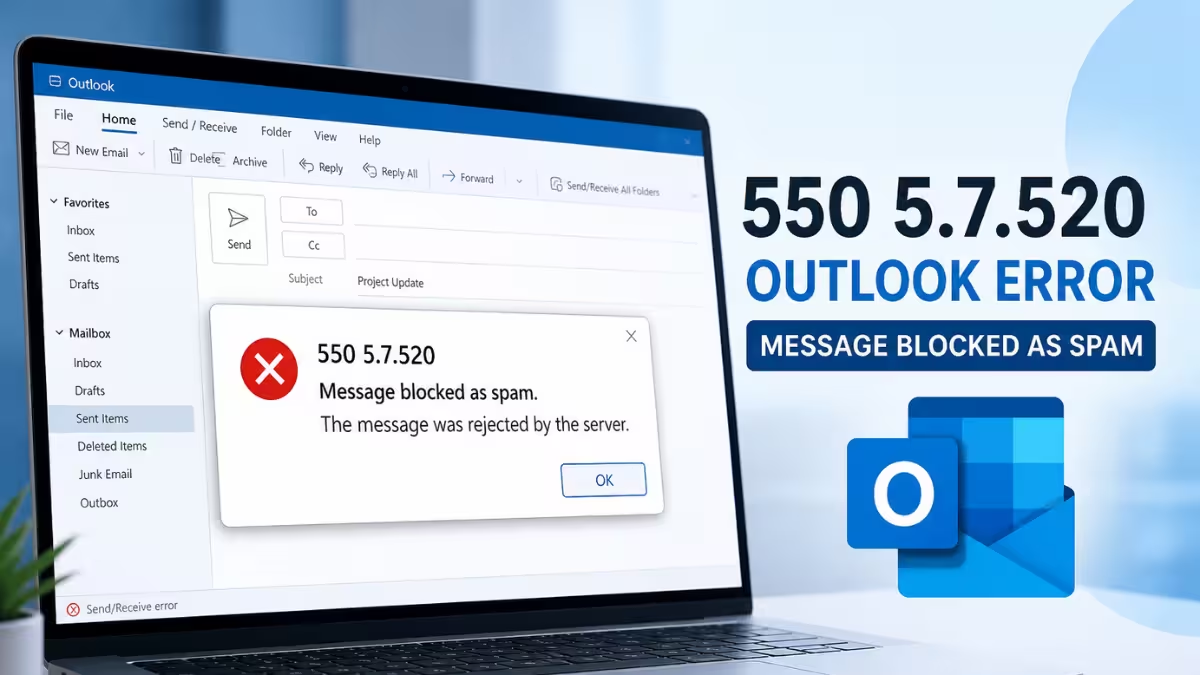
Note that a different error code like 550 5.7.520 when sending emails points to a message blocked as spam, not an authentication failure. Make sure the error you see matches the ones above before following this guide.
Common Causes
- Wrong username or password stored in Outlook account settings
- SMTP AUTH disabled at the organization level in Microsoft 365
- Basic authentication removed from Exchange Online (retired September 2025)
- Incorrect SMTP server address or port number
- Account suspended or restricted by your email provider
- Antivirus or firewall blocking Outlook's outgoing connection on port 587
- Two-factor authentication enabled without an app password configured
How to Fix SMTP Authentication Error in Outlook on Windows 10 and 11
Work through these fixes in order. Most users resolve this within the first three steps.
Fix 1: Check Your Email Credentials
Wrong credentials are the most common cause. Outlook may have saved an old password after a recent account password change.
- Open Outlook and go to File > Account Settings > Account Settings.
- Select your email account and click Change.
- Verify that the email address and password match your current login credentials.
- Click Next to test the connection, then click Finish.
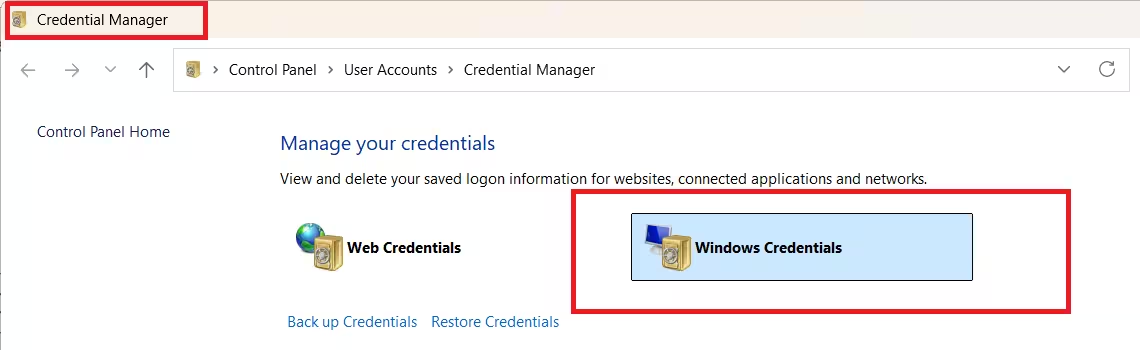
If Outlook keeps prompting for credentials repeatedly, clear the saved credentials from Windows Credential Manager:
- Open Control Panel > Credential Manager > Windows Credentials.
- Find entries that include "Outlook" or your email domain and remove them.
- Restart Outlook and enter your credentials fresh when prompted.
Fix 2: Verify Your SMTP Server and Port Settings
Incorrect server settings cause Outlook to connect to the wrong server or use a blocked port.
For Microsoft 365 and Outlook.com accounts:
| Setting | Value |
|---|---|
| Outgoing server (SMTP) | smtp.office365.com |
| Port | 587 |
| Encryption | STARTTLS |
| Authentication | Yes (same as incoming) |
For Gmail accounts added to Outlook:
| Setting | Value |
|---|---|
| Outgoing server (SMTP) | smtp.gmail.com |
| Port | 587 |
| Encryption | TLS |
To check and update these in Outlook:
- Go to File > Account Settings > Account Settings.
- Select your account and click Change > More Settings.
- On the Outgoing Server tab, confirm My outgoing server (SMTP) requires authentication is checked.
- Select Use same settings as my incoming mail server.
- Click the Advanced tab and match the port and encryption values from the table above.
- Click OK, then Next to run the connection test.
If you see server connection failures at this stage, also check the fix guide for Outlook 0x800CCC0E Error in Windows 11 since that error often shares the same root cause as SMTP failures.
Fix 3: Enable SMTP AUTH for Your Mailbox in Microsoft 365
Microsoft 365 disables SMTP AUTH by default for security reasons. If your organization uses Exchange Online, an admin must enable SMTP AUTH specifically for your mailbox.
Using the Microsoft 365 Admin Center:
- Sign in at admin.microsoft.com.
- Go to Users > Active Users and select the affected user.
- In the flyout panel, click Mail.
- Under Email apps, click Manage email apps.
- Check the box next to Authenticated SMTP.
- Click Save changes.
Allow up to 10 minutes for the setting to take effect before testing again.
Using Exchange Online PowerShell:
If you have admin access, run this command to enable SMTP AUTH for a specific mailbox:
Set-CASMailbox -Identity user@yourdomain.com -SmtpClientAuthenticationDisabled $falseTo confirm the change worked:
Get-CASMailbox -Identity user@yourdomain.com | Format-List SmtpClientAuthenticationDisabledA value of False confirms SMTP AUTH is enabled for that mailbox. A value of True means it is still disabled.
To enable SMTP AUTH for multiple mailboxes at once using a text file:
$Allow = Get-Content "C:\Users\Admin\Desktop\mailboxes.txt"
$Allow | foreach {Set-CASMailbox -Identity $_ -SmtpClientAuthenticationDisabled $false}
The text file should list one email address per line.
Fix 4: Migrate from Basic Auth to OAuth (Exchange Online Users)
Microsoft permanently removed Basic authentication support for SMTP AUTH in Exchange Online in September 2025. If Outlook still uses Basic auth to connect, authentication will fail every time.
You need to switch to OAuth (Modern Authentication).
Check and enable Modern Auth in Outlook:
- Go to File > Office Account > About Outlook and confirm you are on Microsoft 365 Apps or Outlook 2019 and later.
- Close Outlook completely.
- Press Win + R, type
regedit, and press Enter. - Navigate to this path:
HKEY_CURRENT_USER\Software\Microsoft\Office\16.0\Common\Identity - Look for a DWORD value named EnableADAL. If it is set to 0, right-click it and change the value to 1.
- If the value does not exist, right-click the Identity folder, select New > DWORD (32-bit) Value, name it EnableADAL, and set it to 1.
- Close Registry Editor and restart Outlook.
When Outlook launches, it may prompt you to sign in through a browser window. That browser-based sign-in confirms OAuth is now active.
For printers, scanners, and legacy apps:
Older devices and applications cannot use OAuth. For these, Microsoft recommends switching to Direct Send or SMTP Relay via Exchange Online rather than continuing to use SMTP AUTH.
Fix 5: Check If Your Account Is Disabled or Restricted
Email providers sometimes suspend accounts due to suspicious activity, unpaid dues, or spam flags. A suspended account blocks SMTP authentication even when credentials are correct.
Sign in to your email provider's web portal directly (for example, outlook.com or your Microsoft 365 portal). If the account is disabled or shows a restriction warning, follow the account recovery process there.
If your Microsoft account is locked, the guide on how to fix Microsoft account locked out of Outlook and recover your emails covers the full recovery steps.
Some accounts also hit outgoing sending limits silently before showing an authentication error. If you send high volumes of email, check how Outlook blocks emails when a sending limit is active to rule that out.
Fix 6: Temporarily Disable Your Antivirus or Firewall
Security software can intercept Outlook's outgoing connection and block SMTP traffic on port 587. This is especially common with third-party antivirus tools that include email scanning features.
- Open your antivirus or security suite settings.
- Look for an Email Protection, Email Scanning, or SMTP Scanning option and turn it off temporarily.
- Restart Outlook and try sending a test email.
If sending works after disabling the scanner, add Outlook as a trusted exception in your antivirus settings instead of leaving protection disabled.
Windows Defender Firewall can also block outgoing SMTP. To check:
- Open Windows Security > Firewall and network protection > Allow an app through firewall.
- Find Outlook in the list and confirm both Private and Public boxes are checked.
- Click OK and test sending again.
If Outlook shows as disconnected alongside the authentication error, the firewall is a very likely cause.
Fix 7: Re-add Your Email Account in Outlook
If none of the above fixes resolve the issue, a corrupted Outlook profile or account configuration may be causing the error. Removing and re-adding the account resets all settings from scratch.
- Go to File > Account Settings > Account Settings.
- Select the affected account and click Remove.
- Close and reopen Outlook.
- Go to File > Add Account and enter your email address.
- Follow the setup wizard to reconnect.
If you connect via IMAP, the guide on how to add an IMAP email account to Outlook without errors walks through the exact server settings and common setup mistakes.
Fix 8: Generate an App Password (Gmail and Two-Factor Authentication)
If you added a Gmail account to Outlook and two-factor authentication (2FA) is active on your Google account, your regular Gmail password will not work for SMTP. Google blocks basic SMTP access when 2FA is enabled.
Generate an app-specific password instead:
- Go to myaccount.google.com.
- Navigate to Security > 2-Step Verification.
- Scroll down to App Passwords and click it.
- In the dropdown, select Mail for the app and Windows Computer for the device.
- Click Generate and copy the 16-character password shown.
- In Outlook, go to File > Account Settings > Account Settings, select your Gmail account, and click Change.
- Replace your regular password with the app password you just generated.
- Click Next to test the connection, then Finish.
The same applies to Zoho Mail accounts with 2FA enabled. Log in to your Zoho Account Security Settings, navigate to App Passwords, and generate a new password for Outlook.
Frequently Asked Questions
What does SMTP authentication error mean in Outlook?
It means Outlook failed to verify your identity with the outgoing mail server. The server rejected the login attempt and your email cannot be delivered until you fix the authentication issue.
Why does Outlook keep asking for SMTP credentials?
Outlook repeatedly asks for credentials when the saved password is wrong, the account uses two-factor authentication without an app password, or SMTP AUTH is disabled for your mailbox in Microsoft 365.
Is SMTP AUTH still supported in Microsoft 365?
Yes, but only with OAuth (Modern Authentication) as of September 2025. Microsoft permanently retired Basic authentication for SMTP AUTH in Exchange Online. You must use OAuth, or switch to an alternative sending method like Direct Send.
How do I know if SMTP AUTH is enabled for my mailbox?
An admin can run Get-CASMailbox -Identity user@domain.com | Format-List SmtpClientAuthenticationDisabled in Exchange Online PowerShell. A result of False confirms SMTP AUTH is enabled. A result of True means it is disabled.
Can a firewall cause SMTP authentication errors?
Yes. Firewalls and antivirus tools that scan outgoing email can block Outlook's connection on port 587. Temporarily disabling email scanning in your security software confirms whether it is the cause.
Why does my Canon printer or scanner show an SMTP authentication error?
The account you configured on the device may not have permission to send as the sender email address, or the device is trying to use Basic auth after Microsoft retired it. Use Direct Send or configure a dedicated mailbox with SMTP AUTH enabled for that device.