When you try to send an email through Outlook.com and it bounces back with a delivery failure, the full error message usually looks like this:
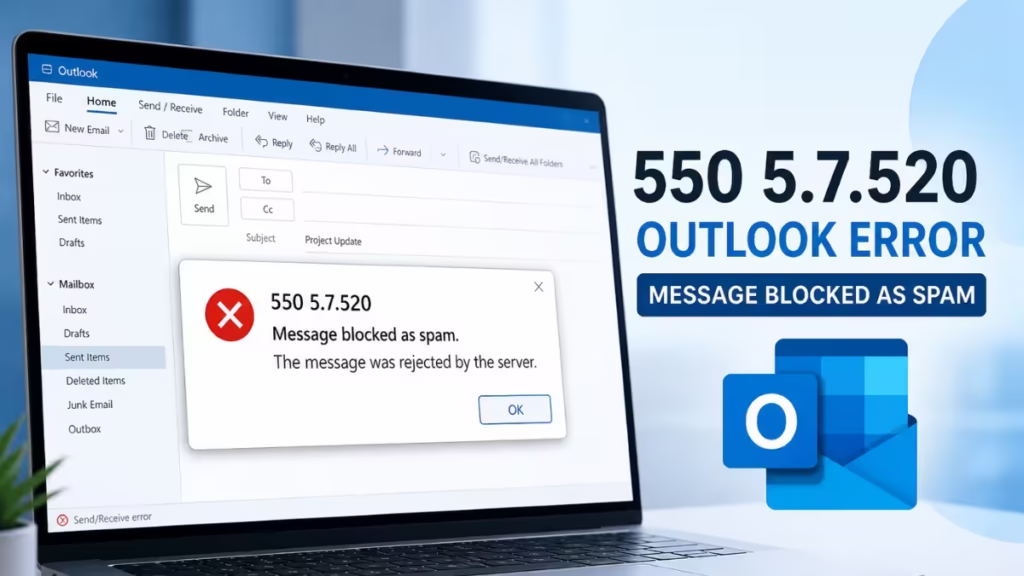
Remote server returned '554 5.7.0 <#5.7.520 smtp;550 5.7.520 Message blocked because it contains content identified as spam. AS(4810)>'This 550 5.7.520 Outlook error fix guide covers every working solution, from switching message format to fixing DNS records for custom domains. The error means Microsoft's outbound spam filter blocked your email before it reached the recipient. It does not mean your account is permanently suspended. In most cases, you can resolve it within minutes.
What Causes the 550 5.7.520 Error in Outlook
Microsoft's anti-spam engine scans every outgoing message and blocks emails that match spam patterns. The AS(4810) code identifies this specific filter. Several things can trigger it:
- HTML formatting with links or images inside the email body
- Spam-like phrases or patterns in the subject or body
- A new Outlook.com account with low sender reputation
- Sending too many emails in a short period
- SPF, DKIM, or DMARC failures for custom domain senders
- Compromised account activity that triggered a temporary restriction
Understanding the cause helps you pick the right fix. Start with the simplest solutions first.
Fix 1: Switch the Email to Plain Text Format
The quickest fix is to change the message format from HTML to plain text. HTML emails with embedded images, links, or styled content often trigger spam filters. Switching to plain text removes all formatting flags.
In New Outlook (Web):
- Open Outlook.com and start a new message.
- Click Options in the message toolbar.
- Select Switch to plain text, then click OK.
- Retype or paste your message without any links or images.
- Send the email again.
In Classic Outlook (Desktop):
- Create a new email.
- Go to the Format Text tab.
- Click Plain Text.
- Finish writing your message and send it.
To set plain text as the default for all new messages in New Outlook:
- Click the Settings gear icon at the top right.
- Go to Mail, then Compose and reply.
- Under Message format, select Plain text.
- Click Save.
If plain text alone does not fix the 550 5.7.520 Outlook error, continue to the next steps.
Fix 2: Remove All Links, Images, and Attachments
Even in plain text mode, certain links or file types can still look suspicious to spam filters. Before sending again, strip the message down completely:
- Remove all hyperlinks from the body.
- Remove inline images or signature logos.
- Remove any attachments and send them separately after the email goes through.
- Avoid shortening services like bit.ly or tinyurl in the body.
Send a bare-text message first. If it delivers successfully, add back your content piece by piece to identify what triggered the block.
Fix 3: Avoid Spam-Trigger Words and Patterns
Spam filters score your email content. Certain words, phrases, and patterns push the score over the threshold and cause the block. Common triggers include:
- Words like "free," "urgent," "winner," "click here," "guaranteed," "limited offer"
- ALL CAPS text in the subject line
- Excessive exclamation marks
- Multiple different font colors or sizes in HTML emails
- A subject line that repeats the same word several times
Rewrite your subject and body to sound natural. Use straightforward language without marketing-style pressure words.
Fix 4: Check Your Outlook Account for Sending Restrictions
Microsoft limits the number of emails free Outlook.com accounts can send per day. If you hit that limit, outgoing emails bounce with delivery failure messages. New accounts face stricter limits until they build sender reputation.
To check your account status:
- Go to Outlook.com and sign in.
- Try sending a short plain-text email to yourself.
- If that also fails, your account may be temporarily restricted.
- Wait 24 hours before trying again. Restrictions often lift automatically.
If you send bulk email or newsletters through Outlook, consider switching to a dedicated sending service. Outlook is not designed for high-volume sending.
If Outlook not sending emails is a recurring pattern across multiple attempts and accounts, the issue may go deeper than the spam filter.
Fix 5: Fix SPF, DKIM, and DMARC for Custom Domain Senders
If you send email from a custom domain through Outlook (for example, yourname@yourdomain.com), the 550 5.7.520 error often points to missing or broken email authentication records.
Starting May 5, 2025, Microsoft began enforcing strict authentication requirements for domains sending over 5,000 emails per day to Outlook.com addresses. Failing these checks routes your mail to junk or blocks it entirely.
Check and fix these three DNS records:
SPF (Sender Policy Framework) Add a TXT record to your domain's DNS that lists which mail servers can send on your behalf:
v=spf1 include:spf.protection.outlook.com -allDKIM (DomainKeys Identified Mail) Enable DKIM signing in your Microsoft 365 or Exchange admin panel. This adds a cryptographic signature to outgoing emails.
DMARC (Domain-based Message Authentication) Add a DMARC TXT record to your DNS:
v=DMARC1; p=none; rua=mailto:dmarc@yourdomain.comStart with p=none to monitor without blocking, then move to p=quarantine or p=reject once you confirm everything works.
DNS changes take up to 48 hours to propagate. After the records go live, test by sending an email to a Gmail address and checking the authentication headers.
Fix 6: Check Microsoft's Postmaster Site
If your domain or IP address has been flagged by Microsoft's systems, check the Outlook Postmaster site to understand your deliverability status:
- Visit sendersupport.olc.protection.outlook.com/pm/Postmaster.
- Review your sender reputation and any active blocks.
- Use the mitigation request form if your IP address appears on a blocklist.
This applies mainly to email administrators and IT professionals managing outbound mail servers. If you send from a personal Outlook.com account, skip to Fix 7.
Fix 7: Contact Microsoft Support
If none of the above fixes resolve the 550 5.7.520 Outlook error, contact Microsoft Support directly:
Option 1: Get Help App (Windows)
- Press Windows + S and search for Get Help.
- Open the app and describe the 550 5.7.520 delivery failure.
- Follow the prompts to submit a support ticket.
Option 2: Microsoft Support Website
- Go to support.microsoft.com/contactus.
- Select Outlook as the product.
- Describe the error and submit a ticket.
Microsoft support can review your account directly and remove blocks that you cannot resolve through settings. Include the full error message text in your ticket.
More Outlook Errors to Know
If you see other Outlook send or receive errors alongside the 550 5.7.520 block, these guides cover common ones:
- Outlook 0x800CCC0E Error in Windows 11 (Fix for Outlook 365) covers server connection failures during Send/Receive.
- Outlook Error 0x800CCC92 Fix explains login rejected errors that block sending.
- The Outlook HTTP 400 Error appears when Outlook Web App sends a bad request to Microsoft servers.
FAQs
What is the Outlook 550 5.7.520 message blocked error?
The Outlook 550 5.7.520 message blocked error means Microsoft's outbound spam filter rejected your email before delivery. The filter detected content in your message that matched spam patterns. Switching to plain text format or removing links and images usually clears the block immediately.
Why does Outlook keep blocking my outgoing emails as spam?
Outlook blocks outgoing emails when the message contains HTML formatting, embedded links, inline images, or spam-trigger words. New Outlook.com accounts with low sender reputation and custom domains missing SPF, DKIM, or DMARC records also trigger the 550 5.7.520 block regularly.
Does the 550 5.7.520 error mean my Outlook account is banned?
No. The 550 5.7.520 error is a content-based block, not a permanent account ban. Your account stays active and you can send again once you fix the message format or content. Only repeat violations or compromised account activity lead to account-level restrictions.
How do I fix the 550 5.7.520 error on Outlook.com without contacting support?
Open your email, switch the format to plain text, remove all links and inline images, avoid spam-trigger words in the subject and body, then resend. This resolves the 550 5.7.520 message blocked error in most cases without needing to contact Microsoft support.
What does AS(4810) mean in the Outlook delivery failure message?
AS(4810) is the identifier Microsoft uses for its outbound content spam filter. When this code appears in the delivery failure, it confirms the block came from message content scanning, not a server issue or recipient-side rejection.