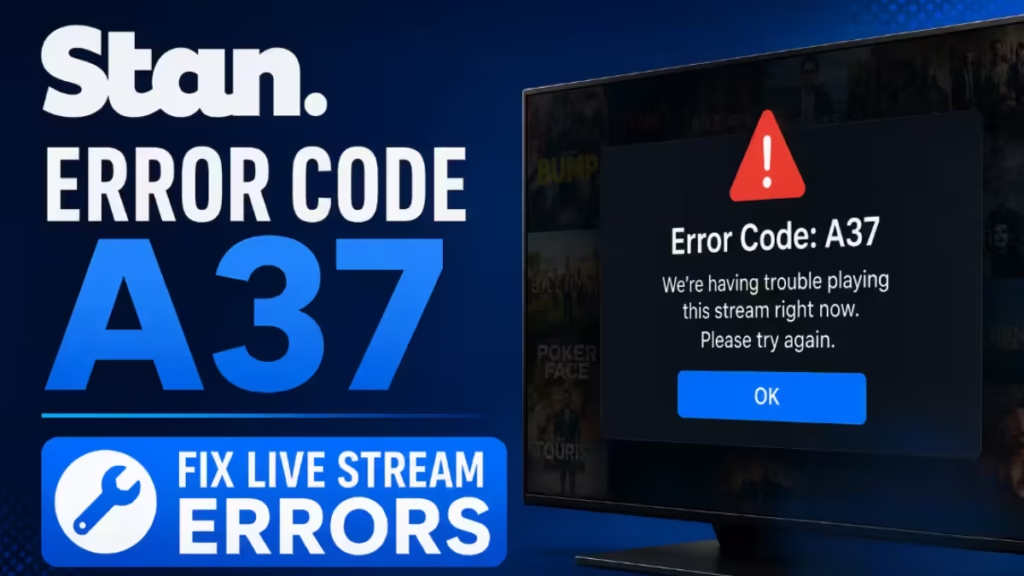
Stan error code A37 appears when the app fails to play a video on your device. Unlike most A-series errors that point to your internet connection or cache, A37 also shows up during live events when the problem originates from Stan's own streaming infrastructure rather than your device. Multiple viewers have reported receiving A37 simultaneously during long broadcasts such as the 2026 WEC 24 Hours of Le Mans, and Stan responded by spinning up a replacement stream. That pattern matters because it changes how you fix it. A router reboot will not bring back a dead live stream that Stan killed on their end. This guide covers both scenarios: A37 during a live event and A37 during regular on-demand playback.
Stan Error Code A37
Error A37 belongs to Stan's A-series of codes, and all A-series codes flag a video playback failure. A37 specifically signals that the app loaded but the stream did not. During live events, A37 can indicate that Stan's broadcast feed or streaming infrastructure dropped, affecting many viewers at the same time rather than just your connection. During on-demand playback, A37 typically points to a local issue: a slow connection, a stale cache, an outdated app, or an active VPN blocking the stream.
How to Fix Stan Error Code A37 During a Live Event
If A37 hit while watching a live match, race, or broadcast, the fix flow is different from standard on-demand troubleshooting. When A37 appears during a live event, do not tap the retry button on the error screen. That button tries to reload the broken stream link, which will not work if Stan has already moved to a new feed.
Follow these steps in order:
Step 1: Back out of the player completely
Exit the broken video player entirely and return to the Stan or Stan Sport home screen. Do not press retry.
Step 2: Force close the Stan app
Close Stan from the background, not just the player.
- Smart TV or Apple TV: Force quit the app (steps below under device-specific section).
- Web browser: Perform a hard refresh with Ctrl + Shift + R on Windows or Cmd + Shift + R on Mac. If that fails, close the tab fully and reopen it.
- Phone or tablet: Swipe Stan away from the recent apps tray.
Step 3: Look for a continuation stream tile
When a live broadcast drops, Stan typically publishes a new tile on the homepage for the replacement feed. Look for a tile labeled with the next segment, for example "Part 7" or "Final Hour." Select that tile rather than the original event link.
Step 4: Switch devices and cast if the tile will not load on your TV
If the new stream tile refuses to play on your smart TV, open the Stan app on your phone or tablet instead. Once the stream loads on your mobile device, cast it to your TV using Chromecast or AirPlay. This bypasses a frozen app state on the TV without needing a full reinstall.
Step 5: Check for a Stan outage before doing anything else
If A37 appeared at the same moment for multiple people in your household or you see reports on X (formerly Twitter) that other viewers got the same code during the same event, the fault sits with Stan, not your network. A router reboot and a cache clear will not restore a stream that Stan took offline. Wait a few minutes and check the Stan homepage for a new broadcast tile before troubleshooting your own setup.
How to Fix Stan Error Code A37 During On-Demand Playback
If A37 appears while watching a standard movie or TV show, the cause is almost always on your side. Work through these fixes in order and test playback after each one.
1. Test your internet with another app
Open Netflix, YouTube, or Prime Video. If those platforms also buffer or fail, the problem is your internet connection, not Stan.
2. Restart the Stan app
Close Stan fully and reopen it. On a phone or tablet, swipe it away from the recent apps tray. On a smart TV or streaming box, exit to the home screen before relaunching.
3. Power cycle your modem, router, and device
Unplug your modem, router, and streaming device from the wall. Wait a full 60 seconds before plugging them back in. Let the router fully reconnect before switching your device on and opening Stan.
4. Clear the Stan app cache
- Android phone, tablet, or Android TV: Go to Settings, open Apps, select Stan, tap Storage, then tap Clear Cache.
- iPhone or iPad: iOS does not expose an app cache button. Delete the Stan app and reinstall it from the App Store.
- Smart TV or streaming box: Uninstall Stan from the app settings and reinstall it from your device's store.
5. Disable any VPN, proxy, or custom DNS
Stan only streams inside Australia and actively blocks proxy and VPN connections. Turn off your VPN app, disable any proxy settings, and switch back to your ISP's default DNS. Reconnect to your normal network, then relaunch Stan.
6. Update the Stan app
Open your device's app store, search for Stan, and install any pending update. An outdated app version often breaks playback after Stan updates its delivery infrastructure.
7. Update your device firmware or operating system
Old firmware on a smart TV, console, or streaming stick stops modern streams from loading. Check for a system or firmware update in your device settings, install it, restart the device, and reopen Stan.
8. Reduce simultaneous streams
Stan caps how many devices can stream at once based on your plan. Stop playback on other phones, TVs, and computers on your account, then retry on the device showing A37.
9. Close background apps and disconnect secondary screens
A second display or a resource-heavy background app can interrupt the player. Close other apps, disconnect any external screen you do not need, and relaunch Stan.
10. Reinstall the Stan app
If nothing above worked, delete Stan and install a fresh copy from your device's store. Sign back in with your Stan email and password. A clean install replaces any corrupt files that a cache clear misses.
Device-Specific Cache Clear and Force Close Steps
Samsung Smart TV
Old cached data on a Samsung TV causes indefinite buffering or a frozen A37 screen.
- Press the Home button on your remote.
- Navigate to Settings.
- Go to Support, then select Device Care.
- Select Manage Storage.
- Scroll to Stan, select View Details, then tap Clear Cache.
If Device Care is greyed out, open the Samsung TV Plus app briefly and then return to the settings menu. To fully reset the app, select Clear Data instead of Clear Cache. You will need to sign back into Stan after doing this.
Apple TV
Apple TV has no dedicated cache clear button. Force-close the app instead to dump its temporary memory.
- Double-click the TV / Control Center button on your Siri Remote to open the App Switcher.
- Swipe left or right on the clickpad to find the Stan app window.
- Swipe up on the clickpad to force-close Stan.
- Press the Back button to return to the home screen.
- Reopen Stan to start a fresh connection.
Web Browser
Update the browser to the latest version. Clear your cache and browsing history from the browser settings, then open a private or incognito window and try the same title. Confirm no browser extension blocks the stream.
Game Console (Xbox or PlayStation)
Restart the console fully (not rest mode). Check for a system software update. If A37 persists, uninstall the Stan app and reinstall it from your console's store.
When to Contact Stan Support
Contact Stan support if A37 stays after a full reinstall and a router reboot, or if the error hits across multiple devices on the same account. Before you contact them, check X (Twitter) for reports from other viewers. If a live event outage caused the error, Stan typically restores or replaces the feed and a support ticket can speed up that process.
When you contact Stan, include the following:
- The exact error code (A37).
- The device model and operating system version.
- The title or event you tried to watch.
- The exact time the error appeared.
Stan error code A37 covers two different situations. During a live event, exit the broken player, force-close the app, and look for a new broadcast tile on the Stan homepage rather than retrying the dead stream. During on-demand playback, a connection check, a 60-second power cycle, a cache clear, and an app update fix the error in most cases. Contact Stan support if the error follows you across devices or if a live stream replacement tile never appears.