If your Tesla shows “Playback Error” or “License Error” while using Spotify or Apple Music, the car fails to verify your streaming subscription. The system blocks playback until it confirms your license with the service provider.
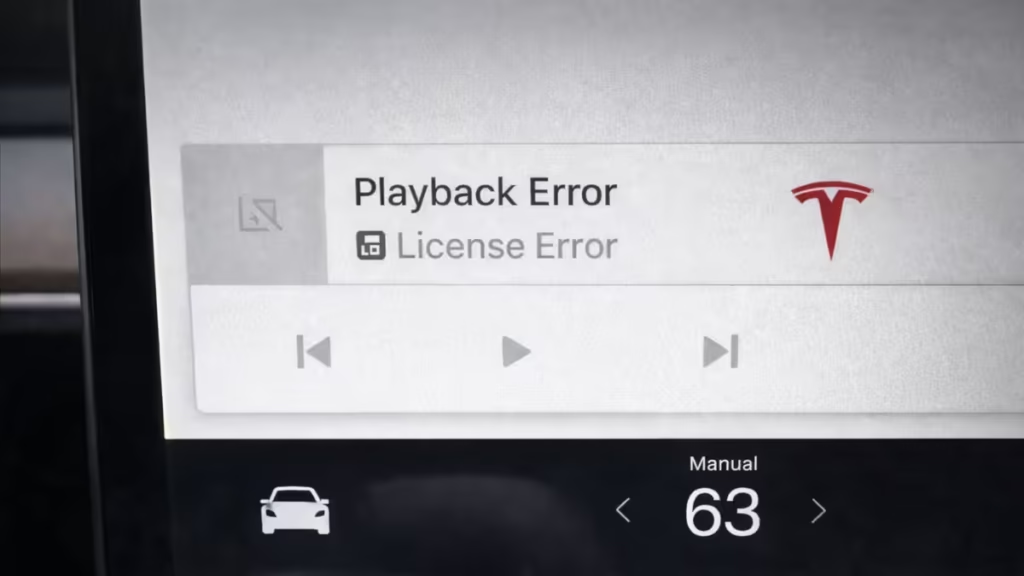
This issue usually appears after a software update, weak internet signal, or account session glitch. However you can fix it in minutes.
Why Tesla Shows Playback Error / License Error
Tesla’s built-in streaming apps check your subscription license every time you play music. If that verification fails, playback stops.
This happens when:
- Internet connection drops or becomes unstable
- Tesla loses authentication token for Spotify or Apple Music
- Tesla software contains a streaming bug
- Your streaming account is active elsewhere
- The car wakes from sleep before LTE fully reconnects
Now let’s fix it.
Step 1: Reboot Tesla Infotainment System (Most Effective Fix)
This solves the issue in most cases.
How to reboot Tesla screen:
- Put the car in Park
- Press and hold both steering wheel scroll wheels
- Hold until the screen turns black
- Wait for the Tesla logo to appear
This restart refreshes media apps and clears temporary license validation errors.
Test Spotify or Apple Music again after reboot.
Step 2: Log Out and Log Back Into Streaming App
If reboot doesn’t fix it, refresh your account session.
For Spotify or Apple Music:
- Open the app on Tesla screen
- Go to settings
- Select Log Out
- Log back in using QR code or credentials
This forces Tesla to revalidate your streaming license.
Step 3: Check Internet Connection
Tesla streaming requires stable LTE or Wi-Fi.
What to check:
- Look at the top signal bars on the screen
- If signal is weak, move location or connect to Wi-Fi hotspot
- Wait 1–2 minutes after the car wakes up before playing music
License errors often occur when LTE hasn’t fully reconnected.
Step 4: Install Tesla Software Updates
Tesla fixes streaming bugs through OTA updates.
To check for updates:
- Tap Controls
- Tap Software
- Install any pending update
After installation, restart the screen again and test playback.
Step 5: Close and Reopen Media App
Sometimes the media app itself freezes.
- Switch to another audio source (Radio or Bluetooth)
- Then switch back to Spotify or Apple Music
- Try playing a different track
This refreshes the playback session.
Step 6: Check Streaming Account Limits
If your Spotify Premium account streams on multiple devices, Tesla may fail license verification.
Fix:
- Stop playback on all other devices
- Log out everywhere
- Log back in only on Tesla
This resets active session limits.
Temporary Workaround
If nothing works immediately:
- Use Bluetooth streaming from your phone
- Connect to mobile hotspot
- Wait for Tesla server sync (sometimes issue is server-side)
When to Contact Tesla Support
Contact Tesla service if:
- Error continues after reboot and re-login
- Software is fully updated
- Other streaming apps also fail
You can schedule service from the Tesla mobile app.
Tesla Playback Error License Error usually comes from a temporary authentication or connectivity glitch. A screen reboot and account re-login fix the issue in most cases.

