Forgetting your Windows password can lock you out of your system, but you still have several ways to reset it. The exact method depends on how you sign in—either with a Microsoft account or a local account.

This guide covers all working methods to reset your Windows password quickly, whether you are locked out or still logged in.
What Type of Account Are You Using?
Before you start, identify your account type:
- Microsoft Account → Email-based login (Outlook, Gmail, etc.)
- Local Account → Username only (no email)
Your reset method depends on this.
Method 1: Reset Microsoft Account Password (When Locked Out)
If you use a Microsoft account, this is the easiest method.
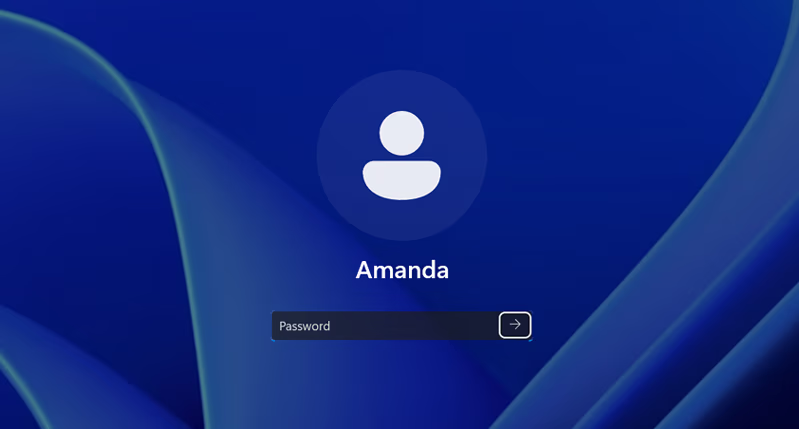
Steps:
- On the Windows login screen, click “I forgot my password”
- Enter your Microsoft email
- Verify your identity using:
- OTP (email or phone)
- Authenticator app
- Create a new password
- Sign in with the new password
You can also reset it directly from a browser using Microsoft’s official reset page .
Method 2: Reset Password Using Web Sign-in Option
If your device supports it:
Steps:
- On the login screen, click Sign-in options
- Select Web sign-in
- Log in using your Microsoft account
- Choose Forgot password
- Follow the verification steps
This method works well when your PC is connected to the internet.
Method 3: Change Password from Settings (If You’re Logged In)
If you still have access to your PC, reset your password from Settings.
Steps:
- Open Settings
- Go to:
- Accounts → Sign-in options
- Click Password → Change
- Enter your current password
- Set a new password
If you forgot the current password, select “Forgot my current password” and verify your account .
Method 4: Reset Password Using PIN (If Available)
If you remember your PIN but forgot your password:
Steps:
- Log in using your PIN
- Go to Settings → Accounts → Sign-in options
- Select Password → Change
- Reset your password
This is useful for users who rely on PIN login.
Method 5: Reset Local Account Password (From Login Screen)
If you use a local account:
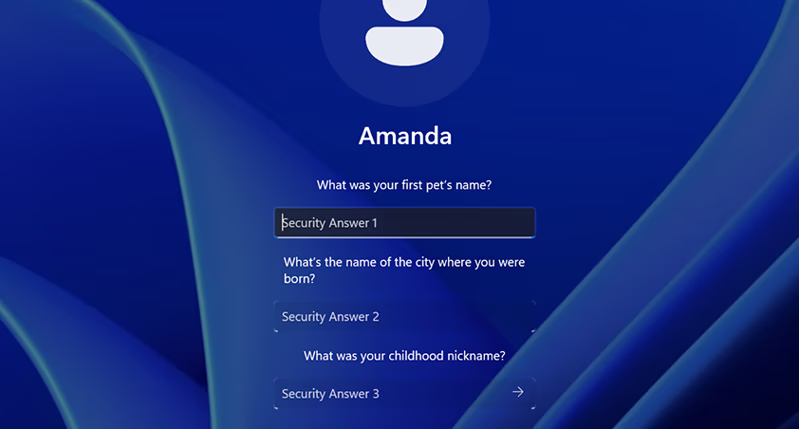
Steps:
- On the login screen, click the arrow next to the password field
- Click Reset password
- Answer your security questions
- Enter a new password
You must answer the questions correctly to proceed .
Method 6: Reset Password Using Another Admin Account
If another administrator account exists on the PC:
Steps:
- Log in with the admin account
- Open Computer Management
- Go to:
- Local Users and Groups → Users
- Right-click your account
- Click Set Password
- Enter a new password
This method works instantly without verification steps.
Method 7: Use Password Reset Disk (If Created Earlier)
If you created a reset disk before forgetting your password:
Steps:
- Insert the reset disk
- Click Reset password on the login screen
- Follow the wizard instructions
- Set a new password
Method 8: Reset Your PC (Last Option)
If nothing works, reset your system.
Steps:
- On login screen, click Power
- Hold Shift + Restart
- Select:
- Troubleshoot → Reset this PC
- Choose:
- Keep files (recommended)
- Remove everything (full reset)
This removes account restrictions but may delete apps.
What to Do If Reset Fails
If none of the password reset methods work, the issue usually comes down to account verification or system limitations. Your recovery details may be outdated, your PC might not be connected to the internet, or your security answers could be incorrect. When these checks fail, Windows will not allow access for security reasons. In this situation, resetting your PC becomes the only reliable solution to regain access.
Before You Reset Your Password: Important Tips
- Microsoft cannot recover your old password directly
- Always keep recovery options updated (email, phone)
- Create a password reset disk for future safety
FAQs
How do I reset my Windows password without logging in?
Use the “I forgot my password” option on the login screen or reset it through Microsoft’s website.
Can I reset Windows password without email or phone?
Only for local accounts using security questions or admin access.
What happens if I forget both password and PIN?
You must verify your Microsoft account or reset your PC.
Is it possible to bypass Windows password?
No official method exists; you must use recovery or reset options.
Will resetting my PC delete files?
It depends on your choice—“Keep my files” preserves data, while full reset removes everything.

