The Outer Worlds 2 builds on the charm of its predecessor with deeper combat, better visuals, and sharper controls. Whether you’re exploring alien planets or negotiating with corporate overlords, knowing your keybinds is essential for smooth navigation and survival. Below is a full list of PC and controller keybinds so you can jump right into action without missing a beat.
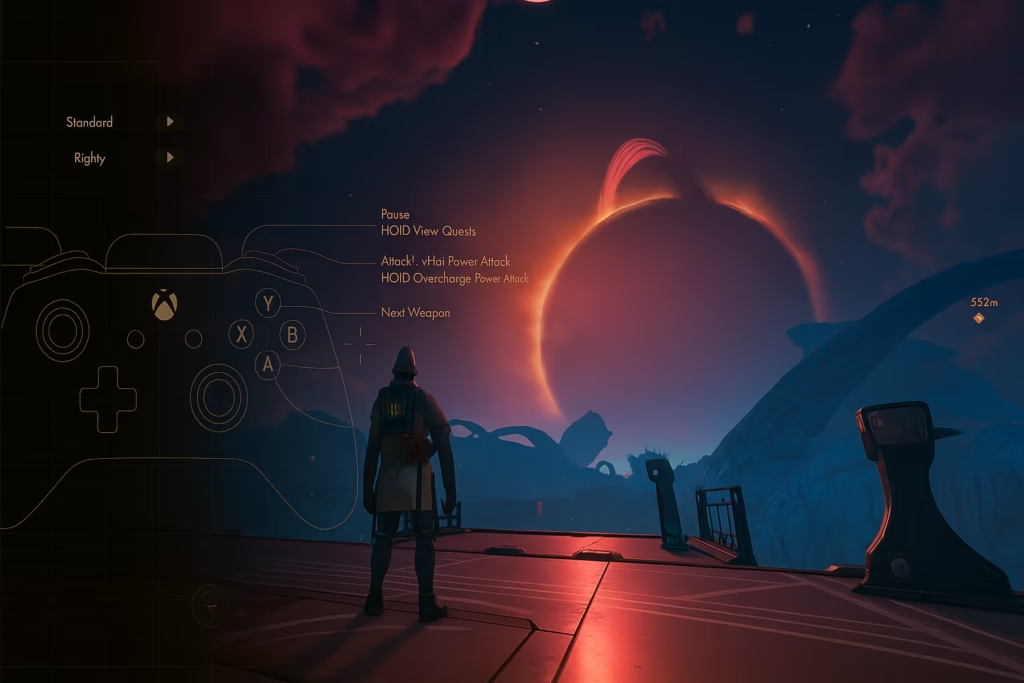
Players can freely choose between keyboard & mouse or controller input, with full remapping support on PC. The game automatically detects connected devices and switches seamlessly, so you can swap between input styles at any time.
If you’re on console, the layout matches platform standards—Xbox, PlayStation, and even supported third-party gamepads.
All PC Keyboard and Mouse Keybinds
The PC version of The Outer Worlds 2 offers extensive flexibility with fully remappable controls. Every key and mouse action can be adjusted through the in-game menu, allowing players to tailor the experience to their playstyle.
| Action | Default Key |
|---|---|
| Walk Forward | W |
| Walk Backward | S |
| Strafe Left | A |
| Strafe Right | D |
| Look Around | Mouse Movement |
| Jump | Space |
| Sprint | Shift |
| Auto-Sprint Toggle | Caps Lock |
| Crouch / Sneak | Ctrl |
| Use / Interact | E |
| Interact (Secondary) | F |
| Reload | R |
| Holster Weapon | Hold R |
| Attack | Left Mouse Button |
| Power Attack / Overcharge | Hold Left Mouse Button |
| Quick Melee | T |
| Tactical Time Dilation | Q |
| Inhaler | Z |
| Throw (Hold to Aim) | G |
| Companion 1 Ability | C |
| Companion 2 Ability | V |
| Next Weapon | Mouse Wheel Down |
| Previous Weapon | Mouse Wheel Up |
| Weapon 1–4 | 1 / 2 / 3 / 4 |
| Next Gadget | X |
| Next Throwable | 5 |
| Equipment Radial | Mouse Wheel Click |
| Toggle Flashlight | L |
| Quick Save | F5 |
| Quick Load | F9 |
| Perspective (First/Third Person) | U |
| Use Alternate Shoulder | H |
| View Ledger | Tab |
| Open Inventory | I |
| Character Menu | K |
| Journal | J |
| Companion Menu | , (Comma) |
| Map | M |
| Pause | Esc |
| Skip Dialogues | Space |
Pro Tip: The game also supports full mouse sensitivity adjustments, including aim assist options and dead zone tuning for smoother camera control.
All Controller Keybinds (Xbox and PlayStation)
If you prefer the analog comfort of a controller, The Outer Worlds 2 offers familiar layouts across Xbox and PlayStation systems. Each button serves multiple purposes depending on the situation—combat, exploration, or dialogue.
| Action | Xbox | PlayStation |
|---|---|---|
| Aim / Block | LT | L2 |
| Activate Gadget | LB | L1 |
| Attack | RT | R2 |
| Overcharge / Power Attack | Hold RT | Hold R2 |
| Throw (Hold to Aim) | RB | R1 |
| Jump | A | X |
| Crouch / Sneak | B | Circle |
| Reload / Interact | X | Square |
| Holster Weapon | Hold X | Hold Square |
| Next Weapon | Y | Triangle |
| Change Equipment | Hold Y | Hold Triangle |
| Open Ledger | Menu Button | Touchpad |
| Change Perspective | Hold Menu Button | Hold Touchpad |
| Pause Menu | Pause Button | Options |
| Toggle Flashlight | D-Pad Up | D-Pad Up |
| Alternate Shoulder | Hold D-Pad Up | Hold D-Pad Up |
| Companion 1 Ability | D-Pad Left | D-Pad Left |
| Companion 2 Ability | D-Pad Right | D-Pad Right |
| Use Medical Inhaler | D-Pad Down | D-Pad Down |
| Move | Left Stick | Left Stick |
| Sprint | Hold LS | Hold L3 |
| Look | Right Stick | Right Stick |
| Quick Melee | Hold RS | Hold R3 |
At launch, The Outer Worlds 2 features four preset controller layouts—Modern, Classic, Southpaw, and Lefty—but does not yet allow full custom remapping on consoles.
Tips for Optimal Control Setup
To get the most out of your gameplay experience:
- Lower aim sensitivity for precise shooting, especially when using scoped weapons.
- Enable Aim Assist if you’re playing with a controller for smoother targeting.
- Adjust dead zones to minimize stick drift or fine-tune responsiveness.
- Use Toggle for Sprint and Crouch if you prefer comfort during long sessions.
PC players should also explore advanced settings like NVIDIA Reflex, FidelityFX Super Resolution, and DLSS for performance optimization. Play Now!
Read More:

