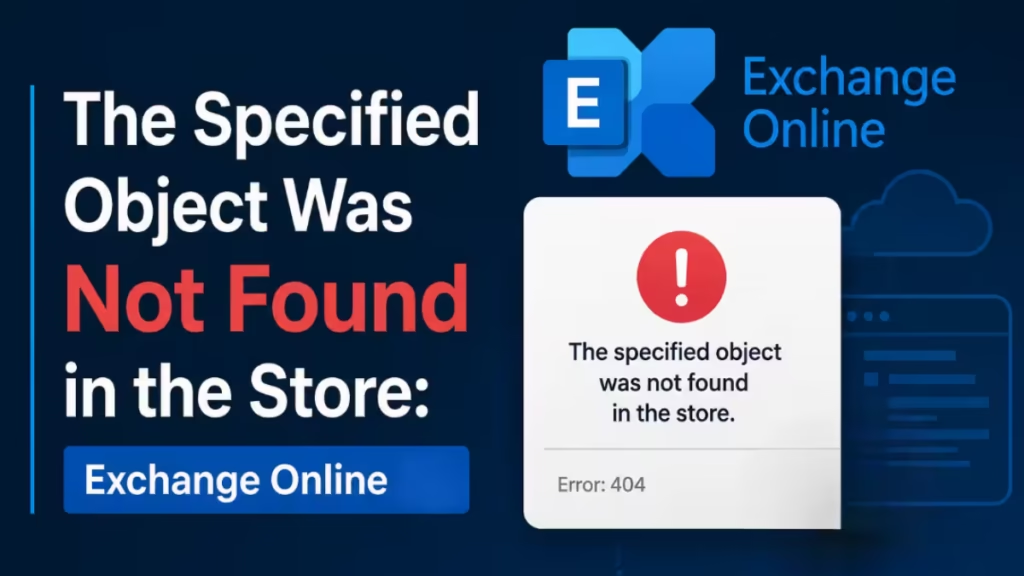
The error "The specified object was not found in the store" appears during Exchange Online archive migrations, typically after a large volume of data has already transferred. Exchange internally rebalances the mailbox database mid-migration, which leaves the ExchangePrincipal cache outdated. The migration process then loses its connection to the destination mailbox and throws this error.
What Causes the Specified Object Was Not Found in the Store
Exchange Online continuously rebalances and optimizes mailbox databases in the background. During a large archive migration (particularly archives over 50 GB), Exchange may move the destination archive to a different database node. When that happens, the Exchange Web Services (EWS) cache still holds the old database location. Any migration tool using EWS, including BitTitan MigrationWiz, then fails with:
"The specified object was not found in the store. Can't connect to the mailbox of user. Mailbox database guid: [GUID] because the ExchangePrincipal object contains outdated information. The mailbox may have been moved recently."
This is a transient Microsoft-side condition. BitTitan support will correctly redirect you to Microsoft, since the issue originates in Exchange Online's internal database replication, not the migration tool itself.
Fix 1: Wait and Retry the Migration
In most cases, Microsoft's replication process catches up on its own within 12 to 48 hours. Follow these steps:
- Stop the active migration job in MigrationWiz.
- Wait at least 12 hours. For large archives (100 GB or more), wait the full 48 hours.
- Open MigrationWiz and select the failed user.
- Click Retry Errors.
- Monitor the job until it completes.
Most admins report a successful completion after the retry with no data loss. The data already transferred (in this case, 114 GB) remains intact on the destination.
Fix 2: Verify the Destination Archive Mailbox
Before retrying, confirm that the destination archive is active and properly provisioned. Run the following command in Exchange Online PowerShell on the destination tenant:
Get-Mailbox user@destinationdomain.com -Archive | Format-List Name, ArchiveDatabase, Database, ArchiveStatus, ArchiveQuota, ArchiveWarningQuota, MailboxLocationsCheck the output for the following:
| Field | Expected Value |
|---|---|
| ArchiveStatus | Active |
| ArchiveDatabase | Populated (not blank) |
| ArchiveQuota | Matches Exchange Plan 2 limits (100 GB) |
| MailboxLocations | Shows a valid location entry |
If ArchiveStatus shows anything other than Active, or if ArchiveDatabase is blank, the archive needs to be re-enabled on the destination tenant before you retry the migration.
To connect to Exchange Online PowerShell, run:
Connect-ExchangeOnline -UserPrincipalName admin@destinationdomain.comFix 3: Open a Microsoft 365 Support Ticket
If the error persists after 48 to 72 hours and a retry still fails, escalate directly to Microsoft. Gather the following before opening the ticket:
- The full error message including the database GUID (the long alphanumeric string in brackets).
- The PowerShell output from Fix 2.
- The migration job ID from MigrationWiz.
- The approximate timestamp when the error first appeared.
Open the ticket through the Microsoft 365 Admin Center under Support > New service request. Provide all four items in the initial submission to avoid back-and-forth delays.
Microsoft support can force-refresh the ExchangePrincipal cache on the backend, which resolves the stale database reference immediately.
Why This Happens More Often with Exchange Plan 2
Exchange Plan 2 licenses include unlimited archive storage. Larger archives trigger more frequent background database rebalancing operations by Microsoft. This makes Plan 2 migrations more susceptible to this error compared to Plan 1 mailboxes with smaller archives.
If you run bulk migrations across multiple Plan 2 users, stagger the jobs rather than running them simultaneously. Running 5 to 10 users at a time reduces the chance of hitting this error across the entire batch.
Key Takeaways
- The error occurs because Exchange Online moves the archive database during migration, not because of a tool misconfiguration.
- Wait 12 to 48 hours and use Retry Errors in MigrationWiz before escalating.
- Verify the destination archive status with PowerShell before retrying.
- If the error continues past 72 hours, open a Microsoft 365 support ticket with the database GUID and PowerShell output.
- Already-transferred data is safe. The migration resumes from where it left off after the retry.