Smart App Control is a built-in Windows 11 feature that blocks apps Microsoft cannot verify as safe. It runs quietly in the background, but it sometimes interferes with custom-built apps, unsigned installers, or developer tools. This guide covers every supported way to enable, disable, or check the status of Smart App Control, plus what happens if you decide to turn it back on later.
What Is Smart App Control and How Does It Work
Two checks decide whether an app is allowed to launch on your PC. Microsoft’s reputation-based cloud service runs first, comparing the app against known-safe and known-malicious patterns. Most apps get sorted here, either cleared to run or blocked outright as malicious or unwanted.
Apps the cloud service can’t classify one way or the other don’t get blocked automatically. Instead, Smart App Control looks for a valid digital signature. A properly signed app still runs; anything unsigned, or signed with a broken or invalid certificate, gets treated as untrusted and stopped.
Because this runs as a separate layer, disabling Smart App Control doesn’t touch Microsoft Defender or SmartScreen. Those keep working independently.
How to Turn Off Smart App Control From Windows Security Settings
This is the fastest method for most home users, since it only needs a few clicks inside the Windows Security app.
- Press
Windows key + Ito open Settings. - Go to Privacy & security > Windows Security > App & browser control.
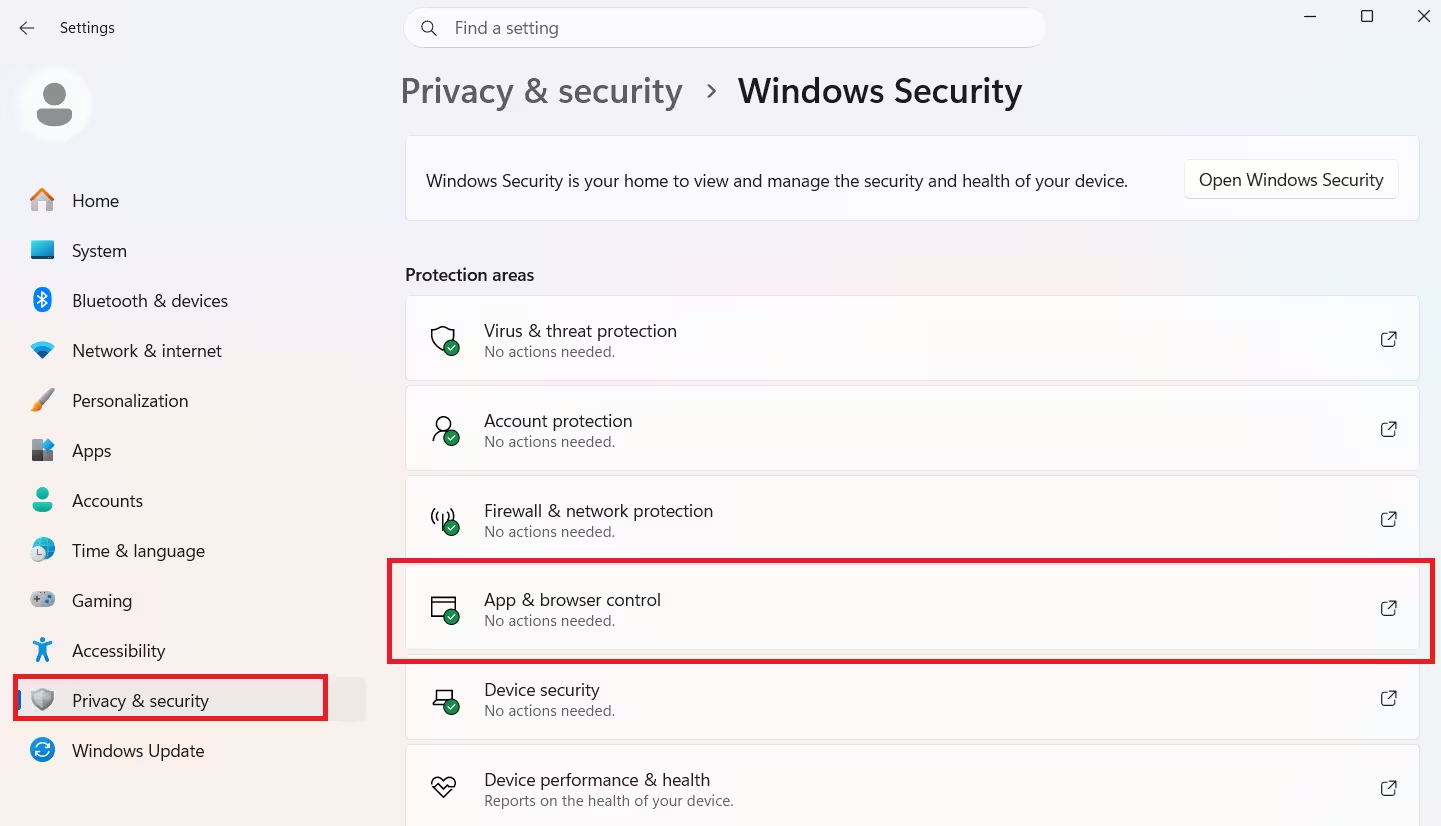
- Select Smart App Control settings.
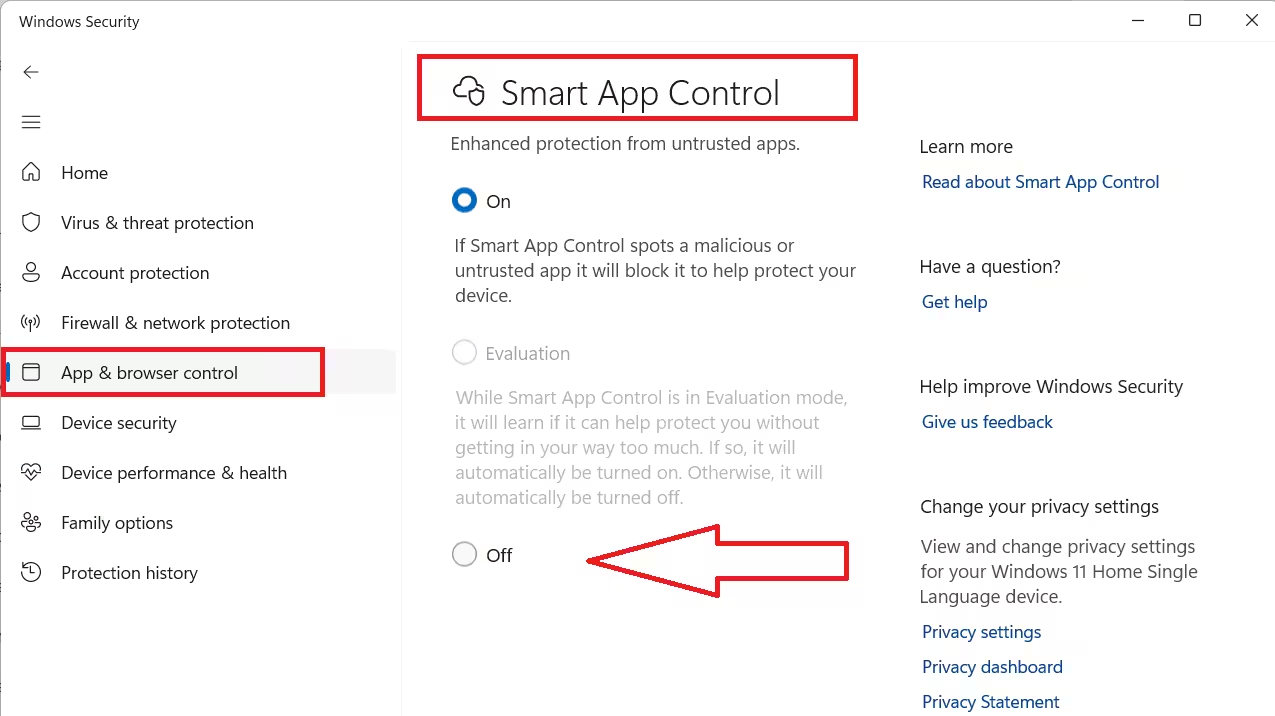
- Choose On to enforce blocking, Evaluation to monitor without blocking, or Off to disable the feature entirely.
Recent Windows updates let you turn Smart App Control back on from this same menu without needing a clean installation, which was a requirement in earlier builds.
How to Turn On or Off Smart App Control Using a REG File
IT admins who need to roll this out across multiple machines usually prefer a REG file over walking through Settings on each device. Home users can use the same method without needing special software.
- Press the Windows key, type Notepad, and press Enter.
- Paste one of the scripts below into Notepad and save it with the exact filename listed, using the
.regextension.
To turn Smart App Control on, save this as Turn_ON_Smart_App_Control.reg:
Windows Registry Editor Version 5.00
[HKEY_LOCAL_MACHINE\SYSTEM\CurrentControlSet\Control\CI\Policy]
"VerifiedAndReputablePolicyState"=dword:00000001
To set Smart App Control to Evaluation mode, save this as Set_Smart_App_Control_to_Evaluation_mode.reg:
Windows Registry Editor Version 5.00
[HKEY_LOCAL_MACHINE\SYSTEM\CurrentControlSet\Control\CI\Policy]
"VerifiedAndReputablePolicyState"=dword:00000002
To turn Smart App Control off, save this as Turn_OFF_Smart_App_Control.reg:
Windows Registry Editor Version 5.00
[HKEY_LOCAL_MACHINE\SYSTEM\CurrentControlSet\Control\CI\Policy]
"VerifiedAndReputablePolicyState"=dword:00000000
Double-click the saved file to merge it into the registry, then confirm the prompts by selecting Run, Yes, and OK. Evaluation mode is the setting Windows uses to judge whether your usage pattern is a good fit for Smart App Control; if it decides you are, the feature turns on automatically.
Save each file under its exact name so Windows recognizes it as a valid registry script. A mistyped extension or a corrupted script will fail to merge.
How to Check Smart App Control Status With PowerShell
If you are not sure whether Smart App Control is on, off, or in Evaluation mode, PowerShell can confirm it in seconds. You need administrator rights for this step.
- Press the Windows key, type PowerShell, right-click the result, and choose Run as administrator.
- Run the following command:
Get-MpComputerStatus | Select-Object SmartAppControlState- The output shows the current state. If nothing returns, your device may not support Smart App Control or it has been restricted by policy.
How to Re-Enable Smart App Control After Turning It Off
Once you turn Smart App Control off through Settings or a REG file, Microsoft requires a full Windows reset to bring it back. There is currently no lighter-weight toggle for re-enabling it after a manual shutdown.
- Press
Windows key + Ito open Settings. - Select System, then scroll down to Recovery.
- Select Reset this PC and follow the prompts.
- Choose Remove everything or Keep my files, depending on what you want to preserve.
- After the reset finishes, Smart App Control returns to Evaluation mode. From there you can turn it fully on using the Settings or REG file method above.
Back up anything important before resetting. Choosing Remove everything wipes your files and resets installed apps to their defaults, and there is no way to recover deleted data afterward.
Risks of Disabling Smart App Control
Turning Smart App Control off is reversible only through a system reset, so it is worth weighing the tradeoffs first.
Disabling the feature removes a layer of defense against unsigned malware and phishing payloads, since your device no longer blocks apps automatically based on reputation checks. Evaluation mode is a safer middle ground if you just want to test whether the feature interferes with your workflow before shutting it off completely.
A malformed REG file also will not merge correctly, so double check the registry path and value before saving. If a merge fails, recreate the file from scratch rather than trying to patch the broken one.
Smart App Control also works alongside Microsoft Defender SmartScreen to catch phishing sites and harmful downloads, so disabling Smart App Control does not touch SmartScreen’s separate protections.
Why Is Smart App Control Turned Off on My PC
Windows sometimes disables Smart App Control on its own, without any manual input from you. Common reasons include an enterprise-managed device, a developer-mode configuration, or a device running in S mode, which needs S mode turned off and a PC reset before Evaluation mode becomes available. Optional diagnostic data being turned off in Windows can also block the feature, in which case you need to reset or reinstall Windows and enable that setting during setup.
Frequently Asked Questions
Does Smart App Control replace my antivirus software?
No. It works alongside tools like Microsoft Defender or third-party antivirus software rather than substituting for them.
Can I let one specific blocked app through without disabling the whole feature?
Not currently. There is no per-app bypass. Your options are turning Smart App Control off entirely or asking the app’s developer to sign it with a valid certificate.
Why does Smart App Control block an app I trust?
If Microsoft’s cloud service cannot confidently verify the app and it lacks a valid digital signature, Smart App Control treats it as untrusted and blocks it, even if you know the app is safe.
Is there a Group Policy toggle for Smart App Control?
No. There is currently no GPO or registry-based enterprise toggle beyond manually deploying a REG file, since the feature targets consumer and unmanaged devices.
What should app developers do to avoid getting blocked?
Sign the app with a valid certificate from a trusted certificate authority. A valid signature is what lets Smart App Control verify the app’s publisher and treat it as trusted.
Smart App Control trades a bit of flexibility for stronger default protection against unsigned and unverified apps. Evaluation mode gives you a way to test the feature’s impact before committing to turning it off, and the Settings and REG file methods above cover most situations, whether you are a home user tired of pop-ups or an admin rolling out policy across several machines.

