If Windows 11 suddenly shows “Activation failed” after you replace your motherboard, this does not mean Windows is broken. This happens because Windows licenses are tied to hardware, and a motherboard change is treated as a new device.
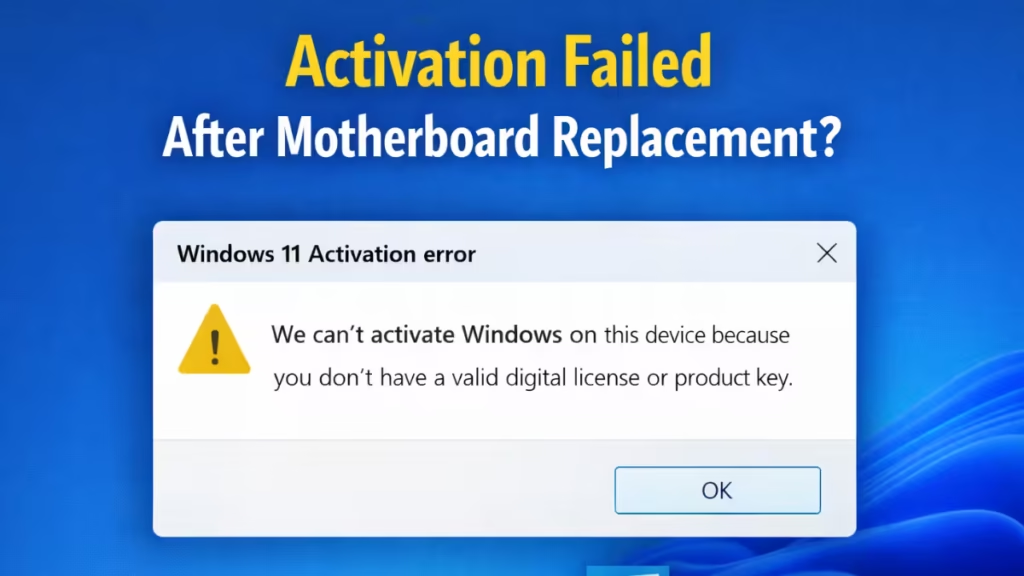
Why Windows 11 Loses Activation After a Motherboard Change
Windows activation relies heavily on a hardware ID, and the motherboard is its core component. When it changes, Windows may no longer recognize the license.
This usually happens if:
- Your license was OEM (preinstalled)
- The license was not linked to a Microsoft account
- BIOS/UEFI settings reset after replacement
- Activation servers cannot match the new hardware
Fix 1: Use the Windows Activation Troubleshooter (Most Important)
This is the primary and officially recommended fix.
Steps:
- Open Settings
- Go to System → Activation
- Click Troubleshoot
- Select “I changed hardware on this device recently”
- Sign in using the Microsoft account previously linked to Windows
- Select your device from the list
- Click Activate
If the license is linked correctly, Windows activates immediately.
Fix 2: Make Sure You’re Signed in With the Correct Microsoft Account
Activation often fails because users sign in with the wrong Microsoft account.
What to verify:
- Go to Settings → Accounts → Your info
- Confirm you’re using the same Microsoft account used before the motherboard replacement
- If you’ve used multiple accounts in the past, try signing in with each one
Windows activation depends on the exact account the license was linked to.
Fix 3: Check Whether Your License Is OEM or Retail
Your license type determines whether reactivation is allowed.
How to check:
- Press Win + R
- Type
cmd - Press Ctrl + Shift + Enter
- Run:
slmgr /dli
What it means:
- OEM License → Locked to original motherboard
- Retail License → Can be transferred to new hardware
If it’s OEM, activation may still work via Microsoft support (see Fix 7).
Fix 4: Enter Your Windows 11 Product Key Again
If you purchased Windows separately, re-entering the key often fixes the issue.
Steps:
- Open Settings → System → Activation
- Click Change product key
- Enter your 25-character product key
- Click Next → Activate
This works for:
- Retail keys
- Volume licenses
- Windows 10 → 11 retail upgrades
Fix 5: Verify BIOS / UEFI Settings After Motherboard Replacement
Motherboard changes often reset firmware settings, which can interfere with activation.
Check the following in BIOS:
- Boot Mode → UEFI
- TPM 2.0 → Enabled
- Secure Boot → Enabled
- Windows Boot Manager → Selected
Save changes and restart the system.
Fix 6: Run Activation Command Manually (Optional)
If activation is stuck, forcing it via command line may help.
Steps:
- Open Command Prompt as Administrator
- Run:
slmgr /ato
This forces Windows to contact activation servers again.
Fix 7: Contact Microsoft Support (Works Even for OEM in Some Cases)
If all automated fixes fail, Microsoft support is your best option.
How to contact:
- Go to Settings → System → Activation
- Click Get help
- Choose Contact Support
- Explain that the motherboard was replaced due to failure
Microsoft often manually reactivates Windows, even for OEM licenses, if the change was genuine.
Fix 8: Buy a New Windows 11 License (Last Resort)
You’ll need a new license if:
- The old license was OEM and denied reactivation
- The motherboard change was not due to failure
- The key is permanently blocked
Buy only from:
- Microsoft Store
- Authorized retailers
Avoid cheap third-party keys — they frequently get deactivated later.
Common Windows 11 Activation Error Codes After Motherboard Change
| Error Code | What It Means |
|---|---|
| 0xC004F211 | Hardware change detected |
| 0xC004F213 | No license found |
| 0x803FA067 | Invalid or blocked key |
| 0xC004C008 | Product key already in use |
All of these are hardware-linked activation errors.
FAQs: Windows 11 Activation Failed After Motherboard Replacement
Why did Windows 11 deactivate after I replaced my motherboard?
Windows 11 activation is tied to your device’s hardware ID, and the motherboard is its main component. When it changes, Windows treats the PC as a new device, which can invalidate the existing license until it is reactivated.
Can I reactivate Windows 11 after changing the motherboard?
Yes, if your Windows license is linked to a Microsoft account or is a retail license, you can usually reactivate Windows 11 using the Activation Troubleshooter without reinstalling the OS.
How do I reactivate Windows 11 after a motherboard replacement?
Go to Settings → System → Activation → Troubleshoot, select “I changed hardware on this device recently”, sign in with your Microsoft account, and choose your device to activate Windows again.
Does a motherboard replacement require buying a new Windows 11 license?
Not always. Retail licenses can be transferred to new hardware. OEM licenses are tied to the original motherboard, but Microsoft may still reactivate them manually if the replacement was due to hardware failure.
What if Windows 11 activation troubleshooter doesn’t work?
If the troubleshooter fails, check that you’re signed in with the correct Microsoft account, re-enter your product key, verify BIOS settings, or contact Microsoft Support for manual activation.
How do I check if my Windows 11 license is OEM or Retail?
Open Command Prompt as administrator and run slmgr /dli. The license description will show whether your Windows 11 license is OEM or Retail.
Can BIOS settings affect Windows 11 activation?
Yes. After a motherboard replacement, BIOS settings may reset. Ensure UEFI mode, TPM 2.0, Secure Boot, and Windows Boot Manager are enabled to avoid activation issues.
Will reinstalling Windows 11 fix activation after a motherboard change?
Reinstalling Windows usually does not fix activation problems if the license is not transferable. Activation depends on license type and account linkage, not the Windows installation itself.
What are common Windows 11 activation error codes after motherboard replacement?
Common error codes include 0xC004F211, 0xC004F213, and 0x803FA067, all of which indicate hardware changes or license verification issues.
Can Microsoft Support activate Windows 11 after a motherboard replacement?
Yes. If automated activation fails, Microsoft Support can often manually activate Windows 11, especially when the motherboard was replaced due to a defect or failure.
Windows 11 activation failure after a motherboard replacement is expected behavior, not a system fault. In most cases, using the Activation Troubleshooter or signing in with the correct Microsoft account resolves the issue quickly.
Reinstalling Windows is not required.

