A HYPERVISOR ERROR BSOD in Windows 11 usually appears during system startup or when the PC resumes from sleep or hibernation. In many cases, the system crashes before login, making it difficult to access Windows normally.
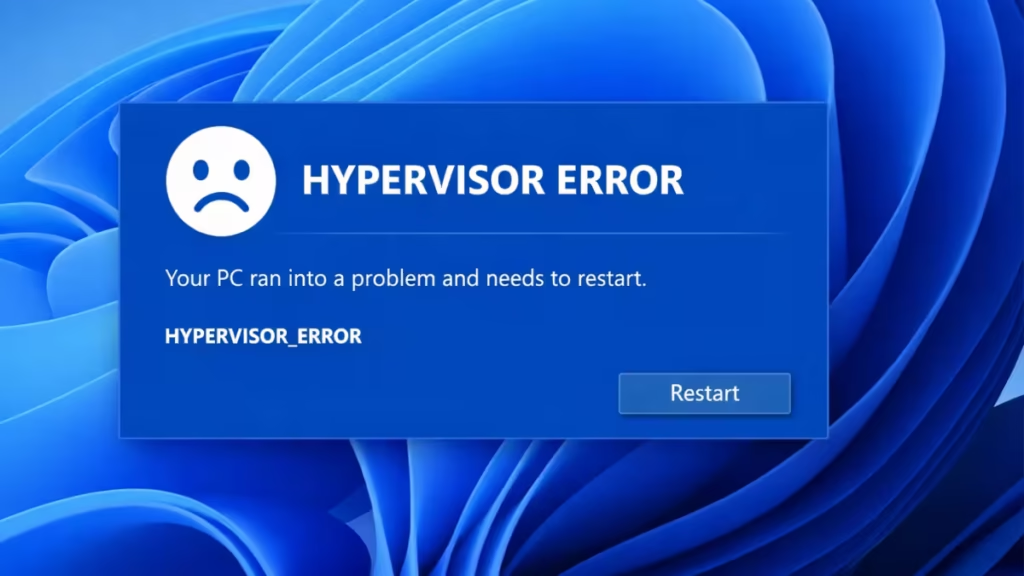
This error is closely related to virtualization features, Hyper-V, Virtualization-Based Security (VBS), BIOS settings, or conflicts with virtual machine software. The issue can be fixed without reinstalling Windows if the correct cause is addressed.
Why Windows 11 Shows the HYPERVISOR ERROR BSOD
The HYPERVISOR ERROR occurs when Windows fails to communicate properly with the system’s virtualization layer. This usually happens due to:
- Hyper-V or VBS conflicts
- Virtualization misconfigured in BIOS/UEFI
- Resume-from-sleep power state issues
- Outdated BIOS or CPU microcode
- Conflicts with VirtualBox, VMware, or emulators
- Corrupted system files after Windows updates
Fix 1: Disable Hyper-V and Virtual Machine Features
If you do not use virtual machines, disabling Hyper-V resolves the issue in most cases.
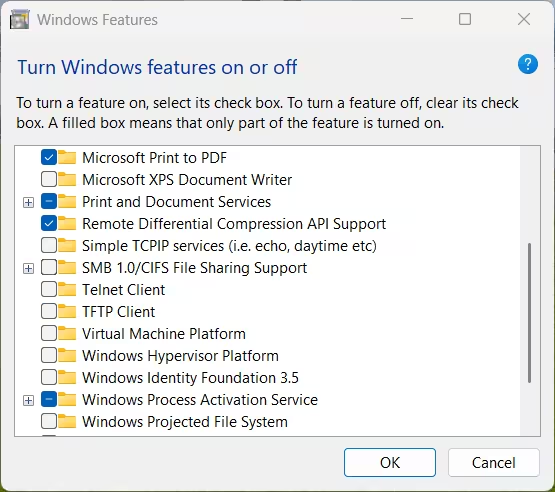
Steps
- Press Win + R, type
optionalfeatures, and press Enter - Uncheck the following options:
- Hyper-V
- Virtual Machine Platform
- Windows Hypervisor Platform
- Windows Sandbox (if enabled)
- Click OK and restart your PC
After reboot, check if the BSOD is gone.
Fix 2: Turn Off Virtualization-Based Security (VBS)
VBS can cause HYPERVISOR ERROR crashes on certain systems, especially after Windows updates.
Steps
- Press Win + R, type
gpedit.msc, and press Enter - Navigate to:
Computer Configuration → Administrative Templates → System → Device Guard - Open Turn on Virtualization Based Security
- Set it to Disabled
- Restart Windows
Important: If you are using Windows 11 Home, Virtualization-Based Security (VBS) is disabled by default, and
gpedit.mscis not available. You can safely skip this step.
Fix 3: Check Virtualization Settings in BIOS or UEFI
Incorrect or partially enabled virtualization settings can trigger this BSOD.
What to Do
- Restart your PC and enter BIOS/UEFI (usually Del, F2, or F10)
- Go to Advanced, CPU Configuration, or Processor Settings
- Locate:
- Intel Virtualization Technology (VT-x)
- AMD-SVM (for AMD CPUs)
- Either:
- Enable it fully if you use virtualization
- Disable it completely if you don’t
- Save changes and exit
Avoid enabling multiple CPU features unnecessarily.
Fix 4: Disable Fast Startup (Important for Sleep-Related Crashes)
Fast Startup often breaks resume-from-sleep behavior and causes hypervisor crashes.
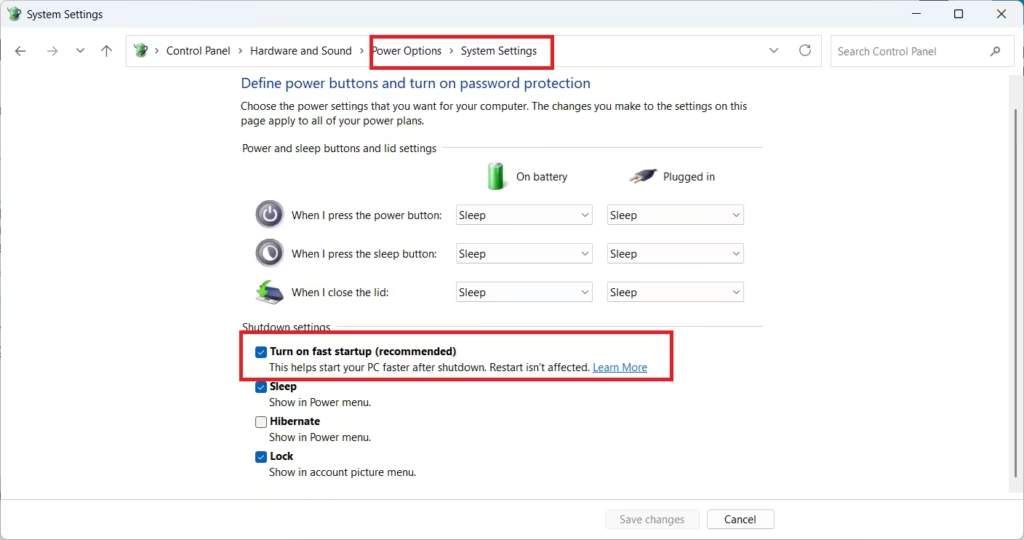
Steps
- Open Control Panel
- Go to Power Options
- Click Choose what the power buttons do
- Select Change settings that are currently unavailable
- Uncheck Turn on fast startup
- Save changes and restart
This fix is especially effective if the BSOD happens after sleep or hibernation.
Fix 5: Update BIOS and Firmware
Outdated BIOS versions can cause virtualization instability in Windows 11.
Steps
- Visit your laptop or motherboard manufacturer’s official website
- Download the latest BIOS update for your exact model
- Follow the official flashing instructions carefully
Warning: Do not interrupt power during a BIOS update.
Fix 6: Repair Corrupted System Files
System file corruption after updates can trigger hypervisor-related crashes.
Steps
- Open Command Prompt as Administrator
- Run:
sfc /scannow- After it completes, run:
DISM /Online /Cleanup-Image /RestoreHealth- Restart your system
These commands repair missing or damaged virtualization components.
Fix 7: Remove Conflicting Virtual Machine Software
Third-party VM software can conflict with Hyper-V.
Temporarily uninstall:
- VirtualBox
- VMware Workstation
- Android emulators
- Older virtualization tools
Restart the PC and test system stability.
If Windows 11 Fails to Boot Completely
If the BSOD appears in a loop:
- Force shutdown the PC twice during boot
- Enter Windows Recovery Environment
- Go to Troubleshoot → Advanced Options
- Use Startup Repair or Safe Mode
- Disable Hyper-V and related features from Safe Mode
FAQs
What causes the Windows 11 HYPERVISOR ERROR BSOD?
The Windows 11 HYPERVISOR ERROR BSOD is usually caused by conflicts with Hyper-V, Virtualization-Based Security (VBS), incorrect BIOS virtualization settings, outdated firmware, or issues triggered during boot or resume from sleep.
Why does the HYPERVISOR ERROR occur after sleep or hibernation?
This error often appears after sleep or hibernation due to Fast Startup, power state conflicts, or virtualization components failing to resume correctly when Windows wakes from a low-power state.
Can Hyper-V cause HYPERVISOR ERROR BSOD in Windows 11?
Yes. Hyper-V is one of the most common causes of the Windows 11 HYPERVISOR ERROR BSOD, especially when it conflicts with BIOS settings or third-party virtualization software.
Does disabling virtualization fix the HYPERVISOR ERROR?
In many cases, disabling Hyper-V and related virtualization features completely resolves the HYPERVISOR ERROR BSOD, particularly on systems that do not require virtual machines.
Is the HYPERVISOR ERROR related to BIOS or firmware issues?
Yes. Outdated BIOS versions or incorrect CPU virtualization settings frequently trigger HYPERVISOR ERROR crashes during boot or system resume.
Can Windows updates trigger the HYPERVISOR ERROR BSOD?
Yes. Some Windows 11 updates can expose virtualization conflicts or corrupt system files, leading to the HYPERVISOR ERROR BSOD on reboot or wake from sleep.
Do I need to reinstall Windows 11 to fix HYPERVISOR ERROR?
No. Most cases can be fixed by adjusting virtualization settings, disabling Hyper-V or VBS, updating BIOS firmware, or repairing system files without reinstalling Windows.
Is the HYPERVISOR ERROR a hardware failure?
Not usually. While hardware-related firmware can contribute, the error is primarily caused by software-level virtualization and power management conflicts.
Can virtual machine software cause this BSOD?
Yes. Applications like VirtualBox, VMware, Android emulators, or older VM tools can conflict with Hyper-V and cause the Windows 11 HYPERVISOR ERROR BSOD.
Is the HYPERVISOR ERROR dangerous for data?
No. The error itself does not damage data, but repeated crashes can interrupt disk operations. Fixing the issue early is recommended to prevent file corruption.

