Seeing the message “Windows 11 installation has failed” during an upgrade can be frustrating, especially when Windows provides no clear error code. This issue usually appears during in-place upgrades through Windows Update, the Installation Assistant, or ISO setup and often stops the process midway or after a restart.

In most cases, this error is caused by driver conflicts, corrupted update files, blocked background services, or upgrade interruptions, not permanent hardware problems. The fixes below are safe, reversible, and designed to resolve the issue without data loss.
Fix 1: Restart the PC and Disconnect External Devices
External hardware can interrupt Windows 11 setup by loading incompatible drivers.
- Restart your PC once
- Disconnect USB drives, external HDDs, printers, SD cards, and dongles
- Keep only the keyboard, mouse, and internet connected
- Try the upgrade again
This simple step resolves many unexplained installation failures.
Fix 2: Make Sure There Is Enough Free Disk Space
Windows 11 requires significant temporary space during installation.
- Open This PC
- Ensure the C: drive has at least 30–35 GB free
- Use Disk Cleanup or remove unused files if needed
- Restart the upgrade
Insufficient space can cause setup to fail without warning.
Fix 3: Temporarily Disable Third-Party Antivirus
Some antivirus tools block system file replacement during upgrades.
- Open your antivirus software
- Temporarily disable real-time protection
- Do not uninstall unless absolutely necessary
- Retry the Windows 11 installation
Re-enable protection after the upgrade completes.
Fix 4: Run the Windows Update Troubleshooter
If the failure occurs through Windows Update, built-in repair tools can help.

- Go to Settings → System → Troubleshoot → Other troubleshooters
- Run Windows Update
- Apply any recommended fixes
- Restart and try upgrading again
This repairs common update cache and service issues.
Fix 5: Repair Corrupted System Files
Damaged system files often cause upgrade failures.
- Press Win + X → Terminal (Admin)
- Run:
sfc /scannow- After it finishes, run:
DISM /Online /Cleanup-Image /RestoreHealth- Restart the PC and retry the upgrade
These commands repair files required by the Windows 11 installer.
Fix 6: Clear the Windows Update Cache
Corrupted update files can repeatedly break the upgrade.

- Press Win + R, type
services.msc - Stop Windows Update
- Stop Background Intelligent Transfer Service
- Open:
C:\Windows\SoftwareDistribution- Delete all files inside the folder
- Restart the services
- Try upgrading again
This forces Windows to download fresh installation files.
Fix 7: Update Critical Device Drivers
Outdated drivers—especially storage and display drivers—can stop setup.
- Open Device Manager
- Update drivers for:
- Display adapters
- Storage controllers
- Network adapters
- Restart Windows
- Retry installation
Updating drivers is safer than uninstalling them and avoids display issues on laptops.
Fix 8: Check TPM 2.0 and Secure Boot (If Supported)
Windows 11 requires TPM 2.0 and Secure Boot on supported systems. If these are disabled, the installation may fail even after passing initial checks.
Before changing anything:
- Press Win + R, type
tpm.msc - Confirm TPM status shows Ready for use
To check Secure Boot:
- Press Win + R, type
msinfo32 - Look for Secure Boot State: On
If your system supports these features but they are disabled, enable them carefully in BIOS/UEFI.
If your PC does not support TPM 2.0, do not attempt registry bypass hacks, as they can break future updates and system stability.
Fix 9: Upgrade Using the Windows 11 Installation Assistant
If Windows Update continues to fail, the Installation Assistant is more reliable.
- Download the Windows 11 Installation Assistant from Microsoft
- Run it as Administrator
- Choose to keep files and apps
- Follow on-screen instructions
This method bypasses many Windows Update-related issues.
Fix 10: Perform a Clean Boot and Upgrade
Background services can silently block the upgrade.
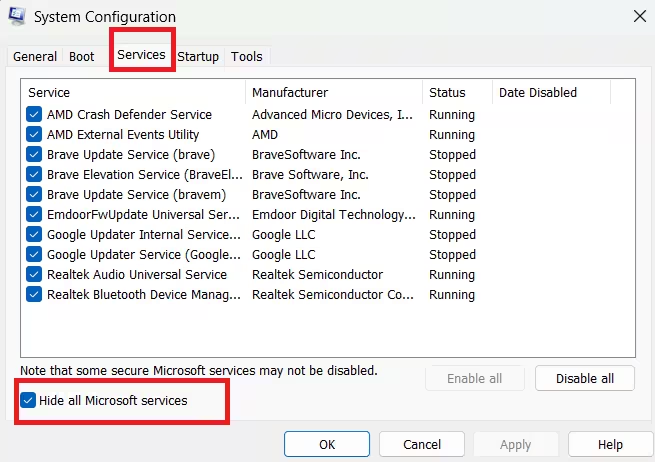
- Press Win + R, type
msconfig - Go to Services
- Check Hide all Microsoft services
- Click Disable all
- Restart Windows
- Run the Windows 11 installer again
After installation, you can restore normal startup settings.
FAQs
Why does Windows 11 installation say “Installation has failed”?
This error usually occurs due to corrupted update files, incompatible or outdated drivers, insufficient disk space, or background services blocking the upgrade process.
Can I fix the Windows 11 installation failed error without reinstalling Windows?
Yes. Most users can fix this issue by repairing system files, clearing the Windows Update cache, updating drivers, or upgrading using the Windows 11 Installation Assistant without reinstalling Windows.
Does this error mean my PC is not compatible with Windows 11?
No. Even compatible systems can show this error if TPM, Secure Boot, or required updates are disabled or if the upgrade process is interrupted by software conflicts.
At what percentage does Windows 11 installation usually fail?
The installation commonly fails between 30% and 90%, often after a system restart or during the driver and update configuration stage.
Is it safe to retry the Windows 11 upgrade after installation failure?
Yes. Retrying the upgrade is safe after applying fixes such as disconnecting external devices, freeing disk space, and repairing system files.
Should I bypass TPM or Secure Boot to fix this error?
Bypassing TPM or Secure Boot is not recommended, as it can cause future update failures and security issues. It is safer to enable these features only if your system officially supports them.
What is the most reliable way to upgrade if Windows Update keeps failing?
Using the official Windows 11 Installation Assistant is the most reliable method, as it bypasses many Windows Update-related issues and installs the upgrade directly.
Will fixing this error delete my files or apps?
No. All recommended fixes are designed to preserve your files and applications when performed correctly during an in-place upgrade.
This error does not automatically mean your PC is incompatible with Windows 11. Most users resolve it by fixing update corruption, driver conflicts, or blocked services.
Avoid registry bypass methods unless you fully understand the risks. If the issue persists after all fixes, upgrading using a Windows 11 ISO is the next safe option.

