Discord, a well-known communication platform, has rolled out a fun feature called “Super Reactions”. If you’re a Discord Nitro subscriber, you can use this feature to add quirky animations to your standard reactions. Here’s how you can turn Super Reactions on or off on Discord.
What are Discord Super Reactions?
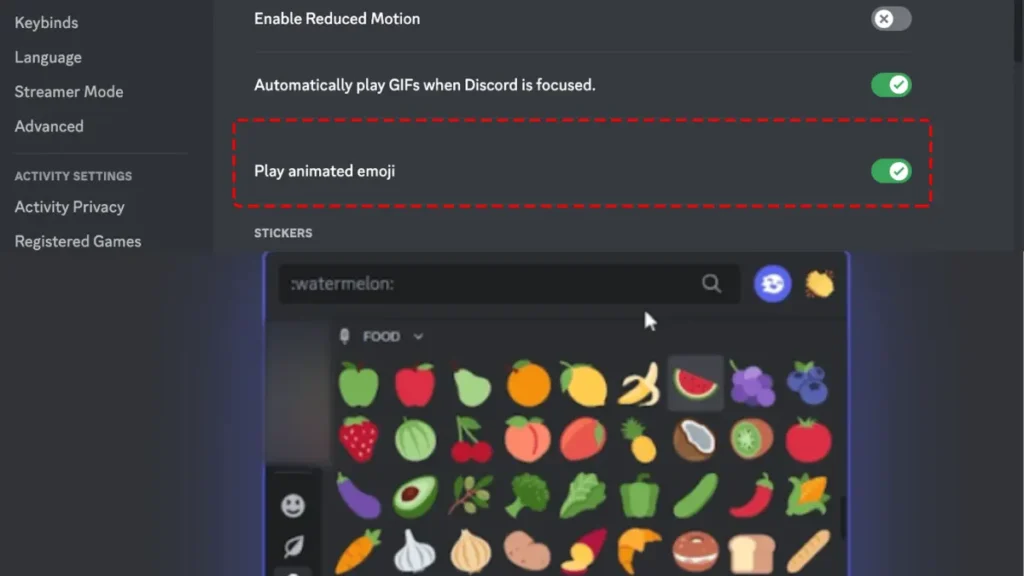
Discord has upgraded its standard reactions to Super Reactions. These are animated emojis that make your interactions more exciting and emotional. But remember, you need a Discord Nitro subscription to use this feature.
Your Nitro subscription determines how many Super Reactions you get. With the Nitro plan, you get 5 Super Reactions per week. But with Nitro Basic and Classic, you get 2 reactions per week.
Normal Reactions vs Super Reactions
Super Reactions are more vibrant and expressive than normal reactions. Normal reactions are static and don’t have animations, which might limit how well you can express your emotions. Super Reactions, however, use animations to help you express yourself better.
How to Enable Super Reactions on Discord
Here’s how you can turn on Super Reactions:
- Open Discord on your device.
- Click on the gear icon at the bottom left of the screen, next to your username, to open User Settings.
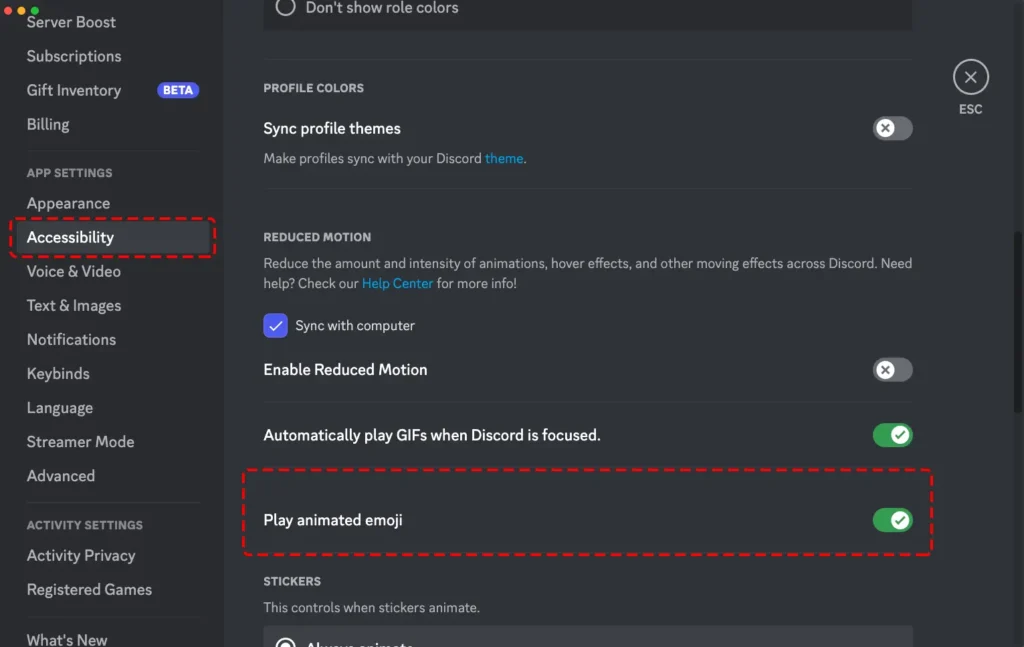
- Scroll down to the App Settings section from the left-hand menu and click on the Accessibility tab.
- Find the “Play animated emoji” option and turn on the toggle to enable Super Reactions.
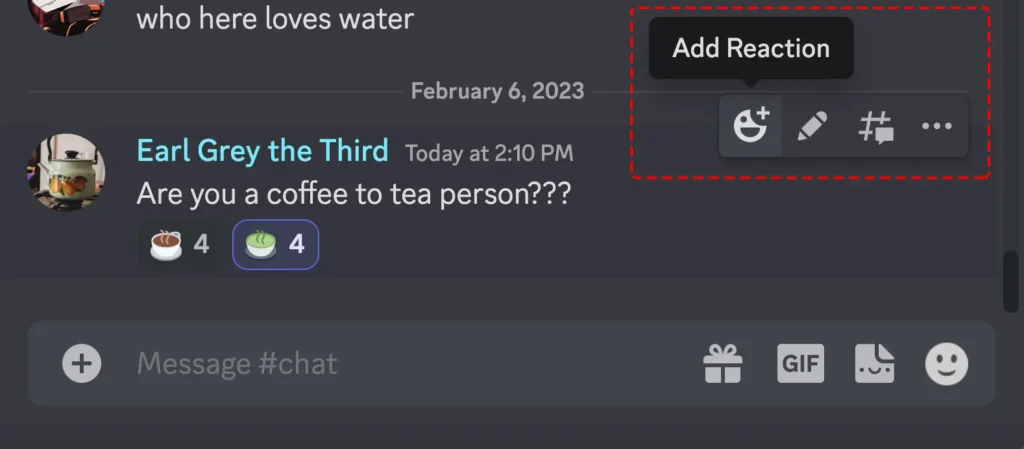
Once you’ve enabled Super Reactions, hover over the message you want to react to, click on the “Add Reaction” button, and then go to the Super Reactions tab. When you choose an emoji, it will show up under the message with a cool animation.
How to Disable Super Reactions on Discord
If you find the animations distracting or unnecessary, you can easily disable Super Reactions by following these steps:
- Open Discord on your device.
- Click on the gear icon at the bottom left of the screen, next to your username, to open User Settings.
- Scroll down to the App Settings section from the left-hand menu and click on the Accessibility.
- Find the “Play animated emoji” option and turn off the toggle to disable Super Reactions.
How to Remove Super Reactions as Server Admins and Moderators
If you’re a server admin or moderator and want to remove Super Reactions from a message, you can do so on the desktop or browser app. Note that you can’t remove Super Reactions as an admin/mod on the mobile app.
To remove Reactions and Super Reactions, you need the “Manage Messages” permission. Here’s how:
- Go to the Message: Navigate to the message with the Super Reaction you would like to remove.
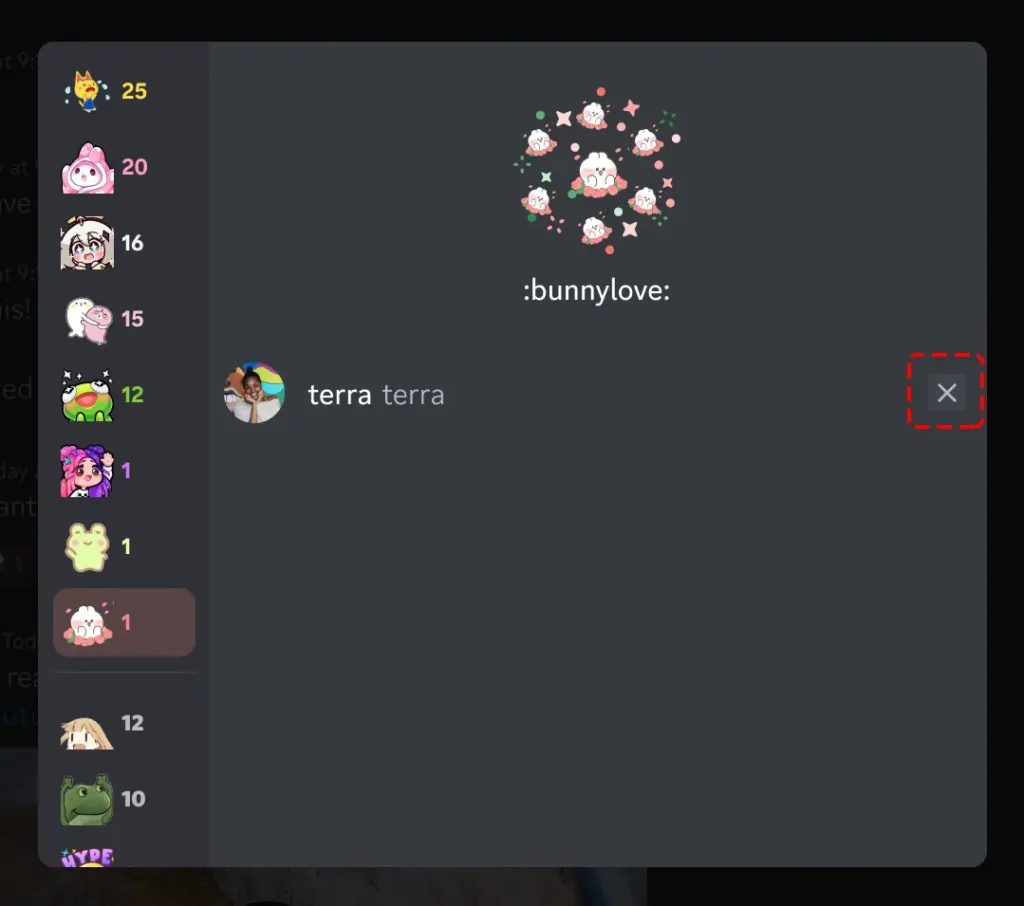
- Access View Reactions Option: You can right-click on the message or press the ellipses icon from the message toolbar to find the “View Reactions” option.
- Remove the Super Reaction: In the “View Reactions” window, navigate to the Super Reaction you would like to remove and hover or focus on a server members’ name under the Super Reaction. This will reveal an “X” besides their name, which you can press to remove the Super Reaction.
How to Control Reactions to Your Messages
If you don’t want people to react to your messages on Discord, you can even turn off emoji reactions. To do this, follow these steps:
- Open Discord on your device.
- Click on the gear icon at the bottom left of the screen, next to your username, to open User Settings.
- Scroll down to the App Settings section from the left-hand menu and click on the Chat option.
- Find the “Show emoji reactions on messages” option and turn off the toggle to disable emoji reactions.
By following this guide, you can easily manage Super Reactions on Discord and enhance your experience on the platform. Enjoy using these fun and engaging Super Reactions on Discord!

