Microsoft strongly pushes users to sign in with a Microsoft account during Windows 11 setup. However, Windows 11 still supports local (offline) accounts, even on the latest builds — the option is just hidden.
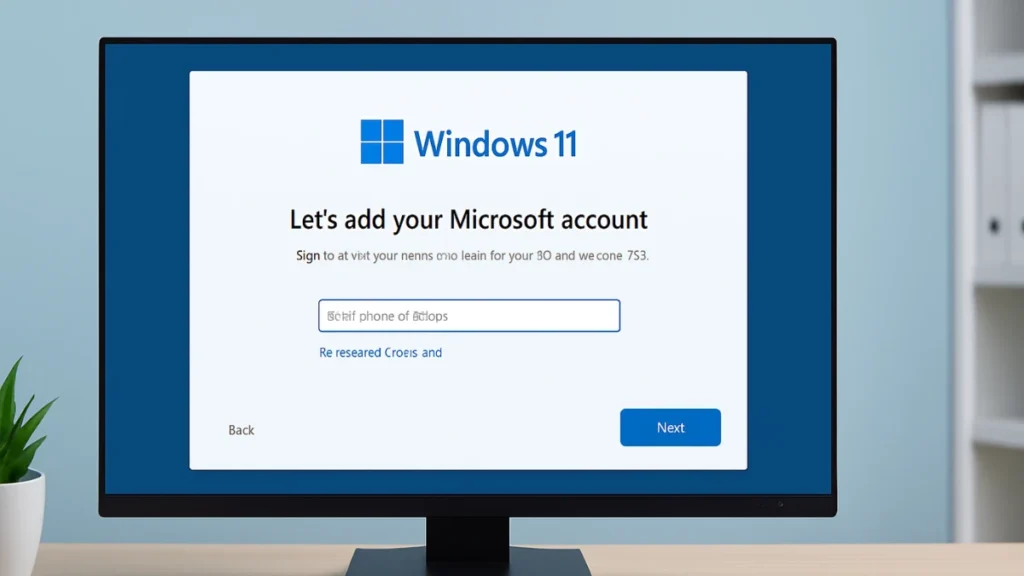
This updated 2026 guide explains all working methods to install Windows 11 without a Microsoft account. Every method here is tested on Windows 11 24H2 and newer builds and works on Home and Pro editions.
Can You Install Windows 11 Without a Microsoft Account?
Yes. Windows 11 still allows local account creation using offline setup paths or setup commands. Microsoft hides these options, but they are not removed.
You can complete setup fully offline and add a Microsoft account later — or never add one at all.
Why Users Skip Microsoft Account in Windows 11 Setup
Many users choose a local account because it offers:
- Better privacy (no automatic cloud sync)
- Offline usability from day one
- Less forced setup (OneDrive, Microsoft 365, Copilot prompts)
- Full control over when or if you connect an online account
This setup is ideal for personal PCs, gaming systems, kids’ computers, office machines, or resale systems.
Quick Compatibility Overview (Important)
| Method | Windows 11 Home | Windows 11 Pro | Works on New Builds |
|---|---|---|---|
| OOBE\BYPASSNRO | Yes | Yes | Limited |
start ms-cxh:localonly | Yes | Yes | Yes |
| Rufus USB Installer | Yes | Yes | Yes |
| Domain Join | No | Yes | Yes |
Method 1: Command Prompt Bypass (Most Reliable – Recommended)
This is the most reliable method for current and future Windows 11 builds.
Steps
- Start Windows 11 installation normally.
- When you reach the Microsoft sign-in screen, press Shift + F10.
- In Command Prompt, type:
start ms-cxh:localonly- Press Enter.
- A local account creation window appears instantly.
- Enter a username and password (or leave password blank if you prefer).
- Continue setup and finish installation.
Works on Home & Pro
Works on newer builds where older bypasses fail
Method 2: OOBE\BYPASSNRO (Still Works on Many Systems)
This older method still works on many stable builds, but Microsoft has removed it from some newer versions.
Steps
- Begin Windows 11 setup.
- On “Let’s connect you to a network”, do not connect.
- Press Shift + F10.
- Type:
OOBE\BYPASSNRO- Press Enter. The system restarts.
- After reboot, select I don’t have internet.
- Click Continue with limited setup.
- Create a local account.
Note: If this command fails, use Method 1 instead.
Method 3: Disconnect Internet (Simple but Less Reliable)
This method relies on forcing Windows into offline mode.
Steps
- Unplug Ethernet or
- Turn off Wi-Fi/router before setup
- Continue until Windows shows offline setup
- Choose Continue with limited setup
- Create a local account
May fail on newer builds, but still works on some systems
Method 4: Use Rufus USB Installer (Best for Reinstalls)
If you reinstall Windows often, this is the easiest long-term solution.
What You Need
- Windows 11 ISO
- USB drive (8 GB+)
- Rufus version 4.4 or newer
Steps
- Open Rufus and select your USB drive.
- Choose the Windows 11 ISO.
- Click Start.
- Enable:
- Remove requirement for an online Microsoft account
- (Optional) Create local account automatically
- Create the USB and install Windows.
Skips Microsoft account automatically- Works on Home & Pro
Method 5: Domain Join Option (Windows 11 Pro Only)
Windows 11 Pro includes a built-in offline path.
Steps
- Start installation.
- Choose Set up for work or school.
- Click Domain join instead.
- Create a local account and continue.
Not available on Home edition- Reliable on Pro
About the “Fake Email” Trick (Important Clarification)
Using a fake email (for example, [email protected]) may still work on some builds, but Microsoft frequently patches this behavior.
- Unreliable
- Can break without warning
- Not recommended for long-term use
Use Command Prompt or Rufus instead.
After Installation: Can You Add a Microsoft Account Later?
Yes. You can add it anytime:
Settings → Accounts → Your info → Sign in with a Microsoft account instead
You lose nothing by starting with a local account.
Will Skipping a Microsoft Account Cause Problems?
No. You will still receive:
- Windows updates
- Security patches
- Driver updates
However:
- Microsoft Store requires sign-in to download apps
- OneDrive stays inactive unless you log in
FAQs
Does this work on Windows 11 Home?
Yes. All methods above work on Home unless stated otherwise.
Is it legal to skip Microsoft account setup?
Yes. You are using a licensed OS and choosing a local account.
Does this improve privacy?
Yes. Less data sync, fewer cloud prompts, and more local control.
Can I install Windows 11 fully offline?
Yes. Command Prompt and Rufus methods allow full offline setup.
Installing Windows 11 without a Microsoft account is still fully possible in 2026. Microsoft hides the option, but it has not removed it.
Best method today:
Shift + F10 → start ms-cxh:localonly
This guide is tested, current, and safe for both Home and Pro users.

