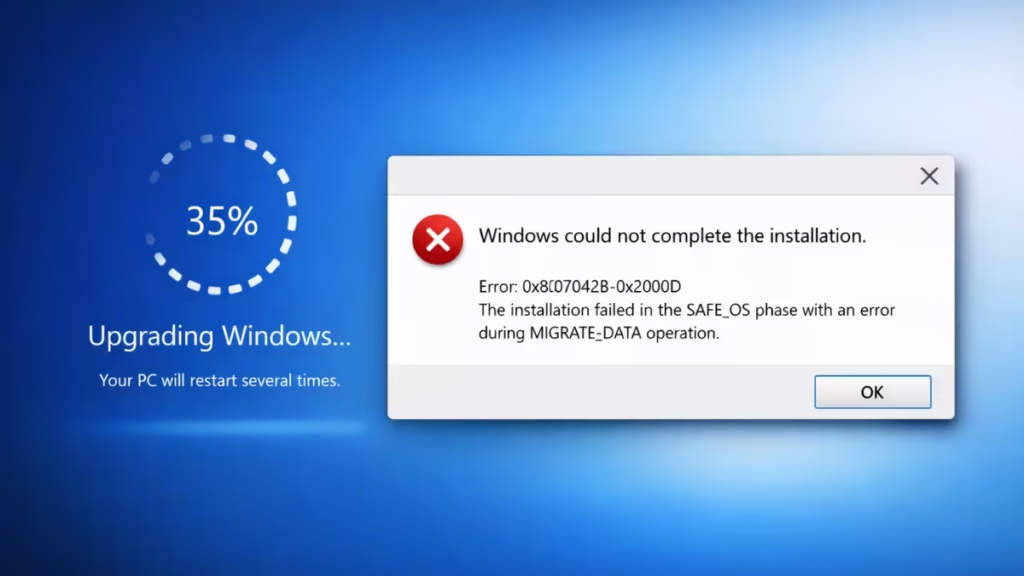
If your PC fails while upgrading from Windows 11 23H2 to 25H2 and shows Windows upgrade error 0x8007042B-0x2000D, the setup process is being interrupted during a critical phase of installation. This error usually appears without a clear explanation, leaving the upgrade stuck or rolled back. In this guide, you’ll learn why Windows upgrade error 0x8007042B-0x2000D occurs and how to fix it, using proven steps that work on most systems without reinstalling Windows.
Fix 1: Clean Boot Windows Before Upgrading (Most Effective)
A clean boot removes third-party interference, which is the #1 cause of this error.
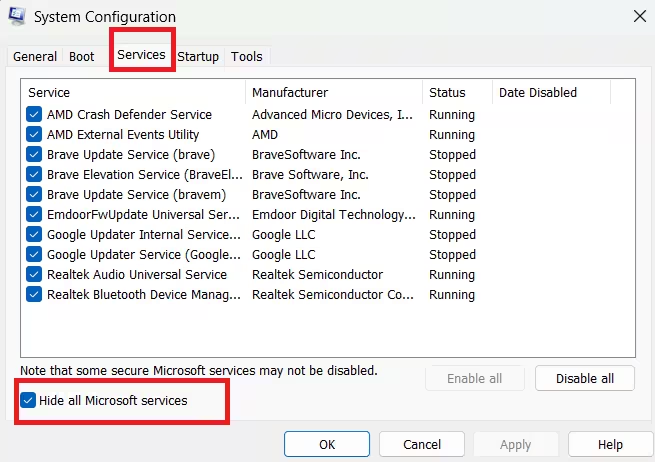
Steps
- Press Win + R, type
msconfig, press Enter - Open the Services tab
- Check Hide all Microsoft services
- Click Disable all
- Go to Startup → Open Task Manager
- Disable all startup apps
- Restart the PC
- Start the Windows 11 25H2 upgrade again
Why this works: The Windows setup process is extremely sensitive. Any non-Microsoft service can terminate it mid-process, triggering 0x8007042B-0x2000D.
Fix 2: Temporarily Disable or Uninstall Antivirus Software
Third-party antivirus tools frequently block Windows upgrade executables.
What to do
- Disable real-time protection
- Disable firewall add-ons
- If possible, fully uninstall the antivirus
- Restart the system
- Retry the upgrade
You can safely reinstall the antivirus after the upgrade completes.
Fix 3: Repair Corrupted System Files Using DISM and SFC
If Windows core files are damaged, the upgrade will fail silently.
Run DISM
- Open Command Prompt (Admin)
- Run:
DISM /Online /Cleanup-Image /RestoreHealthWait until it reaches 100%.
Run SFC
sfc /scannowRestart your PC once both commands finish.
This step alone resolves upgrade failures for many systems.
Fix 4: Reset Windows Update Components Manually
Broken update caches are a major cause of failed feature upgrades.
Steps
Open Command Prompt (Admin) and run:
net stop wuauserv
net stop cryptSvc
net stop bits
net stop msiserver
Rename update folders:
ren C:\Windows\SoftwareDistribution SoftwareDistribution.old
ren C:\Windows\System32\catroot2 catroot2.old
Restart services:
net start wuauserv
net start cryptSvc
net start bits
net start msiserver
Restart the PC and retry the upgrade.
Fix 5: Free Up Enough Disk Space (Critical for 25H2)
Windows 11 feature updates require significantly more space than cumulative updates.
Recommended
- Minimum 30–35 GB free on the system drive
- Remove:
- Temporary files
- Old update caches
- Previous
Windows.oldfolders (if safe)
Use Disk Cleanup or Storage Sense.
Fix 6: Upgrade Using Windows 11 Installation Assistant
If Windows Update keeps failing, this method bypasses it entirely.
Steps
- Download the official Windows 11 Installation Assistant
- Right-click → Run as administrator
- Choose Keep personal files and apps
- Complete the upgrade to 25H2
This avoids Windows Update services, which are often responsible for the error.
Fix 7: Disconnect All External Devices
External devices can interrupt the SAFE_OS phase.
Before upgrading:
- Unplug USB drives
- Remove external HDDs / SSDs
- Disconnect printers and docks
Leave only:
- Keyboard
- Mouse
- Monitor
Retry the upgrade after disconnecting devices.
Fix 8: Check Windows Setup Logs (Advanced)
If the error persists, logs reveal the exact failure point.
Log locations
C:\$WINDOWS.~BT\Sources\Panthersetupact.logsetuperr.log
Search for 0x8007042B entries to identify blocked drivers or services.
FAQs
What is Windows upgrade error 0x8007042B-0x2000D?
Windows upgrade error 0x8007042B-0x2000D occurs when the Windows 11 upgrade process is unexpectedly interrupted during the SAFE_OS or FIRST_BOOT phase, usually due to background services, security software, or corrupted system files.
Why does the Windows 11 upgrade fail from 23H2 to 25H2?
The upgrade fails when setup is blocked by third-party antivirus tools, startup applications, corrupted update components, or insufficient free disk space during installation.
Can this Windows upgrade failure be fixed without reinstalling the OS?
Yes, most upgrade failures can be resolved by performing a clean boot, repairing system files, resetting Windows Update services, or using the Windows 11 Installation Assistant.
Does antivirus software interfere with Windows feature upgrades?
Yes, non-Microsoft security software can block setup processes during feature upgrades, causing the installation to fail or roll back.
How much free space is required to avoid error 0x8007042B-0x2000D?
To avoid Windows upgrade failures, including error 0x8007042B-0x2000D, Microsoft recommends at least 30–35 GB of free disk space on the system drive before upgrading to Windows 11 25H2.
Can external devices cause Windows upgrade error 0x8007042B-0x2000D?
Yes. USB drives, external hard disks, printers, and docking stations can interfere with the SAFE_OS phase and trigger Windows upgrade error 0x8007042B-0x2000D. Disconnecting all external devices before upgrading is recommended.
Is it safe to use the Windows 11 Installation Assistant to fix this error?
Yes. Using the Windows 11 Installation Assistant is a safe and effective method to fix Windows upgrade error 0x8007042B-0x2000D, as it bypasses Update services that often cause the failure.
Will retrying the upgrade after fixing the issue delete my files?
No. When performed correctly, fixing Windows upgrade error 0x8007042B-0x2000D and retrying the upgrade does not delete personal files or installed apps, especially when using the “Keep personal files and apps” option.

