Storage setup on Windows 11 carries more weight than it once did. With UEFI firmware, GPT partitions, SSDs, and NVMe drives now standard, a single misstep in how disk space is allocated can trigger slowdowns, failed updates, or a system that won’t boot.
The Disk Management tool built into Windows 11 covers the basics, but it falls short in situations like extending the C drive when free space isn’t adjacent, moving Windows to a new SSD, or repairing a partition layout after a botched upgrade.
What Does a Disk Management Tool Do?
A disk management tool helps you control how storage is structured and used on your PC. Common tasks include:
- Creating, deleting, and formatting partitions
- Resizing or merging partitions without losing data
- Converting disks between MBR and GPT
- Cloning drives or migrating Windows to a new SSD
- Checking disk health and bad sectors
- Recovering lost or deleted partitions
On Windows 11, these tools are especially useful because system partitions are tightly linked to Secure Boot and recovery environments.
Quick Comparison: Best Disk Management Tools for Windows 11
Here are some of the best disk management tools for Windows 11 based on ease of use, features, and ideal user type.
| Tool | Best Strength | Skill Level | Free Version |
|---|---|---|---|
| EaseUS Partition Master | Easy UI & OS migration | Beginner | Limited |
| MiniTool Partition Wizard | Disk diagnostics & control | Intermediate | Good |
| AOMEI Partition Assistant | Strong free features | Beginner–Intermediate | Strong |
| DiskGenius | Recovery & repair tools | Advanced | Limited |
| NIUBI Partition Editor | Safe resizing with rollback | Intermediate | Good |
Tip: If you’re unsure where to start, tools like EaseUS and AOMEI are the safest options for most Windows 11 users.
Built-In Disk Management Tools in Windows 11
1. Windows Disk Management
Windows Disk Management is the default graphical disk tool included with Windows 11.
What it does well
- Create and delete partitions
- Format drives
- Shrink or extend volumes (with restrictions)
- Display disk layout clearly
Key limitations
- Cannot merge partitions
- Cannot move partitions
- Cannot extend a volume unless unallocated space is directly next to it
- No cloning, migration, or recovery tools
Best use case: Basic disk setup or quick formatting when no advanced changes are required.
See also: How to Fix Disk Layout Validation Failed for Disk 1 in Windows
2. DiskPart (Command-Line Utility)
DiskPart is a powerful disk management tool accessed through Command Prompt or Windows Recovery.
What it can do
- Full control over disks and partitions
- Convert MBR ↔ GPT
- Completely clean drives
- Useful during Windows installation or recovery
Note: DiskPart does not warn you before destructive actions. A single wrong command can permanently erase data.
Best use case: Advanced users, IT troubleshooting, or recovery environments.
Best Third-Party Disk Management Tools for Windows 11
Third-party tools expand what Windows offers by adding safety checks, preview modes, and advanced features.
1. EaseUS Partition Master
EaseUS Partition Master is designed for users who want powerful features with minimal complexity.
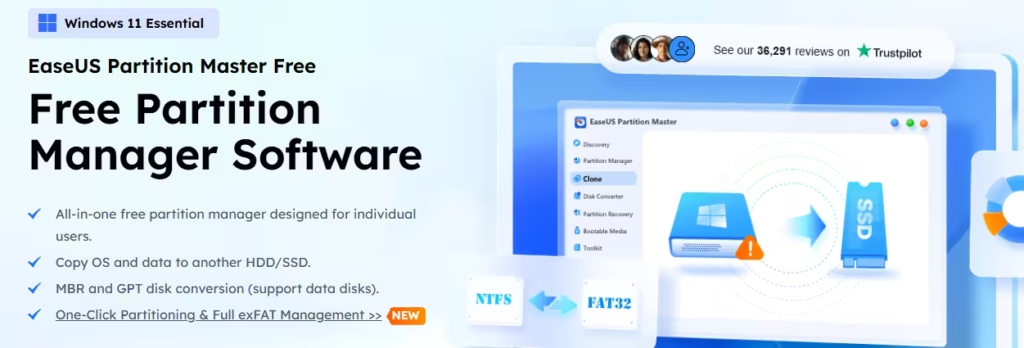
Key features
- Resize, move, merge, split partitions
- Convert MBR ↔ GPT without data loss
- Disk and partition cloning
- Windows OS migration to SSD
- Basic partition recovery
Strengths
- Very beginner-friendly interface
- Step-by-step wizards reduce risk
- Reliable for SSD upgrades
Limitations
- Some advanced features require a paid license
Best for: Home users, beginners, and users upgrading storage hardware.
2. MiniTool Partition Wizard
MiniTool Partition Wizard offers deeper control and extra diagnostics tools.
Key features
- Resize, move, extend, and merge partitions
- Disk and partition copy
- Disk benchmark and surface test
- File system conversion
Strengths
- Includes performance and health analysis
- Strong free version
Limitations
- Some important features are paid
- Slightly steeper learning curve
Best for: Intermediate users who want insight into disk performance and structure.
See also: How to Merge C and D Drive in Windows 11
3. AOMEI Partition Assistant
AOMEI is known for offering more advanced features in its free edition than many competitors.

Key features
- Resize, merge, and split partitions
- Convert MBR ↔ GPT safely
- SSD alignment optimization
- Bootable media creation
Strengths
- Excellent free feature set
- Stable and reliable
- Works well when Windows Disk Management fails
Limitations
- Interface can feel crowded
- Enterprise features require upgrade
Best for: Users who want strong capabilities without immediate cost.
4. DiskGenius
DiskGenius combines disk management with advanced recovery and repair tools.

Key features
- Partition creation and resizing
- Disk cloning and backup
- Bad sector detection
- File and partition recovery
Strengths
- Excellent for damaged or failing drives
- Professional-grade recovery features
Limitations
- Technical interface
- Not ideal for beginners
Best for: Technicians, IT users, and data recovery situations.
5. NIUBI Partition Editor
NIUBI focuses on safety and rollback protection.

Key features
- Resize, merge, move partitions
- Virtual preview before applying changes
- Automatic rollback if an operation fails
Strengths
- Very safe for system partition changes
- Fast execution
Limitations
- Dated interface
- Limited extra utilities
Best for: Users who prioritize safety over design.
See also: How to Install Windows 10 on GPT Partition Without Errors
How to Choose the Right Disk Management Tool
- Beginners: EaseUS or AOMEI
- SSD upgrades: EaseUS or AOMEI
- Performance analysis: MiniTool
- Data recovery: DiskGenius
- Risk-free resizing: NIUBI
- Non-booting systems: GParted Live
Always back up important data before making disk changes.
FAQs
What are the best disk management tools for Windows 11?
The best disk management tools for Windows 11 include EaseUS Partition Master, AOMEI Partition Assistant, MiniTool Partition Wizard, DiskGenius, and NIUBI Partition Editor, each suited for different user needs like resizing, cloning, recovery, and SSD optimization.
Is Windows Disk Management enough for Windows 11?
Windows Disk Management is sufficient for basic tasks like formatting and viewing partitions, but it lacks advanced features such as safe partition merging, OS migration, and recovery, which third-party disk management tools provide.
Which disk management tool is best for beginners on Windows 11?
EaseUS Partition Master and AOMEI Partition Assistant are best for beginners because they offer simple interfaces, guided steps, and safer partition resizing options.
What is the safest disk management software for Windows 11?
NIUBI Partition Editor is considered one of the safest disk management tools for Windows 11 due to its rollback protection, which automatically reverses changes if an operation fails.
Which disk management tool is best for extending the C drive in Windows 11?
AOMEI Partition Assistant and EaseUS Partition Master are among the best tools for extending the C drive in Windows 11, especially when unallocated space is not directly adjacent.
Do disk management tools work with SSDs on Windows 11?
Yes, modern disk management tools support SSDs and NVMe drives, offering features like partition alignment and OS migration that help maintain SSD performance and lifespan.
Can disk management tools cause data loss?
Yes, improper use of any disk management tool can cause data loss. Using tools with preview modes, rollback protection, and creating backups significantly reduces the risk.
Is DiskPart safe to use in Windows 11?
DiskPart is powerful but risky because it does not provide confirmation prompts. It is safe only for experienced users who understand disk and partition commands.
Which disk management tool is best for data recovery on Windows 11?
DiskGenius is one of the best disk management tools for Windows 11 when data or partition recovery is required, thanks to its advanced scanning and repair features.
Are free disk management tools reliable for Windows 11?
Yes, free versions of tools like AOMEI Partition Assistant and MiniTool Partition Wizard are reliable for common tasks, though some advanced features may require paid upgrades.
Windows 11 storage management requires more than basic formatting tools. Whether you’re upgrading to an SSD, fixing partition issues, or recovering lost data, the right disk management tool can save time and prevent costly mistakes.
Choose a tool that matches your experience level and task complexity, and always make backups before changing disk layouts.

