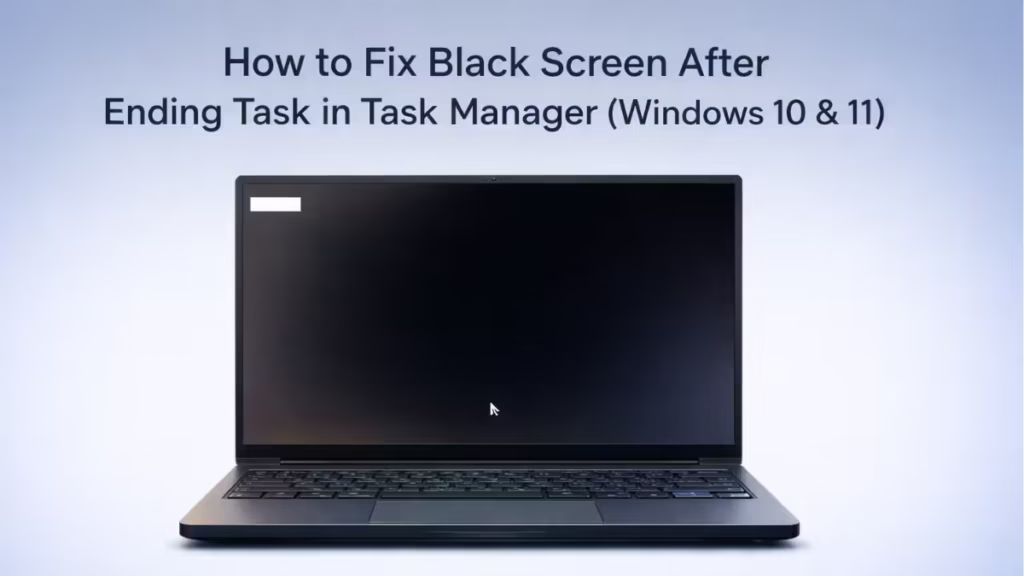
Ending the wrong process in Task Manager turns your screen black instantly. The mouse cursor still moves, but the desktop, taskbar, and icons disappear. This is not a crash. Windows keeps running in the background, but the visual shell has stopped.
The fix depends on which process you ended. Two processes cause this problem most often: explorer.exe and dwm.exe. Each requires a different recovery method.
What Process Did You End?
Before you pick a fix, identify which process caused the black screen.
- If you ended explorer.exe (Windows Explorer): You can restart it manually in seconds without rebooting. This is the most common cause.
- If you ended dwm.exe (Desktop Window Manager): Windows sometimes auto-restarts dwm.exe on its own. If your screen does not recover within 10 seconds, Windows failed to restart it. The only reliable fix is a full reboot. You cannot restart dwm.exe manually from Task Manager the same way you restart explorer.exe.
- If you are unsure which process you ended: Start with the explorer.exe fix below. If the desktop does not return, reboot.
Fix 1: Restart explorer.exe (Most Common Fix)
This method restores the desktop immediately in most cases.
- Press Ctrl + Shift + Esc to open Task Manager.
- Click File in the top-left corner.
- Select Run new task.
- Type
explorer.exe - Click OK or press Enter.
Windows reloads the desktop, taskbar, and icons within a few seconds.
If explorer.exe Already Shows as Running in Task Manager
Sometimes explorer.exe appears in the Processes list, but the desktop is still missing. This means the process is running in a broken state. You need to end it first, then restart it.
- Open Task Manager with Ctrl + Shift + Esc.
- Find Windows Explorer in the Processes tab.
- Right-click it and select End task.
- Click File > Run new task.
- Type
explorer.exeand press Enter.
This forces a clean restart of the shell.
Fix 2: Use Ctrl + Alt + Delete If Ctrl + Shift + Esc Does Not Work
If the screen is black and Task Manager does not open with Ctrl + Shift + Esc, try Ctrl + Alt + Delete instead. This key combination works at a lower system level and opens a separate blue screen with options including Task Manager.
- Press Ctrl + Alt + Delete.
- Click Task Manager from the list.
- Follow the same steps in Fix 1 to restart explorer.exe.
This bypasses the normal desktop input layer, which is why it works even when Ctrl + Shift + Esc fails.
Fix 3: Force Restart (When Both Task Manager Methods Fail)
If the system ignores all keyboard input and Task Manager cannot open through either shortcut, perform a forced restart.
- Hold the Power button for 20 to 30 seconds until the device shuts down completely.
- Wait 10 seconds.
- Turn the device back on normally.
Windows reloads Explorer and dwm.exe automatically during startup.
Note: Avoid draining the battery to force a shutdown. Hold the power button instead. It achieves the same result without risking a corrupted boot sector.
Fix 4: Reset the Graphics Driver (For Lingering Display Issues)
If the desktop loads after restarting explorer.exe but the display still flickers, appears dim, or shows partial artifacts, reset the graphics driver.
Press: Win + Ctrl + Shift + B
The screen blinks once. Windows reloads the display driver without restarting the system.
This step is only necessary when display problems remain after the desktop returns. It does not fix a missing desktop on its own.
What Not to Do
These steps do not solve this issue and add unnecessary risk:
- Do not reinstall GPU drivers for this problem alone.
- Do not enter Safe Mode unless the issue repeats after every reboot.
- Do not edit the registry.
- Do not reset Windows.
What Causes Black Screen After Ending Task in Task Manager
Windows uses two key processes to display the desktop interface:
explorer.exe (Windows Explorer) controls the desktop, taskbar, Start menu, and File Explorer windows. Ending it removes the entire visual shell while Windows itself keeps running underneath.
dwm.exe (Desktop Window Manager) handles hardware-accelerated rendering, transparency effects, window compositing, and everything that makes the display look smooth. Ending it collapses the rendered output entirely. Windows tries to restart it automatically. If it fails, nothing appears on screen.
Both behaviors occur on Windows 10 and Windows 11 because both versions rely on the same underlying shell architecture.
How to Prevent This in the Future
Task Manager lets you stop any process, including critical system components. Ending the wrong one breaks the interface.
- In the Processes tab, end only the application you recognize by name. Do not end background processes unless you know exactly what they control.
- If an application stops responding, right-click the app in the Processes tab and select End task. This targets only the frozen program, not system processes.
- If applications are not opening after boot, that is a separate issue caused by corrupted system components, not Task Manager.
- Use the Details tab carefully. Processes listed there include system-critical files that have no visual indicator warning you against ending them.
FAQs
Why did my screen turn black after ending a task in Task Manager?
Ending explorer.exe removes the desktop shell. Ending dwm.exe removes the rendering layer. Both leave the screen black even though Windows keeps running underneath.
How do I fix a black screen after ending a task in Task Manager?
Open Task Manager with Ctrl + Shift + Esc or Ctrl + Alt + Delete, go to File > Run new task, type explorer.exe, and press Enter. If that does not work, reboot the system.
What if explorer.exe is already running but my desktop is still missing?
End the existing explorer.exe process in Task Manager first, then restart it through File > Run new task. A corrupted instance of explorer.exe can run in the background without displaying anything.
What if I ended dwm.exe instead of explorer.exe?
Windows attempts to restart dwm.exe automatically. If the screen does not recover within 10 seconds, reboot the system. You cannot manually restart dwm.exe through Run new task the same way you restart explorer.exe.
Will restarting explorer.exe close my open programs?
No. Most running applications continue normally. Unsaved File Explorer windows may refresh, but documents, browsers, and other apps stay open.
What if Ctrl + Shift + Esc does not open Task Manager?
Try Ctrl + Alt + Delete instead. It operates at a different input level and opens a separate screen with a Task Manager option even when the normal shortcut fails.

