Seeing “No Bootable Devices Found” on startup means your PC’s firmware searched every connected drive and found none it can boot from. The screen freezes right there, before Windows even begins to load. This happens most often after a power cut, a loose cable, or a change to a BIOS setting, and it looks alarming but rarely means your files are gone. The fixes below start with the quickest checks and move toward deeper repairs, so work through them in order.
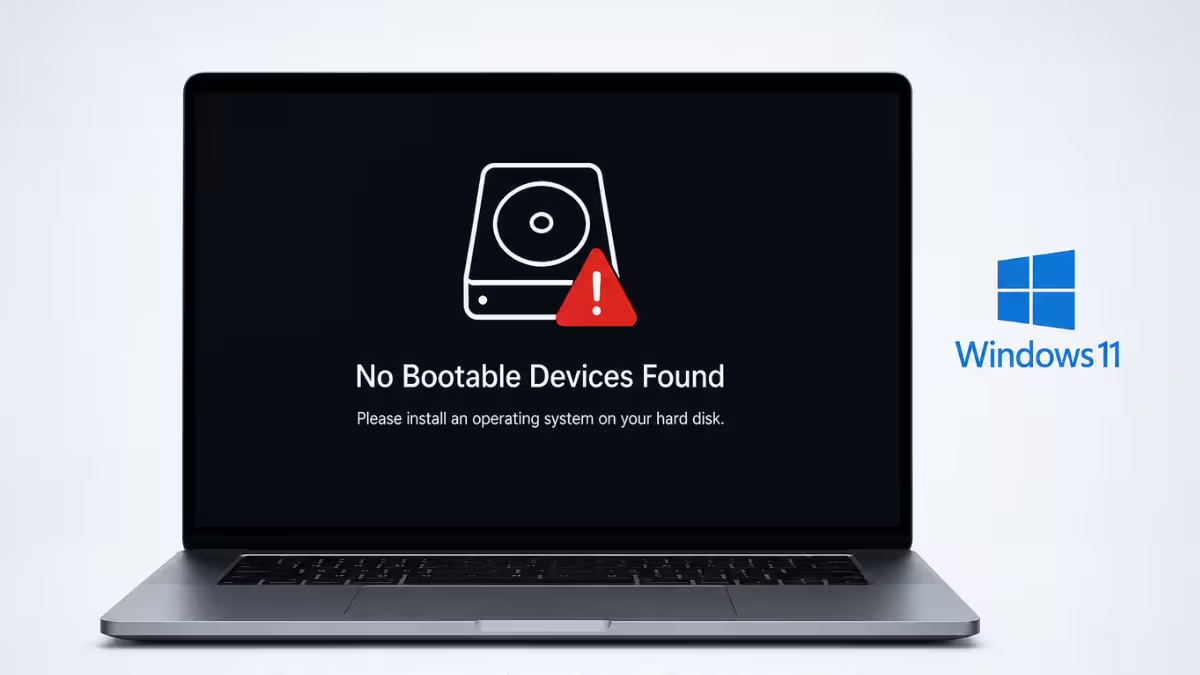
What Causes “No Bootable Devices Found” Error
Before jumping into fixes, it helps to know what triggers this error on Windows 11 systems.
- The boot drive is not set as the first priority in BIOS/UEFI
- A loose or faulty SATA or power cable disconnects the drive
- A corrupted boot sector or BCD after a bad shutdown or failed update
- A failing or physically disconnected storage drive
Fix 1: Check the Boot Order in BIOS
The most common cause of this error is a boot order that no longer points to your Windows drive.
- Restart your PC and press the BIOS key during startup. This is usually
F2,Del, orF10depending on your motherboard brand - Go to the Boot tab once inside BIOS
- Check the Boot Priority list and confirm your Windows drive appears at the top
- If the drive does not appear in the list at all, that points to a hardware issue rather than a settings problem, so move to Fix 2
Fix 2: Reseat the Drive Cables
Loose cables inside a desktop case are a frequent cause of this exact error. If you use a laptop, skip to Fix 3 since the drive is not accessible without disassembly.
- Power off the PC and unplug it from the wall
- Open the case and locate your boot drive
- Disconnect and reconnect both the SATA data cable and the power cable at the drive end
- Repeat the same disconnect and reconnect at the motherboard end
- Try a spare SATA port if one is available, then restart
Fix 3: Confirm the Drive Is Detected in BIOS
If reseating cables does not help, check whether the firmware sees the drive at all.
- Enter BIOS again and open the storage or drive information page, sometimes labeled System Information or Storage Configuration
- Look for your boot drive in the list of detected storage devices
- If the drive does not show up here even after reseating cables, the drive itself has likely failed or disconnected internally, and it may need replacement
Fix 4: Run CHKDSK for Bad Sectors
Even when the drive is detected in BIOS, bad sectors on the disk can still block Windows from booting. This fix needs a bootable Windows 11 USB installer, so create one on another PC if you have not already.
- Boot from the Windows 11 USB installer
- Select Repair your computer
- Go to Troubleshoot > Advanced options > Command Prompt
- Type the following command and press Enter:
chkdsk C: /r /x- Wait for the scan to finish, since it checks the entire drive for bad sectors and repairs them automatically
- Exit the installer, unplug the USB drive, and restart your PC
Fix 5: Mark the Primary Partition Active
If the partition holding Windows is not marked active, the firmware skips it during boot even though the drive itself is healthy.
- Boot from the Windows 11 USB installer and open Command Prompt the same way as Fix 4
- Type
diskpartand press Enter - Type
list diskand press Enter to see your drives - Type
select disk 0and press Enter, or the correct disk number for your Windows drive - Type
list volumeand press Enter to see the partitions - Type
select volume Xand press Enter, replacing X with the volume number where Windows is installed - Type
activeand press Enter - Type
exitand press Enter - Close the installer, unplug the USB drive, and restart your PC
Fix 6: Rebuild Boot Files From Windows Install Media
When the drive is detected but Windows still will not boot even after Fix 4 and Fix 5, the boot sector or BCD file is likely corrupted. This fix needs a second working PC or laptop to create the installer, plus a spare USB drive of at least 8GB.
- Create a bootable Windows 11 USB installer on another PC and boot from it. If no second device is available, most repair shops and cyber cafes can create one for a small fee, or a friend’s PC works as well
- Select Repair your computer
- Go to Troubleshoot > Advanced options > Command Prompt
- Run the following commands one at a time:
bootrec /fixmbr
bootrec /fixboot
bootrec /scanos
bootrec /rebuildbcd- Restart the PC once the commands finish and remove the USB drive
Fix 7: Revert Storage Controller Mode in BIOS
If you recently changed a storage controller setting, Windows may stop recognizing the drive that holds it.
- Open BIOS and look for a setting labeled SATA Mode, AHCI, or RAID under the storage or advanced section
- Check whether this setting was switched after Windows was installed
- If you are unsure what the original mode was, set it to AHCI first, since that is the default on almost all Windows 11 installations unless you deliberately set up RAID
- Save changes and restart to see if the drive is recognized again
Frequently Asked Questions
Why does my PC suddenly show “No Bootable Devices Found”?
This usually happens after a power outage, a failed Windows update, a loose cable, or a change to a BIOS storage setting. Any of these can prevent the firmware from locating a valid boot drive at startup.
Can I fix this error without a Windows installation USB?
Yes, if the cause is a wrong boot order or a loose cable, Fix 1 and Fix 2 resolve it without any installation media. A USB drive is only needed if the boot sector or BCD file itself is damaged.
How do I know if my hard drive has failed?
Check the storage information page inside BIOS. If the drive does not appear there at all, even after reseating its cables, the drive has likely failed physically and needs replacement.
Will switching AHCI to RAID in BIOS delete my files?
Switching this setting does not delete files directly, but it can make Windows unable to recognize the drive it is installed on, which triggers this exact boot error. Reverting the setting back typically restores access.
Does this error mean I have to reinstall Windows?
Not usually. Most cases trace back to boot order, cable connections, a bad sector, an inactive partition, or a corrupted BCD, and Fix 4 through Fix 6 resolve these without touching your installed programs or personal files. Reinstallation is only necessary if the drive itself has failed.
Read More
- Windows 11 Cloud Rebuild: New Recovery Tool Fixes Unbootable PCs
- How to Clone SSD From BIOS Using a Bootable USB
- WinDiskWriter: Create Bootable Windows USB on Mac (Free)
- How to Use Ventoy to Create a Bootable Windows 11 USB Drive
- How to Create Bootable Windows 11 26H2 USB Install Media (Rufus, Ventoy, CMD)

