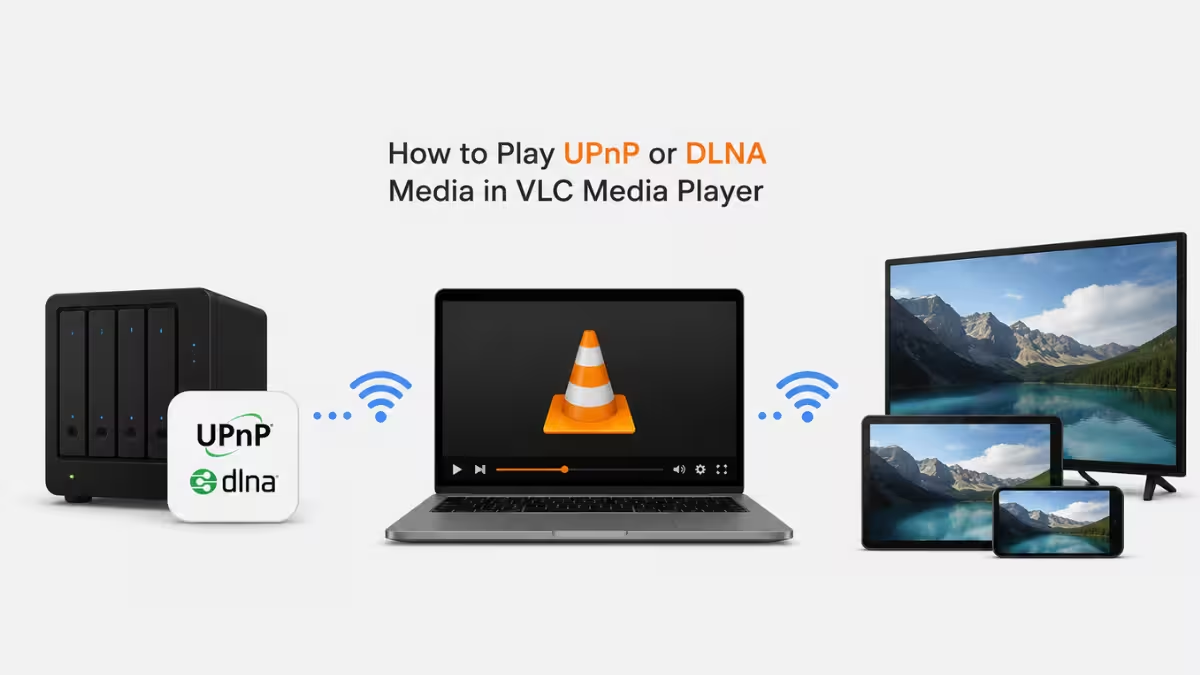
VLC Media Player can browse and play media stored on UPnP or DLNA servers on your local network without any extra plugins. This works for content shared from a NAS device, a smart TV, a router with media sharing, or another PC running a DLNA server. Here is how to set it up.
What Are UPnP and DLNA
UPnP, short for Universal Plug and Play, is a networking feature that lets devices on the same network automatically discover and communicate with each other. DLNA, short for Digital Living Network Alliance, builds on UPnP specifically for sharing media such as videos, music, and photos between devices like a PC, NAS, or smart TV.
In practice, one device runs a DLNA or UPnP server and shares its media folders, while other devices on the same network, including VLC, act as clients that can browse and play that shared content directly without copying files over. Here is how to set that up in VLC.
Method 1: Play UPnP or DLNA Media Using VLC’s Network Browser
VLC includes a built-in Universal Plug and Play browser that lists every DLNA or UPnP server visible on your local network.
Step 1: Confirm your DLNA server is running
Make sure the device sharing the media, such as a NAS, router, or another computer, has its DLNA or media sharing service turned on. VLC can only detect servers that are actively broadcasting on the same network. Once sharing is confirmed on that device, switch over to VLC to start browsing.
Step 2: Open VLC and access the network browser
Launch VLC and go to View in the menu bar, then select Playlist. On Windows, you can also press Ctrl + L to open the sidebar directly.
Step 3: Locate the Universal Plug’n’Play section
In the left sidebar of the playlist panel, look for Local Network, then expand Universal Plug’n’Play. VLC scans the network for a few seconds, so the list may look empty at first. Detected UPnP or DLNA servers will populate automatically once the scan finishes.
Step 4: Browse and select your media
Click on your server name to expand its folder structure. Navigate through the shared folders until you find the video, audio, or photo file you want.
Step 5: Start playback
Double-click the file to begin streaming it directly from the server. VLC will play it the same way it plays a local file, without needing to download it first.
Method 2: Open a UPnP or DLNA Stream Using a Network URL
If your DLNA server exposes a direct stream URL, you can open it manually instead of browsing.
Step 1: Find the media’s network address
A direct stream URL is a network address that points straight to a file on the server, usually starting with http:// followed by the server’s local IP address. Not every DLNA server exposes one, so check your server’s admin panel, companion app, or sharing settings for a “copy link” or “stream URL” option. If you cannot find one, use Method 1 instead.
Step 2: Open the network stream dialog in VLC
Go to Media in the menu bar, then click Open Network Stream, or press Ctrl + N.
Step 3: Paste the URL and play
Paste the address into the URL field and click Play. VLC will connect to the server and start streaming the file.
What Causes UPnP or DLNA Devices Not to Appear in VLC
If your server does not show up in either method above, one of these is usually the reason.
- The DLNA server and VLC are on different network segments or subnets
- Windows Media Player Network Sharing or a similar service is disabled on the source device
- A firewall is blocking UPnP discovery traffic on the local network
- The router has UPnP disabled at the network level
Frequently Asked Questions
Does VLC support DLNA out of the box?
Yes. VLC has built-in support for browsing and playing UPnP and DLNA content through its Local Network section in the playlist sidebar, with no additional plugin required.
Why can’t VLC find my DLNA server?
This usually happens when the server and VLC are not on the same network, the sharing service is turned off, or a firewall is blocking discovery. Restarting the DLNA service on the source device often resolves it.
Can VLC act as a DLNA server itself?
VLC does not natively broadcast itself as a DLNA server for other devices to browse. It functions as a client that connects to existing UPnP or DLNA servers on the network.
Can I play DLNA content from a smart TV in VLC?
Yes, as long as the smart TV has media sharing enabled and both devices are on the same network. The TV’s shared folders will show up under Universal Plug’n’Play in VLC’s Local Network section.
Does VLC support subtitles when streaming from a DLNA server?
Yes, VLC applies its normal subtitle handling to network streams. If a matching subtitle file is stored alongside the video on the server, VLC can load it, or you can add one manually through the Subtitle menu during playback.
Read More
- ChatGPT Memory Not Working? Causes and Fixes That Actually Work
- Target App Not Working? 7 Fixes for Loading, Login and Checkout Issues
- How to Do Microsoft Scout Web Scraping With Playwright
- Dave App Login Not Working? How to Fix It
- How to Build AI-Powered Desktop Automation Workflows in Windows 11
- How to Force-Enable Xbox Mode on Any PC in Windows 11

