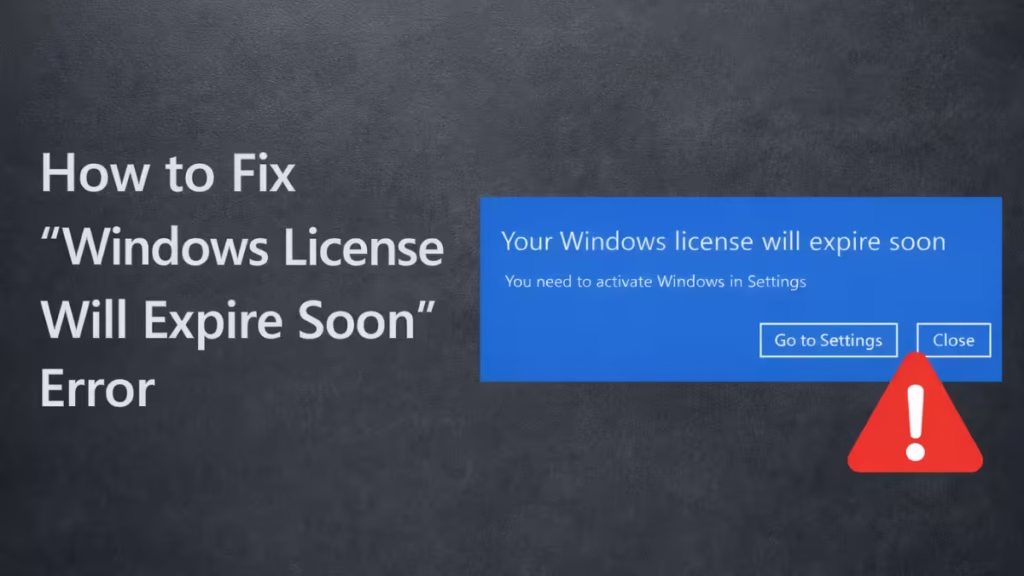
If Windows keeps showing the “Your Windows license will expire soon” message, activation has failed or your system uses a time-limited license. This guide explains how to identify the cause and fix it permanently, using safe, Microsoft-supported methods only.
Step 1: Check Your Windows Activation Status
Before trying any fix, confirm what type of license your PC uses.
- Press Windows + I
- Go to System → Activation
- Check:
- Activation status
- Windows edition (Home / Pro / Enterprise)
- Activation message text
What the status means
- Activated with a digital license → Activation is valid
- Activated using your organization’s activation service → Volume (KMS) license
- Windows is not activated → Activation failed or key mismatch
This step determines which fix will work.
See also: Windows 11 Pro Activation Fails After Reinstall (Fix)
Step 2: Restart Windows Explorer (Temporary Fix)
This step removes the popup temporarily but does not fix activation.
- Press Ctrl + Shift + Esc
- Open Task Manager
- Right-click Windows Explorer
- Select Restart
Use this only to clear the screen while applying a permanent fix.
Step 3: Activate Windows With a Genuine Product Key (Permanent Fix)
This is the most reliable solution.
- Open Settings → System → Activation
- Click Change product key
- Enter a valid product key that matches your Windows edition
- Click Next and complete activation
- Restart your PC
Once activation succeeds, Windows stops showing the expiration message.
Step 4: Re-Activate Windows Using Your Microsoft Account
Use this method only if Windows was previously activated and activation broke after a hardware change.
- Sign in to Windows using the same Microsoft account
- Go to Settings → System → Activation
- Click Troubleshoot
- Select I changed hardware on this device recently
- Choose your device and confirm
This works for retail licenses. It does not work for volume or OEM-locked licenses.
See also: Windows Product Key Not Working? Fix Activation Errors
Step 5: Fix Edition Mismatch Issues
Activation fails if the installed Windows edition does not match the product key.
Examples:
- Windows 11 Pro installed + Home key
- Windows Enterprise installed + Pro key
How to check
- Go to Settings → System → About
- Confirm the installed edition
- Use a matching key or reinstall the correct edition
Edition mismatches always trigger activation warnings.
Step 6: Replace Volume or Evaluation Windows Installations
If Activation shows:
- Enterprise
- Evaluation
- Organization’s activation service
Your system uses a time-limited license.
Correct solution
- Upgrade to a licensed Home or Pro edition
- Or reinstall Windows using a retail ISO
- Then activate with a genuine key
There is no supported way to permanently extend evaluation or KMS licenses.
What You Should NOT Do
Avoid these methods completely:
- Disabling Windows License Manager
- Disabling Windows Update
- Editing the Registry to bypass activation
- Using cracks or activators
These methods:
- Break Windows updates
- Trigger license blocks
- Reduce system security
- Create long-term activation problems
Will Windows Stop Working If You Ignore the Message?
Windows will not stop working if you ignore the “Windows license will expire soon” message. Your system continues to run normally, and you can still use all core features without interruption.
However, Windows shows regular activation reminders, disables personalization options such as themes and wallpapers, and may display an activation watermark on the desktop. Importantly, Windows does not lock you out, shut down automatically, or delete your data if the license remains unactivated.
FAQs
Why does my PC say “Windows license will expire soon”?
Windows shows this message when it cannot validate activation. This usually happens due to a volume license, expired evaluation version, hardware change, or a mismatch between the Windows edition and the product key.
Will Windows stop working if the license expires?
No. Windows continues to run normally. You will see activation reminders, a watermark, and limited personalization, but Windows does not lock you out or delete your data.
Is “Windows license will expire soon” a virus?
No. This message comes from Windows activation services. Malware can imitate popups, but the genuine warning always appears inside Windows system notifications or Activation settings.
Does restarting Windows Explorer fix the license expiration error?
Restarting Windows Explorer can temporarily remove the popup, but it does not fix activation. The message returns until Windows activates correctly.
Why does this error appear on genuine Windows licenses?
Even genuine licenses can show this error after major updates, motherboard changes, BIOS resets, or activation file corruption. Re-activating Windows usually resolves it.
What is the permanent fix for Windows license expiration warnings?
The permanent fix is activating the correct Windows edition using a genuine product key or re-linking a valid digital license through a Microsoft account.
Can disabling Windows services fix the license expiration issue?
No. Disabling Windows License Manager or Windows Update does not fix activation and can cause security and update problems. Microsoft does not recommend this method.

