If the Microsoft Store shows error code 0x80244022 while installing iCloud for Windows, the problem usually sits with Windows connectivity or update services—not with Apple’s app itself. This guide walks you through proven fixes in the exact order that resolves the issue for most users.
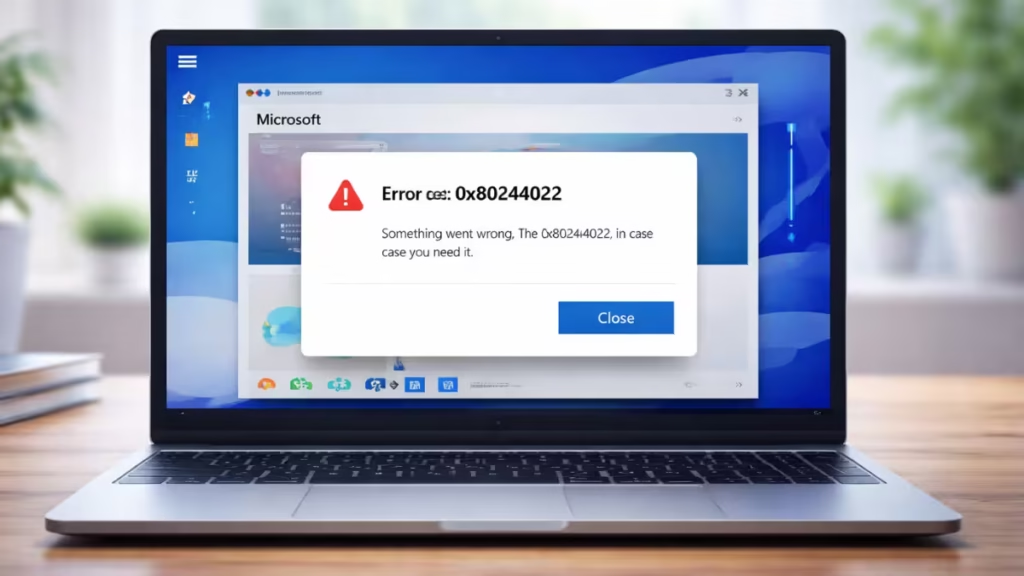
Why Error 0x80244022 Appears When Installing iCloud for Windows
Error 0x80244022 appears when Windows fails to communicate with Microsoft servers. Network filters, incorrect system time, broken update components, or a corrupted Store cache commonly trigger it. Because the Microsoft Store depends on Windows Update services, both must work correctly for iCloud to install.
Fix 1: Check Internet, VPN, and Proxy Settings
Network interference causes this error more often than anything else.
- Open Settings → Network & Internet.
- Turn VPN off if it’s enabled.
- Open Proxy and turn Use a proxy server off.
- Restart your PC and try the install again.
Corporate or school networks frequently block Store endpoints. Use a home network if possible.
Fix 2: Sync Date and Time (Critical)
Secure connections fail if your clock is out of sync.
- Go to Settings → Time & Language → Date & time.
- Turn on Set time automatically and Set time zone automatically.
- Click Sync now.
- Restart Windows.
Fix 3: Reset the Microsoft Store Cache
A corrupted cache blocks downloads and updates.
- Press Windows + R.
- Type
wsreset.exeand press Enter. - Wait for the Store to reopen automatically.
Try installing iCloud again once the Store reloads.
Fix 4: Run Built-in Troubleshooters
Windows includes tools designed to fix Store and Update failures.
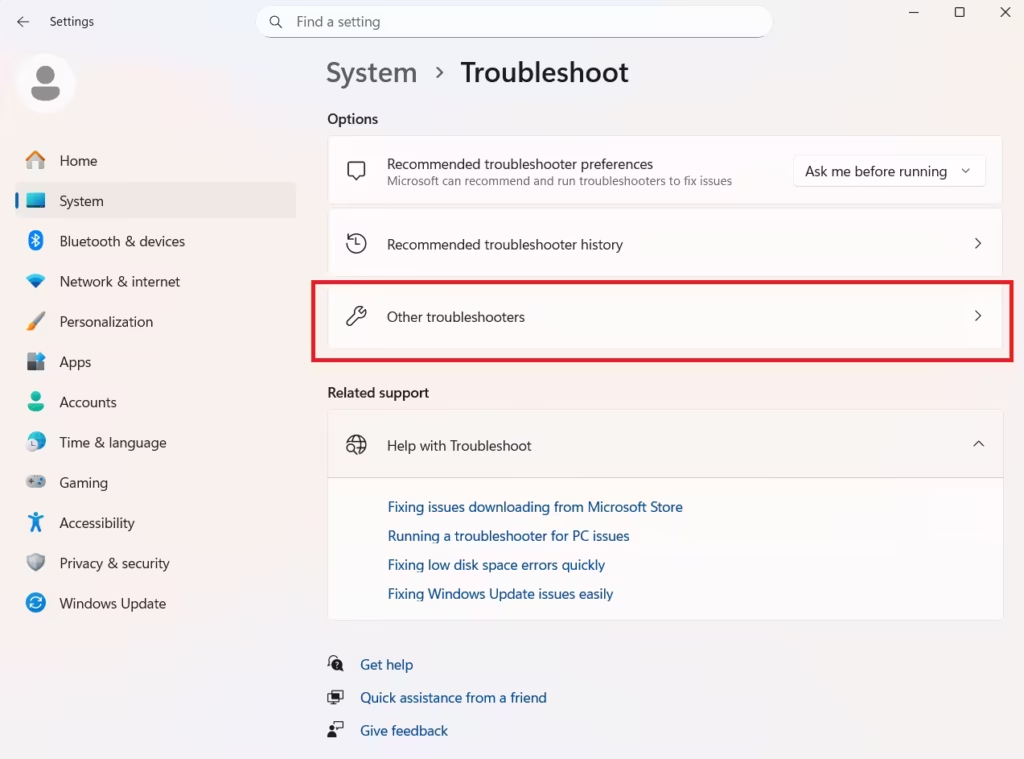
- Open Settings → System → Troubleshoot → Other troubleshooters.
- Run Windows Store Apps.
- Run Windows Update.
Apply all recommended fixes, then restart.
Fix 5: Restart Required Windows Services
If background services stop, the Store cannot download apps.
- Press Windows + R, type
services.msc, and press Enter. - Restart these services:
- Windows Update
- Microsoft Store Install Service
- Background Intelligent Transfer Service (BITS)
- Set each service to Automatic if it’s disabled.
Fix 6: Repair or Reset the Microsoft Store App
Damaged Store files often trigger error 0x80244022.
- Go to Settings → Apps → Installed apps.
- Select Microsoft Store → Advanced options.
- Click Repair first.
- Click Reset only if Repair doesn’t work.
Fix 7: Update Windows Fully
The Store relies on updated system components.
- Open Settings → Windows Update.
- Click Check for updates.
- Install everything available, including optional updates.
- Restart and retry the install.
Fix 8: Temporarily Disable Antivirus (Test Only)
Some security tools block Store traffic.
- Disable third-party antivirus protection briefly.
- Try installing iCloud.
- Re-enable protection immediately after testing.
Advanced Fix: Repair Windows System Files
Use this only if all earlier steps fail.
- Open Command Prompt (Admin).
- Run:
sfc /scannow- After it finishes, run:
DISM /Online /Cleanup-Image /RestoreHealth- Restart Windows.
Why This Fix Works
The Microsoft Store, Windows Update, and background services work as a single pipeline. When any part breaks—network access, time sync, cache, or services—the Store throws 0x80244022. Fixing the pipeline restores normal app installation.
FAQs
What does error 0x80244022 mean when installing iCloud for Windows?
Error 0x80244022 means Windows cannot connect to Microsoft Store or Windows Update servers, which prevents iCloud for Windows from downloading correctly.
Is error 0x80244022 caused by iCloud or Apple?
No, error 0x80244022 is a Windows and Microsoft Store connectivity issue and is not caused by iCloud or Apple software.
Can I fix error 0x80244022 without reinstalling Windows?
Yes, most users fix error 0x80244022 by disabling VPN or proxy settings, syncing date and time, resetting the Microsoft Store cache, or restarting update services.
Why does error 0x80244022 keep appearing again?
The error usually returns when VPNs, proxies, firewalls, incorrect system time, or stopped Windows Update services continue to block Microsoft servers.
Does error 0x80244022 affect other Microsoft Store apps?
Yes, error 0x80244022 can prevent any Microsoft Store app from installing or updating, not just iCloud for Windows.
Will disabling antivirus software fix error 0x80244022?
Temporarily disabling third-party antivirus or firewall software can help if it blocks Microsoft Store traffic and triggers error 0x80244022.
Can I install iCloud for Windows without using the Microsoft Store?
No, iCloud for Windows is primarily distributed through the Microsoft Store, so fixing error 0x80244022 is necessary for proper installation and updates.
Is error 0x80244022 a serious Windows problem?
No, error 0x80244022 does not damage Windows or personal files and only blocks communication with Microsoft update servers.
Which fix works best for error 0x80244022?
Disabling VPN or proxy settings, syncing system time, resetting the Microsoft Store cache, and restarting Windows Update services fix error 0x80244022 in most cases.

