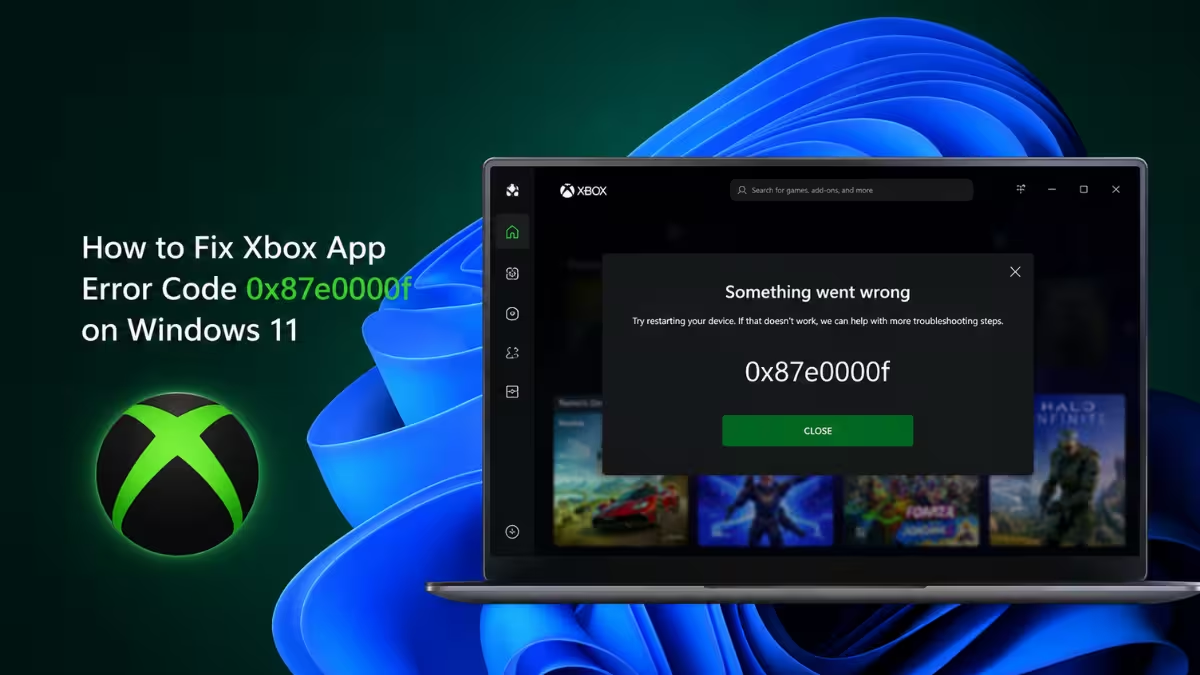
Xbox app error 0x87e0000f shows up while a game is downloading or updating through the Xbox app, usually around the halfway mark of the progress bar. The app throws a generic message about something unexpected happening and offers little else to go on. The fixes below target the actual causes reported for this error: corrupted app cache, broken background services, account token mismatches, an unstable connection, and storage conflicts.
What Causes Error 0x87e0000f
This error is not tied to one single fault. It typically traces back to one of these issues.
- Corrupted or outdated cache stored by the Xbox app or Microsoft Store
- Xbox-related background services stopped or set to manual startup
- Expired sign-in tokens after a password change or account switch
- Outdated Windows build missing components the Xbox app depends on
- An unstable internet connection or a stuck install on external storage
Quick Check: Xbox Live Server Status
Before changing any settings, rule out a server-side outage. Server issues on Microsoft’s end produce the same error code as a local fault, and no local fix resolves that. Check the current status on the official Xbox Live status page. If Microsoft lists an ongoing issue with downloads or Game Pass, wait until it clears before retrying. If services show as up, work through the fixes below.
Fix 1: Clear the Microsoft Store Cache
Cache files that manage your download queue can go stale after a crash or a forced shutdown, and that stale data is one of the most common triggers for 0x87e0000f.
- Press
Win + R, typewsreset.exe, and press Enter. - Wait for a blank command window to appear and close on its own. This confirms the cache has been cleared.
- The Microsoft Store will open automatically once the reset finishes.
- Relaunch the Xbox app and restart the game download.
Fix 2: Reset the Xbox App
If clearing the Store cache does not help, reset the Xbox app itself to wipe out corrupted local settings without touching your installed games. Resetting clears app-specific data and sign-in sessions only, so your installed games and cloud saves stay intact.
- Open Settings and go to Apps > Installed apps.
- Find Xbox, select the three-dot menu next to it, then choose Advanced options.
- Scroll down and select Reset.
- Restart your PC and sign back into the Xbox app before retrying the download.
Fix 3: Set Xbox Services to Automatic
The Xbox app depends on a handful of background services for authentication and download delivery. If any of them are stopped, downloads can fail partway through.
- Press
Win + R, typeservices.msc, and press Enter. - Locate Xbox Live Auth Manager, Xbox Live Networking Service, and Xbox Live Game Save.
- Right-click each one, open Properties, set Startup type to Automatic, and click Start if it is not already running.
- Close the Services window and restart your PC.
Fix 4: Update Windows
An outdated Windows build can miss the framework updates that Gaming Services and the Xbox app need to communicate properly with Microsoft’s servers.
- Open Settings > Windows Update and select Check for updates.
- Install any pending updates, including ones listed under Advanced options > Optional updates.
- Restart your PC once installation finishes and try the download again.
Fix 5: Reinstall the Xbox App
If the error persists after the fixes above, the app files themselves may be damaged beyond what a reset can repair.
- Open Settings > Apps > Installed apps.
- Find Xbox, select the three-dot menu, and choose Uninstall.
- Open the Microsoft Store, search for Xbox, and reinstall it.
- If uninstalling through Settings fails, run this command in PowerShell as administrator:
Get-AppxPackage *xboxapp* | Remove-AppxPackage
Fix 6: Change the Game Install Location
Games installing to an external drive sometimes hit file conflicts that trigger this error on PC. Switching to internal storage avoids the issue for most large titles.
- Cancel the current download in the Xbox app.
- Check the install path under
C:\XboxGamesorC:\Program Files\ModifiableWindowsApps. - Delete any file inside that has no file extension, since these are usually leftover corrupted fragments.
- Restart the download and let it install to your primary drive if the error continues.
Frequently Asked Questions
What does Xbox error 0x87e0000f mean?
It signals a failed game download or installation through the Xbox app, most often caused by corrupted cache, a stopped background service, or an outdated Windows build.
Does resetting the Xbox app delete my games?
No. Resetting only clears local app data, cache, and your sign-in session. Installed games and cloud saves are not affected.
Can a slow internet connection cause this error?
Yes. An unstable or interrupted connection can stall the download at the same point where this error typically appears, so testing your connection is worth doing before deeper fixes.
Why does the error appear around 50% of the download?
Downloads often stall mid-progress because that is when the app verifies cached data and account tokens against Microsoft’s servers. A mismatch or corrupted file at that checkpoint triggers the error instead of letting the download complete.
Do I need to reinstall Windows to fix this error?
No. Reinstalling Windows is not required. This error is tied to the Xbox app, its cache, or related services, and resetting or reinstalling the app alongside a Windows update resolves it in most cases.

