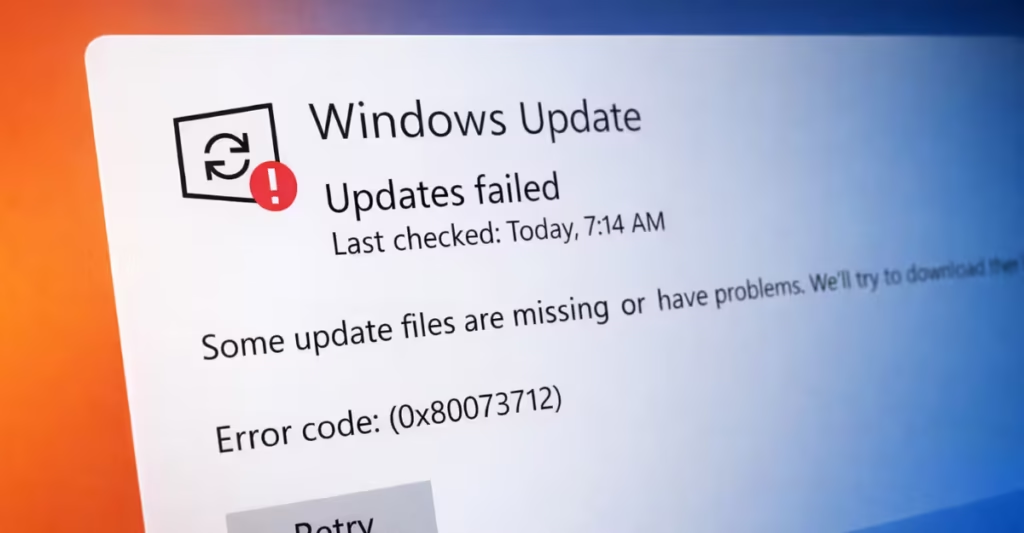
If Windows Update keeps failing with error 0x80073712, your system files are likely corrupted or missing. This error usually appears when Windows cannot access required update components.
Don’t worry. You don’t need to reinstall Windows. You can repair the damaged components using built-in tools in just a few steps. This guide walks you through the safest and most effective fixes to get Windows Update working again.
Step 1: Repair Windows System Image Using DISM
The Deployment Image Servicing and Management (DISM) tool repairs core Windows components.
Follow these steps:
- Press Start
- Type Command Prompt
- Right-click it and select Run as administrator
Now paste this command and press Enter:
DISM.exe /Online /Cleanup-Image /RestoreHealthWait for the scan to finish. It may take 10–20 minutes.
Restart your PC after it completes.
Step 2: Run System File Checker (SFC)
After restarting, run the SFC scan to repair damaged files.
Open Command Prompt as administrator again.
Type:
sfc /scannowPress Enter and wait.
The scan will:
- Detect corrupted system files
- Replace damaged files automatically
Restart your PC once it finishes.
Now try Windows Update again.
Step 3: Reset Windows Update Components
If the error still appears, reset the update services manually.
Open Command Prompt as administrator.
Run these commands one by one:
net stop bits
net stop wuauserv
ren %systemroot%\SoftwareDistribution SoftwareDistribution.bak
ren %systemroot%\System32\catroot2 catroot2.bak
net start bits
net start wuauserv
These commands:
- Stop update services
- Clear corrupted update cache
- Restart update services
Restart your PC and check for updates again.
Step 4: Check Your Windows Version
If updates still fail:
- Press Windows + R
- Type
winver - Check your Windows version
If your version is outdated, use:
- Windows Installation Assistant (Windows 11)
- Media Creation Tool (Windows 10)
An in-place repair upgrade fixes deep component corruption without deleting files.
Why This Error Happens
You usually see error 0x80073712 when:
- Windows update installation was interrupted
- A previous update failed
- Disk corruption damaged system files
- Malware modified core files
DISM and SFC repair most of these issues.
When You Should Perform a Windows Repair Upgrade
If none of the above methods work, perform an in-place upgrade.
This method:
- Keeps your files
- Keeps installed apps
- Reinstalls Windows system files
It resolves severe component store corruption.
Windows Update error 0x80073712 looks serious, but you can fix it in most cases using DISM, SFC, and a Windows Update reset.
Start with system repair tools before considering a reinstall.
If the error continues after all steps, the system image may be heavily corrupted, and a repair upgrade becomes the safest solution.

