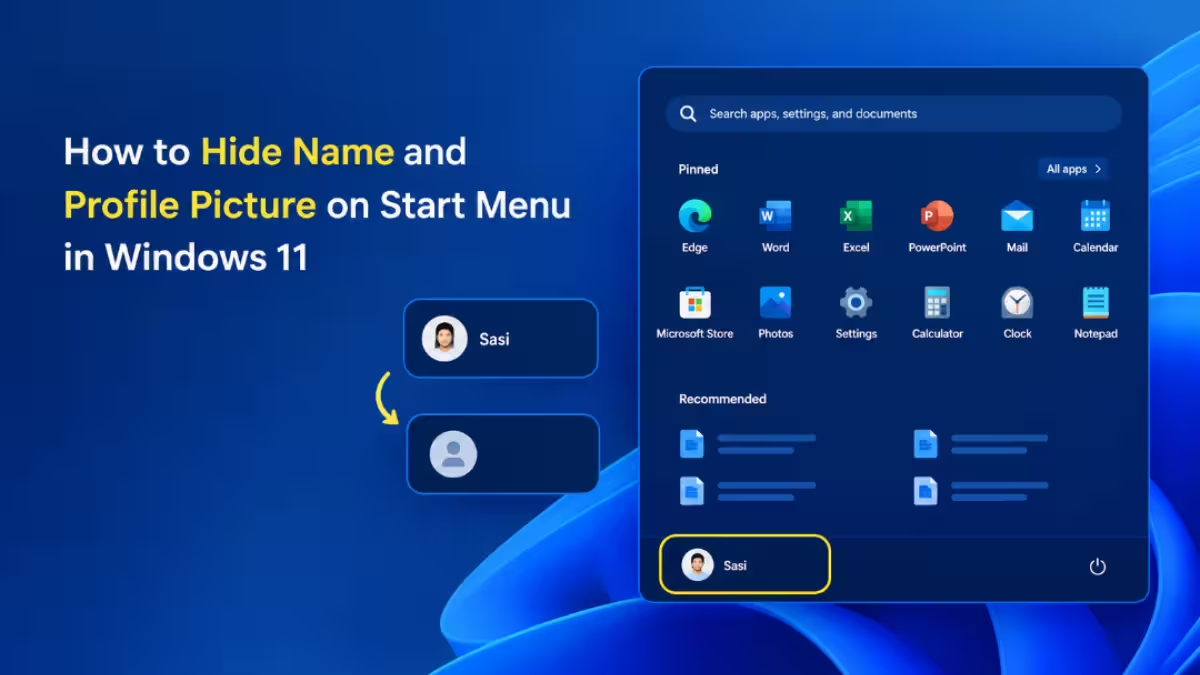
Windows 11 displays your account name and profile picture at the bottom of the Start menu every time you open it. A recent update finally adds a native toggle to hide both, so you no longer need to swap accounts, remove your profile picture, or rely on third-party tools to keep that information off screen.
Why Hide Your Name and Profile Picture on Start
That small detail creates a privacy gap in a few common situations, especially during screen shares, recordings, presentations, or on a PC used by multiple people.
- Screen recordings and live streams expose your full name to viewers
- Shared or public computers display your identity to anyone who opens Start
- Presentations and remote meetings can reveal personal details you'd rather keep private
Requirement Before You Start
Before you go looking for the toggle, make sure your PC can actually show it. This option only appears after installing the KB5120998 update, released at the end of August 2026. If your PC hasn't received it yet through the gradual rollout, the option won't show up in Settings.
Method 1: Hide It Using Settings
The Settings app is the official way to control this feature.
- Press
Win + Ito open Settings. - Click Personalization in the left sidebar.
- Select Start on the right panel.
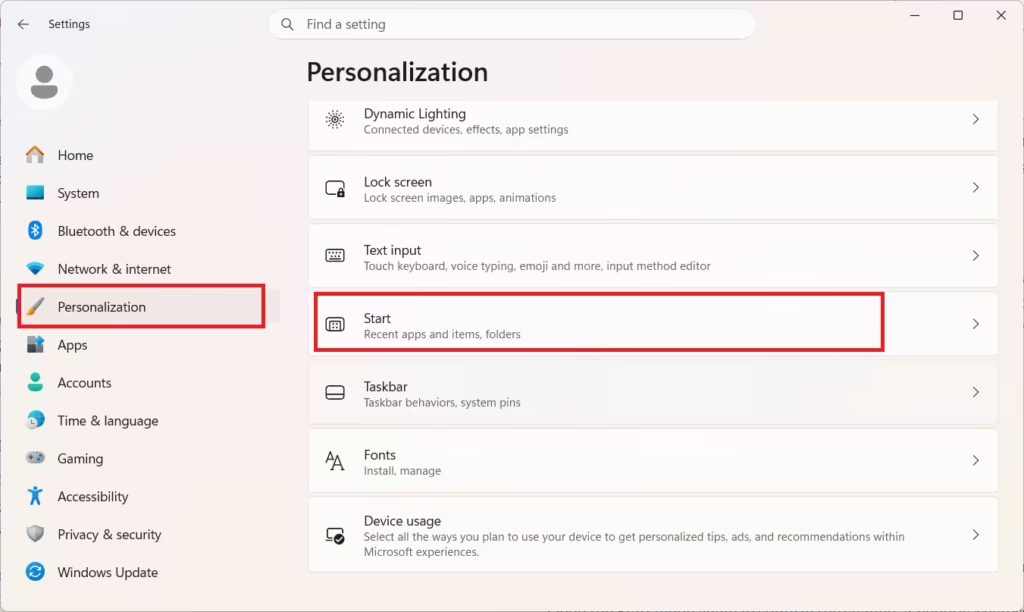
- Scroll to the Other settings section.
- Turn on the toggle labeled Hide your name and profile picture on Start.
Open the Start menu again to confirm the change. A generic Microsoft Account icon replaces your photo, and your name no longer appears next to it.
Method 2: Hide It Using the Registry Editor
Use this method if Settings doesn't show the toggle yet, or if you manage the setting through a script or policy.
- Press
Win + R, typeregedit, and press Enter. Approve the UAC prompt. - Navigate to:
HKEY_LOCAL_MACHINE\SOFTWARE\Microsoft\Windows\CurrentVersion\Personalization\StartMenu - Right-click the StartMenu key, select New, then DWORD (32-bit) Value.
- Name it
HideUserInformation. - Double-click the new value and set Value data to
1. - Click OK, then sign out and back in, or restart your PC.
Set the value back to 0 to restore the name and picture display.
What Still Shows After You Hide It
Hiding this setting only affects the main Start menu view. Your name and photo still appear if you click the generic account icon to open the account panel. The toggle controls visibility at a glance, not full account privacy.
Frequently Asked Questions
Do I need admin rights to hide my name on Start?
No, the Settings app toggle works for standard accounts. The registry method requires administrator privileges.
Why don't I see the toggle in my Settings app?
Microsoft rolled out this option gradually after the KB5120998 update. Your device may not have received it yet even if the update is installed. Check for updates again in a few days if the toggle is missing.
Does hiding my name affect other users on a shared PC?
No, the setting applies per user account. Each person signed in to the PC controls their own Start menu display independently.
Will this setting survive a Windows update or reset?
The toggle stays on unless you manually turn it off or perform a full reset of Windows. Regular cumulative updates don't reset Personalization settings.
Can I hide my name without hiding my profile picture, or the other way around?
No, the toggle controls both together. Turning it on replaces your name and photo with a generic Microsoft Account icon and label, and there's no separate option to hide just one.