If you see a LogTransport2.exe application error on Windows, it usually appears during startup or shutdown, or when you open an Adobe application. The error displays messages such as “LogTransport2.exe Application Error” or “The application was unable to start correctly.” This problem is confirmed on Windows 7, Windows 8.1, Windows 10, and Windows 11.
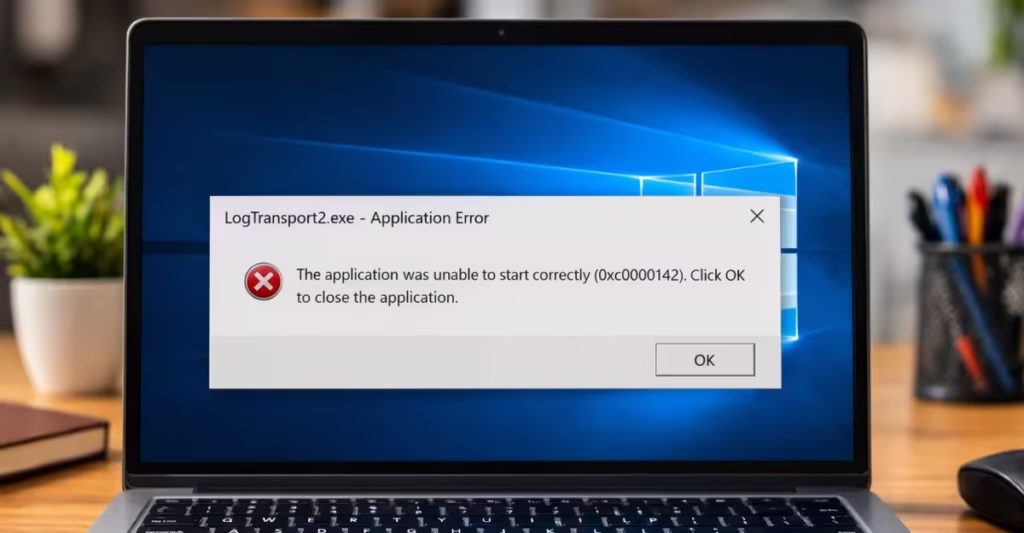
The LogTransport2 process belongs to Adobe Acrobat Reader and Adobe Creative Cloud. It runs in the background to send usage and diagnostic data to Adobe servers. When this process crashes, loses permission, or conflicts with Windows, the system triggers this error.
You can fix the LogTransport2.exe error by adjusting Adobe privacy settings, repairing the installation, editing the registry, or running a malware scan.
What Is LogTransport2.exe?
LogTransport2.exe is a background process used by Adobe applications such as Adobe Acrobat Reader and Adobe Creative Cloud. Its main job is to collect and transmit diagnostic data, analytics, and usage information to Adobe servers.
The legitimate file runs from this location on your system:
C:\Program Files\Adobe\Reader x.0\ReaderIf the file runs from any other location, it may be malware using the same name.
Why Does the LogTransport2.exe Error Appear?
Several causes can trigger this error:
- Data transmission crash: The process fails while sending usage data to Adobe servers, causing a crash at shutdown or startup.
- Corrupted Adobe installation: Damaged files in the Adobe Acrobat installation prevent LogTransport2 from running correctly.
- Outdated Adobe Acrobat version: An older build can no longer communicate with Adobe servers, triggering repeated errors.
- Permission conflict: The UsageCC registry key lacks the correct permissions, causing the data transfer process to fail.
- Malware infection: Some malware uses the LogTransport2.exe filename to disguise itself, triggering errors and security warnings.
How to Fix LogTransport2.exe Error on Windows
Try the following solutions in order. Most users resolve the issue with the first or second method.
1. Disable Adobe Usage Data Collection
Stopping Adobe from collecting and sending usage data prevents the LogTransport2 process from launching. You can do this through the Acrobat app, the Adobe web account, or Adobe Creative Cloud depending on your setup.
Option A: Inside Adobe Acrobat Reader
- Open Adobe Acrobat Reader
- Click Edit
- Select Preferences
- Open the Privacy or General section
- Disable these options:
- Desktop App Usage Data
- Allow Adobe to collect usage information
- Click OK and restart your computer
Option B: Through the Adobe Account Privacy Page (Recommended)
This option works for all Adobe products including Acrobat and Creative Cloud.
- Open your browser and go to the Adobe Privacy Settings page
- Sign in with the same Adobe account linked to your local installation
- Under Desktop and app usage, uncheck: (Yes, I’d like to share information on how I use Adobe desktop apps)
- Scroll down to Machine learning and uncheck: (Yes, allow my content to be analyzed by Adobe using machine learning techniques)
- Save the changes and restart your computer
Option C: Through Adobe Creative Cloud Desktop App (CC users only)
- Open the Adobe Creative Cloud desktop app
- Click your profile icon at the top right
- Select Adobe account
- In the browser tab that opens, click Privacy
- Uncheck the Desktop and app usage option
- Uncheck the Machine learning option
- Restart your computer
Disabling these settings does not affect any Adobe features such as opening, editing, or saving PDF files.
2. Update Adobe Acrobat Reader
An outdated version of Acrobat can fail to communicate with Adobe servers, causing repeated LogTransport2 errors.
- Open Adobe Acrobat Reader
- Click Help
- Select Check for Updates
- Install all available updates
- Restart your computer after the update finishes
3. Repair the Adobe Installation
A corrupted Acrobat installation can trigger runtime errors in the LogTransport2 process. Repairing the installation restores damaged files without a full reinstall.
- Press Windows Key + R, type
appwiz.cpl, and press Enter - Find Adobe Acrobat Reader in the list
- Right-click it and select Change
- Select Repair and click Next
- Click Update or Repair to start the process
- Restart your computer after the repair finishes
4. Edit the UsageCC Registry Key
If the error persists after trying the above methods, a permission conflict in the UsageCC registry key may be blocking the fix. Modifying this key stops Adobe from forwarding log data to its servers.
Warning: Always back up your registry or create a system restore point before making any changes.
Step 1: Add a DWORD value to block data transfer
- Press Windows Key + R, type
regedit, and press Enter - Click Yes when prompted by User Account Control
- Navigate to:
HKEY_CURRENT_USER\SOFTWARE\Adobe\CommonFiles\UsageCC - Find the key with your user GUID (a long string of numbers and letters in curly braces)
- Right-click in the right panel, expand New, and select DWORD (32-bit) Value
- Name the new value
DWORD - Double-click it and set the Value data to
0 - Click OK
Step 2: Change permissions on the UsageCC key
- In Registry Editor, navigate back to:
HKEY_CURRENT_USER\SOFTWARE\Adobe\CommonFiles\UsageCC - Right-click the UsageCC key and select Permissions
- Click Advanced
- Click Disable inheritance
- Select Remove all inherited permissions from this object
- Click Apply and OK
- In the Permissions window, select the System group and click Remove
- Click Apply and OK
- Restart your computer
This prevents the LogTransport2 process from transmitting data, which stops the permission-related crash.
5. Reinstall Adobe Acrobat Reader
If the error continues after repairing, reinstalling Adobe replaces all program files including the LogTransport2 executable.
- Press Windows Key + R, type
appwiz.cpl, and press Enter - Find Adobe Acrobat Reader and click Uninstall
- Restart your computer after the uninstall finishes
- Download the latest version from the Adobe website
- Install the program and restart your computer
6. Check the File Location and Run a Malware Scan
Some malware uses the LogTransport2.exe filename to disguise itself. Before running a scan, verify the file runs from the correct Adobe folder.
Check the file location:
- Press Ctrl + Shift + Esc to open Task Manager
- Find LogTransport2.exe in the list
- Right-click it and select Open file location
- The path should be inside:
C:\Program Files\Adobe\Reader x.0\Reader
If the file runs from any folder outside Program Files, it is likely malware.
Run a malware scan:
- Download and install Malwarebytes
- Run a full deep scan
- Quarantine all detected threats
- Restart your computer and check if the error is gone
A legitimate LogTransport2.exe file from Adobe is not harmful. If the file is in the correct location, you do not need to run a scan.
Sometimes the error appears after an Adobe update or a Windows system change. In those cases, the issue comes from a software conflict rather than anything you did. Disabling Adobe analytics or editing the UsageCC registry key resolves the problem for most users.
FAQs
What is LogTransport2.exe on Windows?
LogTransport2.exe is a background process used by Adobe Acrobat Reader and Creative Cloud. It collects diagnostic and usage data and sends it to Adobe servers to help improve performance and detect software issues.
Why does the LogTransport2.exe error appear?
The error usually appears when the LogTransport2 process crashes during data transmission, when Adobe installation files are corrupted, when the software is outdated, or when a permission conflict blocks the UsageCC registry key.
Is LogTransport2.exe a virus?
No, LogTransport2.exe is not a virus if it belongs to Adobe and runs from C:\Program Files\Adobe\Reader x.0\Reader. If the file runs from an unusual or random folder, it may be malware using the same name. Run a Malwarebytes scan to confirm.
Can I stop Adobe from sending my data?
Yes. The data sharing feature is on by default but fully optional. You can turn it off through Adobe Acrobat preferences, the Adobe account privacy page online, or the Creative Cloud desktop app. Disabling it does not affect any Adobe features.
Will the LogTransport2.exe error damage my system or crash Adobe?
No. The error is not serious and will not damage your system or cause Adobe to crash. However, it can appear repeatedly at startup or shutdown until you apply one of the fixes above.
Can I disable LogTransport2.exe safely?
Yes. LogTransport2.exe is not required for Windows or Adobe to work normally. Disabling Adobe data collection or stopping the process does not affect PDF viewing, editing, or any other Adobe feature.
Why does the LogTransport2.exe error appear during shutdown?
Adobe background services try to close during Windows shutdown. If the LogTransport2 service cannot stop properly before Windows terminates all processes, Windows displays an application error.