Google AdSense replaced the old Auto Ads “ad load” slider with a new “Fine-tune your ads” feature that includes two controls: Maximum number of ads and Minimum distance between ads.
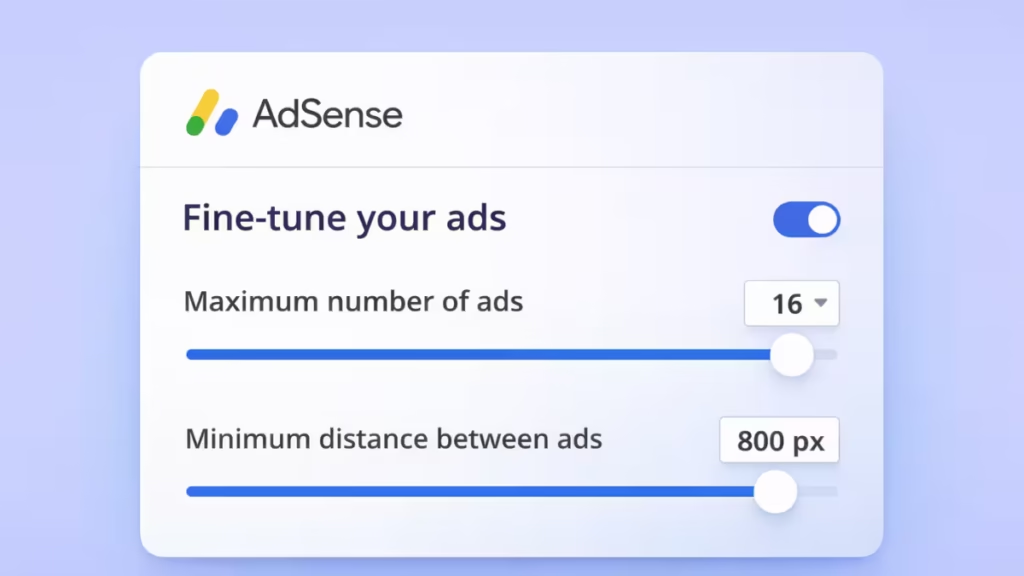
You now control how many ads appear on a page and how closely they are placed. If you configure these settings correctly, you can improve revenue and avoid layout issues.
This guide shows you exactly how to set both options step by step.
What You Need to Know Before You Start
You will work with two settings:
- Maximum number of ads: Limits total ads per page
- Minimum distance between ads: Controls spacing between ads
Higher ads increase density. Higher distance improves readability.
Step 1: Open AdSense Auto Ads Settings
Start from your AdSense dashboard.
- Sign in to AdSense
- Click Ads
- Select your website
- Click Edit (✎)
This opens the ad settings preview screen.
Step 2: Go to Advanced Settings
You need to enable the new controls.
- Click In-page formats
- Scroll to Advanced settings
- Turn ON “Fine-tune your ads”
You will now see both sliders.
Step 3: Set Maximum Number of Ads
Control how many ads can appear on a page.
- Move the slider between 1 and 16
- Set: 12–14 ads
Avoid setting it to 16 unless you want very high ad density.
Step 4: Set Minimum Distance Between Ads
Control spacing between ads.
- Adjust slider between 50px and 1000px
- Set: 630px to 480px
This spacing keeps your layout clean and reduces layout shift.
Step 5: Apply the Settings
Finish the setup.
- Click Apply to site
- Wait a few minutes for changes to reflect
Your new ad configuration will go live within about 1 hour.
Step 6: Check Your Website
Open your site after applying settings.
- Scroll through a few articles
- Check if ads feel balanced
- Confirm they do not appear too close
If ads look crowded, increase the distance.
Step 7: Monitor Performance
Track results for 2–3 days.
Check:
- Page RPM
- CTR
- Bounce rate
- CLS (PageSpeed Insights)
Adjust slightly if needed.
How to Use AdSense Ad Settings Preview to Check Ad Placement
In the Ad Settings Preview, you can see how many ads Google plans to show on your pages while you adjust the settings.
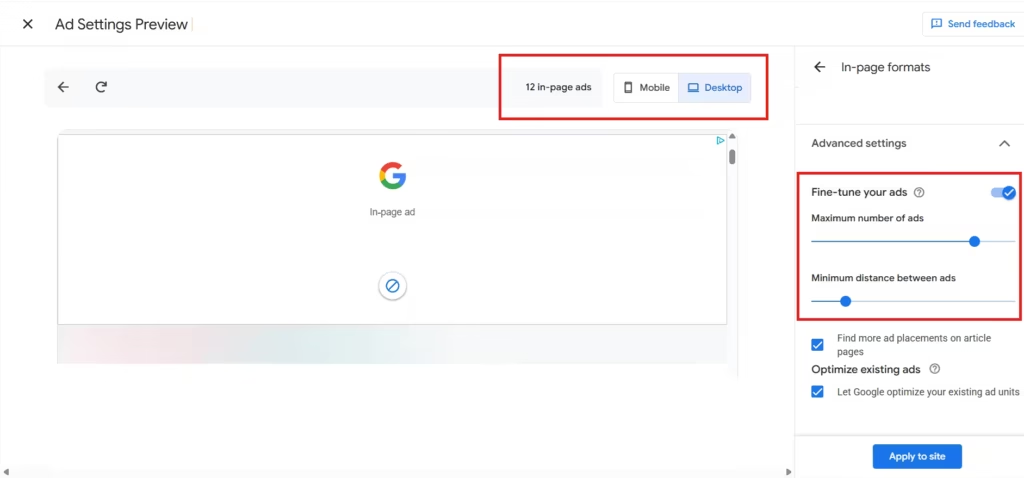
As you change the Maximum number of ads and Minimum distance between ads, the preview updates in real time. It shows estimated in-page ad counts for both mobile and desktop.
For example:
- Maximum number of ads: 14
- Minimum distance between ads: 480px
In the preview, you might see:
- Desktop: 12 in-page ads
- Mobile: 15 in-page ads
This gives you a clear idea of how your settings affect ad placement across devices.
You don’t need separate configurations for mobile and desktop. With a single setup, Google automatically adjusts ad density based on screen size.
This means you get full control over your ad settings while still letting Google optimize placements for different devices.

