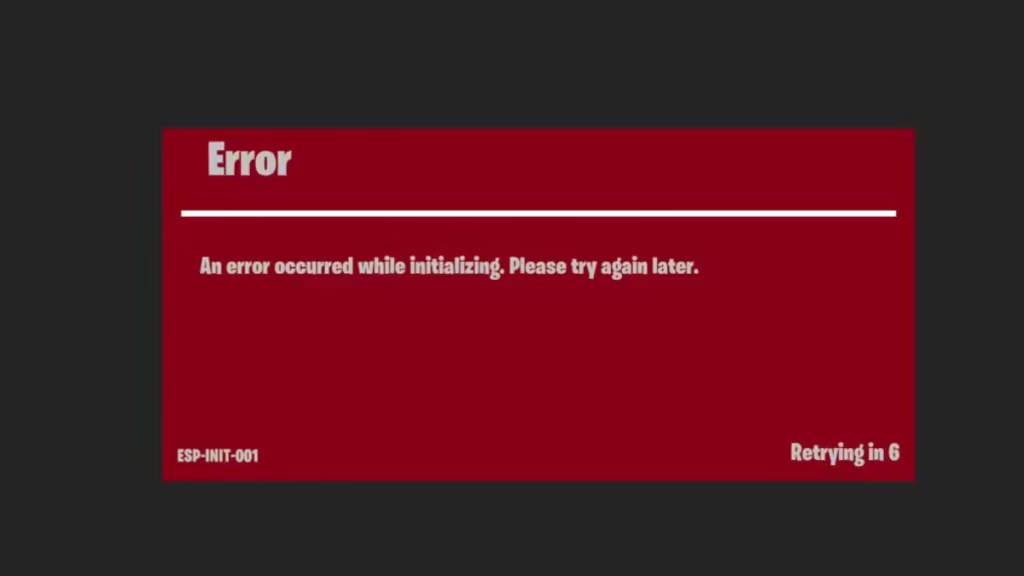
Fortnite players keep running into the ESP-INIT-001 error, especially after updates or during login attempts. This issue stops the game from connecting to servers, making it impossible to play.
This guide walks you through simple, working fixes step by step, based on real solutions and user experiences.
Table of Contents
What Is Fortnite Error ESP-INIT-001?
Fortnite error ESP-INIT-001 usually appears when the game fails to connect to Epic Games servers or cannot initialize properly.
Common causes include:
- Server connection issues
- Corrupted cache or temporary files
- Network instability
- Outdated game or system software
This error is not limited to a single device. It affects players across all major platforms, including PC, Xbox, PlayStation, and Nintendo Switch, which shows that the issue is usually related to the game’s connection or system-level data rather than a specific console or setup.
Quick Fix First (Try This Before Anything)
Start with the fastest solution:
- Restart your device completely
- Turn off your internet and reconnect
- Launch Fortnite again
Many users fix the error with just a reboot.
Method 1: Clear Cache (Most Effective Fix)
This is the main fix recommended by Epic Games.
For Xbox:
- Turn off your console
- Unplug the power cable
- Wait 60 seconds
- Plug it back in
- Turn it on and launch Fortnite
This clears temporary data that may block the game.
Method 2: Clear Reserved Space (Xbox)
This method removes corrupted temporary data stored by Fortnite, which often causes the ESP-INIT-001 error on Xbox.
- Go to your Xbox dashboard and highlight Fortnite
- Press the Menu (≡) button on your controller
- Select Manage game and add-ons
- Scroll down and choose Saved data
- Select Clear reserved space and confirm
Once done, restart your console and launch Fortnite again. This forces the game to rebuild fresh data, which helps fix loading and connection issues.
Method 3: Restore Licenses (PlayStation)
This method refreshes your account licenses and fixes issues where Fortnite fails to verify ownership or load properly.
- Open Settings on your PlayStation
- Go to Users and Accounts
- Select Other
- Click Restore Licenses and confirm
Wait for the process to complete, then restart your console and launch Fortnite again. This helps resolve account-related errors that can block the game from starting.
Method 4: Delete Local Files (PC Fix)
If you’re playing on PC, this method clears corrupted local data that often triggers the ESP-INIT-001 error.
Follow these steps:
- Press Win + R to open the Run dialog
- Type %localappdata% and press Enter
- Locate the Fortnite folder
- Delete the Fortnite folder completely (backup save files if needed)
- Restart the Epic Games Launcher
- Launch Fortnite again
This forces the game to rebuild fresh configuration and cache files, which helps fix initialization and connection issues.
Method 5: Check Server Status
Sometimes the problem is not on your side.
- Fortnite servers may be down
- Updates may break connectivity
Before doing anything complex, check server status.
Method 6: Fix Network Issues
A stable internet connection is essential for Fortnite to connect to servers without errors. Even small network issues can trigger ESP-INIT-001.
Try these fixes step by step:
- Restart your router or modem to refresh the connection
- Switch to a wired (Ethernet) connection for better stability
- Use a mobile hotspot temporarily to check if your network is the issue
- Change your DNS settings to improve connectivity:
- Primary DNS: 8.8.8.8
- Secondary DNS: 8.8.4.4
After applying these changes, restart your device and launch Fortnite again. These steps help eliminate network-related problems that block server communication.
Method 7: Reinstall Fortnite (Last Resort)
If nothing works:
- Uninstall Fortnite
- Restart device
- Reinstall the game
This removes broken files completely.
Why This Error Happens After Updates
Many players report the ESP-INIT-001 error right after a Fortnite update. This usually points to conflicts created during the update process rather than a hardware issue.
In most cases, the update may not install all game files correctly, server synchronization can fail during the first launch, and old cache data may conflict with the new version. These issues combine to block proper initialization.
That is why clearing cache and reinstalling the game are the most effective fixes—they remove outdated data and force Fortnite to rebuild everything cleanly.
FAQs: Fortnite Error ESP-INIT-001
What is Fortnite Error ESP-INIT-001 and why does it appear?
Fortnite ESP-INIT-001 error appears when the game fails to connect to Epic Games servers or cannot initialize properly. It is usually caused by network issues, corrupted cache, or temporary server problems.
How do I fix Fortnite ESP-INIT-001 error quickly?
The fastest fix is to restart your device and clear the cache by power cycling your console. This removes temporary data that often causes the error.
Does clearing cache fix ESP-INIT-001 error in Fortnite?
Yes. Clearing cache is the most effective solution because it removes corrupted temporary files that block the game from connecting properly.
Why does ESP-INIT-001 error happen after Fortnite updates?
This error often appears after updates because files may not install correctly or conflict with old cache data. Many players reported this issue right after new updates.
Can reinstalling Fortnite fix ESP-INIT-001 error?
Yes, but not always on the first attempt. Some users reported that reinstalling the game multiple times finally fixed the issue.
Is Fortnite ESP-INIT-001 error a server-side issue?
Sometimes. If Fortnite servers are down or under maintenance, you may see this error even if your setup is fine. In that case, you need to wait until Epic Games fixes it.

