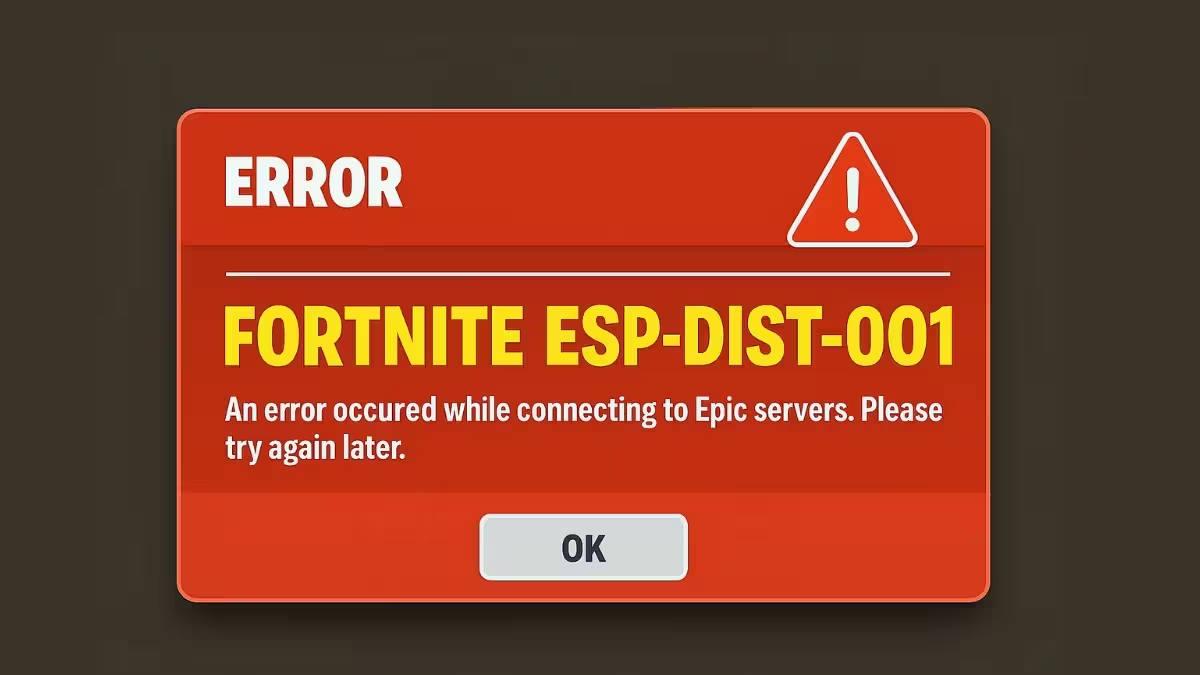
The Esp-Dist-001 error stops Fortnite from loading past the login screen on console and PC. It is a connection handshake failure between your device and Epic’s servers, not an account or ban issue, and you can usually fix it in a few minutes without reinstalling the game.
What Causes the Esp-Dist-001 Error
- Your console or PC tries to validate your login, pull your account data, and sync your locker and Battle Pass progress every time you launch Fortnite. If this handshake with Epic’s servers cannot complete, the error appears.
- A common trigger is a Fortnite update. Your system cache can keep holding data from the older version, which creates a mismatch that blocks the connection to Epic’s servers.
- Corrupted temporary cache data on your console or PC can also block the handshake even without a recent update.
- Epic’s own servers or matchmaking services can be degraded or down, which throws the same error regardless of how clean your local setup is.
- A stale IP assignment or DNS glitch on your home router can prevent the handshake from finishing.
Fix 1: Clear Your Console or PC Cache
Corrupted or outdated local cache data is the most common cause of Esp-Dist-001, and clearing it does not touch your Fortnite locker or Battle Pass progress.
Nintendo Switch
- Open System Settings from the Home screen.
- Go to System, then select Formatting Options.
- Choose Reset Cache, select your Fortnite user profile, and confirm.
- Hold the power button for 3 seconds, choose Turn Off, then restart the Switch and relaunch Fortnite.
PS5
- Hold the PS button, select the Power menu, and choose Turn Off PS5. Do not use Rest Mode.
- Wait until the power light turns off completely, then press and hold the Power button until you hear a second beep. This puts the console into Safe Mode.
- Connect your controller with a USB cable and press the PS button.
- Select Clear Cache and Rebuild Database, then choose Clear System Software Cache and press OK.
- Let the console restart, then launch Fortnite.
PS4
- Turn off the PS4 completely. Do not use Rest Mode.
- Wait until the light on top of the console turns off, then unplug the power cable.
- Wait 1 to 2 minutes before plugging it back in.
- Power on the console and start Fortnite.
Xbox Series X|S
- Turn off the console and unplug it from the wall.
- Disconnect any accessories connected to the console.
- Leave it unplugged for 2 minutes.
- Press and hold the power button for 5 to 10 seconds while the console is still unplugged. This forces the cache to clear.
- Reconnect the power cable and accessories, then turn the console back on and launch Fortnite.
Xbox One
- Turn off the console and wait until the light on the console (and the power brick, if you have one) turns off completely.
- Unplug the power cable and wait 30 seconds.
- Plug it back in, turn the console on, and open Fortnite.
PC
- Close Fortnite and the Epic Games Launcher completely.
- Press
Win + Rto open Run, then type%localappdata%and press Enter. - Find the
FortniteGamefolder and delete it. If it will not delete, restart your PC first and try again. - Restart your computer.
- Right click the Epic Games Launcher and choose Run as Administrator.
- Open Fortnite in your Library, click the three dot menu, select Manage, then click Verify.
- Relaunch Fortnite.
Fix 2: Check Epic Games Server Status
If Epic’s authentication or matchmaking services are degraded, your platform throws the same Esp-Dist-001 error no matter how clean your local cache is. Check the Epic Games Server Status page before changing anything on your console or network. If Fortnite or Epic Online Services show a degraded or outage status, waiting for Epic to resolve it on their end is the only fix that will work.
Fix 3: Power Cycle Your Modem and Router
If the server status page shows everything running and clearing your cache did not help, a stale IP address or DNS glitch on your home network could be blocking the handshake.
- Unplug both your modem and your router from the power outlet.
- Leave them unplugged for at least 30 seconds.
- Plug them back in and wait for all the indicator lights to stabilize.
- Boot your console or PC and launch Fortnite.
This forces your router to request a fresh IP address and clears any DNS cache that could be pointing your connection to the wrong place.
Fix 4: Switch to Google DNS
If the error keeps returning on PlayStation or Windows after the steps above, changing your DNS server can resolve stubborn cases.
PlayStation
- Go to Settings, then Network, then Set Up Internet Connection.
- Choose Wi-Fi or LAN, then select Custom.
- Set IP Address Settings to Automatic, DHCP Host Name to Do Not Use, and DNS Settings to Manual.
- Enter Primary DNS
8.8.8.8and Secondary DNS8.8.4.4. - Set MTU Settings to Automatic and Proxy Server to Do Not Use, then test the connection.
Windows 11
- Go to Settings, then Network & Internet, then Ethernet.
- Click Edit next to DNS Server Assignment and select Manual.
- Turn on IPv4 and enter
8.8.8.8and8.8.4.4. For IPv6, enter2001:4860:4860::8888and2001:4860:4860::8844. - Save the changes and relaunch Fortnite.
Windows 10
- Go to Settings, then Network & Internet, then Network and Sharing Center, then Change adapter settings.
- Right click your network connection and select Properties.
- Select Internet Protocol Version 4, click Properties, and choose Use the Following DNS Server Addresses.
- Enter
8.8.8.8as the preferred DNS and8.8.4.4as the alternate, then click OK and restart Fortnite.
Fix 5: Extra Network Checks for PC
If the error is limited to PC and the fixes above did not clear it, work through these additional checks one at a time and test Fortnite after each:
- Use a wired Ethernet connection instead of Wi-Fi where possible.
- Flush your DNS to refresh how your PC resolves Epic’s addresses.
- Sync your device clock, since an incorrect system time can break secure connections to Epic’s servers.
- Whitelist the required Epic domains in your firewall or security software.
- Identify and disable any proxy server that intercepts your traffic.
- Reset your Windows Hosts file to its default if an old entry is redirecting Epic traffic.
- Make sure Windows itself is fully updated.
Once the handshake completes, Fortnite loads past the login screen, your locker and Battle Pass sync normally, and matchmaking and party joins work again. If the error keeps returning after working through every fix above, the issue likely sits with your router or ISP, and contacting your hardware manufacturer or provider is the next step.
Frequently Asked Questions
What causes the Esp-Dist-001 error in Fortnite?
It is a network handshake failure between your device and Epic’s servers, usually triggered by outdated or corrupted local cache data, a server outage on Epic’s side, or a DNS or IP issue on your home network.
Does Esp-Dist-001 mean my Fortnite account is banned?
No. Esp-Dist-001 is purely a connectivity error and has nothing to do with bans or account suspensions.
Will clearing my cache delete my Fortnite progress?
No. Clearing your console or PC cache only removes temporary login data. Your locker, skins, V-Bucks, and Battle Pass progress stay intact.

