When you reinstall Windows 11, the fresh copy starts without the drivers from your previous setup. The most common reason WiFi stops working after a reinstall is a missing or outdated wireless network adapter driver. Windows may not include the right driver by default, so your PC cannot detect or connect to any network.
This guide walks you through every fix, from the quickest checks to manually reinstalling the WiFi driver from scratch.
Why WiFi Stops Working After a Windows 11 Reinstall
A clean install wipes your existing drivers. If Windows Update cannot automatically fetch the correct wireless adapter driver during setup, your network adapter either shows an error in Device Manager or does not appear at all. No driver means no WiFi detection, even if your router works perfectly.
Fix 1: Check Device Manager for Driver Errors
Before anything else, check whether Windows 11 recognizes your WiFi adapter.
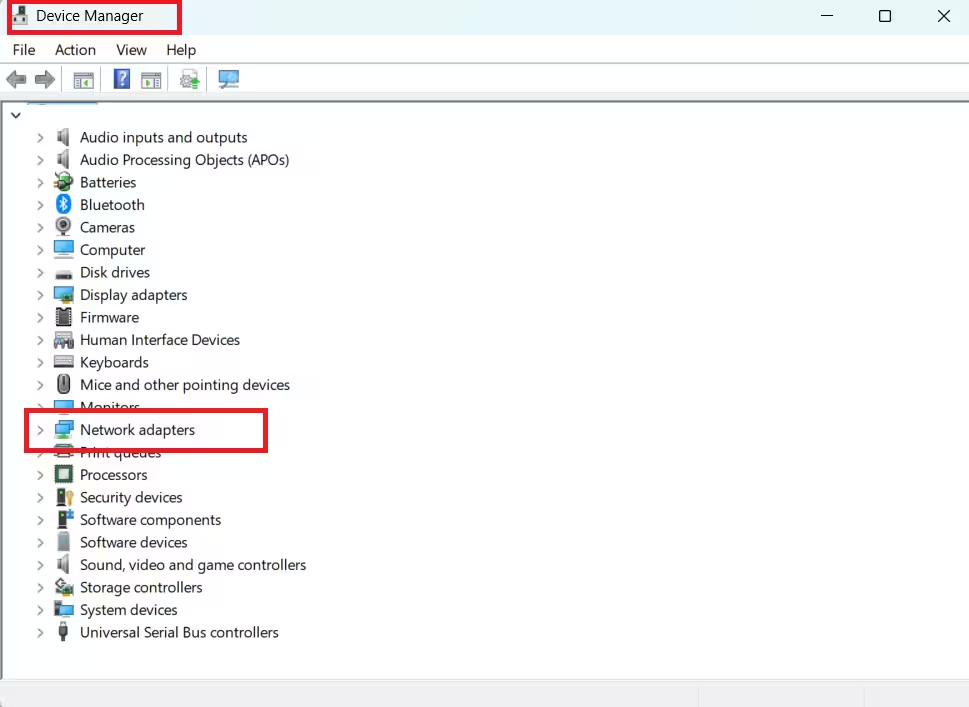
- Press Windows + X and select Device Manager.
- Expand Network adapters.
- Look for an adapter with “Wireless” or “WiFi” in the name.
- If you see a yellow warning icon next to it, the driver is missing or broken.
If the adapter does not appear at all, Windows did not detect it. Skip to Fix 3 to manually install the driver.
Fix 2: Update the WiFi Driver Through Device Manager
If the adapter appears in Device Manager but carries an error, update the driver first.
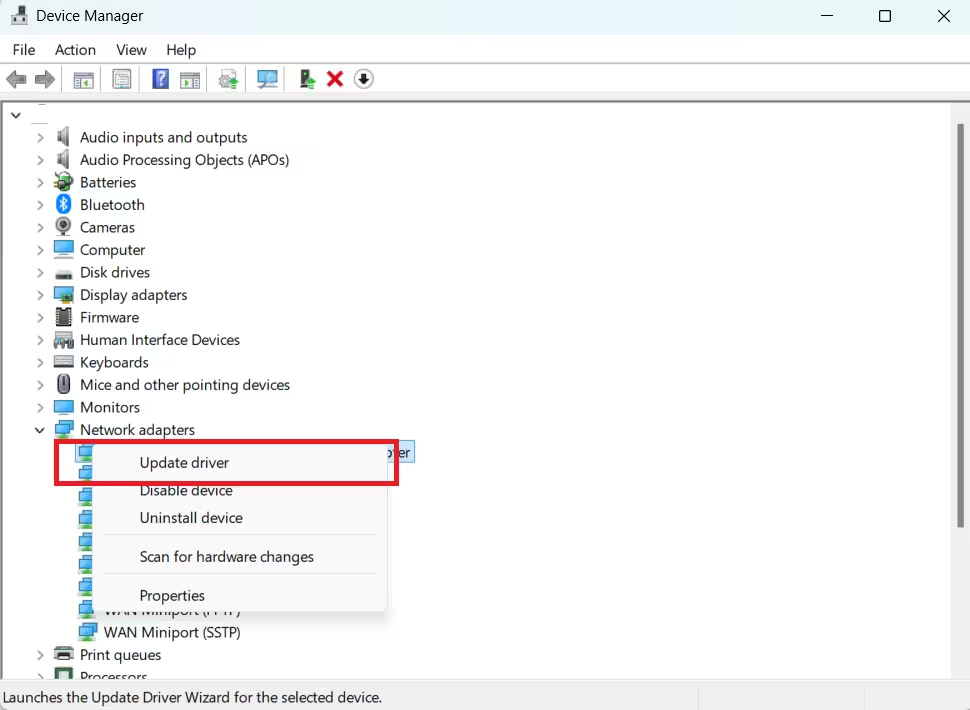
- Right-click the wireless adapter in Device Manager.
- Select Update driver.
- Choose Search automatically for drivers.
- Wait for Windows to search and install any available driver.
- Restart your PC and try connecting to WiFi.
If this does not work, the driver Windows finds automatically may not be the correct one for your hardware. Move on to Fix 3.
Fix 3: Download and Install the WiFi Driver Manually
This fix requires a second device with internet access, such as another PC, a phone, or a tablet.
- On the second device, go to your laptop or motherboard manufacturer’s website.
- Search for your exact model and download the wireless network adapter driver.
- Copy the driver files to a USB flash drive.
- Plug the USB drive into your Windows 11 PC.
- Open Device Manager, right-click the network adapter (or any unknown device listed under Other devices).
- Select Update driver > Browse my computer for drivers.
- Navigate to the USB drive and select the driver folder.
- Complete the installation, then restart your PC.
If your driver file is a .inf file, you can install it through Command Prompt instead:
- Press Shift + F10 during Windows setup to open a Command Prompt window.
- Type
diskpartand press Enter, then typelist volumeand press Enter to find the USB drive letter. - Type
pnputil /add-driver D:\*.inf(replaceD:with your USB drive letter) and press Enter. - Type
pnputil /scan-devicesand press Enter to detect the new adapter.
Tip: If your driver download is an
.exefile rather than a.inffile, run the executable directly after your WiFi is working. The.infmethod is only for setups where you need drivers before you have internet access.
Fix 4: Use a Wired Ethernet Connection Temporarily
Plug one end of an Ethernet cable into your PC and the other end into your router. A wired connection lets Windows Update run and automatically download the correct WiFi drivers without any manual steps. Once the driver installs, disconnect the cable and connect to WiFi normally.
If your laptop does not have an Ethernet port, use a USB to Ethernet adapter to get the same result.
Fix 5: Use a Mobile Hotspot
Turn on your phone’s mobile hotspot and connect your Windows 11 PC to it. This gives Windows internet access so it can pull down the missing driver through Windows Update in the background.
After connecting via hotspot, go to Settings > Windows Update and check for updates. Windows installs missing network drivers through this route automatically.
Fix 6: Restart Your Modem and Router
If your PC detects the WiFi network but cannot connect to it, your router may need a reset. Here is how to do it properly:
- Unplug the power cable from your WiFi router.
- Unplug the power cable from your modem.
- Wait at least 10 seconds.
- Plug the modem back in first and wait for the status lights to stop blinking.
- Plug the router back in and wait a couple of minutes.
- Try connecting again from your PC.
Note: If you have a combination modem/router unit, you only need to unplug and replug that one device.
Fix 7: Check the Physical WiFi Switch
Many laptops have a physical WiFi switch or a keyboard shortcut (usually Fn + a function key) that enables or disables the wireless adapter. If it got toggled off during setup, Windows will not detect any networks.
Check the sides and front edge of your laptop for a switch. Look at your keyboard’s function row for a WiFi icon or airplane mode symbol.
Fix 8: Try a Different Frequency Band
Some routers broadcast on both 2.4 GHz and 5 GHz bands, which appear as two separate networks on your PC. If you cannot connect to one band, try the other. The 2.4 GHz band offers longer range. The 5 GHz band is faster but works better at shorter distances.
Click the WiFi icon in the taskbar, look for the alternate network name (usually the same SSID with a “5G” suffix), and try connecting to it instead.
Fix 9: Try Connecting on a Different Device
Connect a different device (a phone or another laptop) to the same WiFi network. If it connects without any issues, the problem is specific to your reinstalled Windows 11 PC and the driver is the likely cause. If no device can connect, the problem is with the router or your internet service provider.
In most cases, updating or manually reinstalling the wireless adapter driver through Device Manager gets WiFi working again after a Windows 11 reinstall. If the driver fixes do not work, using Ethernet or a mobile hotspot temporarily lets Windows Update pull the correct driver automatically.
Frequently Asked Questions
Why does WiFi disappear after reinstalling Windows 11?
Windows 11 does not carry over drivers from your previous installation. If Windows Update cannot find the correct wireless adapter driver automatically, the adapter either shows an error or goes missing entirely from Device Manager.
How do I reinstall my WiFi driver on Windows 11?
Open Device Manager, expand Network adapters, right-click your wireless adapter, and select Update driver. If that fails, download the driver from your manufacturer’s website on another device, copy it to a USB drive, and install it manually using the Browse my computer option in Device Manager.
Can I get WiFi drivers without internet access on Windows 11?
Yes. Download the driver on a second device, save it to a USB flash drive, plug the drive into your PC, then install using Device Manager or the pnputil /add-driver command in Command Prompt.
What if my WiFi adapter does not show in Device Manager at all?
This means Windows did not detect the hardware. Use the pnputil /add-driver method via USB to inject the driver before Windows finishes setup, or connect through Ethernet or a mobile hotspot to let Windows Update detect and install the adapter automatically.
How long does it take for Windows Update to install WiFi drivers?
Usually 5 to 15 minutes once you have any working internet connection, such as Ethernet or a mobile hotspot. Restart your PC after the update finishes and the adapter should appear.

