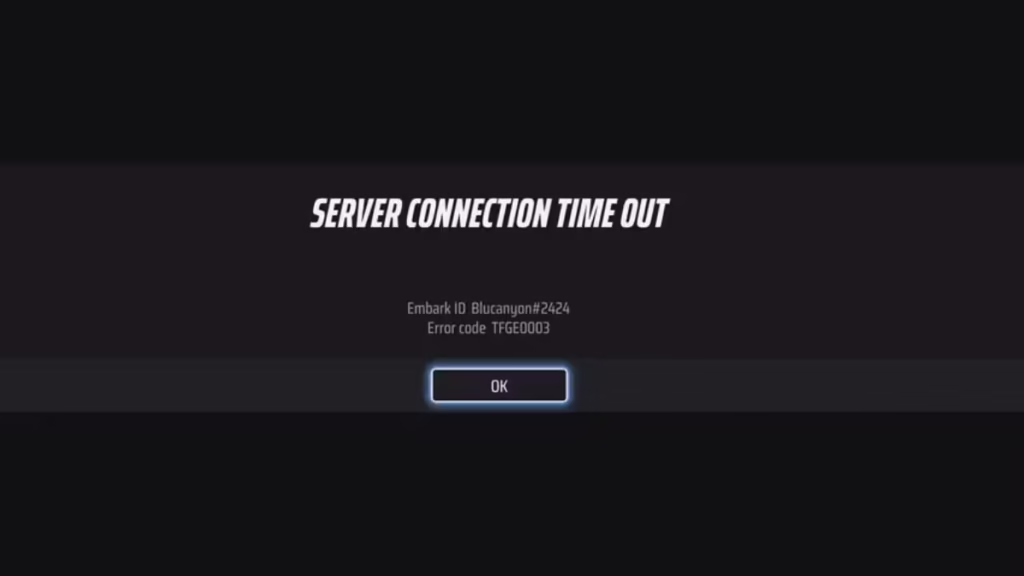
The TFGE0003 “Server Connection Timed Out” error in The Finals blocks you from connecting to any game server, making the game completely unplayable. This guide covers every fix so you can get back into matches as fast as possible.
Check The Finals Server Status First
Before trying any fix, confirm that The Finals servers are actually online. If Embark Studios is running maintenance or dealing with an outage, no fix on your end will help.
Check server status on Downdetector and watch Embark Studios’ official social media channels for any announcements. If servers are down, the only option is to wait for Embark to resolve the issue. Most outages clear within a few hours.
If there are no server issues, proceed with the fixes below.
Fix 1: Restart Your Router
A router restart clears the NAT table and flushes active session data that can get stuck after heavy or prolonged use. This is the quickest first step and resolves the TFGE0003 error more often than you might expect.
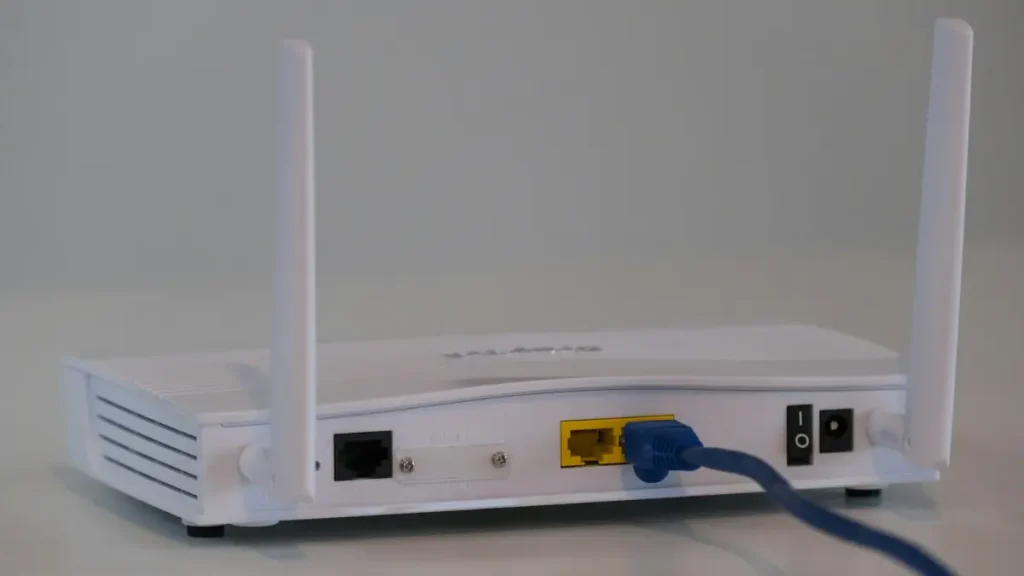
- Locate your router and power it off.
- Wait a full 60 seconds.
- Power the router back on and let it fully reconnect.
- Relaunch The Finals and check if the error is gone.
Fix 2: Flush Your DNS Cache
Your system caches DNS records to speed up connections, but those records can become outdated and interfere with The Finals’ ability to reach its servers. Flushing the DNS cache forces a fresh lookup and clears the stale data.
- Press Win + S, type Command Prompt, then right-click and select Run as administrator.
- Type the following command and press Enter:
ipconfig /flushdns- Restart your PC.
- Launch The Finals and check if the TFGE0003 error persists.
Fix 3: Restart Steam
A stuck or corrupted Steam session can break the connection between The Finals and its servers. A clean restart resolves this in many cases.
- Click Steam in the top-left corner of the Steam window.
- Select Exit from the dropdown to fully close the application.
- Reopen Steam.
- Launch The Finals and test.
Fix 4: Pause Background Downloads
Active downloads running in the background consume bandwidth and cause packet loss, which directly triggers timeout errors like TFGE0003. Check for active downloads in Steam, Windows Update, your browser, or any other app. Pause everything, then relaunch The Finals.
Fix 5: Contact Embark Support
If none of the fixes above clear the TFGE0003 error, report the issue directly to Embark Studios through their support website. You can also reach out on their official Discord server. Include your platform, a description of when the error occurs, and any steps you have already tried.
Frequently Asked Questions
What causes the TFGE0003 error in The Finals?
The TFGE0003 “Server Connection Timed Out” error occurs when your client fails to establish a stable connection to Embark’s game servers. Causes include router session issues, outdated DNS cache, bandwidth congestion from background downloads, or an active server outage on Embark’s end.
How do I check if The Finals servers are down?
Check Downdetector or Embark Studios’ official social media pages for real-time server status and outage updates.
How long do The Finals server outages last?
Most outages resolve within a few hours. Embark Studios typically addresses server-side issues quickly.
Where can I report the TFGE0003 error?
Report it directly to Embark via their support website or on their official Discord server.

