Windows 11 quietly tags files you download from the internet. This tag, called Mark of the Web (MotW), records the file’s origin and tells Windows to handle it with extra care. You can read this tag yourself to see whether a file came from the web and, in many cases, the exact site it came from.
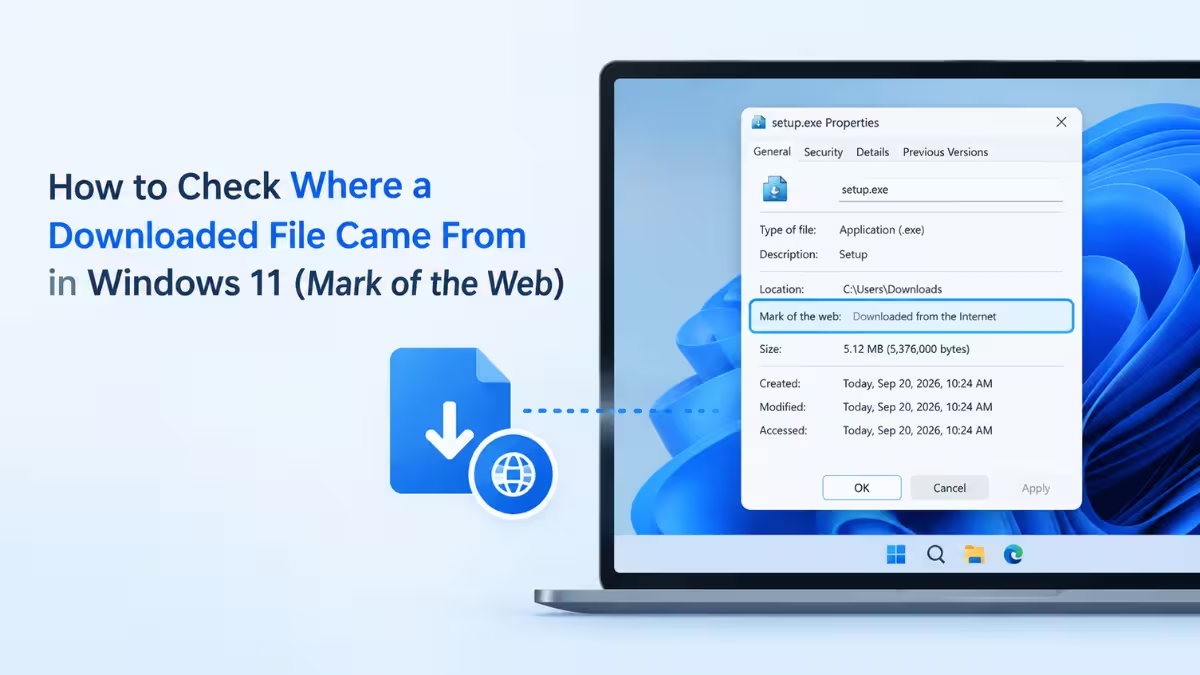
This guide explains what Mark of the Web stores, how to check it through File Explorer and the command line, and when the tag goes missing.
What Is Mark of the Web in Windows 11
Mark of the Web is a small origin label that Windows attaches to files from untrusted sources.
When your browser or another supported app saves a file from the internet, it writes this label alongside the file. Windows and apps like Microsoft Office read it and respond with warnings, blocked content, or restricted features.
You have likely seen it at work already. The prompt asking whether you really want to open a file from an untrusted source appears partly because of this label.
Windows stores the label in an NTFS Alternate Data Stream named Zone.Identifier. This stream sits attached to the file but stays hidden from normal folder views, so the file size and contents look unchanged.
Zone.Identifier Fields and ZoneId Values Explained
The Zone.Identifier stream holds a few short lines of text that describe the file’s origin.
A typical stream looks like this:
[ZoneTransfer]
ZoneId=3
ReferrerUrl=https://example.com/downloads
HostUrl=https://cdn.example.com/files/setup.exe
Each field tells you something specific:
- ZoneId: The security zone Windows assigns to the file’s source.
- ReferrerUrl: The webpage you were on when you started the download.
- HostUrl: The direct address the file downloaded from.
You will open this stream yourself in Methods 2 and 3 below.
Not every file includes both URL fields. The browser or app that saved the file decides what to record, so some streams only contain the zone number.
ZoneId 0 to 4 Meaning
Windows maps each ZoneId value to one security zone:
| ZoneId | Security Zone |
|---|---|
| 0 | My Computer |
| 1 | Local intranet |
| 2 | Trusted sites |
| 3 | Internet |
| 4 | Restricted sites |
Most browser downloads show ZoneId=3, which means Windows treats the file as coming from the internet.
Why Downloaded Files Are Blocked or Restricted in Windows 11
Mark of the Web often explains why a downloaded file acts differently from one you created yourself.
Office documents with the tag open in Protected View, and Office blocks macros in them by default. SmartScreen also checks tagged executables before they run. Since the October 2025 security updates, File Explorer also disables Preview pane previews by default for some files that carry the tag.
If a file refuses to preview or opens in a restricted mode, use one of the methods below to check whether it carries the tag.
Method 1: Check Mark of the Web in File Properties
The Properties window gives you the fastest yes or no answer.
- Right-click the downloaded file in File Explorer.
- Select Properties.
- Stay on the General tab and look at the bottom section.
- Look for a Security note stating the file came from another computer and might be blocked to protect your PC.
If that note appears with an Unblock checkbox beside it, the file carries Mark of the Web. If the note is missing, Windows currently sees no web origin on the file.
This method confirms the tag exists, but it does not show the source URL. Use Method 2 or Method 3 for those details.
Method 2: Find a File’s Download Source With Notepad
Notepad can open the hidden stream directly and show you its full contents.
- Open the folder that holds the file.
- Click the address bar, type
cmd, and pressEnterto launch Command Prompt in that folder. You can also use PowerShell. - Run this command, replacing the file name with your own:
notepad "filename.ext:Zone.Identifier"- Read the ZoneId, ReferrerUrl, and HostUrl lines in the Notepad window.
Use the full file name, including its extension, such as setup.exe or report.pdf. File Explorer hides extensions by default, so turn them on through View > Show > File name extensions if you cannot see them. Keep the quotes in the command so file names with spaces work.
If Notepad asks whether you want to create a new file, click No. That prompt means the stream does not exist and the file has no Mark of the Web.
Method 3: Check Mark of the Web With PowerShell
PowerShell prints the stream right in the terminal, which helps when you check several files.
- Open PowerShell.
- Run this command with the full path to your file. To get the path, right-click the file in File Explorer and select Copy as path, then paste it into the command:
Get-Content -Path "C:\Users\YourName\Downloads\setup.exe" -Stream Zone.Identifier- Review the output for the zone and URL details.
If PowerShell shows a red error saying it could not open the Zone.Identifier stream, the file has no Mark of the Web.
Check Mark of the Web for All Files in a Folder
Checking files one by one gets slow in a busy Downloads folder. This short script goes through every file in the folder you specify, reads its stream, and silently skips files without one. Replace the folder path with your own, then paste the whole block into PowerShell:
Get-ChildItem "C:\Users\YourName\Downloads" -File | ForEach-Object {
    $motw = Get-Content -Path $_.FullName -Stream Zone.Identifier -ErrorAction SilentlyContinue
    if ($motw) { "`n== $($_.Name) =="; $motw }
}
PowerShell prints each tagged file’s name followed by its origin details.
How to Remove Mark of the Web (Unblock a Downloaded File)
Removing the tag lifts the extra warnings and restrictions, so only do it for files you fully trust.
For a single file:
- Right-click the file and select Properties.
- Tick the Unblock checkbox on the General tab.
- Click Apply, then OK.
For multiple files: Place the files you trust in one folder, then run the Unblock-File cmdlet in PowerShell against that folder. Replace the path with your own folder:
Get-ChildItem "C:\Users\YourName\Downloads\Tools" -File | Unblock-FilePowerShell runs silently and shows no confirmation. Windows deletes the Zone.Identifier stream from each file, and the security note disappears from Properties. Run Method 1 on any file to confirm.
Why a Downloaded File Has No Mark of the Web
A file without the tag did not necessarily originate on your PC.
The tag can vanish in several common situations:
- You copy the file to a drive formatted with FAT32 or exFAT, which do not support Alternate Data Streams.
- An archive tool extracts the file without passing the tag to the extracted contents.
- Someone manually unblocks the file.
So treat the tag as a signal of what Windows believes right now, not as a complete download history.
Frequently Asked Questions
Can I see which website a file came from in Windows 11?
Yes, if the file still carries Mark of the Web and the saving app recorded the URLs. Open the Zone.Identifier stream with Notepad or PowerShell and read the HostUrl and ReferrerUrl lines.
What does ZoneId=3 mean?
ZoneId=3 means Windows places the file in the Internet zone. Most files downloaded through a browser show this value.
Is it safe to unblock a downloaded file?
Unblocking only removes the origin tag and its extra protections. It does not scan or clean the file, so unblock only files from sources you trust completely.
Why doesn’t my downloaded file show the Unblock option?
The file has no Mark of the Web. The browser may not have added it, an extraction tool may have dropped it, or the file passed through a FAT32 or exFAT drive.
Does Mark of the Web change the file’s contents?
No. Windows stores the tag in a separate hidden stream, so the file’s actual data and size stay the same.
