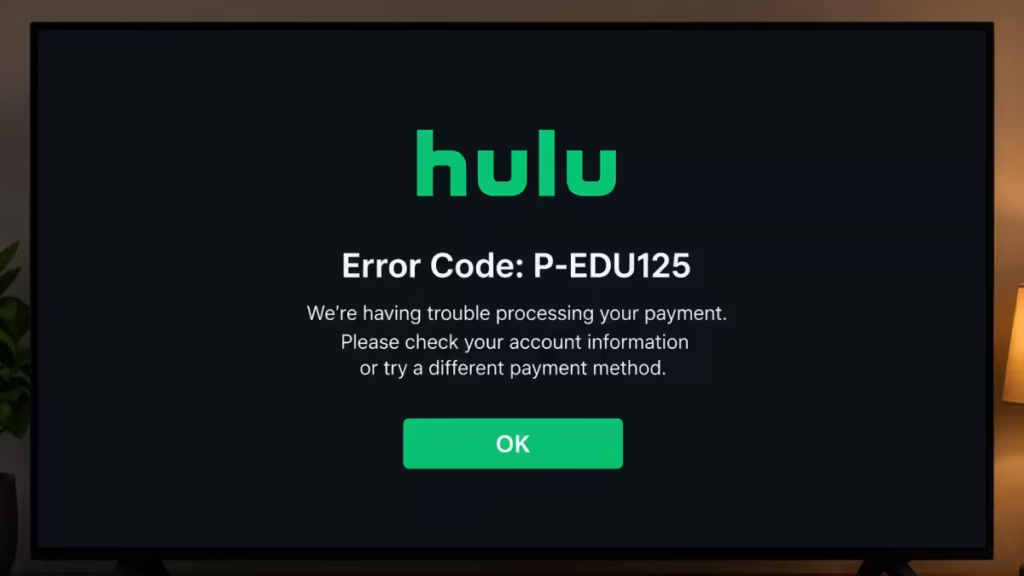
Hulu error code P-EDU125 appears when Hulu cannot verify your subscription details. The screen shows this message:
This isn’t Included in Your Current Subscription Error Code: P-EDU125
Unlike playback errors such as P-TS207 or P-DEV318 that stem from network or app issues, P-EDU125 is a billing and account authentication error. It has nothing to do with your internet connection. This guide covers every fix, from a simple log-out to canceling and resubscribing.
What Is Hulu Error Code P-EDU125?
P-EDU125 is a subscription authentication error. Hulu’s system fails to confirm your billing or authorization credentials, so it blocks playback or login access entirely. You can have an active subscription and still trigger this error if your payment details are outdated, if you recently upgraded your plan, or if a third-party billing provider is out of sync with Hulu.
What Causes Hulu Error Code P-EDU125?
- Outdated or declined payment method: Your card expired, a payment failed at the end of a billing cycle, or your bank declined the charge.
- Recent plan upgrade: Hulu fails to authenticate the new billing structure after you switch plans.
- Third-party billing delay: Subscribers billed through Apple, Amazon, Roku, Google, or Verizon often see this error due to delayed synchronization between Hulu and the external payment service.
- Corrupted session credentials: Stale login data stored on your device causes authentication to fail.
- VPN or region mismatch: A VPN can trigger authentication delays or flag your account for unusual activity.
- Outdated Hulu app or device firmware: An old app version can fail to communicate billing status correctly.
How to Fix Hulu Error Code P-EDU125
Fix 1: Log Out of All Devices
Before anything else, sign out of your Hulu account on every device. This clears stale session data that often causes this error.
- Open a browser and go to hulu.com.
- Click your profile name at the top right, then select Account.
- Scroll down to the Watch Hulu on Your Devices section.
- Select Log out of all devices.
- Wait a few minutes, then sign in again on your primary device.
Check if the error is gone. If not, move to the next fix.
Fix 2: Update Your Payment Information
An expired or failed payment method is one of the most common causes of P-EDU125.
- Go to hulu.com and sign in.
- Hover over your account name at the top right, then click Account.
- Under Payment Information, click Update Payment.
- Select your preferred payment method: Credit Card, Debit Card, or PayPal.
- Enter your new billing details and click Save Changes.
After saving, restart the Hulu app and try playing content again.
Fix 3: Switch from Third-Party Billing to Direct Hulu Billing
If Apple, Amazon, Roku, Google, or Verizon currently handles your Hulu billing, a sync delay between the third party and Hulu can cause P-EDU125. Switching to direct billing through Hulu often resolves this permanently.
Step 1: Identify your billing source.
- Go to hulu.com > Account > Payment Information.
- Check whether Hulu or a third party is listed as your billing provider.
Step 2 (If billed by Apple/iTunes):
- Sign in to your Apple account.
- Go to Account Settings > Manage Payments.
- Remove the Hulu billing method and cancel the Hulu subscription from there.
- Return to hulu.com and create a new subscription with direct billing.
Step 3 (If billed by Amazon, Roku, or Google):
- Log in to the respective platform.
- Go to Account > Manage Subscriptions.
- Cancel the Hulu subscription from that platform.
- Resubscribe at hulu.com with a credit or debit card to bill directly through Hulu.
This prevents future authentication mismatches between Hulu and external payment services.
Fix 4: Disable Your VPN
A VPN can trigger region mismatches or flag your account for unusual activity, both of which cause P-EDU125.
- Turn off your VPN completely.
- Restart the Hulu app.
- Try playing content again.
If the error disappears, your VPN was the cause. Keep it disabled while using Hulu, or switch to a VPN server in a Hulu-supported region.
Fix 5: Clear the Hulu App Cache
Corrupted cache data can prevent Hulu from reading your subscription status correctly.
On Android:
- Open Settings > Apps > Hulu.
- Tap Storage > Clear Cache.
- Relaunch the Hulu app.
On Firestick:
- Go to Settings > Applications > Manage Installed Applications > Hulu.
- Select Clear Cache.
- Relaunch the app.
On LG Smart TV:
- LG TVs do not offer a direct cache-clear option for individual apps. Uninstall the Hulu app, restart the TV, and reinstall it from the LG Content Store.
Fix 6: Reinstall the Hulu App
If clearing the cache does not help, a full reinstall removes any corrupted installation files.
- Uninstall the Hulu app from your device.
- Restart the device completely.
- Install the latest version of Hulu from your device’s app store.
- Sign in and test playback.
This fix works on Firestick, Android, iPhone, Xbox, PS4, and Smart TVs.
Fix 7: Update the Hulu App and Device Firmware
An outdated Hulu app or device firmware can break billing authentication.
- Firestick: Go to Settings > My Fire TV > About > Check for Updates.
- Xbox: Go to Settings > System > Updates.
- PS4: Go to Settings > System Software Update.
- LG Smart TV: Go to Settings > Support > Software Update > Check for Updates.
- Android/iPhone: Open the Google Play Store or App Store and update the Hulu app.
After updating, relaunch Hulu and check for the error.
Fix 8: Device-Specific Steps
Firestick
- Restart your Firestick.
- Clear the Hulu app cache (Settings > Applications > Manage Installed Applications > Hulu > Clear Cache).
- If the error persists, uninstall and reinstall the Hulu app from the Amazon App Store.
- Verify your subscription on another device at hulu.com.
Xbox and PS4
- Close the Hulu app completely and restart the console.
- Uninstall and reinstall the Hulu app from the Xbox Store or PlayStation Store.
- Restart your internet connection.
- Log back in with your Hulu credentials to refresh your account.
iPhone and Android
- Force close the Hulu app.
- Clear the app cache (Android) or reinstall the app (iPhone and Android).
- Confirm your payment information is current on Hulu’s website or your third-party billing account.
- Disable any VPN or proxy, then sign in again.
LG Smart TV
- Verify your subscription is active by checking hulu.com on another device.
- Log out of the Hulu app on your LG TV and log back in.
- If the error continues, uninstall the Hulu app, restart the TV, and reinstall from the LG Content Store.
- Update your LG TV firmware by going to Settings > Support > Software Update.
Fix 9: Cancel Your Subscription and Resubscribe
If none of the fixes above work, canceling and resubscribing resets Hulu’s backend subscription data and removes any lingering authentication conflicts.
- Log in at hulu.com and go to Account.
- Click Cancel Subscription and confirm.
- Hulu sends a confirmation email and lets you keep access until the current billing period ends.
- Once the period ends, go to hulu.com, choose your plan, and resubscribe with your preferred payment method.
This is especially effective if P-EDU125 appears repeatedly after a plan upgrade or failed renewal.
Fix 10: Contact Hulu Support
If you have tried every fix above and P-EDU125 still appears, contact Hulu directly.
- Go to help.hulu.com and use the live chat option.
- Ask the support team to reset your account or manually verify your subscription status.
- You can also check the r/Hulu subreddit for reports from other users experiencing the same issue.
Quick Fixes: Hulu Errors
| Fix | Best For |
|---|---|
| Log out of all devices | Session conflicts |
| Update payment information | Expired or declined card |
| Switch to direct billing | Third-party billing sync issues |
| Disable VPN | Region or authentication mismatch |
| Clear app cache | Corrupted data on device |
| Reinstall the app | Corrupted app installation |
| Update app and firmware | Outdated software |
| Cancel and resubscribe | Persistent backend conflicts |
| Contact Hulu Support | All fixes failed |

