Finding your IP address on Windows 11 takes less than a minute once you know where to look. Windows 11 gives you six built-in ways to check it: Settings, Command Prompt, PowerShell, Control Panel, Task Manager, and System Information. If you need your public (external) IP instead, a browser or a quick command gets it instantly.
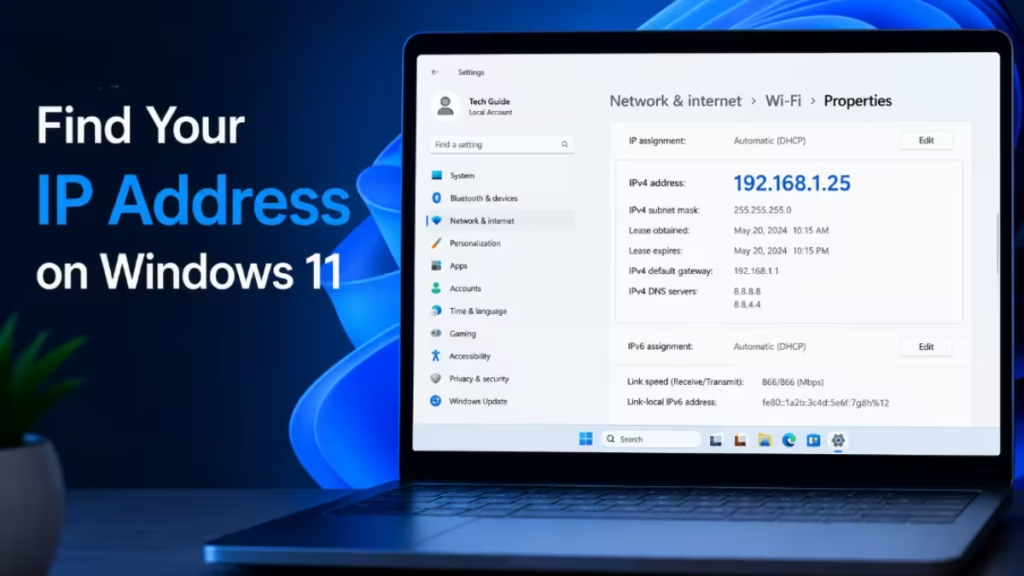
This guide covers all seven methods for your local IP and two fast methods for your public IP.
What Is an IP Address and Why Do You Need It?
An IP address is a unique numeric label that identifies your device on a network. Windows 11 uses two types you will encounter:
- Local (Internal) IP: Assigned by your router to each device on your home or office network. You need this for file sharing, printer setup, network troubleshooting, and Remote Desktop.
- Public (External) IP: Assigned by your Internet Service Provider to your router. This is what websites and external services see.
Both use two standards: IPv4 (example: 192.168.1.5) and IPv6 (example: fe80::1). Most home networks still rely on IPv4 for day-to-day use.
Method 1: Find IP Address from Settings
The Settings app shows your IP address in a few clicks without opening any command-line tool.
- Press Windows + I to open Settings.
- Click Network & internet in the left panel.
- Click Wi-Fi or Ethernet depending on your connection.
- Select your network name or click Properties.
- Scroll down to the IP settings section.
- Check the IPv4 address field.
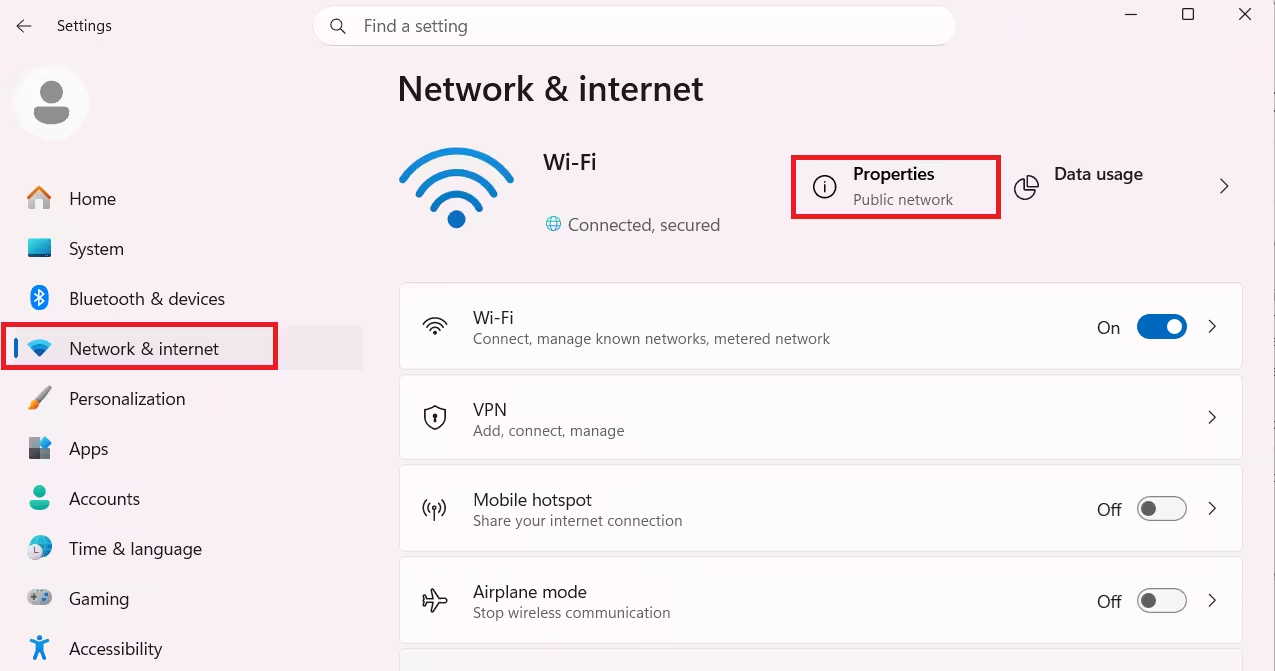
For the full network configuration including Default Gateway and DNS server addresses:
- Open Settings and go to Network & internet.
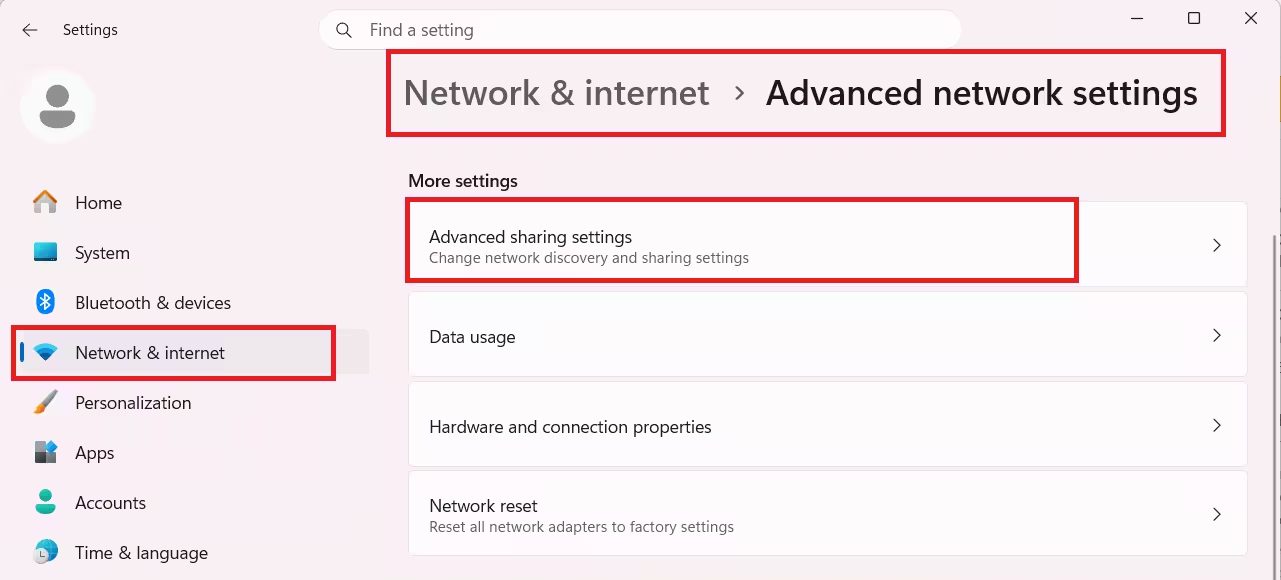
- Click Advanced network settings.
- Under More settings, click Hardware and connection properties.
- All adapter details appear here, including IPv4 and IPv6 addresses for every active adapter.
Method 2: Find IP Address Using Command Prompt (ipconfig)
Command Prompt gives you a complete network snapshot with one command.
- Press Windows + S, type Command Prompt, and press Enter.
- Run the following command:
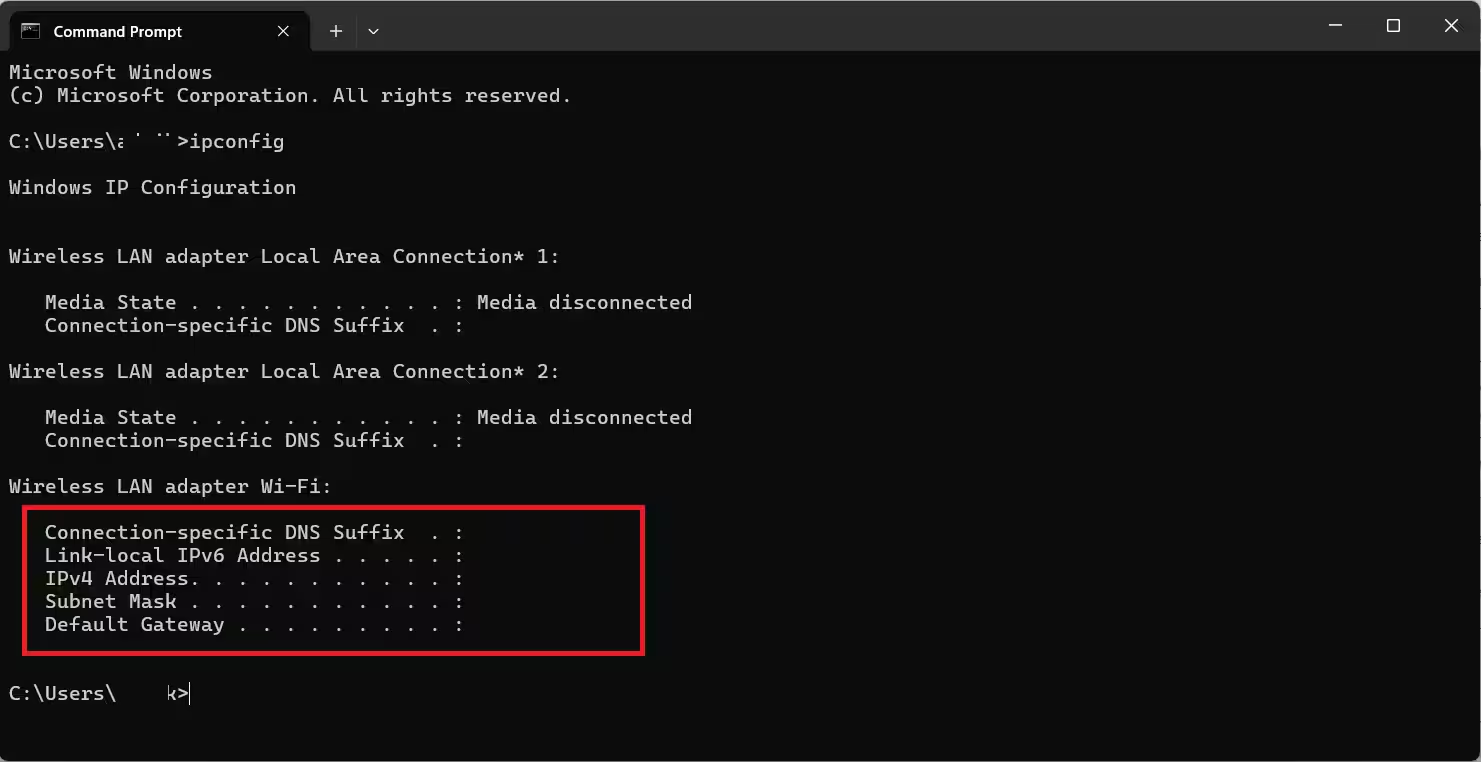
ipconfig- Look for your active adapter: either Ethernet adapter Ethernet or Wireless LAN adapter Wi-Fi.
- Note the IPv4 Address and optionally the IPv6 Address.
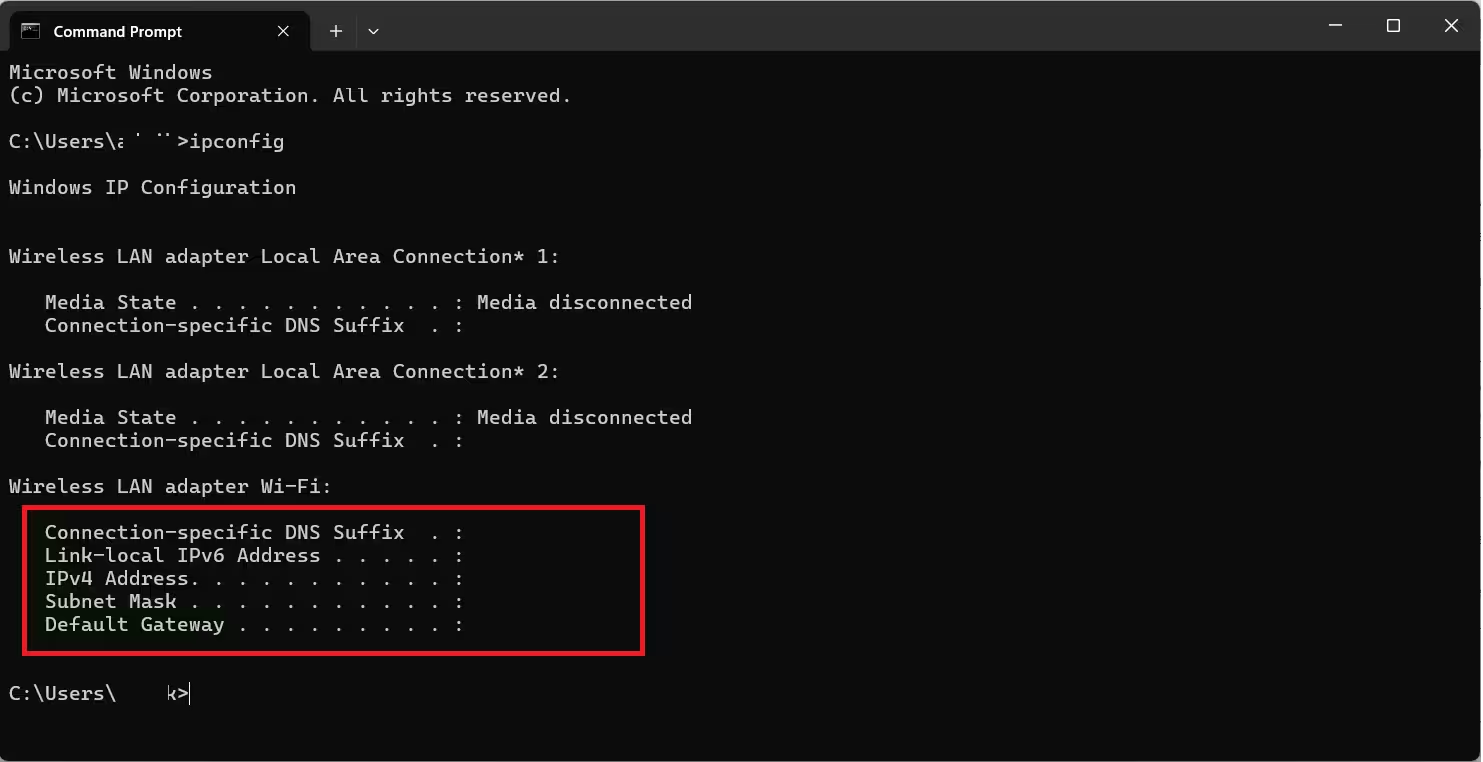
The Default Gateway entry shows your router’s IP address on the same output.
Tip: If your keyboard is not responding when you try to open Command Prompt, check out this guide on Windows 11 Keyboard Not Detected before proceeding.
Method 3: Find IP Address Using PowerShell
PowerShell returns a more detailed breakdown of your network configuration than ipconfig.
- Press Windows + S, type PowerShell, and press Enter.
- Run this command:
Get-NetIPConfiguration -detailed- Find the IPv4Address and IPv6LinkLocalAddress fields for your active adapter.
- The IPv4DefaultGateway entry shows your router’s address.
This command lists configuration details for every adapter on the system, so scroll to the section that matches your active connection.
Method 4: Find IP Address from Control Panel
Control Panel is still a reliable way to check IP details on Windows 11.
- Press Windows + S, type Control Panel, and press Enter.
- Click Network and Internet.
- Click Network and Sharing Center.
- Click your active connection name next to Connections.
- In the status window, click Details.
- Your IPv4 Address and other network details appear in the list.
Method 5: Find IP Address from Task Manager
Task Manager gives the quickest single-screen view of your IP address.
- Press Ctrl + Shift + Esc to open Task Manager.
- Click the Performance tab at the top.
- Select Wi-Fi or Ethernet from the left panel.
- Your IPv4 and IPv6 addresses appear on the right side.
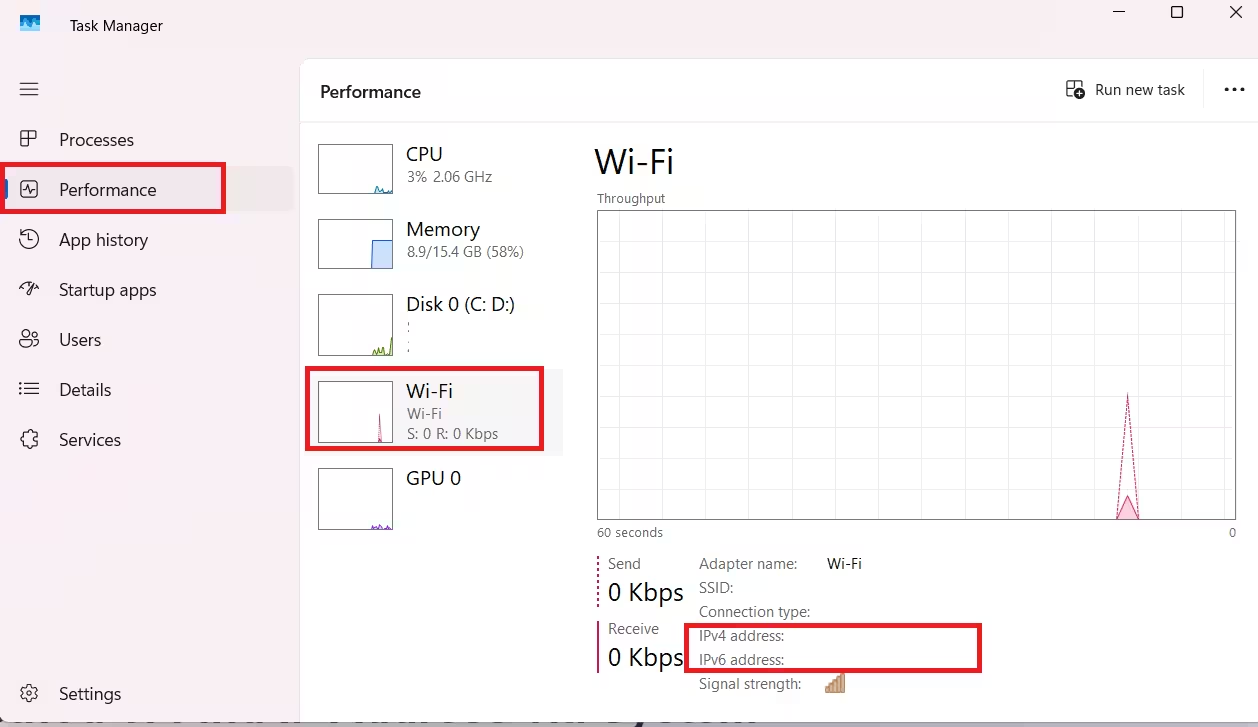
This method requires no commands and no navigation through settings menus, which makes it the fastest option for a quick check.
Method 6: Find IP Address via System Information
System Information shows adapter-level details including IP address, MAC address, and connection type.
- Press Windows + S, type System Information, and press Enter.
- In the left panel, expand Components.
- Expand Network, then click Adapter.
- Scroll right to your active adapter section.
- The IP Address field lists your IPv4 and IPv6 addresses.
Method 7: Find IP Address Using Netsh Command
The netsh command gives you a clean, adapter-specific IP output without the extra clutter that ipconfig produces. It is the best option when you have multiple network adapters and want details for one specific adapter only.
- Press Windows + S, type Command Prompt, and press Enter.
- Run this command for a full overview of all adapters:
netsh interface ip show config- Each adapter prints in its own block. Find your active adapter (Wi-Fi or Ethernet) and check the IP Address and Default Gateway fields.
To check a specific adapter by name, run:
netsh interface ip show config name="Wi-Fi"Replace Wi-Fi with Ethernet if you use a wired connection.
This command also shows your DHCP server address and DNS servers in the same output, which ipconfig does not display by default. That makes it useful when you are diagnosing network configuration issues beyond just the IP address.
How to Find Your Public (External) IP Address
Your public IP differs from your local IP. It is the address your Internet Service Provider assigns to your router, and it is the same for every device on your network.
Using a Web Browser
- Open Edge, Chrome, or Firefox.
- Type the following address in the address bar and press Enter:
ifconfig.me- Your public IP appears under Your Connection.
You can also type “what is my IP” directly into Bing or Google and the result appears at the top of the page.
Using Command Prompt
- Open Command Prompt.
- Run this command:
nslookup myip.opendns.com. resolver1.opendns.com- Your public IP appears under the Non-authoritative answer section.
Using PowerShell
- Open PowerShell.
- Run this command:
(Invoke-WebRequest ifconfig.me/ip).Content.Trim()- The public IP address prints directly to the terminal.
Which Method Should You Use?
| Situation | Best Method |
|---|---|
| Quick check, no commands | Task Manager |
| Full network details | PowerShell or CMD (ipconfig) |
| Router and DNS info | Control Panel > Network Details |
| All adapters at once | Settings > Hardware and connection properties |
| One specific adapter with DNS and DHCP | netsh interface ip show config |
| Public IP | Browser (ifconfig.me) or PowerShell |
Frequently Asked Questions
What is the difference between IPv4 and IPv6?
IPv4 uses a 32-bit address format (example: 192.168.1.10) and supports around 4.3 billion unique addresses. IPv6 uses a 128-bit format and supports a vastly larger number of addresses. Most home networks use IPv4 for local communication but increasingly receive IPv6 addresses from ISPs.
Why does my IP address change?
Most home networks use dynamic IP addresses, meaning your router assigns a new local IP to each device when it connects. Your ISP also reassigns your public IP periodically. If you need a fixed address, you can configure a static IP on your network adapter.
How is my local IP different from my public IP?
Your local IP (such as 192.168.1.x) identifies your device within your home network only. Your public IP identifies your router to the wider internet. Devices outside your network see only your public IP.
Can I find the IP address of another device on my network?
Yes. Run arp -a in Command Prompt to list all devices and their IP addresses currently known to your system on the local network.
Does finding my IP address expose any security risk?
Checking your local IP carries no risk. Sharing your public IP with untrusted parties can expose your general location and allow targeted attacks on open ports, so treat it with the same care as other personal network information.

