Windows 11 24H2 and 25H2 now include a built-in Group Policy that lets you remove default Microsoft Store apps from new user accounts without PowerShell or third-party tools. The policy is named “Remove Default Microsoft Store packages from the system” and targets bundled apps like Clipchamp, Teams, Xbox, Copilot, and more. Once you enable it and select your apps, every new account you create starts without those apps installed.
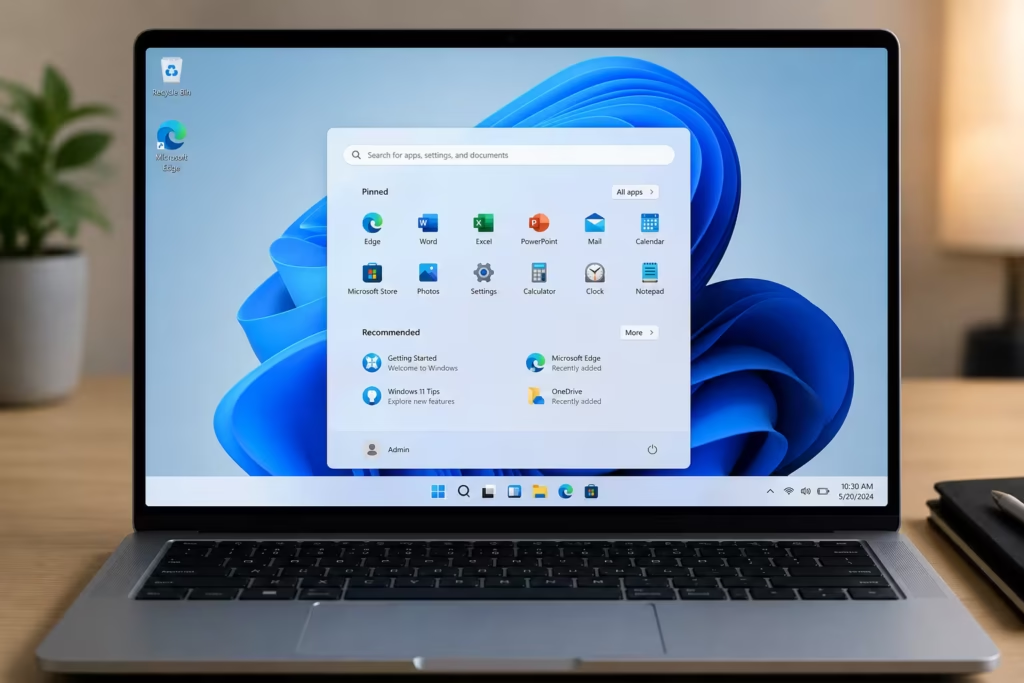
This guide covers three methods: Group Policy Editor for Pro and Enterprise users, Registry Editor for all editions including Home, and a batch script to automate everything at once.
What This Policy Does (and What It Does Not)
Before you start, understand the exact scope of this feature:
- New accounts only: The policy applies when a new user profile is created. It does not touch existing user accounts.
- Microsoft Store inbox apps only: It removes built-in Microsoft apps shipped through the Store. It does not remove OEM utilities or promotional software bundled by PC manufacturers like Dell or HP.
- Edition requirement: Group Policy Editor is available on Windows 11 Pro, Enterprise, and Education. Windows 11 Home users must use the Registry method, and results may vary on that edition.
- Timing: Removal runs at first sign-in for the new user. Some apps may leave behind Start menu shortcuts until the user signs out and signs back in.
Method 1: Remove Bloatware Windows 11 Using Group Policy Editor
This method works on Windows 11 Pro, Enterprise, and Education. You need administrator rights.
Step 1: Press Start, type gpedit, and click Edit group policy to open the Local Group Policy Editor.
Step 2: Navigate to the following path in the left panel:
Computer Configuration > Administrative Templates > Windows Components > App Package DeploymentStep 3: On the right panel, find and double-click “Remove Default Microsoft Store packages from the system”.
Step 4: In the policy window, select Enabled.
Step 5: Under the Options section, check every app you want removed for new accounts. You can also manually enter MSIX or APPX package family names for apps not listed by default (for example, Microsoft.WindowsCalculator_8wekyb3d8bbwe).
Step 6: Click Apply, then OK.
Step 7: Create a new local user account and sign in to confirm the selected apps are absent. If you still see dead icons in the Start menu, sign out and sign back in to refresh it.
Method 2: Remove Bloatware Using Registry Editor
This method works on all Windows 11 editions. It may or may not work on Windows 11 Home since the underlying policy engine behavior differs.
Warning: Modifying the Windows Registry can cause serious problems if done incorrectly. Back up your system or export the current Registry before making changes.
Step 1: Press Start, type regedit, and open the Registry Editor.
Step 2: Navigate to the following path:
HKLM\SOFTWARE\Policies\Microsoft\Windows\AppxIf the Appx key does not exist, right-click Windows, select New > Key, and name it Appx.
Step 3: Right-click the Appx key, select New > Key, and name the new key:
RemoveDefaultMicrosoftStorePackagesStep 4: Click the RemoveDefaultMicrosoftStorePackages key. Right-click in the right panel, select New > DWORD (32-bit) Value, and name it Enabled. Right-click it, choose Modify, and set the value to 1.
Step 5: For each app you want to remove, right-click RemoveDefaultMicrosoftStorePackages, select New > Key, and enter the exact package family name as the key name (for example, Clipchamp.Clipchamp_yxz26nhyzhsrt). See the full list below.
Step 6: Inside each app key you just created, right-click in the right panel, select New > DWORD (32-bit) Value, and name it RemovePackage. Right-click it, choose Modify, and set the value to 1.
Step 7: Repeat Steps 5 and 6 for every app you want to remove. Then create a new user account and sign in to verify.
Method 3: Automate with a Batch Script
If you want to configure everything at once, use the batch script below. It enables the policy and adds Registry entries for all supported default apps.
- Open Notepad.
- Paste the script below.
- Save the file as
debloat_windows11.bat. - Right-click the file and select Run as administrator.
@echo off
setlocal

:: Check Administrator access
net session >nul 2>&1
if %errorlevel% neq 0 (
    echo Please run this script as Administrator.
    pause
    exit /b 1
)

echo Applying Windows default app removal policy...
echo.

:: Enable policy
reg add "HKLM\SOFTWARE\Policies\Microsoft\Windows\Appx\RemoveDefaultMicrosoftStorePackages" ^
 /v Enabled /t REG_DWORD /d 1 /f >nul

:: App removal list
for %%A in (
  "Microsoft.XboxIdentityProvider_8wekyb3d8bbwe"
  "Microsoft.BingWeather_8wekyb3d8bbwe"
  "MSTeams_8wekyb3d8bbwe"
  "Microsoft.ZuneMusic_8wekyb3d8bbwe"
  "Microsoft.OutlookForWindows_8wekyb3d8bbwe"
  "Microsoft.Copilot_8wekyb3d8bbwe"
  "Microsoft.XboxSpeechToTextOverlay_8wekyb3d8bbwe"
  "Microsoft.MicrosoftSolitaireCollection_8wekyb3d8bbwe"
  "Microsoft.WindowsFeedbackHub_8wekyb3d8bbwe"
  "Microsoft.GamingApp_8wekyb3d8bbwe"
  "Microsoft.BingNews_8wekyb3d8bbwe"
  "MicrosoftCorporationII.QuickAssist_8wekyb3d8bbwe"
  "Clipchamp.Clipchamp_yxz26nhyzhsrt"
  "Microsoft.Xbox.TCUI_8wekyb3d8bbwe"
  "Microsoft.Todos_8wekyb3d8bbwe"
  "Microsoft.MicrosoftOfficeHub_8wekyb3d8bbwe"
) do (
  echo Adding removal policy for %%~A
  reg add "HKLM\SOFTWARE\Policies\Microsoft\Windows\Appx\RemoveDefaultMicrosoftStorePackages\%%~A" ^
   /v RemovePackage /t REG_DWORD /d 1 /f >nul
)

echo.
echo Done. Registry policy entries have been applied successfully.
echo Restart Windows or create a new user profile to see the effect.
echo.
pause
endlocal
After you run the script, create a new user account and sign in to confirm the apps are gone.
All Supported App Package Family Names
Use these exact package family names in Group Policy (custom entries) or the Registry method. The table also notes why most users target each app, so you can decide which ones actually make sense to remove in your environment.
| App Name | Package Family Name | Why Users Remove It |
|---|---|---|
| Microsoft Teams | MSTeams_8wekyb3d8bbwe | Pre-installed on every new account even when a company or household already uses a different communication platform. Runs background processes at sign-in. |
| Microsoft Clipchamp | Clipchamp.Clipchamp_yxz26nhyzhsrt | A video editor most users never open. Pushes cloud storage upsells and requires a Microsoft account for full features. |
| Microsoft 365 Copilot | Microsoft.Copilot_8wekyb3d8bbwe | Many users find the persistent AI assistant intrusive. Privacy-conscious users prefer to opt in rather than have it installed by default. |
| Feedback Hub | Microsoft.WindowsFeedbackHub_8wekyb3d8bbwe | Primarily a telemetry and feedback collection tool for Microsoft. Home and business users with no intention of submitting feedback have no use for it. |
| Microsoft News | Microsoft.BingNews_8wekyb3d8bbwe | Ad-heavy news feed tied to the Bing ecosystem. Most users get news through a browser or a dedicated app they chose themselves. |
| MSN Weather | Microsoft.BingWeather_8wekyb3d8bbwe | Redundant for anyone who checks weather through a browser, phone, or a preferred weather service. |
| Microsoft Solitaire Collection | Microsoft.MicrosoftSolitaireCollection_8wekyb3d8bbwe | Displays ads unless users pay for a premium subscription. Inappropriate on managed business machines. |
| Outlook for Windows | Microsoft.OutlookForWindows_8wekyb3d8bbwe | A heavy email client that many users replace with webmail or a different desktop client. Consumes significant disk space on lean installs. |
| Microsoft To Do | Microsoft.Todos_8wekyb3d8bbwe | Task management app that overlaps with other Microsoft 365 tools. Users running Notion, Todoist, or similar apps see it as redundant. |
| Quick Assist | MicrosoftCorporationII.QuickAssist_8wekyb3d8bbwe | Remote assistance tool with a documented history of being abused in tech-support scams. Home users with no need for remote support often remove it as a precaution. |
| Windows Camera | Microsoft.WindowsCamera_8wekyb3d8bbwe | Unnecessary on desktop PCs without a webcam. Users with webcams typically prefer OEM camera software or a dedicated app. |
| Windows Sound Recorder | Microsoft.WindowsSoundRecorder_8wekyb3d8bbwe | Rarely used on business machines or desktops. Users who record audio regularly switch to Audacity or similar tools. |
| Xbox Gaming App | Microsoft.GamingApp_8wekyb3d8bbwe | Installs by default even on non-gaming machines. Launches background services and Game Bar components that consume resources on work PCs. |
| Xbox Identity Provider | Microsoft.XboxIdentityProvider_8wekyb3d8bbwe | A sign-in service component tied to Xbox Live. Not needed on machines where Xbox services are never used. |
| Xbox Speech To Text Overlay | Microsoft.XboxSpeechToTextOverlay_8wekyb3d8bbwe | A niche gaming accessibility overlay. Adds no value on non-gaming or enterprise PCs. |
| Microsoft Sticky Notes | Microsoft.MicrosoftStickyNotes_8wekyb3d8bbwe | Syncs notes to the cloud via Microsoft account. Users who prefer local-only note-taking or a different notes app remove it to avoid unintended sync. |
| Microsoft Photos | Microsoft.Windows.Photos_8wekyb3d8bbwe | Default image viewer that many users replace with a lighter alternative. Also integrates OneDrive prompts that some users find disruptive. |
| Windows Media Player | Microsoft.ZuneMusic_8wekyb3d8bbwe | Replaced by most users with VLC or another media player. The legacy Zune package name also causes confusion about what is actually installed. |
Optional: Clean Up Start Menu Stubs After Removal
After removal, some Start menu entries may remain as non-functional shortcuts until the user signs out and back in. You can reduce these ghost entries with two additional steps.
Step 1: In Local Group Policy Editor, go to:
Computer Configuration > Administrative Templates > Windows Components > Cloud ContentEnable “Turn off cloud optimized content”.
Step 2: For the current user only, delete the local Start menu state folder:
C:\Users\<username>\AppData\Local\Packages\Microsoft.Windows.StartMenuExperienceHost_cw5n1h2txyewy\LocalStateSign out and sign back in. The ghost entries should no longer appear.
Limitations to Know
- Existing accounts are not affected: This policy only applies at first sign-in for new user profiles. If you want to clean up an existing account, use management tools or targeted uninstall commands.
- OEM apps are not covered: The policy does not uninstall utilities bundled by PC manufacturers. Use deployment scripts, winget, or a clean vendor image to address OEM software.
- Windows 11 Home support is uncertain: The Group Policy Editor is not available on Home edition. The Registry method may work, but Microsoft does not officially support it on Home.
- Diagnostics: If removal fails, check the Microsoft-Windows-AppXDeploymentServer Operational log in Event Viewer. Summary events appear as Event ID 327; failures typically show as Event ID 698. Verify that every package family name you entered is exact.
- Intune/MDM deployment: Organizations can deploy this policy at scale using Policy CSP under the
ApplicationManagementnode with a custom OMA-URI profile targeting./Device/Vendor/MSFT/Policy/Config/ApplicationManagement/RemoveDefaultMicrosoftStorePackages.
FAQs
Does removing bloatware affect my current user account?
No. The policy only applies when a new user account is created for the first time. Your existing account and its installed apps remain completely untouched.
Can I use this on Windows 11 Home?
Group Policy Editor is not available on Windows 11 Home. You can try the Registry method, but Microsoft does not guarantee it works on the Home edition.
Does this remove OEM apps from my laptop manufacturer?
No. The policy only targets built-in Microsoft Store apps. Apps pre-installed by your PC manufacturer, such as Dell or HP utilities, are not affected.
Can I undo this and re-install the removed apps later?
Yes. Users can reinstall any removed app from the Microsoft Store at any time. The policy only prevents automatic installation for new accounts; it does not permanently block the apps.
What happens if I enter a wrong package family name?
Nothing will be removed for that entry. The policy silently skips entries it cannot match. Check the AppXDeploymentServer Operational log in Event Viewer to identify any failures.
Does this work with Intune or other MDM solutions?
Yes. Organizations can deploy this setting through Policy CSP using a custom OMA-URI device configuration profile in Intune, which lets you apply it across multiple devices before the first user signs in.
Related Tech Guides
- How to Enable Xbox Mode in Windows 11 (Fix Missing Toggle with ViVeTool)
- How to Upgrade Windows 11 Home to Pro (3 Working Methods)
- How to Enable Low Latency Profile (CPU Boost) on Windows 11 Using ViveTool
Errors and Fixes

