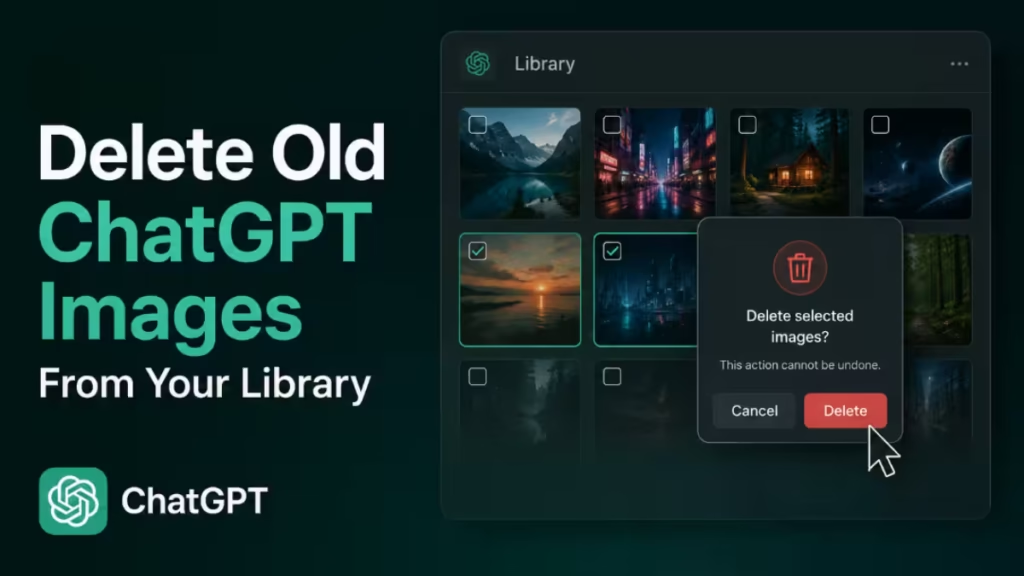
ChatGPT makes image creation easy, but deleting old images is a different story. If you open an older AI-generated image in the Images section and look for a delete button, you will not find one. This guide walks you through why that happens and the only reliable workaround that actually removes old images from your account.
Why Old ChatGPT Images Have No Delete Option
OpenAI added a new Library feature to ChatGPT in May 2026. This Library lets you manage files and newly created images directly, including deleting them with a single click.
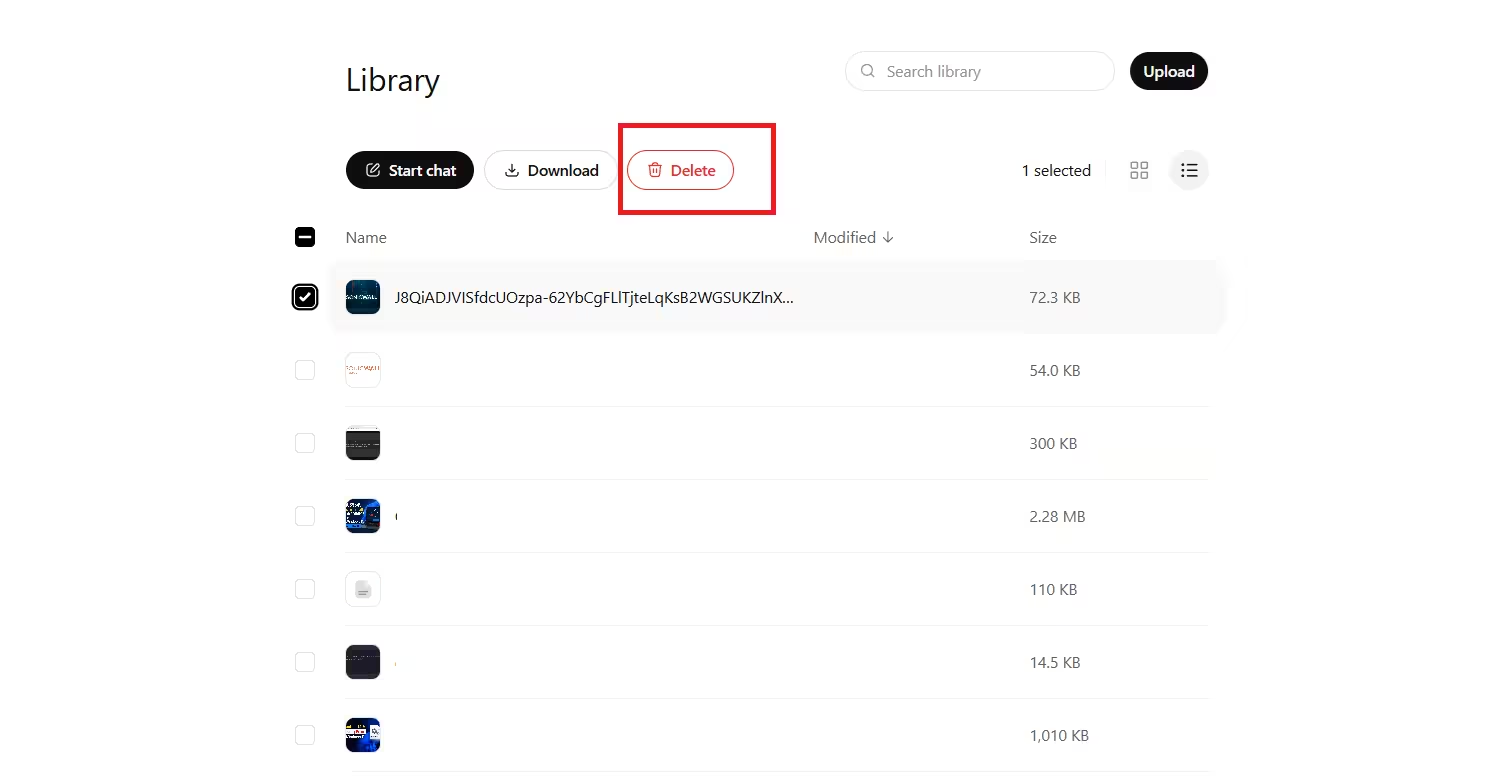
The problem is that ChatGPT treats images created before the Library existed as a separate collection. Those older images live in the Images menu in the sidebar, not the Library. That menu has no delete option at all. You can view, edit, or share an image from there, but you cannot remove it.
Until OpenAI adds a proper delete button for the Images menu, deleting the original chat is the only way to remove those older images from your account.
How to Delete Old ChatGPT Images on Desktop
Follow these steps carefully. Deleting the chat removes every image created inside it, so check the chat before you confirm.
Step 1: Open the Images Menu
In the ChatGPT sidebar, click Images. This shows a grid of every AI image you have ever generated.
Step 2: Locate the Image You Want to Remove
Find the image in the grid. Click on it to open it full size.
Step 3: Open the Original Chat
Click the three-dot menu on the image and choose Open chat. This takes you directly to the conversation where that image was created.
Step 4: Send Any Message in That Chat
Type anything, for example “Hi”, and send it. It does not matter what you write or how ChatGPT responds. This action pushes the chat to the top of your Most Recent list in the sidebar. This step is necessary because you need the chat to be visible in the sidebar to delete it.
Step 5: Close the Chat and Delete It
Close the chat. In the sidebar, you should now see it at the top of the list. Hover your cursor over it and click the three-dot menu that appears. Select Delete, then confirm.
Step 6: Refresh the Images Grid
Go back to the Images menu and refresh the page in your browser. Once the page reloads, the images from that deleted chat will no longer appear in the grid.
How to Delete Old ChatGPT Images on Mobile (Android and iPhone)
The steps follow the same logic on mobile devices.
Step 1: Open the ChatGPT App
Launch the ChatGPT app and sign in to your account.
Step 2: Open the Images Section
Tap the two horizontal lines menu in the top left. Select Images to open your image grid.
Step 3: Open the Image and Access the Chat
Tap the image you want to delete. Tap the three-dot menu and choose Open chat.
Step 4: Send a Message
Type anything in the chat and send it. This pushes the chat to the top of your recent conversations list.
Step 5: Delete the Chat
Close the chat. In the sidebar or conversation list, tap and hold the chat that just appeared at the top. Tap Delete and confirm.
Step 6: Refresh the Images Grid
Pull down to refresh inside the Images section. The deleted images will no longer appear once the grid reloads.
Important Things to Know Before Deleting
Before you delete any chat to remove images, keep these points in mind.
- All images in the chat get deleted together: If you created ten images during one conversation, deleting that chat removes all ten. There is no way to delete a single image from a multi-image chat using this method.
- Deletion is permanent: ChatGPT does not offer a recovery option for deleted images. If an image is worth keeping, download it before you delete the chat.
- Shared links may stop working: If you previously shared a link to one of those images, that link may break after the chat is deleted.
- Downloaded copies stay on your device: Deleting the chat only removes the image from your ChatGPT account. Any copy you already saved to your phone or computer remains untouched.
What About Newly Created Images?
Images you create after the Library launched in May 2026 appear directly inside the Library section and support one-click deletion without any workaround. The issue only affects images created before that feature existed.
If you run into other ChatGPT connection problems while working through these steps, the How to Fix ChatGPT Error in Message Stream Quickly (Step-by-Step Guide) covers the most common causes and fixes for disrupted ChatGPT sessions.
Will OpenAI Add a Proper Delete Button?
Now that the Library gives users a clean way to delete new images, it seems unlikely that OpenAI will go back and add a delete option for the older Images menu. The workaround above is currently the only confirmed method for removing those images.
If you want to stay updated on ChatGPT feature changes, the ChatGPT Go Global Launch Brings Nearly Doubled Usage Limits at $8 article covers recent platform updates that affect how ChatGPT handles usage across different plans.

