Windows Task Manager has been the go-to system monitoring tool for decades, but it has always had limitations. TaskSlinger is a free beta app built from scratch as a faster, cleaner replacement, and it is worth looking at if you keep Task Manager open all day.
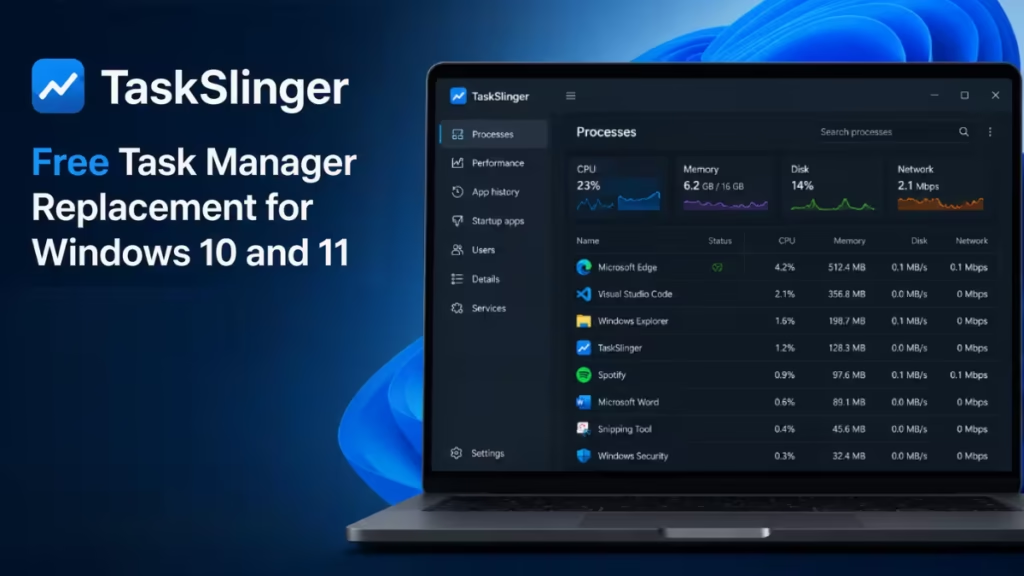
This guide walks you through what TaskSlinger does, what makes it different from the built-in tool, and how to download and run it on Windows 10 or Windows 11.
What Is TaskSlinger
TaskSlinger is a native Windows application designed to replace the built-in Task Manager. Developer Thomas Klemenc built it specifically for power users including developers, system tuners, and support engineers who need a sharper, real-time view into what Windows is doing at any moment.
Unlike many modern Windows utilities, TaskSlinger is not a web-wrapped app or a React Native shell. The interface runs on a custom Direct3D renderer with controls built specifically for dense system telemetry. The result is a UI that stays responsive even during heavy monitoring sessions.
The app entered open beta on May 26, 2026, and the current release is free for all Windows users.
What You Get With TaskSlinger
Process Table with Live Data
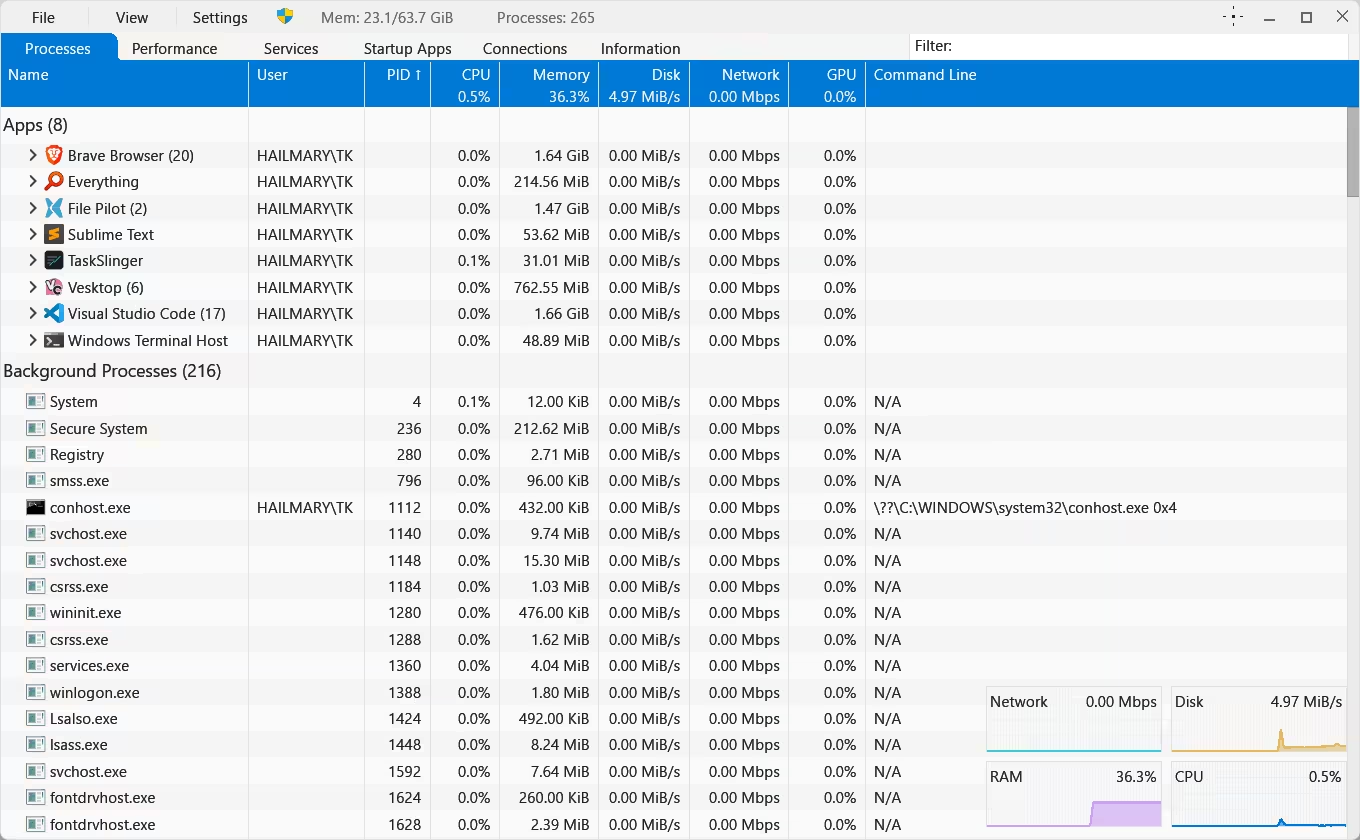
The process table in TaskSlinger groups apps, lists background processes, shows live resource totals, and displays compact resource meters alongside each entry. You can sort by any metric, filter the list by typing directly without opening a search box, and see live mini graphs updating in real time.
Performance Monitoring
The performance tab shows CPU logical processor graphs, memory usage, GPU activity, disk I/O, and network metrics in a single view. The layout is designed for density without becoming cluttered.
Deep Inspection Tools
TaskSlinger goes further than the default Task Manager by letting you view process modules and tokens, dump processes, manage services and startup items, and inspect connections. These are tools that normally require separate utilities or the hidden Windows tools buried deeper in the operating system.
Tabs Available
- Processes
- Performance
- Click tabs
- Services
- Startup Apps
- Connections
- Information
Customizable Views
You can change columns, adjust the layout, and switch themes to match your workflow. The app is designed to let you configure it to your liking rather than locking you into a single view.
Fast Launch
One of the practical advantages TaskSlinger highlights is launch speed. When something goes wrong on a system, you want your monitoring tool open immediately. TaskSlinger claims to launch and render fully from the first frame, significantly faster than some alternatives.
No Telemetry
TaskSlinger sends no telemetry, analytics, or usage data anywhere. The developer explicitly states the app does not phone home under any circumstances.
System Requirements
- Windows 10 (x64) or Windows 11 (x64)
- The beta supports both versions at no cost
There is no word yet on ARM support or what the pricing model will look like when the app leaves beta.
How to Download TaskSlinger
- Open your browser and go to https://taskslinger.net/download.
- Download the installer from the official page.
- Run the installer and follow the on-screen steps.
- Launch TaskSlinger from the Start menu or desktop shortcut.
- Compare it against your current tools under a real workload and submit feedback through the app or developer channels.
The developer encourages users to run it under actual workloads, report bugs, and suggest features during the beta phase.
How It Compares to Windows Task Manager
| Feature | Windows Task Manager | TaskSlinger |
|---|---|---|
| Renderer | System UI | Custom Direct3D |
| Process grouping | Basic | App groups + background split |
| Live mini graphs | No | Yes |
| Process modules/tokens | No | Yes |
| Process dump | No | Yes |
| Filter while typing | Limited | Instant |
| Telemetry | Microsoft telemetry | None |
| Launch speed | Moderate | Fast (first frame render) |
| Cost | Free (built-in) | Free beta |
Who Should Try It
TaskSlinger targets users who already keep Task Manager open as a persistent tool. If you monitor resource usage constantly, debug processes, manage services, or troubleshoot startup items regularly, the app offers a meaningful upgrade in both speed and depth.
Casual users who open Task Manager once a week to end a frozen app may not notice the difference. For everyone else running Windows 10 or Windows 11 x64, the free beta is worth testing.

