Many PCs got upgraded to Windows 11 automatically, and some users only realize the change when the Start menu looks different or an app stops working the way it used to. Knowing your exact Windows version matters for more than curiosity. It affects which drivers you should install, how you troubleshoot errors, whether you qualify for certain feature updates, and whether specific software or games will even run on your machine. If you inherited a PC, reset one recently, or just want to confirm your system before making changes, here are four reliable ways to check if your PC runs Windows 11.
Check if Windows 11 Is Installed Using Winver
The winver command shows your Windows version in seconds without opening any settings menu.
- Press
Win + Rto open the Run dialog - Type
winverand press Enter - Look at the window that appears. It displays “Windows 11” along with the build number and edition
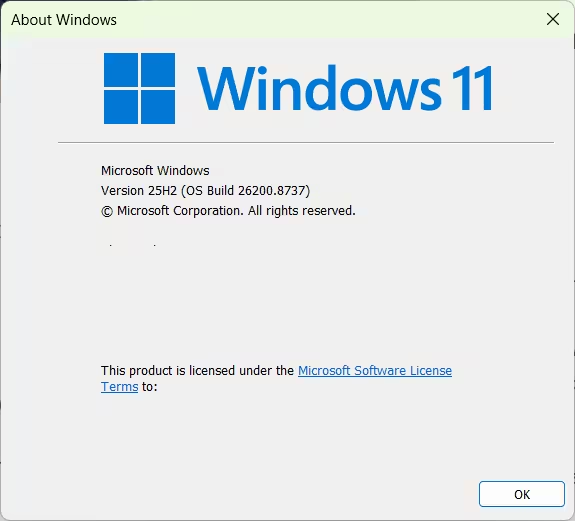
This method works even if your desktop or Start menu is not loading properly.
As of mid-2026, the latest feature update is version 25H2, carrying the base OS build number 26200. If your winver window shows a build number in the 26200.x range (or 26100.x, since Windows 11 24H2 shares the same monthly updates), you are on a current, supported version. Microsoft is also developing version 26H2, expected to carry build numbers in the 26300 series once it rolls out more broadly.
Check if Windows 11 Is Installed Through Settings
The Settings app gives you a more detailed breakdown of your system, including the exact edition and OS build.
- Open Settings
- Click System
- Scroll down and select About
- Under “Windows specifications,” check the “Edition” field. It will list Windows 11 Home, Pro, or another edition if that is what you have installed
This method also shows your system type (32-bit or 64-bit) and installation date, which is useful when troubleshooting compatibility issues.
Check if Windows 11 Is Installed Using System Information
System Information gives you a text-based summary that is easy to copy or screenshot for support tickets.
- Press
Win + R - Type
msinfo32and press Enter - Look at the “OS Name” field near the top of the window. It lists the full edition name, such as “Microsoft Windows 11 Pro”
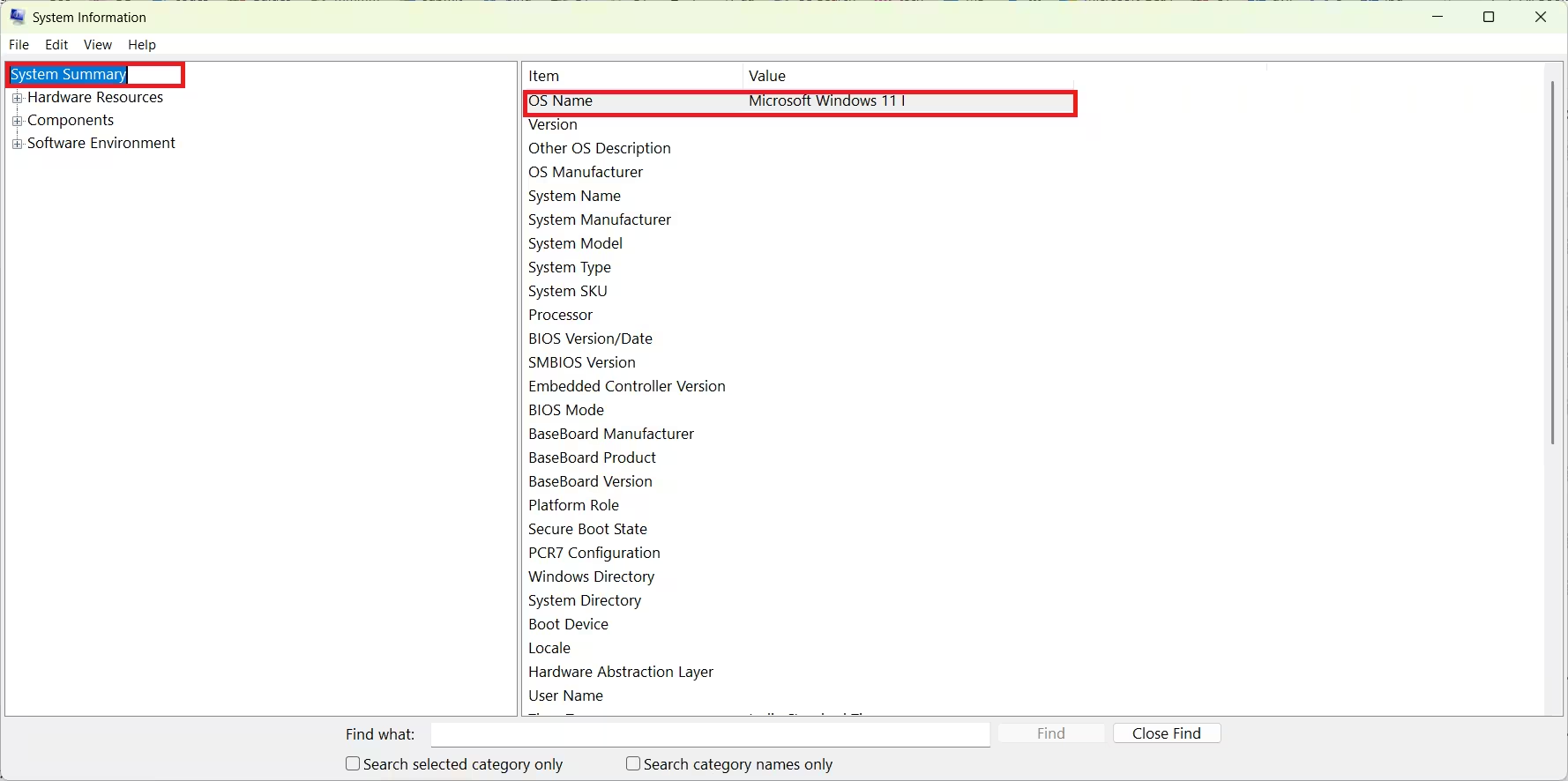
This tool loads a bit slower than winver but includes hardware details alongside the OS version, so it is handy if you need both at once.
Still Running Windows 10? Here’s What to Do
Official support for Windows 10 has ended, so if any of the methods above confirm you are still running it, it is worth planning your upgrade path soon to keep receiving security updates. Most eligible PCs can upgrade to Windows 11 for free through Windows Update.
Checking your Windows version takes less than a minute using winver, Settings, or System Information. If your PC shows Windows 10 instead of Windows 11, you can check Microsoft’s compatibility tool to see if your hardware supports an upgrade.

