When you try to delete a checkpoint in Hyper-V Manager and get “Cannot delete checkpoint: Catastrophic failure (0x8000FFFF)” along with “Virtual machine failed to generate VHD tree”, the checkpoint merge process has broken somewhere in the AVHDX differencing disk chain. This usually happens after a backup tool creates a recovery checkpoint that doesn’t clean up properly, after the host runs out of disk space mid-merge, or when a stale management service job is holding a lock on the checkpoint. Below are the fixes that actually resolve this, starting with the simplest.
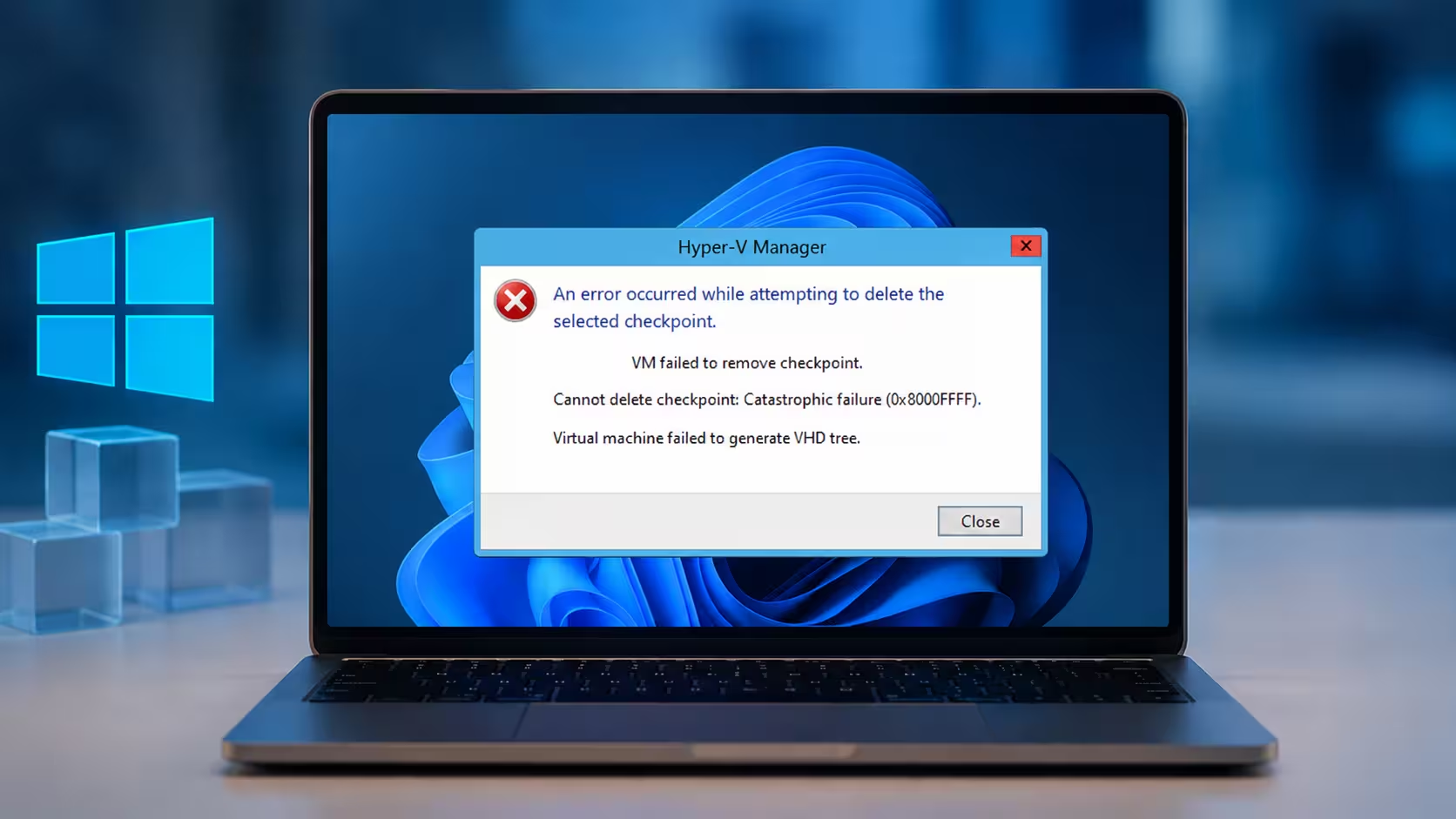
What Causes Catastrophic Failure (0x8000FFFF) When Deleting a Checkpoint
- A stale Hyper-V Virtual Machine Management Service job or file lock held by the guest OS
- A broken or interrupted AVHDX merge chain, often from a backup job that stopped mid-process
- The host running out of disk space during checkpoint merge
- Leftover recovery checkpoint metadata from a backup tool that failed to clean up after itself
Fix 1: Shut Down the VM and Restart the Hyper-V Management Service
A stuck deletion is often caused by a stale service job or a file handle the guest OS hasn’t released, rather than actual disk corruption.
- Open Hyper-V Manager, right-click the affected VM, and select Shut Down.
- Wait for the VM to fully reach the Off state, then press
Win + Rto open Run. - Type
services.mscand press Enter, then locate Hyper-V Virtual Machine Management in the list. - Right-click it and select Restart.
- Return to Hyper-V Manager and try deleting the checkpoint again.
Fix 2: Create a New Checkpoint and Delete the Subtree
If the checkpoint tree metadata has become inconsistent but the VM itself is otherwise healthy, forcing a fresh checkpoint and merging from there can overwrite the broken pointers.
- With the VM running, right-click it in Hyper-V Manager and select Checkpoint to create a new standard checkpoint.
- Open the checkpoint tree and right-click the newly created checkpoint.
- Select Delete Checkpoint Subtree.
- Hyper-V will attempt to merge the entire tree, including the one that was originally stuck. Check if the error clears before moving to the next fix.
Fix 3: Remove the Checkpoint Directly Through PowerShell
The Hyper-V Manager GUI runs extra validation checks that can block a deletion even when the underlying merge would otherwise succeed. Going through PowerShell skips those checks.
- Open PowerShell as Administrator and list existing checkpoints with
Get-VMSnapshot -VMName "YourVMName". - Note the exact name of the problem checkpoint, then remove it with
Remove-VMSnapshot -VMName "YourVMName" -Name "ProblemCheckpointName". - To clear every checkpoint on the VM instead, run
Get-VMSnapshot -VMName "YourVMName" | Remove-VMSnapshot. - Confirm the removal by running
Get-VMSnapshot -VMName "YourVMName"again and checking that the checkpoint no longer appears.
Fix 4: Trace the Broken Checkpoint in Event Viewer
If PowerShell also fails, you need to identify exactly which AVHDX file in the chain is broken before attempting a manual merge.
- Open Event Viewer and go to Applications and Services Logs > Microsoft > Windows > Hyper-V-VMMS > Admin.
- Look for Event IDs 20864, 14320, and 15070, which report the VHD tree failure, the checkpoint ID, and the failed removal.
- Note the Checkpoint ID from the event, then locate the matching AVHDX file in the VM’s virtual hard disks folder.
- Run
Get-VHD -Path "<file>.avhdx" | Select ParentPathon that file and follow the chain until you find where the parent path is missing or incorrect.
Fix 5: Manually Merge the Orphaned AVHDX File
Once you know which differencing disk is orphaned, merging it directly into its parent removes the dependency on the failed checkpoint.
- Make sure the VM is completely powered off, not saved state.
- Open PowerShell as Administrator and confirm the disk path with
Get-VMHardDiskDrive -VMName "YourVMName". - Verify the parent path with
Get-VHD -Path "C:\Full\Path\to\Child.avhdx". - Merge the child into the parent with
Merge-VHD -Path "C:\Full\Path\to\Child.avhdx" -DestinationPath "C:\Full\Path\to\Parent.vhdx". - Wait for the operation to finish, since large AVHDX files take time, then start the VM and check if the checkpoint is gone.
Fix 6: Clear Lingering Backup Recovery Checkpoints
Backup software sometimes creates a temporary recovery-type checkpoint during a backup job, and if that job fails or is interrupted, the checkpoint can be left behind and block deletion of the original one.
- Run
Get-VMSnapshot -VMName "YourVMName"in PowerShell and check if any checkpoint was created by your backup application. - Remove it with
Remove-VMSnapshot -VMName "YourVMName" -Name "CheckpointName". - Open your backup software’s console and confirm no backup or recovery job is currently running against the VM.
- Restart the Hyper-V host to release any remaining file locks, then try deleting the checkpoint again.
Frequently Asked Questions
How do I delete a checkpoint in Hyper-V Manager?
Open Hyper-V Manager, select the VM, and expand the Checkpoints section. Right-click the specific checkpoint and choose Delete Checkpoint to remove just that one, or Delete Checkpoint Subtree to remove it along with all its children at once.
Why does Hyper-V fail to merge a checkpoint after a backup?
Most backup tools create a temporary recovery checkpoint while the backup job runs, then merge and remove it once the job finishes. If the backup job is interrupted, crashes, or loses connection to the host, that recovery checkpoint can be left behind and block Hyper-V from completing the merge on its own.
Is it safe to delete an AVHDX file directly instead of merging it?
No. Deleting an AVHDX file directly breaks the differencing disk chain and can make the VM unbootable, since the parent VHDX still expects that file to exist. Always use Remove-VMSnapshot or Merge-VHD to properly consolidate the disk chain instead of deleting files by hand.
Does deleting a checkpoint delete the VM’s current data?
No. Deleting a checkpoint merges its changes into the parent disk, so any data written to the VM after the checkpoint was taken is preserved. The checkpoint itself, along with the ability to roll back to that earlier state, is what gets removed.
How much free disk space does Hyper-V need to delete a checkpoint?
Hyper-V needs enough free space to merge the AVHDX file into its parent, which can briefly require space close to the size of the differencing disk itself. If the host volume is low on space, the merge can stall partway through and produce the same catastrophic failure error.

