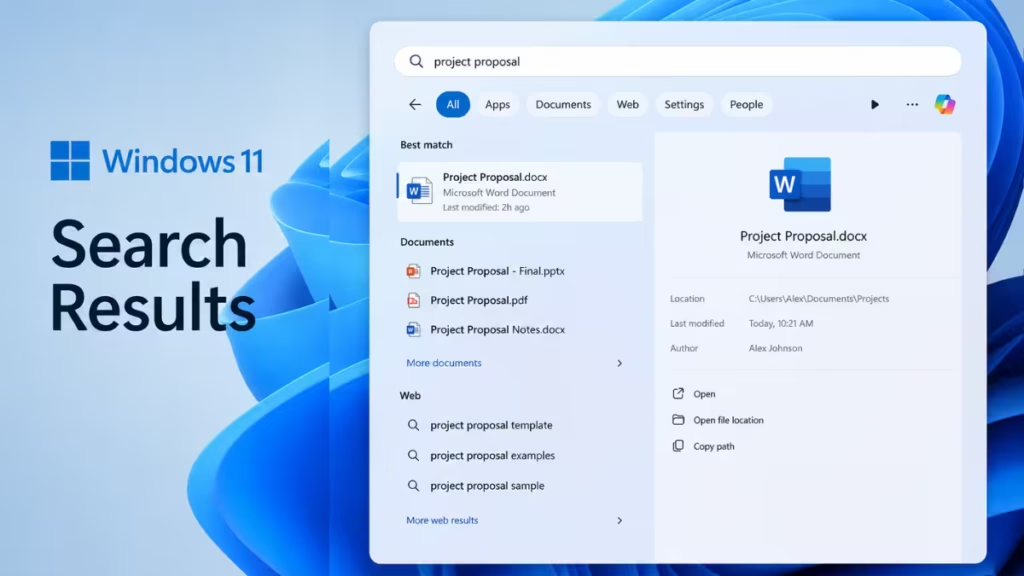
Windows 11 has a persistent problem: you type something in the taskbar search box to find a file or app, and the first result that appears is a web link you never asked for. Microsoft is now fixing this behavior, and you can already clear most of the unwanted web clutter from Windows 11 search results today using a Registry edit.
Why Windows 11 Search Results Show Web Spam
The Windows 11 search box pulls in results from Bing and other Microsoft services alongside your local files and apps. Until recently, it placed those web results above your own content by default.
A search for a file named after a movie title, for example, would return the Bing result for the movie at the top instead of the actual file sitting on your drive. This behavior was intentional. Microsoft used the search box to generate Bing and Edge clicks, which meant your local content regularly lost priority to web suggestions you did not ask for.
Microsoft’s Fix for Windows 11 Search Results (Build 26300.8493)
Microsoft confirmed the change in the release notes for Build 26300.8493 in the Experimental channel for Windows Insiders. The company stated: “Files and apps more reliably appear ahead of web suggestions when your content is a stronger match.”
The update also improves typo handling. A misspelled file name now returns the local file rather than a Bing search. In testing by Windows Latest, searching for terms that also match famous film titles no longer surfaces movies as the first result. Microsoft says additional relevance improvements are coming in future releases.
This fix is currently in the Windows Insider Experimental channel. It will reach stable Windows 11 builds through Windows Update over the coming months. You do not need to configure anything for it to apply once the update installs on your device.
How to Disable Web Search Results in Windows 11 Right Now
If you do not want to wait for the update to reach your device, you can remove Bing results from the Windows 11 search box today through a Registry edit. This method works on Windows 11 24H2 and earlier versions.
Back up your Registry before making any changes. Open Registry Editor, go to File > Export, choose All as the export range, and save the backup somewhere safe.
Step 1: Open Registry Editor
- Press Win + R to open the Run dialog.
- Type
regeditand press Enter. - Click Yes if a User Account Control prompt appears.
Step 2: Navigate to the Windows Search Key
Copy and paste this path into the Registry Editor address bar, then press Enter:
HKEY_CURRENT_USER\SOFTWARE\Microsoft\Windows\CurrentVersion\SearchStep 3: Disable BingSearchEnabled
- In the right pane, look for a DWORD value named BingSearchEnabled.
- If the value exists, double-click it and set the data to 0.
- If the value does not exist, right-click the empty right pane, select New > DWORD (32-bit) Value, name it
BingSearchEnabled, and set the value to 0.
Step 4: Set CortanaConsent to 0
- In the same Registry key, find or create a DWORD value named CortanaConsent.
- Double-click it and set the data to 0.
Step 5: Restart Windows Explorer
You do not need to reboot the PC. Press Ctrl + Shift + Esc to open Task Manager. Find Windows Explorer in the list, right-click it, and select Restart. The search box will now show only local files, apps, and settings.
To reverse this at any time, set both values back to 1 and restart Windows Explorer again.
How to Verify the Fix Is Working
After applying the Registry edit or after Microsoft’s update reaches your device, confirm the change is active:
- Click the search box on the taskbar.
- Type the name of a file or app you know exists on your PC.
- If the file or app appears at the top of the results instead of a web link, the fix is working.
You can also test it by typing a word that matches both a local item and a popular website. Before the fix, the website appeared first. After the fix, the local match takes priority.
What Microsoft Plans Next for Windows 11 Search
Microsoft has confirmed that search improvements are an ongoing effort throughout 2026. The upcoming changes include a visual indicator that clearly separates local results from web results inside the search panel, a more consistent search experience across the taskbar, Start menu, File Explorer, and Settings, and a possible Settings toggle to disable web results without needing to touch the Registry.
Search performance across File Explorer and the taskbar is also getting faster as Microsoft moves more Windows surfaces to the WinUI 3 framework, which reduces interaction latency across core Windows UI elements.
Microsoft is simultaneously trimming other unwanted behavior from Windows 11. The company is reducing unnecessary Copilot entry points across the OS and improving how Windows surfaces apps and files from the Start menu. Other performance features like Low Latency Profile are also being tested in Windows Insider builds and can be enabled early using ViveTool for users who want to try them before they roll out widely.
The search fix arriving in Build 26300.8493 is part of Microsoft’s broader Windows 11 quality commitment announced in March 2026, which also covers File Explorer performance, taskbar customization, and update reliability.

