The Southwest Airlines app handles your entire travel experience in one place. You can book flights, select seats, check in, pull up your boarding pass, track flight status in real time, and manage your Rapid Rewards points without opening a browser. Southwest made major changes in 2026, including a move to assigned seating and new fare names, so this guide covers how the app works under the current system.
How to Download the Southwest Airlines App
The app is free on both major platforms.
- Android: Install it from the Google Play Store and wait for the download to complete.
- iPhone: Install it from the Apple App Store and authenticate with Face ID, Touch ID, or your Apple ID password when prompted.
The app requires an internet connection for most features. A stable Wi-Fi or mobile data connection gives you the best performance.
How to Create a Southwest Account or Sign In
You need a Southwest account to book flights and earn Rapid Rewards points.
- Open the app after installation.
- Tap Log In on the home screen.
- If you already have an account, enter your Rapid Rewards number or username and password, then tap Log In.
- If you do not have an account, tap Enroll in Rapid Rewards to create one. Fill in your name, email address, and a password, then submit.
- Check your email for a verification link and confirm your account.
The app saves your credentials after sign-in. You only need to log in again if you switch devices or manually sign out.
Southwest 2026 Fare Types: Basic, Choice, and More
Southwest renamed all fare tiers and moved to assigned seating on January 27, 2026. The old names (Wanna Get Away, Anytime, Business Select) no longer exist. There are now four fare bundles:
| Fare | Seat Selection | Checked Bags | Boarding |
|---|---|---|---|
| Basic | Standard seat assigned at check-in | Fees apply ($35 first, $45 second) | General group |
| Choice | Select a Standard seat at booking | Fees apply | Standard group |
| Choice Preferred | Select a Preferred seat at booking | Fees apply | Priority lane access |
| Choice Extra | Select any seat including Extra Legroom at booking | 2 free bags | Earliest boarding group |
Seat types available:
- Extra Legroom sits at the front of the cabin and exit rows, with up to five extra inches compared to Standard seats. Includes complimentary premium beverages and extra snacks where available.
- Preferred seats sit near the front of the cabin with standard legroom but faster deplaning.
- Standard seats are in the back section of the aircraft with standard legroom.
A-List Preferred members select any seat including Extra Legroom at booking at no extra cost. A-List members select Standard or Preferred seats free at booking and can upgrade to Extra Legroom within 48 hours of departure based on availability. Rapid Rewards credit card holders get free Standard or Preferred seat selection regardless of fare purchased.
How to Book a Flight on the Southwest Airlines App
- Open the app and tap the Book tab at the bottom of the screen.
- Select Flights from the booking options.
- Choose One Way, Round Trip, or Multi-City for your travel plan.
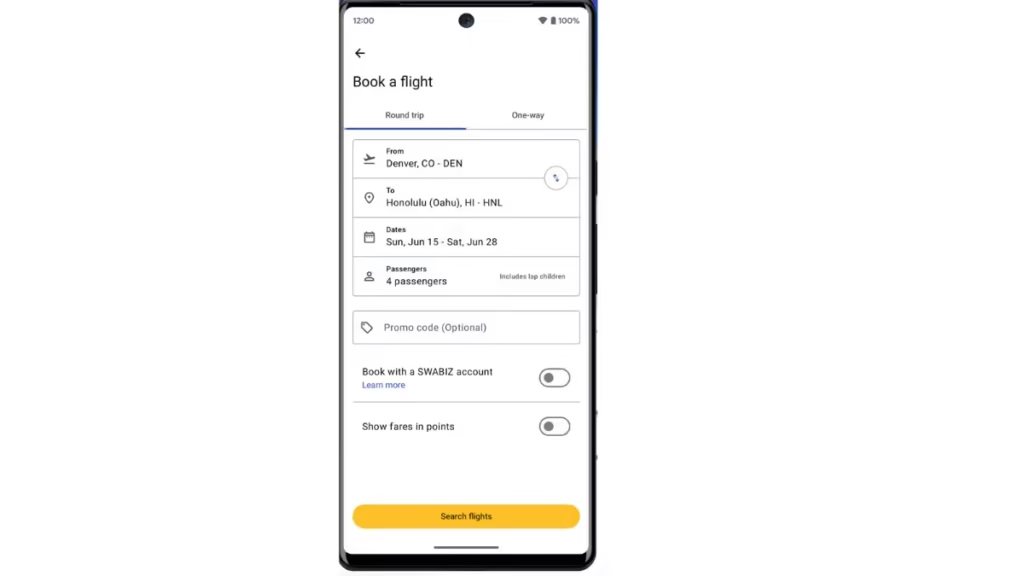
- Enter your departure city, destination, travel dates, and number of passengers.
- Tap Search to see available flights.
- Results show fares across the four tiers. Basic is the lowest price with the most restrictions. Choice Extra is the most premium with the most flexibility and perks.
- Select your preferred flight and fare type.
- For round trips, repeat the selection for your return flight.
- Select your seat. For Choice, Choice Preferred, and Choice Extra fares, the app lets you pick your seat during booking from the available seat map. Basic fare passengers skip this step and receive a Standard seat assignment at check-in.
- Enter passenger details. The name must match exactly as it appears on your government-issued ID.
- Add your Rapid Rewards number to earn points on the booking.
- Complete payment with a credit card, debit card, or Rapid Rewards points.
- Tap Purchase to confirm.
Southwest does not charge change or cancellation fees on Choice, Choice Preferred, or Choice Extra fares. Basic fare cancellations have restrictions, so review the fare rules before booking if flexibility matters.
How to Change or Upgrade Your Seat After Booking
For Choice and Choice Preferred fares, you can change your seat selection anytime before departure through the app, subject to availability.
- Go to the My Trips tab.
- Select your reservation.
- Tap Change Seat to view the current seat map and pick a different option.
Choice Extra passengers can move freely within their fare tier. Basic fare passengers cannot change their assigned seat but can pay to upgrade to a Preferred or Extra Legroom seat if one is available before departure.
How to Check In for Your Flight
- Check-in opens 24 hours before your scheduled departure time.
- Go to the My Trips tab and find your upcoming flight.
- Tap Check In and confirm passenger details.
- The app generates your mobile boarding pass immediately after check-in.
For Choice, Choice Preferred, and Choice Extra fares, your seat is already assigned from when you booked, so check-in no longer affects your seat. For Basic fares, check-in is when the app assigns your Standard seat. Check in at the 24-hour mark if you want the widest selection of remaining Standard seats on a Basic fare booking.
How to Access and Use Your Mobile Boarding Pass
The app works as your boarding pass. You do not need to print anything.
- After check-in, go to My Trips.
- Tap your flight to open the boarding pass.
- Show the QR code to the gate agent at the airport. The agent scans it directly from your screen.
- On Android, tap Save to Google Wallet to store the pass in Google Wallet for quick offline access.
- On iPhone, use the Add to Apple Wallet option to keep it accessible without opening the Southwest app.
Keep screen brightness high when presenting the boarding pass at the gate. Low brightness can cause scanner delays.
How the Boarding Process Works
Southwest replaced the old A, B, C group system with numbered boarding groups from 1 to 8.
- Groups 1 and 2 cover passengers with Extra Legroom seats.
- Groups 3 through 8 cover all remaining passengers, organized by fare type and loyalty status.
- Rapid Rewards credit card holders board no later than Group 5.
- A-List and A-List Preferred members board in earlier groups based on their status.
You can purchase Priority Boarding through the app or at the gate to board in Group 1, subject to availability. Preboarding is available for active-duty military and passengers who need extra assistance.
Your boarding group shows on your mobile boarding pass after check-in. The gate display shows which groups are currently boarding.
How to Track Flight Status in Real Time
- Tap Flight Status from the home screen or the My Trips tab.
- Enter your flight number and travel date, or select a saved trip.
- The app shows departure and arrival times, gate information, current flight position on a map, and any delay notices.
- For flights already in progress, you can track the aircraft position in real time.
You can also check the status of flights you are not personally booked on, which is useful if you are picking someone up from the airport.
How to Enable Flight Notifications
The app sends push notifications for gate changes, boarding calls, and delays.
Android:
- Open Settings on your phone.
- Go to Apps, then find Southwest Airlines.
- Tap Notifications and toggle on Allow Notifications.
iPhone:
- Open Settings on your iPhone.
- Scroll down to Southwest Airlines and tap it.
- Tap Notifications, then switch on Allow Notifications.
Some users have reported missing flight cancellation notices even with notifications enabled. As a backup, open the app and check your trip status a few hours before departure, especially during severe weather or busy travel periods.
How to Book a Hotel or Vacation Package
- Tap the Book tab and select Hotels or Vacations.
- For hotels, enter your destination, check-in date, check-out date, and number of guests. Browse listings and tap any property for details, photos, and pricing.
- For vacation packages, select Vacations and enter your origin, destination, and travel dates. The app bundles flights, hotels, and rental cars into a single booking.
- Popular package destinations include Las Vegas, Hawaii, and Cancun across 30+ available destinations.
- You can cancel or change vacation packages up to 10 minutes before your first scheduled departure.
How to Earn and Redeem Rapid Rewards Points
Rapid Rewards is Southwest’s loyalty program. Qualifying flights, hotel bookings, and vacation packages earn points.
Earning points:
- Your Rapid Rewards number must appear on the booking before you travel.
- If you forgot to add it when booking, go to My Trips, select your reservation, and add the number before your flight.
- Points post to your account after your flight completes.
- Choice Extra earns the most points per dollar spent among the four fare tiers.
Redeeming points:
- When booking a flight, select Use Points on the payment screen.
- The app shows how many points each available fare requires.
- You can mix points and cash on some fare types.
Points expiration: Southwest Rapid Rewards points do not expire. Your points remain in your account indefinitely as long as you keep the account open. Points are forfeited only if you close the account.
How to Access Southwest Inflight Entertainment
Southwest offers free entertainment on Wi-Fi-enabled aircraft through the app.
- After takeoff, connect your phone to the SouthwestWiFi network when the crew announces Wi-Fi is available.
- Open the Southwest app or a browser.
- Navigate to the inflight entertainment portal.
- Browse free live TV channels, on-demand TV episodes, and movies.
- Texting via iMessage and WhatsApp is available on the same connection. Both apps must be downloaded and activated before you connect to Southwest Wi-Fi.
Inflight entertainment is only available on designated Wi-Fi-enabled aircraft. Not every Southwest flight offers it. Paid Wi-Fi is required for general internet browsing beyond the free entertainment portal and messaging apps.
Southwest Airlines App Not Working? Here Are the Fixes
Boarding pass not loading: Force-close the app, reopen it, and navigate back to My Trips. If the issue continues, log out and log back in. Your boarding pass remains valid as long as you completed check-in.
Reservation showing blank in My Trips: Enter your confirmation number manually by tapping Look Up Reservation in the My Trips tab. Your confirmation number is in your booking email.
App resetting after switching away: On Android, clear the app’s cache by going to Settings > Apps > Southwest Airlines > Storage > Clear Cache. On iPhone, delete and reinstall the app. Your reservation data is stored server-side, so reinstalling does not affect any bookings.
Seat not updating after a change: Force-close and reopen the app. If the seat still shows incorrectly on the boarding pass, log out, log back in, and reopen the trip from My Trips. This is a known display bug that has appeared in recent app reviews.
Not receiving flight notifications: Confirm notification permissions are on (see the notifications section above). Also check that Battery Saver or Low Power Mode is not restricting background activity for the Southwest app.
Login not working: Reset your password through the Forgot Password link on the login screen. Use the email address tied to your Rapid Rewards account.
Error 500120309 on sign-in: This error blocks login on Android, iPhone, and the website. It usually points to a server outage or a network blocking Southwest’s servers. Check Downdetector first, then switch from Wi-Fi to mobile data. If the problem continues, clear the app cache on Android or reinstall on iPhone.
For issues not resolved by the above steps, contact Southwest at [email protected] or call 1-800-435-9792. Include your device type, operating system version, and app version when reaching out.

