Southwest Airlines Error 500120309 blocks you from signing in through the app or the website. The error message reads: “Something went wrong, please try again. Error: 500120309” or “Sorry, we can’t seem to connect. Please check your connection and try again. Error: 500120309.”
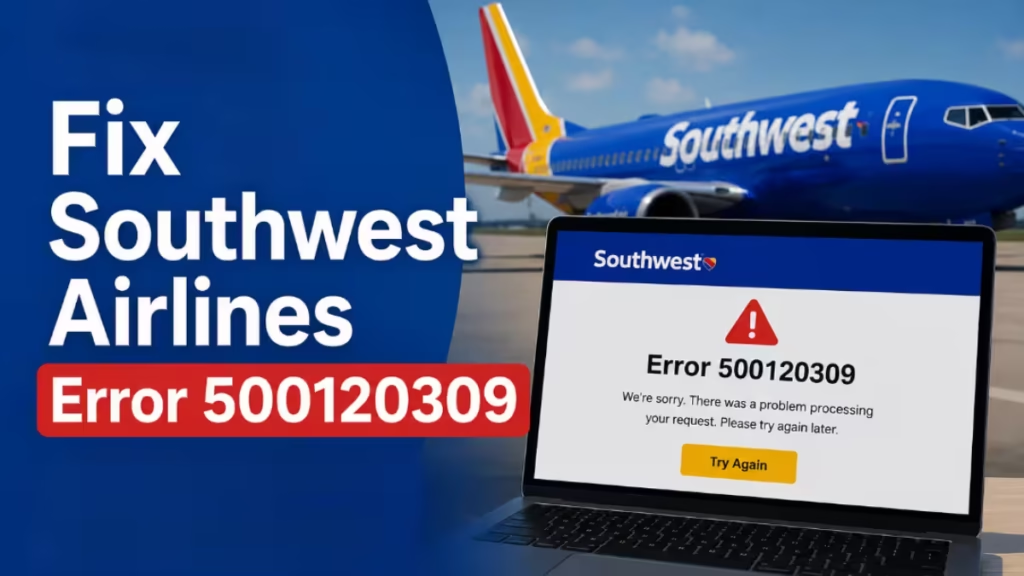
The error hits on all three platforms: Android, iPhone, and the Southwest website. Some users cannot log in at all. Others sign in successfully but get kicked out of the session within minutes, with the same error code appearing again. This guide covers every working fix.
What Causes Southwest Error 500120309
The error has four main causes:
- Southwest’s servers are experiencing an outage or high load
- The app’s cache or stored data has corrupted
- Your network is blocking access to Southwest’s servers
- The app is missing a critical permission on your device
Start by checking whether the issue is on Southwest’s end before attempting fixes on your device.
Fix 1: Check for a Southwest Server Outage
Southwest occasionally experiences server-side issues that trigger Error 500120309 for large numbers of users simultaneously. If this is the case, no device-level fix will resolve it until Southwest restores service.
- Open Downdetector in your browser and search for Southwest Airlines.
- Look at the outage graph and recent user reports.
- If dozens or hundreds of users report the same error at the same time, the problem is on Southwest’s end.
- Wait 15 to 30 minutes and try signing in again.
Fix 2: Restart Your Device and Try Incognito Mode
A simple restart clears temporary system glitches that can interfere with the app’s authentication process.
- Power your phone fully off and turn it back on.
- Open the Southwest app and try to sign in.
- If you are using a browser instead of the app, open a private or incognito window and try logging in from there. Incognito mode loads the site without cached data or extensions that might interfere.
Fix 3: Switch Your Network Connection
Some public Wi-Fi networks, including those at airports and hotels, block access to Southwest’s authentication servers. This produces Error 500120309 even when your internet connection looks fine.
- If you are on Wi-Fi, switch to your mobile data connection and try again.
- If you are on mobile data, connect to a different Wi-Fi network and try again.
- Avoid using public airport or hotel Wi-Fi for Southwest sign-in. Use your own mobile data instead.
Fix 4: Update the Southwest App and Your Phone Software
Running an outdated version of the app or an older operating system version can cause authentication failures.
Android:
- Open the Google Play Store and tap your profile icon.
- Tap Manage apps and device, then check for updates.
- Update the Southwest app if an update is available.
iPhone:
- Open the App Store and tap your profile picture.
- Scroll down to see pending updates.
- Tap Update next to the Southwest Airlines app if one is available.
After updating the app, also check for any pending operating system updates under Settings > General > Software Update on iPhone, or Settings > Software Update on Android.
Fix 5: Grant All Required Permissions to the App
The Southwest app needs network and location permissions to complete sign-in. Missing permissions can trigger Error 500120309 on both Android and iPhone.
Android:
- Open Settings and tap Apps.
- Find and tap Southwest Airlines.
- Tap Permissions and check the status of each listed permission.
- Enable any permissions shown as Denied, especially Location and Network access.
iPhone:
- Open Settings and scroll down to Southwest Airlines.
- Tap it to see all available permission toggles.
- Turn on Location, and any other permissions currently switched off.
Fix 6: Clear the App Cache and Data
Corrupted cache files are a common cause of Error 500120309 on Android. Clearing them forces the app to start fresh.
Android:
- Open Settings and tap Apps.
- Tap Southwest Airlines.
- Tap Storage.
- Tap Clear Cache first, then tap Clear Data.
- Reopen the app and sign in.
iPhone: iPhones do not offer a built-in cache-clearing option. Use the offload method instead:
- Open Settings and tap General.
- Tap iPhone Storage and find Southwest Airlines.
- Tap Offload App. This removes the app but keeps your login data on the device.
- Reinstall the app from the App Store.
Fix 7: Reinstall the Southwest Airlines App
If clearing the cache does not fix the error, a full reinstall removes any corrupted installation files.
Android:
- Press and hold the Southwest app icon on your home screen.
- Tap Uninstall and confirm.
- Restart your Android device.
- Open the Google Play Store, search for Southwest Airlines, and reinstall the app.
iPhone:
- Press and hold the Southwest app icon.
- Tap Remove App, then tap Delete App.
- Tap Delete to confirm.
- Restart your iPhone.
- Open the App Store, search for Southwest Airlines, and reinstall it.
Reinstalling does not affect your reservations. All booking data is stored on Southwest’s servers and remains tied to your Rapid Rewards account.
Fix 8: Use the Website Instead of the App (or Vice Versa)
When the app throws Error 500120309 persistently, southwest.com often works fine in a browser. Several users confirmed the website worked normally while the app continued to fail.
Open southwest.com in Chrome, Safari, or Firefox on your phone and sign in from there. You can check in, access your boarding pass, and manage reservations directly from the mobile browser.
If the error appears on the website, try the app instead, as the two systems sometimes fail independently.
Fix 9: Contact Southwest Support
If none of the above fixes resolve the error, the issue may be specific to your account or require a reset on Southwest’s end.
Contact Southwest through any of these channels:
- Email: [email protected]
- Phone: 1-800-435-9792
- Chat: Available through the Help Center at support.southwest.com
When you contact them, include your device type, operating system version, app version, and a screenshot of the error message. This speeds up the troubleshooting process on their end.
Southwest Error 500120309 Fix Checklist
Run through these steps in order before contacting support:
- Check Downdetector for a Southwest outage
- Restart your device
- Try incognito mode in a browser
- Switch from Wi-Fi to mobile data
- Update the Southwest app and your phone’s OS
- Grant all permissions to the app
- Clear the app cache and data (Android) or offload the app (iPhone)
- Reinstall the app
- Try southwest.com in a browser instead of the app
- Contact Southwest support if the error persists
Southwest Error 500120309 is almost always a server outage, a network block, or corrupted app data. Check Downdetector first before spending time on device-level fixes. If the servers are fine, clearing the app cache on Android or reinstalling on iPhone resolves the error for most users. Switching to mobile data fixes it when a public Wi-Fi network is the culprit. If none of the nine fixes work, contact Southwest support directly with your device details and a screenshot of the error.

