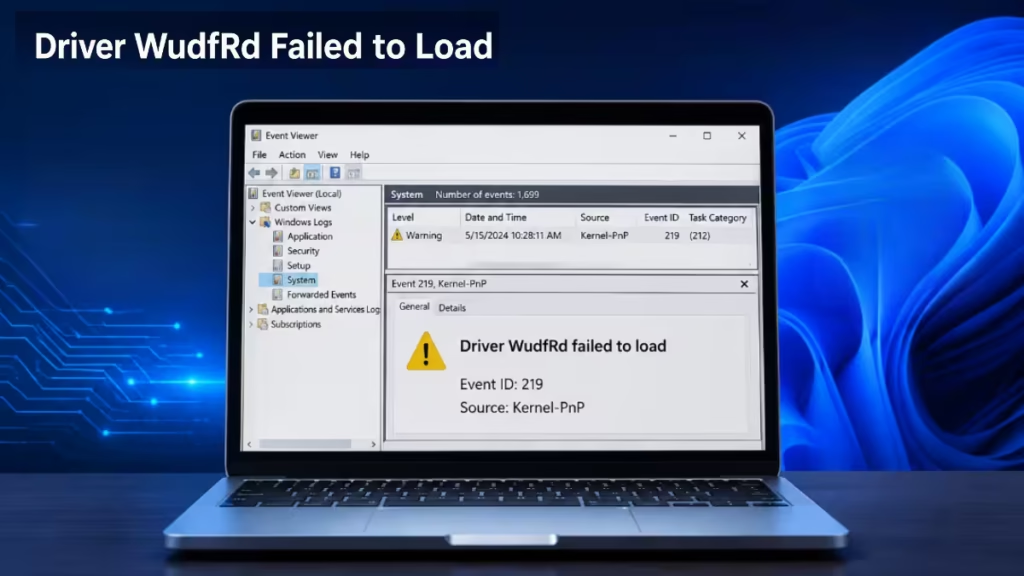
The “driver WudfRd failed to load” error appears in Windows Event Viewer or during startup and points to a problem with the Windows User-Mode Driver Framework (UMDF). In some cases it causes a system freeze or blue screen. In others it sits quietly in your logs and affects nothing.
This guide walks you through every fix, starting with the most common causes.
What Does “Driver WudfRd Failed to Load” Mean?
WudfRd stands for Windows User-Mode Driver Framework Reflector. It is a core Windows component that loads user-mode device drivers. When a driver that depends on WudfRd fails to initialize, Windows logs an error like this:
The driver \Driver\WudfRd failed to load for the device ROOT\WindowsHelloFaceSoftwareDriver\0000
Status: 0xC0000365
The status code 0xC0000365 means the driver image could not be verified or was found to be corrupt. A different status code, 0xC0000034, means the driver file was not found at all.
The affected device varies. Common examples include:
- Windows Hello Face software driver
- Intel Innovation Platform Framework Processor Participant
- USB serial or controller devices
- Camera or biometric devices
Common Causes
- Incompatible or outdated drivers are the most frequent cause. After a Windows upgrade or feature update, existing drivers sometimes break compatibility.
- Startup timing also triggers this error. Some drivers attempt to load before the services they depend on are ready. Windows logs the failure even if the driver loads successfully a few seconds later.
- Windows Hello Face not configured is another common trigger. Windows still tries to load the facial recognition driver even if you never set up face login, generating a log entry with no real impact.
- Corrupted system files can prevent WudfRd from loading drivers correctly. This usually follows an interrupted update or storage error.
- Missing or disabled Windows Driver Foundation service stops UMDF drivers from loading at all.
How to Fix Driver WudfRd Failed to Load
Fix 1: Update the Affected Driver
Open Device Manager and find the device listed in the error:
- Press Win + X and select Device Manager.
- Look for any device with a yellow exclamation mark.
- Right-click the device and select Update driver.
- Choose Search automatically for drivers.
If Windows does not find a newer driver, visit your device manufacturer’s website and download the latest version manually. For laptops like the Lenovo Y9000P, always use the OEM driver package from Lenovo Support rather than a generic Intel or NVIDIA driver. Intel chipset drivers are also available directly from the Intel Download Center.
If you recently updated your graphics driver and the error started after that, use Display Driver Uninstaller (DDU) in Safe Mode to remove the driver cleanly before reinstalling. You can download DDU from the official Wagnardsoft page.
Fix 2: Run Windows Update
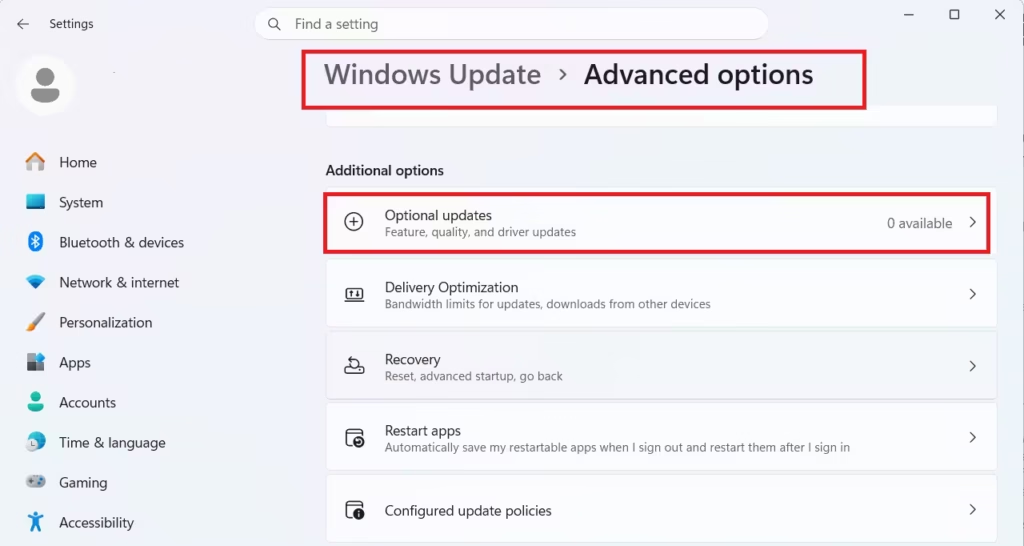
Pending Windows updates often include driver patches that resolve this error. Microsoft also publishes optional driver updates through Windows Update that do not install automatically.
- Open Settings and go to Windows Update.
- Click Check for updates.
- Click Advanced options, then Optional updates, and install any available driver updates.
- Restart your PC.
You can also visit Microsoft Update Catalog to search for specific driver packages by device name or hardware ID.
Fix 3: Check the Windows Driver Foundation Service
The Windows Driver Foundation (WDF) service must run automatically. If it is disabled or set to manual, UMDF drivers fail to load.
- Press Win + R, type
services.msc, and press Enter. - Scroll down and double-click Windows Driver Foundation – User-mode Driver Framework.
- Set Startup type to Automatic.
- Click Start if the service is not running.
- Click Apply and then OK.
- Restart your PC.
Fix 4: Reinstall USB Controllers
Error code 219 in this context often ties to USB drivers. Reinstalling USB controllers forces Windows to rebuild them cleanly.
- Press Win + X and select Device Manager.
- Expand Universal Serial Bus controllers.
- Right-click each USB controller and select Uninstall device.

- Confirm each uninstall.
- Restart your PC. Windows automatically reinstalls all USB controllers on boot.
Fix 5: Turn Off Hard Disk Hibernation
Hard disk power settings sometimes interfere with driver loading, especially on battery power.
- Press Win + R, type
POWERCFG.CPL, and press Enter. - Click Change plan settings next to your active power plan.
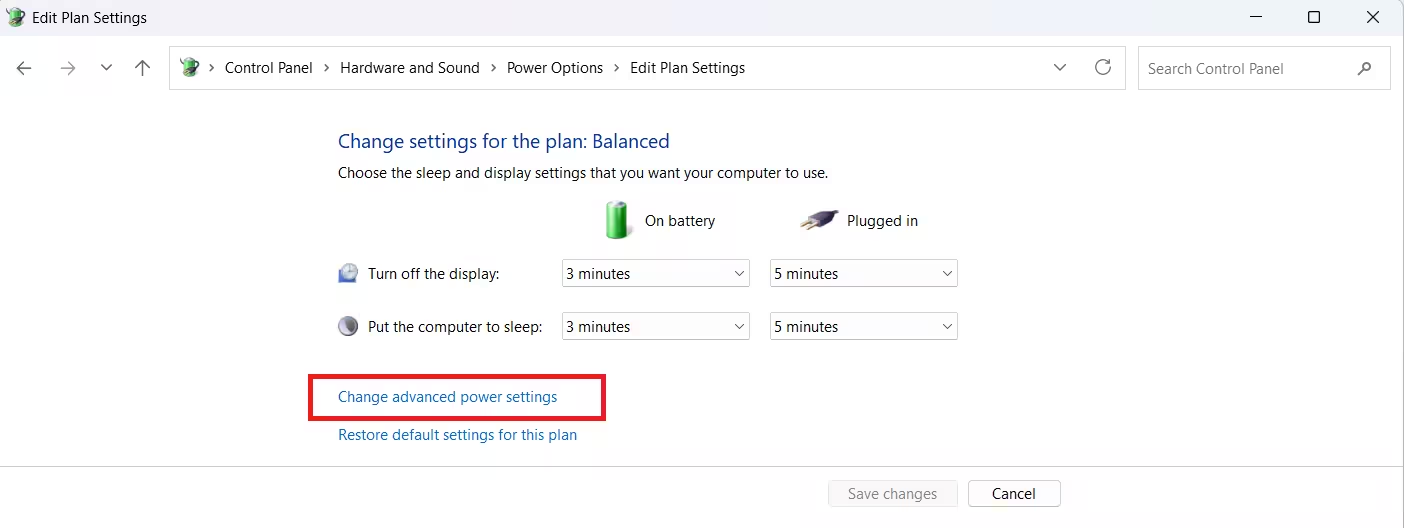
- Click Change advanced power settings.
- Expand Hard disk, then expand Turn off hard disk after.
- Set both On battery and Plugged in to Never.
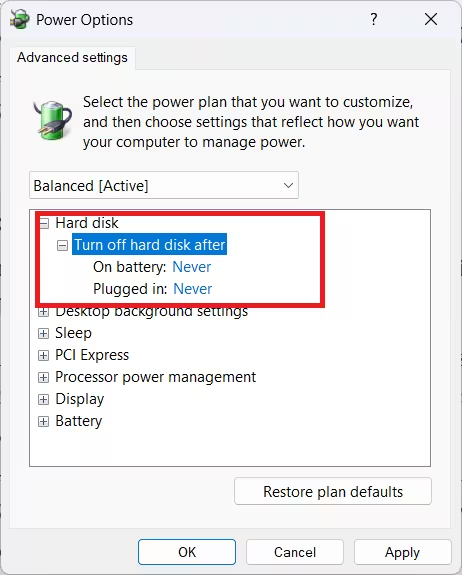
- Click Apply and OK.
Fix 6: Configure or Disable Windows Hello Face
If the error specifically names ROOT\WindowsHelloFaceSoftwareDriver, the fix is straightforward. Microsoft explains Windows Hello Face setup in detail in the Windows Hello overview on Microsoft Support.
If you use face login:
- Open Settings and go to Accounts.
- Select Sign-in options.
- Under Facial recognition (Windows Hello), click Set up or Improve recognition.
Completing the setup gives the driver a valid configuration to load against.
If you do not use face login:
- Open Settings and go to Accounts.
- Select Sign-in options.
- Under Facial recognition (Windows Hello), click Remove.
Removing it stops Windows from attempting to load the driver at startup.
Fix 7: Repair System Files with SFC and DISM
Corrupted system files prevent drivers from loading correctly. Run these two commands in sequence. Microsoft documents both tools in the official SFC support article and the DISM reference on Microsoft Learn.
Open Command Prompt as Administrator and run:
sfc /scannowWait for the scan to complete. Then run:
DISM /Online /Cleanup-Image /RestoreHealthRestart your PC after both commands finish. If SFC reports errors it could not fix, run DISM first and then run SFC again.
When the Error Causes a BSOD (0x00000116)
If your PC freezes and restarts alongside a 0x00000116 bugcheck, the WudfRd error is likely a secondary symptom rather than the root cause.
The 0x00000116 stop code points to a video driver timeout or crash. The dump file analysis in such cases commonly traces back to nvlddmkm.sys (the NVIDIA display driver) rather than WudfRd itself.
If you see 0x00000116 along with this error, prioritize these steps:
- Clean install your GPU driver using DDU in Safe Mode. Download the latest NVIDIA driver from the NVIDIA Driver Downloads page.
- Update your BIOS to the latest version from your laptop manufacturer.
- Disable hardware acceleration in your browsers (check browser settings under Advanced or System).
- Check your GPU temperatures under load using HWiNFO or MSI Afterburner.
For detailed steps on blue screen errors tied to display drivers, see our Windows BSOD fix guide.
When You Can Ignore This Error
Not every WudfRd log entry needs a fix. You can safely ignore this error if:
- Windows Hello Face works normally when you use it.
- The error appears only in Event Viewer and nowhere else.
- Your PC runs without freezes, crashes, or performance issues.
- You do not use facial recognition at all.
Windows logs driver initialization failures during boot even when the driver loads correctly a few seconds later. A single entry in Event Viewer with no symptoms attached is not worth chasing.
Act on it when face login stops working, the error repeats dozens of times in the logs, your camera or sign-in features break, or the system crashes alongside it.

