A TLS handshake failed error stops your browser from opening a secure HTTPS connection to a website. When the handshake between your browser and the server breaks down, the browser blocks the page and shows a warning instead. This guide walks you through the real fixes that solve it, starting with the ones that work most often.
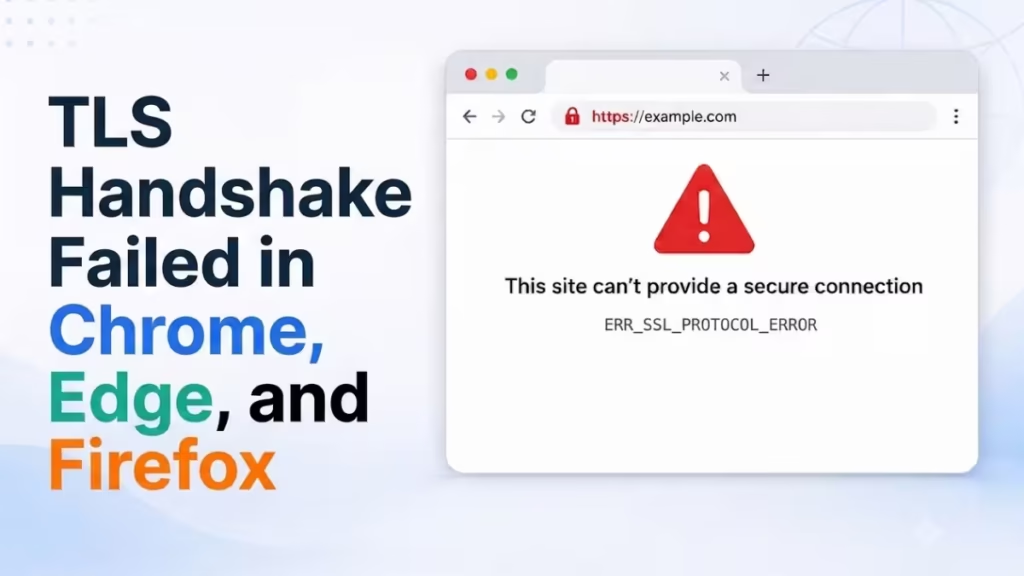
You will see this problem on a single site or across many sites, and the cause usually sits on your device, your network, or the website itself. The steps below cover all three.
What Causes a TLS Handshake Failed Error
A TLS handshake failed error appears when your browser and the website cannot agree on a secure connection. The most common triggers include:
- A wrong system date or time, which makes valid certificates look expired.
- An outdated browser that no longer matches the server’s security settings.
- A corrupted SSL cache stored on your computer.
- Antivirus or firewall software that intercepts HTTPS traffic.
- Old or disabled TLS protocol versions.
- A VPN, proxy, or network filter that breaks the handshake.
- An expired or misconfigured certificate on the website itself.
TLS Handshake Failed Messages You May See
The same broken handshake shows up under different names depending on your browser. If you see one of the specific codes below, you can also follow its dedicated fix guide:
- Chrome and Edge: ERR_SSL_PROTOCOL_ERROR, ERR_SSL_VERSION_OR_CIPHER_MISMATCH, “This site can’t provide a secure connection.”
- Firefox: “Secure Connection Failed,” SSL_ERROR_NO_CYPHER_OVERLAP, SEC_ERROR_EXPIRED_CERTIFICATE.
- General: “TLS handshake failed” in apps, command-line tools, and server logs.
The fixes work the same way across these messages, so follow the steps in order.
Fix 1: Correct Your System Date and Time
TLS checks certificate validity against your computer’s clock. A wrong date or time makes your browser treat good certificates as expired, and the handshake fails.
- Right-click the clock in your taskbar and select Adjust date and time.
- Turn on Set time automatically and Set time zone automatically.
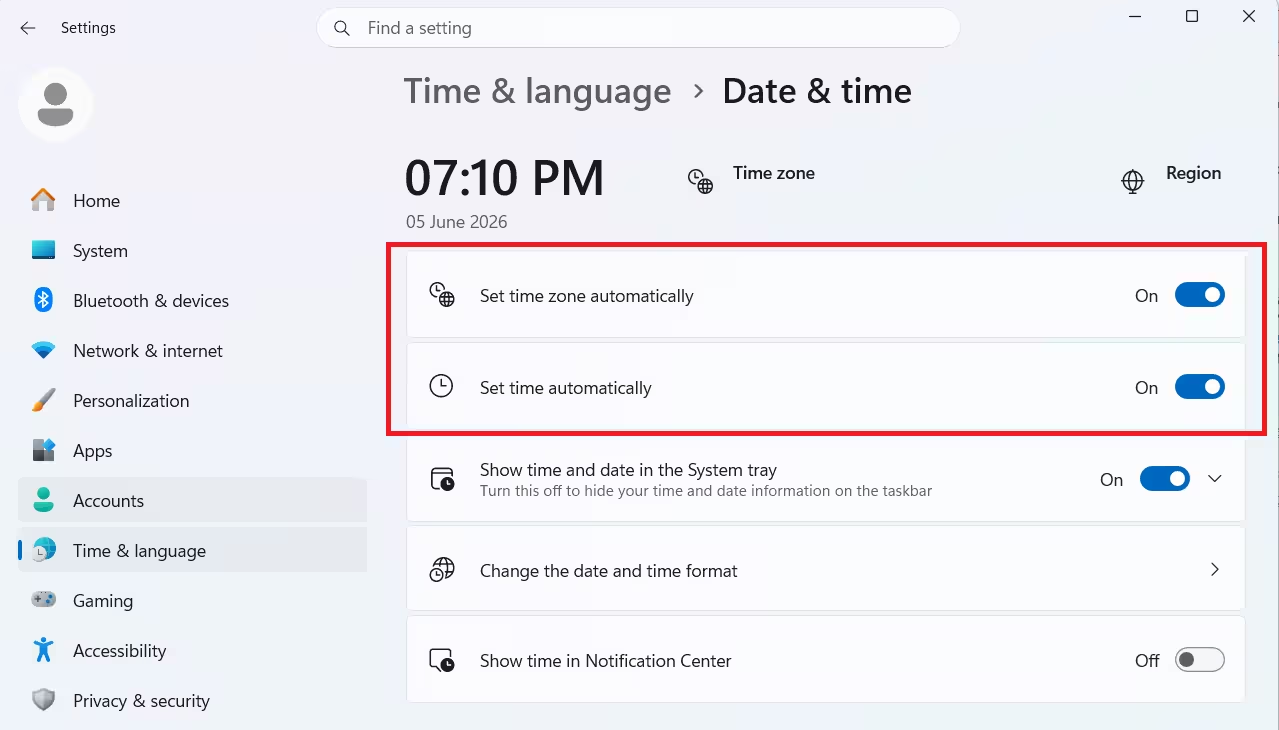
- Click Sync now.
- Reload the website.
On a Mac, open System Settings, go to General, then Date & Time, and enable automatic time.
Fix 2: Clear Your Browser Cache and SSL State
A stale cache often holds a broken handshake. Clearing it forces the browser to start a fresh connection.
In Chrome or Edge:
- Press Ctrl + Shift + Delete.
- Set the time range to All time.
- Check Cached images and files and Cookies and other site data.
- Click Clear data and restart the browser.
In Firefox, open the menu, go to Settings, then Privacy & Security, and clear data under Cookies and Site Data.
Fix 3: Update Your Browser
An old browser may not support the security ciphers that modern servers require, which produces a TLS handshake failed error on otherwise healthy sites.
- Open your browser menu.
- Go to Help, then About.
- Let the browser download any update and restart it.
This single step fixes ERR_SSL_VERSION_OR_CIPHER_MISMATCH on many older installs.
Fix 4: Enable TLS 1.2 and TLS 1.3
Windows controls which TLS versions your browser can use. If a recent update disabled the modern versions, the handshake fails.
- Press Windows + R, type
inetcpl.cpl, and press Enter. - Open the Advanced tab.
- Scroll to the Security section.
- Check Use TLS 1.2 and Use TLS 1.3.
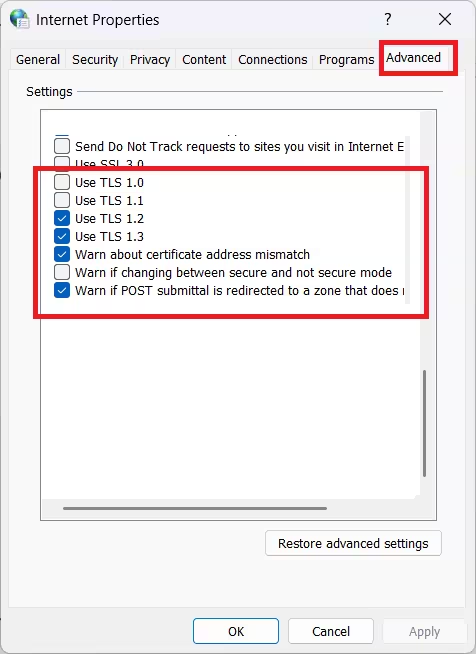
- Uncheck the outdated Use TLS 1.0 and Use TLS 1.1 boxes.
- Click Apply, then OK, and restart your browser.
Fix 5: Clear the SSL State in Windows
Windows stores accepted certificates in an SSL cache. A corrupted entry blocks the connection, and clearing it removes the bad data.
- Press Windows + R, type
inetcpl.cpl, and press Enter. - Open the Content tab.
- Click Clear SSL state.
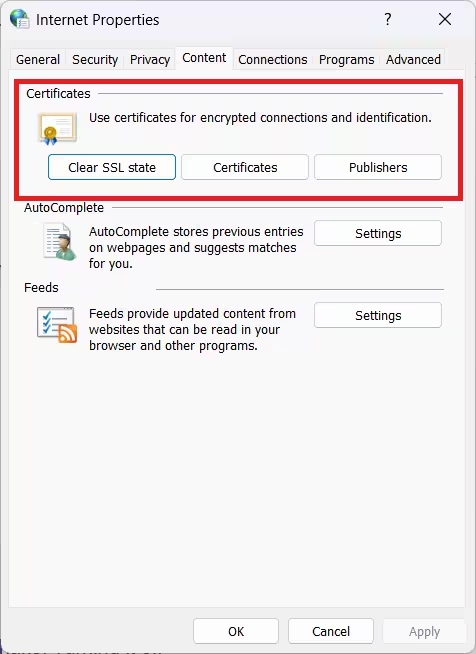
- Confirm the message and reload the site.
Fix 6: Disable QUIC in Chrome
Chrome’s experimental QUIC protocol sometimes conflicts with a server and breaks the handshake. Turning it off forces a standard connection.
- Type
chrome://flags/#enable-quicin the address bar. - Set Experimental QUIC protocol to Disabled.
- Relaunch Chrome.
Edge uses the same flag at edge://flags/#enable-quic.
Fix 7: Turn Off HTTPS Scanning in Your Antivirus
Many security tools inspect encrypted traffic by inserting their own certificate. This breaks the handshake and shows a TLS handshake failed error. Test whether your antivirus causes it.
- Open your antivirus settings.
- Look for a feature named HTTPS scanning, SSL/TLS scanning, encrypted connections scanning, or web shield.
- Turn it off temporarily.
- Reload the site.
If the page loads, keep the feature off for trusted sites or update the antivirus to a newer build that handles HTTPS correctly. Turn it back on when you finish testing.
Fix 8: Disable Browser Extensions
A misbehaving extension, especially a VPN, ad blocker, or privacy tool, can interfere with secure connections.
- Open your browser in a private or incognito window, which runs without extensions.
- Visit the site again.
- If it works, disable your extensions one by one in the browser menu to find the culprit.
Fix 9: Disable Your VPN or Proxy
A VPN or proxy reroutes your traffic and can break the TLS handshake with certain servers.
- Disconnect your VPN.
- Press Windows + R, type
inetcpl.cpl, and press Enter. - Open the Connections tab and click LAN settings.
- Uncheck Use a proxy server for your LAN.
- Click OK and reload the site.
Fix 10: Flush DNS and Reset the Network
A bad DNS record or a damaged network stack can point your browser to the wrong endpoint and cause the handshake to fail.
- Open Command Prompt as administrator.
- Run these commands one at a time:
ipconfig /flushdns
netsh winsock reset
netsh int ip reset- Restart your computer and test the connection.
When the Problem Is the Website
If the error appears on only one site and every fix above fails, the certificate on that website is likely the cause. The site owner may have an expired certificate, a wrong domain name on the certificate, or an unsupported cipher.
- Test the same site on your phone using mobile data.
- If it fails there too, the website itself has the problem.
- Wait for the owner to renew the certificate, or contact them to report it.
You can also run a quick check at a public SSL test tool to confirm the certificate status before you spend more time on your own device.

