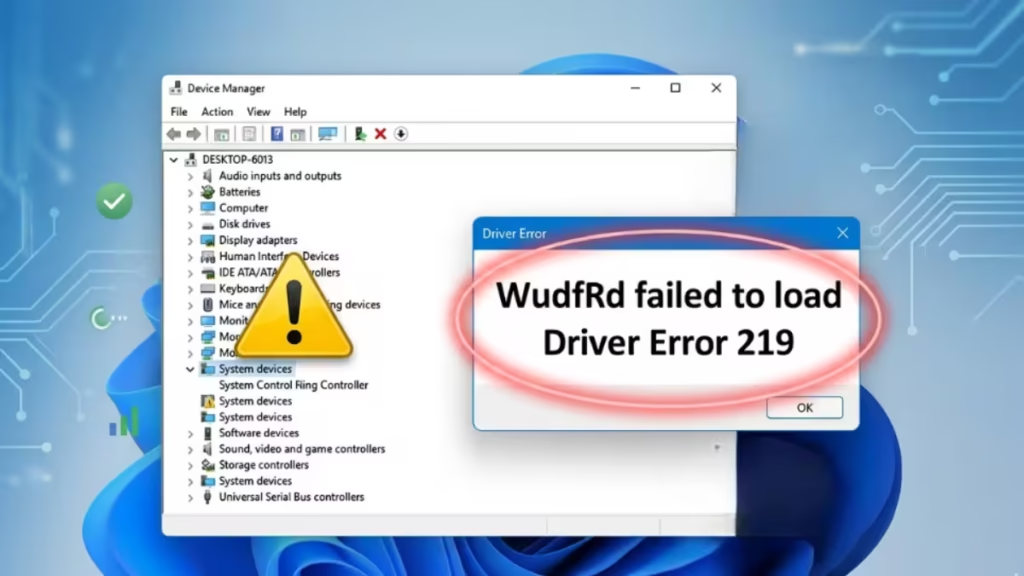
The driver WudfRd failed to load error appears in Event Viewer with Event ID 219 and Source: Kernel-PnP. Windows logs this warning every time your PC boots, and it usually surfaces after a Windows upgrade or driver conflict. This guide covers every working fix, in order from simplest to most involved.
What Is WudfRd and Why Does It Fail to Load?
WudfRd stands for Windows User-mode Driver Framework Reflector. It is a kernel driver that bridges user-mode drivers (like USB device drivers) with the Windows kernel. When a device driver relies on WudfRd but finds a version mismatch or a missing dependency, Windows logs Event ID 219.
Common causes:
- Driver conflict after a Windows 10 or Windows 11 upgrade
- Windows Driver Foundation service set to disabled or manual startup
- Corrupted or outdated USB controller drivers
- Hard disk hibernation interfering with driver initialization at boot
Fix 1: Update Incompatible Drivers via Device Manager
Incompatible drivers show a yellow exclamation mark in Device Manager. Update them first before trying anything else.
- Press Win + X and select Device Manager.
- Scan the list for any device with a yellow ! symbol.
- Right-click the flagged device and select Update driver.
- Choose Search automatically for updated driver software.
- Repeat for every flagged device.
- Restart your PC after all updates complete.
If Windows cannot find a driver automatically, visit the manufacturer’s website and download the latest driver manually.
Fix 2: Enable the Windows Driver Foundation Service
The Windows Driver Foundation (WDF) service must run on Automatic startup. If it is disabled or set to Manual, WudfRd will fail to load on boot.
- Press Win + R, type
services.msc, and press Enter. - Scroll down and locate Windows Driver Foundation – User-mode Driver Framework.
- Double-click it to open its Properties window.
- Under the General tab, set Startup type to Automatic.
- Check the Service status field. If it shows Stopped, click Start.
- Click Apply, then OK.
- Restart your PC.
After the restart, open Event Viewer (Win + R, type eventvwr.msc) and check if Event ID 219 still appears in the System log.
Fix 3: Check for Windows Updates
A pending Windows update often includes driver fixes that resolve Event ID 219 directly.
- Press Win + I to open Settings.
- Go to Windows Update (Windows 11) or Update & Security > Windows Update (Windows 10).
- Click Check for updates.
- Install all available updates, including optional driver updates.
- Restart your PC when prompted.
Fix 4: Reinstall USB Controllers
Event ID 219 most commonly traces back to USB drivers. Uninstalling and reinstalling the USB controllers forces Windows to re-detect and load clean driver versions.
- Press Win + X and select Device Manager.
- Expand Universal Serial Bus controllers.
- Right-click the first USB controller listed and select Uninstall device.
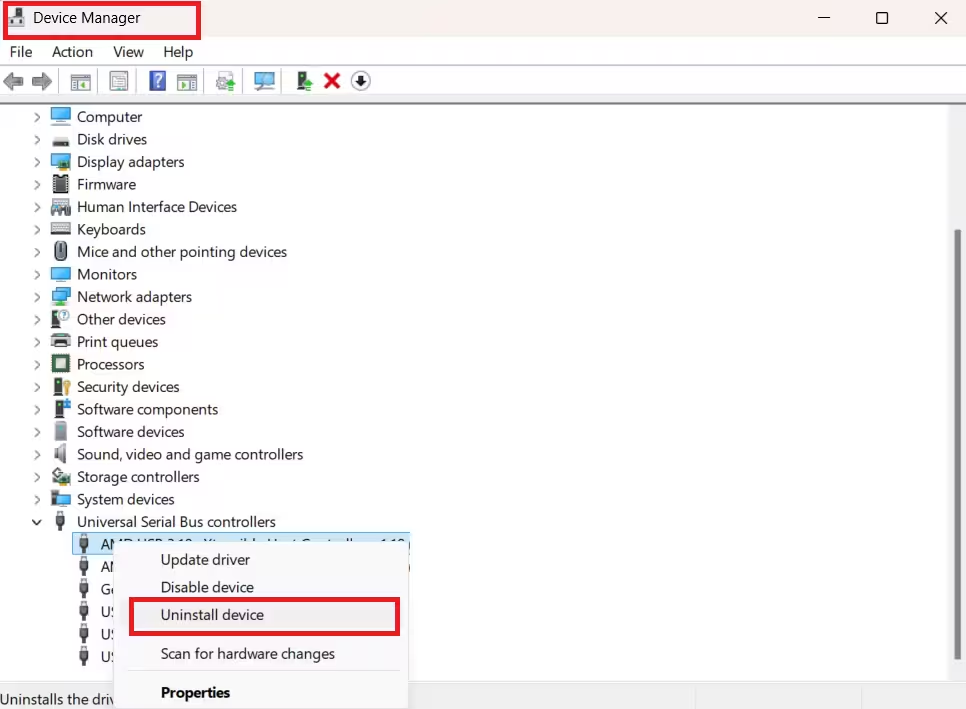
- Click OK to confirm.
- Repeat for every USB controller in the list.
- Restart your PC. Windows will automatically reinstall all USB controllers on the next boot.
Do not worry about losing USB functionality permanently. Windows always reinstalls these controllers automatically on restart.
Fix 5: Disable Hard Disk Hibernation
Hard disk hibernation can interrupt driver loading at startup. Setting the disk to never shut off resolves timing conflicts that trigger the WudfRd error.
- Press Win + X and select Power Options.
- Click Additional power settings to open the Control Panel power view.
- Click Change plan settings next to your active power plan.
- Click Change advanced power settings.
- In the Power Options window, expand Hard disk, then expand Turn off hard disk after.
- Set both On battery and Plugged in to Never.
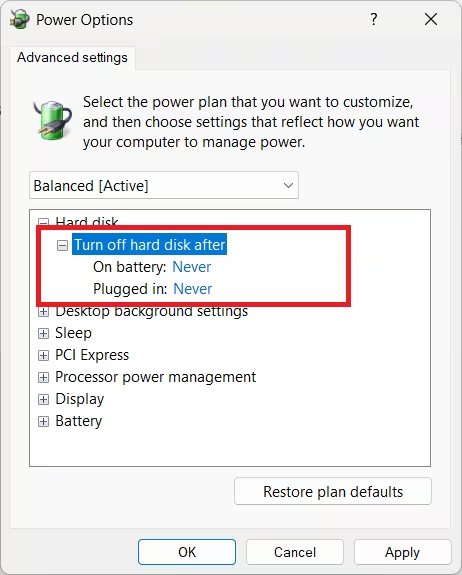
- Click Apply, then OK.
- Restart your PC.
Fix 6: Run an SFC Scan to Repair System Files
A corrupted system file can break the WudfRd driver load process. The System File Checker scans and restores damaged files automatically.
- Press Win + S, type
cmd, right-click Command Prompt, and select Run as administrator. - Run the following command:
sfc /scannow- Wait for the scan to complete. This can take 10 to 15 minutes.
- If SFC finds and fixes issues, restart your PC and check Event Viewer again.
If SFC reports that it found corrupted files but could not repair them, run DISM first:
DISM /Online /Cleanup-Image /RestoreHealthThen run sfc /scannow again after DISM finishes.
How to Confirm the Error Is Fixed
- Press Win + R, type
eventvwr.msc, and press Enter. - In the left panel, go to Windows Logs > System.
- Press Ctrl + F and search for WudfRd.
- If no new Event ID 219 entries appear after your last restart, the error is resolved.
The driver WudfRd failed to load error is annoying but fixable. Start with enabling the Windows Driver Foundation service and updating incompatible drivers since those two fixes resolve the issue for most users. If Event ID 219 still appears after that, work through the USB controller reinstall and SFC scan steps. Once the error stops showing in Event Viewer after a fresh boot, the fix is confirmed.

