DS4Windows lets you connect a PS4 or PS5 controller to your PC and use it as an Xbox controller in games that only support Xbox input. The setup process is nearly identical for both controllers, with a couple of PS5 specific options called out below. This guide walks through pairing the controller, installing DS4Windows, fixing the double input issue, and mapping buttons.
Connect Your PS4 or PS5 Controller to PC via Bluetooth
Pair the controller with your PC before installing DS4Windows so the system detects it correctly. The pairing steps are the same for DualShock 4 and DualSense controllers.
- Open Settings on your PC and go to Bluetooth & devices.
- Click Add device and select Bluetooth.
- On the controller, press and hold the PS button and Share button at the same time until the light bar starts flashing. This puts the controller into pairing mode.
- Select the controller from the device list and click Done to finish pairing.
Download and Install DS4Windows
DS4Windows is a portable application, so it does not install itself the way regular software does. You extract it and run it directly.
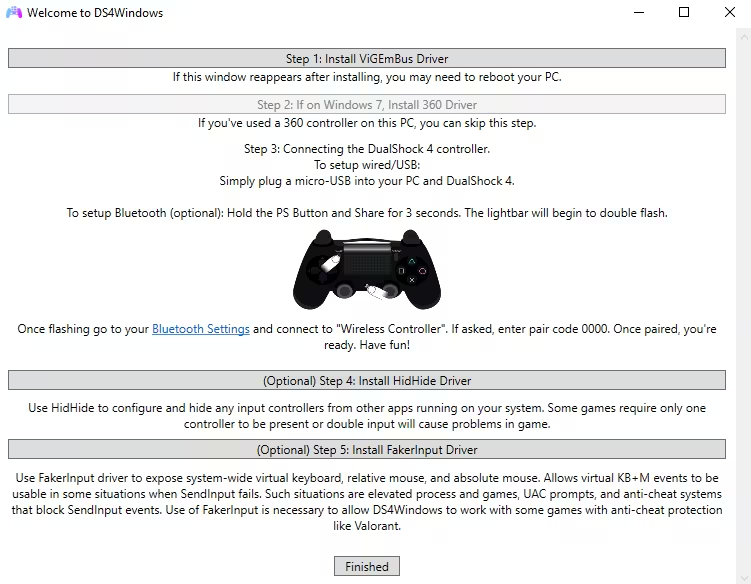
- Go to the official DS4Windows website and download the latest release.
- Extract the downloaded ZIP file using an app like 7-Zip. Right-click the file and select Extract to DS4Windows.
- Delete the ZIP file once extraction finishes, then open the extracted folder.
- Run the DS4Windows application file to launch it.
- If Windows shows a verified app popup, select Install anyway since the source is trusted.
- If prompted to install the .NET Desktop Runtime, click Download it now, then run the downloaded
runtime.exefile and click Install. - Reopen the DS4Windows folder and launch the application again once the runtime finishes installing.
- Choose a folder to save your profiles and settings. Selecting the program folder works fine for most users.
- When the Enable Device Mapper Support popup appears, choose Dual Sense Device Support if you’re using a PS5 controller. If you’re using a PS4 controller, you can leave this at its default setting. Click Close once selected.
- On the welcome screen, click Next, choose your installation location, agree to the license terms, then click Next and Install.
- Once installation completes, scroll down and click Finished.
Configure Your Controller in DS4Windows
Click the Start button in DS4Windows to begin configuring your controller. The app has a few core sections worth knowing.
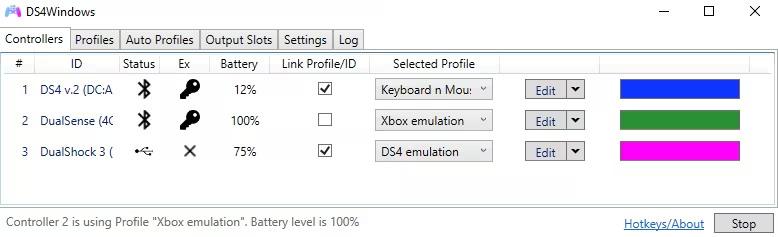
- Controllers: change the LED light color and view controller status.
- Profiles: remap your controller to act as a keyboard and mouse, or emulate an Xbox controller for games that don’t natively support PlayStation controllers.
- Auto Profiles: automatically switch profiles based on which program or game is in focus.
- Output: set your controller as a permanently connected virtual device.
- Settings: adjust general application behavior.
- Log: view real-time input and connection activity.
Keep DS4Windows minimized instead of closing it while you play. Closing the application disconnects the virtual controller and stops it from working in-game.
Fix the Double Input Issue with HidHide
The double input issue happens when a game detects both your real controller and the virtual Xbox controller DS4Windows creates. Every button press then sends two inputs at once, which breaks controls in many games.
- Visit the HidHide setup page and download the tool.
- Install HidHide and open it.
- Add DS4Windows as an allowed application under its app list.
- Hide your physical PS4 or PS5 controller from other applications so only DS4Windows can access it directly.
If you already have HidHide installed and configured correctly, leave DS4Windows’ built-in hiding option disabled. Running both at once can cause conflicts.
Map Controller Buttons in DS4Windows
You can remap any button on your controller to a different input.
- Go to the Controllers tab and click Edit on your connected device.
- Select the Preset option and set the output controller type. Choose DualShock 4 for a PS4 controller or DualSense for a PS5 controller, then click Apply.
- Your current button layout appears below.
- Double-click any button you want to remap, such as Cross.
- A keyboard and controller selector appears. Press the physical button you want to assign to that input.
- Repeat this for each button you want to change.
- Click Save once you’re finished.
Frequently Asked Questions
Do I need to install DS4Windows every time I want to use it?
No. DS4Windows is portable, so you only need to extract it once. Just run the application file whenever you want to use your controller.
Why isn’t my controller working in some games even after installing DS4Windows?
This is usually the double input issue. Install HidHide and hide your physical controller from other applications so the game only reads input from the virtual Xbox controller.
Can I use DS4Windows with both PS4 and PS5 controllers?
Yes. DS4Windows supports both DualShock 4 and DualSense controllers, though the DualSense may need device mapper support enabled during setup for full compatibility.
What happens if I close DS4Windows while playing?
Closing the application removes the virtual controller, and your physical controller stops working as an Xbox controller in-game. Minimize the window instead of closing it.

